Set up marketing sending and deliverability
Updated 13 October 2026
Before you send marketing, choose who it comes from, where replies go, when it may be sent, and which plan covers your volume. The Deliverability tab then shows how healthy your sending is, and lets you suppress addresses.
Steps
Click Marketing in the sidebar. The first time, Rentibly sets Marketing up on the free plan by itself ("Setting up Marketing for your workspace…"). This happens once.
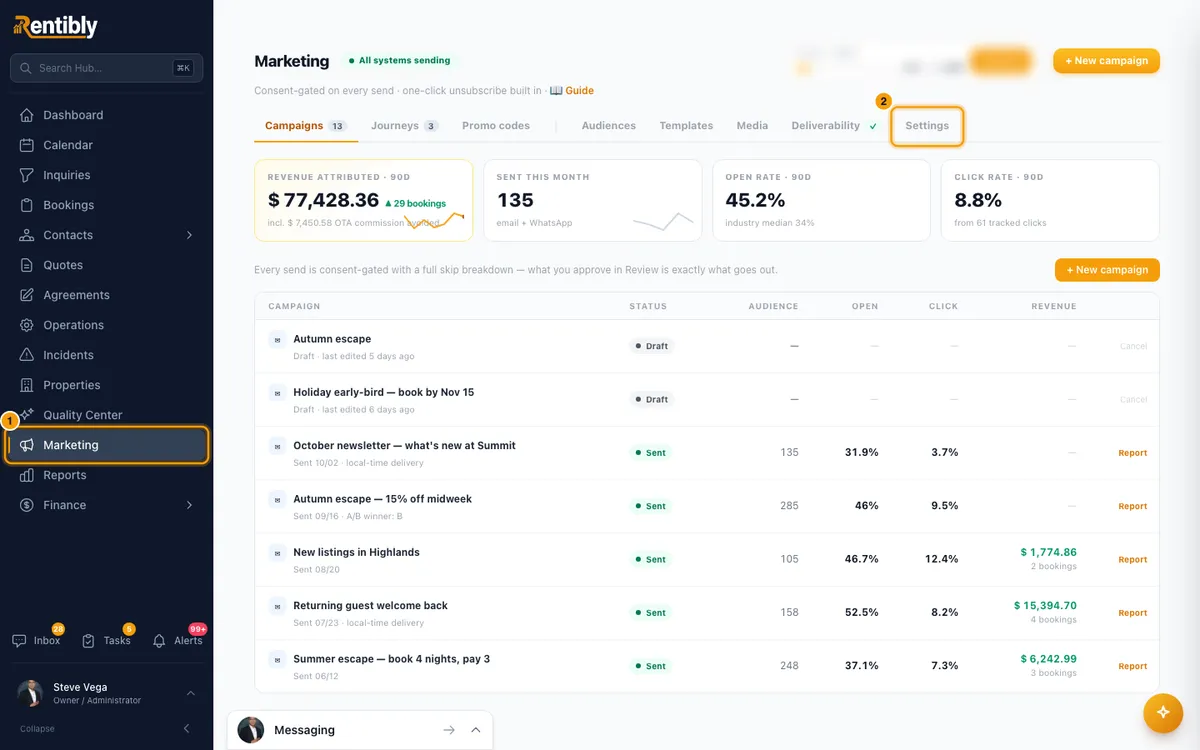
Open the Settings tab.
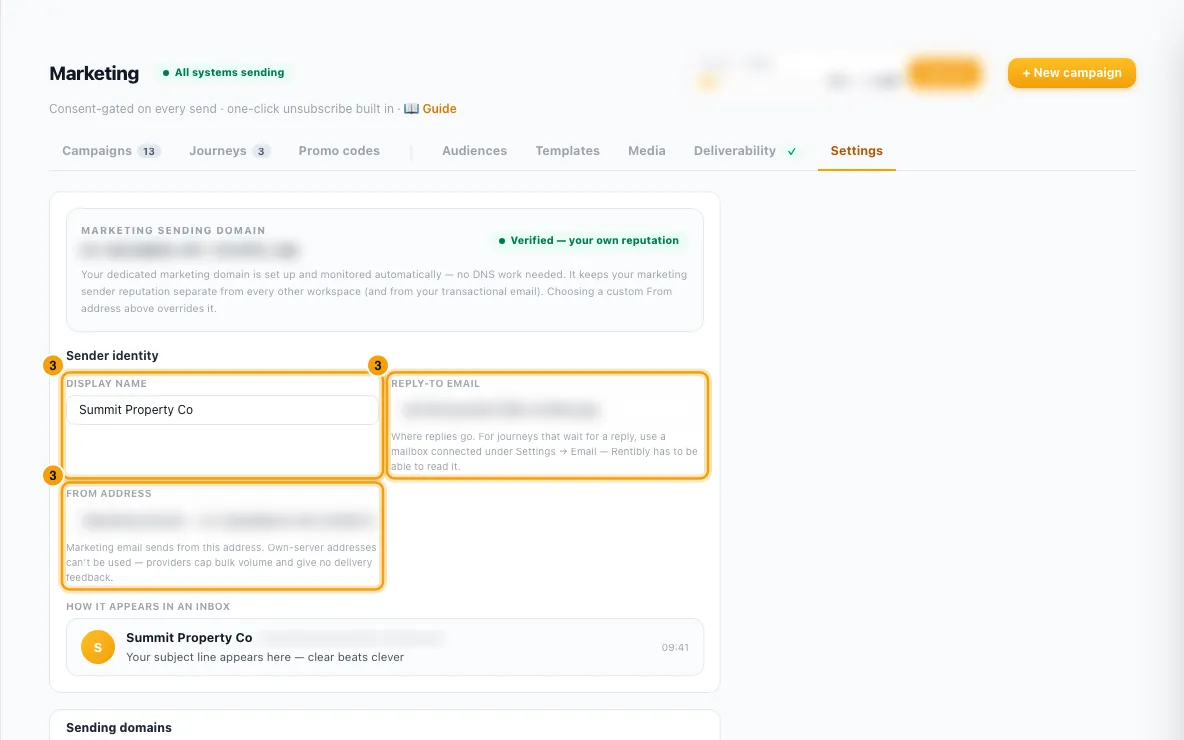
Under Sender identity, fill in Display name and Reply-to email, and pick the From address.
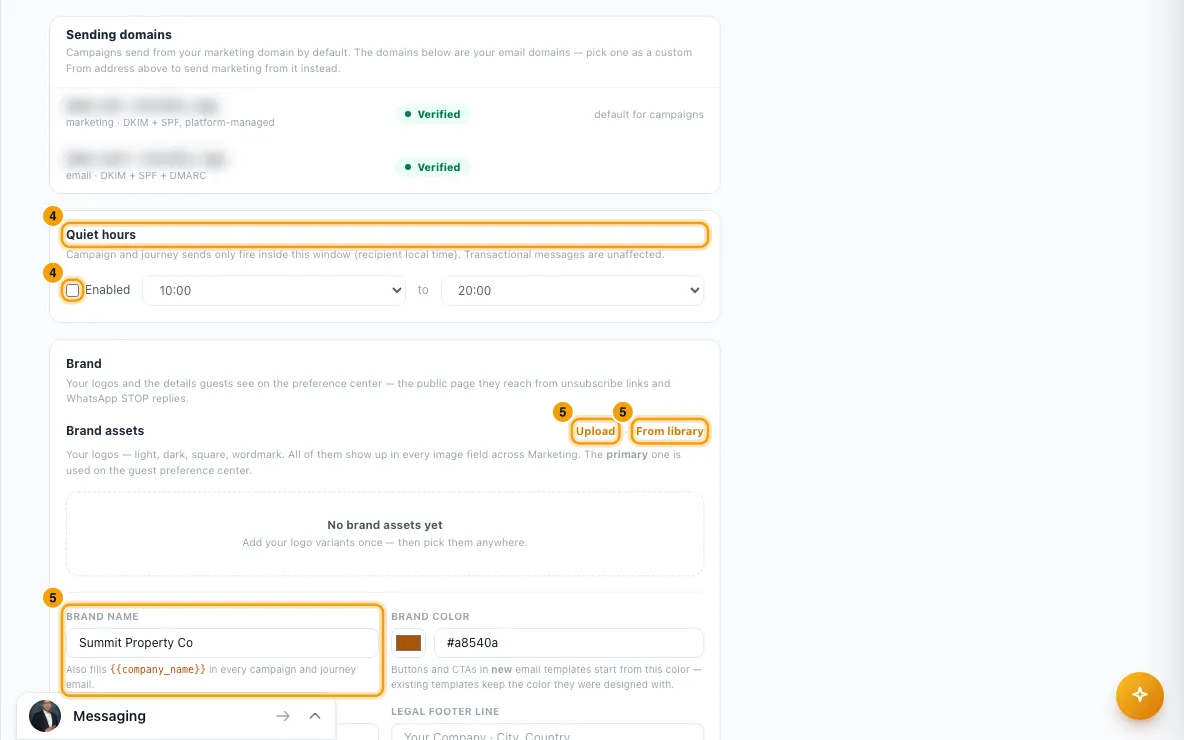
Under Quiet hours, tick Enabled and pick the start and end hour.
Under Brand, add your logos with Upload or From library, and click Make primary on the one guests should see. Fill in Brand name, Brand color, Privacy policy URL and Legal footer line.
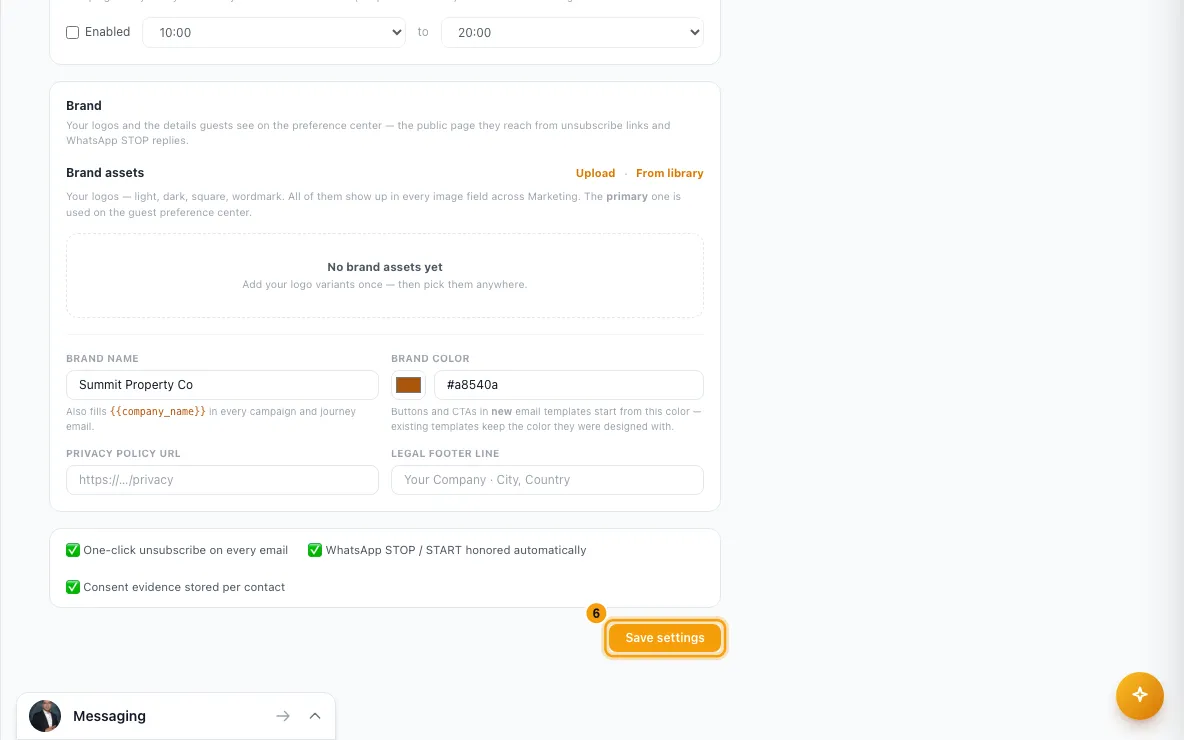
Click Save settings.
To change your plan, click Upgrade (or Manage) on the plan box at the top of the page. Click Upgrade or Downgrade on a plan. For more than the largest plan, click Contact us on Enterprise.
Open the Deliverability tab to check Bounce rate · 90d, Complaint rate · 90d, Suppressed and the Weekly sends chart.
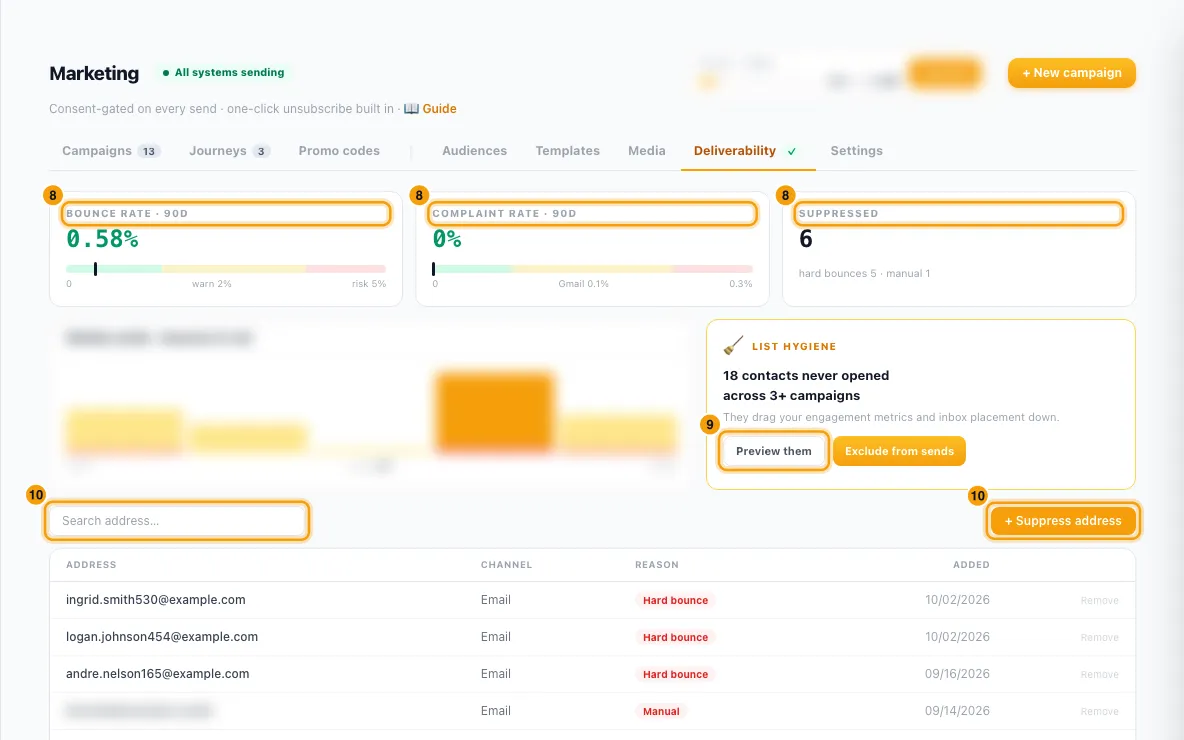
If List hygiene shows contacts who never opened, click Preview them to see who they are, then Exclude from sends and Suppress to stop emailing them.
To block an address yourself, click + Suppress address, type the email address or the phone number (international format, with +), and click Suppress. To unblock one, find it with Search address… and click Remove.
Good to know
- From address: marketing email can only go from a Rentibly-delivered address on a verified domain. Addresses that send through your own mail server are listed but greyed out: those servers cap bulk volume and give no delivery feedback. With such an address, campaigns can't be sent and journeys with email steps can't be activated. Add addresses in Settings → Email (see "Send email from your own domain").
- Marketing sending domain: if your workspace shows a Marketing sending domain card, Rentibly sets up a separate marketing domain for you, with no DNS work. Until it is verified, sends use a shared domain. Picking another From address overrides it.
- Reply-to: if it is empty, the From address only sends, so anyone who replies gets a bounce. A journey that waits for an email reply can't be activated unless the reply-to is a mailbox Rentibly can read (one connected under Settings → Email).
- Quiet hours are on by default, 10:00 to 20:00 in each recipient's local time. Campaign and journey sends only go out inside the window. Other messages, such as booking emails, are not affected.
- Brand name fills
{{company_name}}in every campaign and journey email (your workspace name when empty). Brand color is the starting button color for new email templates only. The primary logo, brand name, privacy link and footer appear on the preference center, the page guests reach from unsubscribe links. - Every email carries a one-click unsubscribe and a preference-center link.
- Plans:
- The free plan includes a monthly allowance. A paid plan is a fixed monthly ceiling at a flat price, billed on your monthly invoice, no card needed. WhatsApp messages are paid separately from your wallet.
- The ceiling is a hard stop and plans never change on their own. Campaign and journey emails both count. WhatsApp messages don't count — they are paid from your wallet.
- The daily allowance is one seventh of the monthly ceiling, so big sends spread over several days.
- At the ceiling, new campaigns are refused and journey sends wait until you upgrade or the month resets. At the daily allowance, journey emails wait a couple of hours.
- You can't downgrade to a plan smaller than what you have already sent this month. The largest plan is 250,000 a month.
- Only people with the Settings permission set to Access (or an admin) can change the plan.
- Health thresholds (email, last 90 days): bounce rate warns at 2% and is risky at 5%; complaint rate warns at 0.1% and is risky at 0.3%. Above the warning lines, the page shows Deliverability needs attention and a ! on the tab.
- Never-openers are contacts who were sent 3 or more campaign emails and never opened one. Exclude from sends adds their email addresses to the suppression list with the reason Manual, and they then drop out of the never-openers count and preview. Contacts with no email address, or already suppressed, are not counted. You can remove each one later.
- Suppressed addresses never receive marketing on that channel, even if they opted in. Reasons: Unsubscribed, Complaint, Hard bounce or Manual. Removing an address lets it receive marketing again, but only if the contact has opted in.
- On a contact's Marketing tab, Opt out also suppresses their address, and Opt in removes it from the suppression list.
- You need the Marketing permission at Edit to change these settings and suppressions. View shows them.
Rentibly AI can help
- Rentibly AI can't change Marketing settings, plans or suppressions yet. It can explain what each one does.
Still stuck?
Open Support from your profile menu in Rentibly, or email hello@rentibly.com — we answer fast.