Set up shifts (working hours for your team)
Updated 13 October 2026
A shift is a weekly working-hours pattern (days, times, timezone and holidays) and the people who work it. Anyone without a shift is expected to work your company's business hours.
Steps
Click your name at the bottom of the sidebar, then Settings. Under Users & Access, open Shifts.
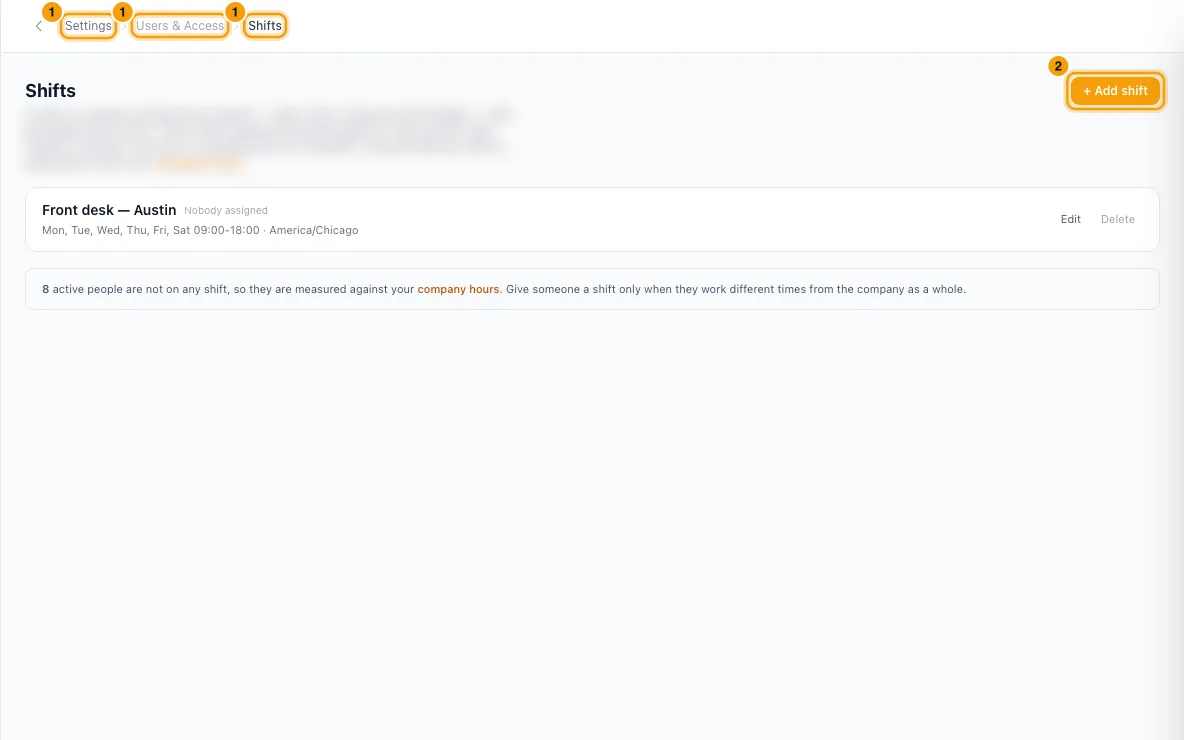
Click + Add shift.
Type a Name, such as "Night shift".
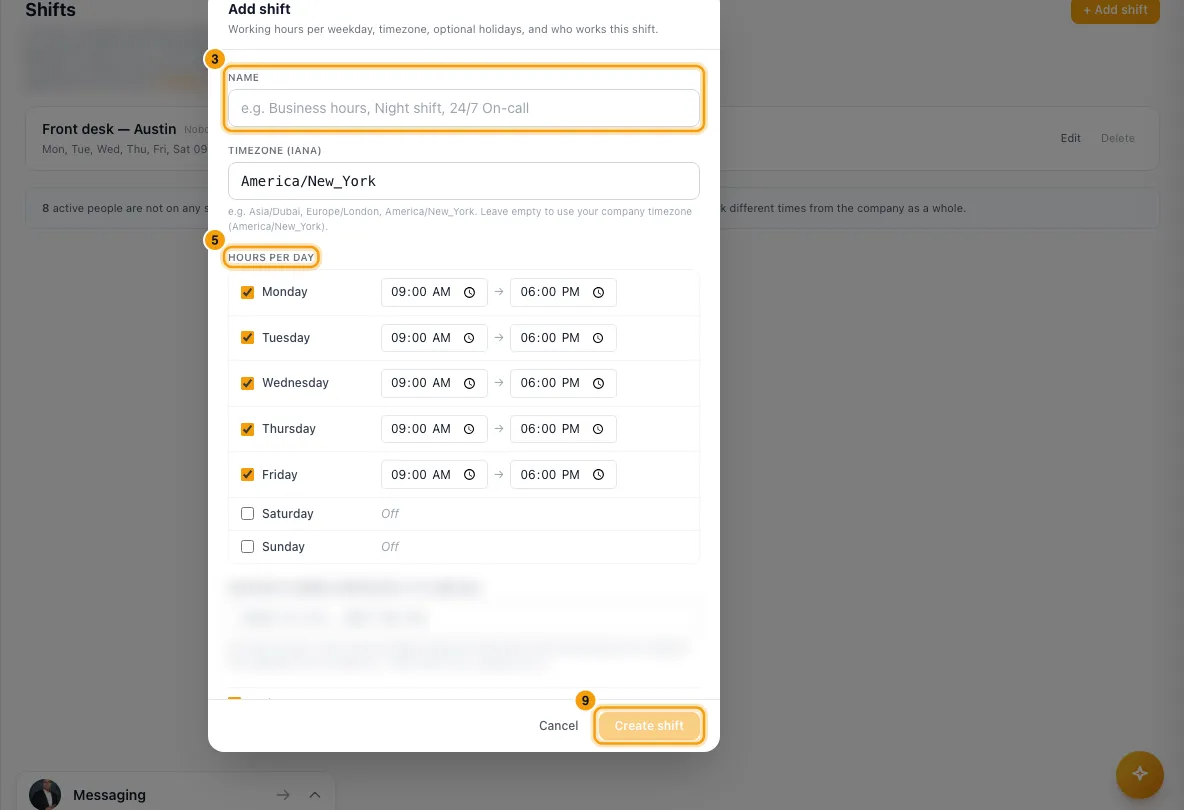
Check the Timezone (IANA). A new shift starts with your company timezone from Company Profile; change it if this shift works in another one, such as Europe/London.
Under Hours per day, tick each working day and set its start and end time. Unticked days show Off.
Add any Holidays as dates, separated by commas (for example 2026-12-25, 2027-01-01).
Leave Active ticked.
Under Who works this shift, tick the people on it.
Click Create shift. To change a shift later, click Edit on its row, then Save changes.
Good to know
- What shifts are used for:
- The Agent Scorecard report: each agent's reply times are measured on their own shift, so someone on nights isn't judged against office hours.
- Shifts don't change support deadlines. Response deadlines always follow your company Business hours on Company Profile, whoever the ticket is assigned to. See Change your company profile, timezone, date format and business hours.
- One shift per person. Ticking someone moves them off any other shift; the list shows "Moving from:" next to their name. Unticking leaves them on no shift.
- People on no shift, on an inactive shift, or on a deleted shift are measured against your company business hours. The page tells you how many active people have no shift.
- An end time earlier than the start time is an overnight shift (for example 19:00 → 04:00 the next day). Start and end can't be the same time.
- Type the timezone in the Area/City form. Rentibly refuses one it doesn't recognise. Leave it empty to use your company timezone.
- Changing a shift's hours, or moving someone to another shift, only counts from now on. Past weeks are still judged against the hours that applied at the time.
- Deleting a shift asks you to confirm. Its people fall back to your company hours until you give them another shift.
- Everyone can see shifts. You need Access on Settings in your role to add, change or delete them.
Rentibly AI can help
- Rentibly AI can't create or change shifts yet. Use the Shifts page.
Still stuck?
Open Support from your profile menu in Rentibly, or email hello@rentibly.com — we answer fast.