Rentibly Team & Permissions — Overview
2:44 · 9 chapters · Watch on YouTube
Chapters
Read the transcript
Hey, and welcome to this overview of your team settings in Rentibly. We'll look at your users, how to add someone, build a role with exactly the access it needs, then teams, working-hour shifts, job titles and dashboards. Here's everything we'll cover. Every chapter's start time is right here, and in your player — so if you're after something specific, jump straight to it. Let's dive in.
Your team lives in Settings, under Users and Access. Everyone's here: their job title, their role, whether they've turned on two-step sign-in, and when they last logged in.
Add User takes a name, an email, a role and a job title, who they report to, and a first password — they choose their own the first time they sign in. I won't create this one.
Each person's menu lets you edit them, give them their own permissions on top of their role, reset their password, or switch them off when they leave — their history stays.
Roles decide what people can do. There are four built in — admin, agent, manager and operations. Let's make a Revenue Manager: a short name for the system, and the name people see. Start from Manager, then adjust module by module — no access, view, or edit. Marketing on, owners view-only. And Create role.
Teams group people together — a lead and members — so work can go to a team, not just one person. Here's Field Operations, and Reservations.
Shifts set working hours. A front desk team in Austin: their timezone, Monday to Saturday, nine till six — and holidays, when the response-time clock stops. Then tick who works it, and Create shift.
Job titles are the names people see next to each person. And Dashboards and Reports decides which dashboards each role can open.
Thanks so much for watching! If you're already on Rentibly, open Settings, Users and Access, and check every role has just the access it needs. And if you're not on Rentibly yet, book a demo call, and we'll show you all of this, live.
Your people and what they can do: users, adding someone, building a role with exactly the access it needs, teams, working-hour shifts, job titles and dashboards. Shown live on a real Rentibly workspace.
Up next
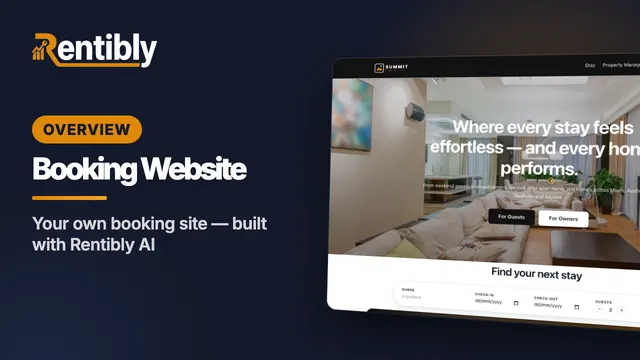 9:13
9:13Overview
Booking Website
Your own direct-booking website: make it your brand, build pages section by section, have Rentibly AI write a custom section from one sentence, follow a guest from your home page to their quote, read your website analytics in depth, and add booking widgets to any website. Shown live on a real Rentibly workspace.
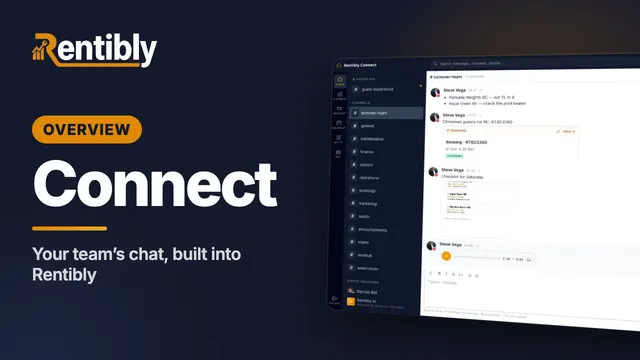 7:07
7:07Overview
Connect
Your team's own chat, built into Rentibly: channels and threads, a private channel set up from scratch, formatting, mentions, booking cards, files and voice notes, forwarding, reactions, pins, scheduled messages, your status — and calls. Shown live on a real Rentibly workspace.
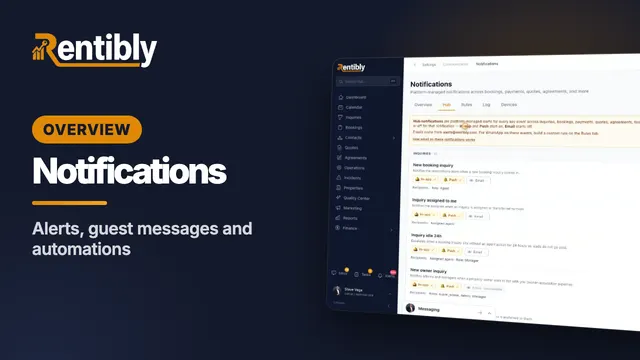 3:52
3:52Overview
Notifications & Automations
Every alert and message your business sends: team alerts, building a message rule for guests, the notification log, email and WhatsApp templates, automations that do the routine work, and response-time targets. Shown live on a real Rentibly workspace.
Count your subscriptions. Then count ours.
A 30-minute demo on your numbers — every tool you pay for today, mapped to its native Rentibly module.
Book a demo