Rentibly Dashboard — Overview
11:01 · 14 chapters · Watch on YouTube
Chapters
Read the transcript
Hey, and welcome to this overview of the Rentibly dashboard! I'm going to walk you through every board — what needs action today, how the business is doing, your sales, your team, your money — and how to check any number, right down to the records behind it. Here's everything we'll cover. Every chapter's start time is right here, and in your player — so if you're after something specific, jump straight to it. Let's dive in.
Hey — welcome to your Rentibly dashboard. This is the first thing you'll see every time you sign in, and it's built to answer three questions. How's the business doing? What's coming up? And what needs me, right now? Let's walk through every bit of it. See this menu up here? It switches boards. There are seven of them — Command Center, Analytics, Today, Inbox Analytics, Reservations, Operations, and Finance — and each one's built for a different job. We'll start right here on the Command Center, and I promise we'll get to every other one.
First, this strip across the top — Needs action. Every chip here is something waiting on you, with a count and the money attached. Overdue payments. Balances due before arrival. Security deposits. Unsigned agreements. Guests who should've checked in or out. Open incidents, expiring permits — and owner statements waiting for your approval. Now watch — click any chip, and it jumps you straight down to that list. And every row opens the record right on top of the dashboard. Here's that electrical incident at Aqua Tower 6E — where it stands, who owns it, and the guest and booking it affected. I'm just looking, so I'll close it… and I'm right back where I was.
Back up top: Performance. Eight headline numbers for whatever period you pick. Revenue, bookings, cash collected, occupancy, your average daily rate, revenue per available night, how much comes in direct, and cancellations. Every one shows the change against the period before — and that little line tells you which way it's heading. Want a different period? The switch is right above them. Last month… This year… and back to this month. Everything in this section follows along.
Here's my favourite part. A number on its own isn't much use if you can't check it — so click any tile, and you get the actual records behind it. Every booking that makes up this month's revenue, with its status and its amount. And yes — each of those opens too. Here's the booking itself: the dates, the guest, the property, and where it came from. Again, just looking. Ever wondered how a number is actually worked out? That's what the small i is for. It tells you, in plain words, what's counted, which dates it goes by, and whether cancelled bookings are in or out. And the star right next to it? That asks Rentibly AI to explain the number for you. It works out the exact same figure the tile shows, then goes digging — which properties are lifting it, which are dragging it down, and how it compares with last month. And there it is — up about three points on last month, Aqua Tower 6E leading the way. Plus three properties at zero worth a look.
Below the tiles, two charts. Revenue trend is your revenue, month by month — and it's got its own window, anywhere from six months to a full year. Every chart has its own i to explain it, plus a button to export the data behind it. And right next to it, revenue by category — the same money, split into accommodation, taxes and fees. Now, Outlook. This one looks forward, and it always starts from today. Occupancy for the next thirty and ninety days, the revenue already on the books, and how it's spread across the year ahead — so a quiet month shows up while there's still time to fill it. And down at the bottom — the full Needs action worklist. Same items as the chips, but as lists, biggest amounts first. Every row is one click from the record, and it all updates on its own. Nothing to refresh, ever.
Okay — let's go explore the other boards. Today is all about running the day. And notice: the same Needs action strip sits on top, so nothing urgent gets lost when you switch. Run the day is live. Arrivals, departures, who's in house, and today's occupancy — and underneath, the actual list, with check-in times and any balance still due. Click a row, and you're in the booking. Sales today counts the inquiries and quotes that came in today, how many converted, and any quotes expiring today — so you can chase them before they lapse. Then operations: every job and task that's overdue or due today, most overdue first. What it is, where it is, who's got it — and how late it's running.
Now the Operations board — this one's for whoever runs your field team. Workload shows you who's carrying what. Open, overdue and due today for each person on the team — and the same split by type of work. So you can spot where things are piling up, before they become a problem.
Over to Reservations — your sales funnel. Let me switch it to this year. A hundred and sixty-five new inquiries, twenty-three converted — that's about fourteen percent. Eighteen quotes out, eight accepted. And see that one in red? Eighty-eight inquiries nobody's picked up in over a day. That's the number I'd chase first. Pipeline is right now: every open inquiry by stage, plus any quote that's still waiting on a guest to decide. Sources shows where your inquiries come from — direct is leading here — and which sources actually turn into bookings. And at the bottom, the next seven days: twenty-nine check-ins, thirty-two check-outs.
Inbox Analytics is for your guest support team. Again, let's look at this year. Up top, the live pressure — open threads, guests waiting on a reply, anything unanswered for over a day — right next to your average response time, and how often you hit your reply target. Below that — ticket volume against missed targets, day by day. Then the team leaderboard. Who handled the most — that's Alex Morgan, with twelve — how quickly they replied, and who's got guests waiting. And the mix: which channels tickets come in on, and how long guests wait for that first reply.
Now — the money. Let me switch to Finance. It's got a full filter bar across the top. I'll look at this year so far, and every figure on the page can be narrowed by area, by source, or by number of bedrooms. Management income is what you actually keep: the commission you earned, the fees you kept, your net income — and your take rate on everything you managed. Cash puts what you earned right next to what actually landed in the bank. Collected, earned, outstanding, overdue, refunds — with both trends side by side. Receivables ages what guests owe you — under thirty days, thirty to sixty, over sixty, and not yet due — then lists every balance, biggest first. Then owners and balances. What you owe your owners, the statements waiting for your approval, what's been paid out, and what guests still owe. And below that, security deposits, plus revenue by category and by source.
Last board — Analytics. This is where you slice and explore. I'll set it to this year: nearly four point four million in revenue, across sixteen hundred and thirty-eight bookings. Now pick an area — let's say Venice — and watch: every number and every chart narrows to just those properties. You can narrow it further by source and by bedroom count. And this Bookings by switch changes how the booking charts count: by the day the booking was made, the day the guest arrives, or the nights they're staying. Reset clears it all — back to the whole portfolio. I'll put the dates back to this year, and we'll walk down through the charts. Performance breaks revenue down every way you'd want. Direct against the online travel agencies, by source, by area, your top properties — plus occupancy and rate by area, and by bedroom count. Production is your sales pace: bookings over time — by source, area and size — and the inquiries each source sends you, next to how many of them convert. Then source performance: bookings, revenue, nightly rate, length of stay, how far ahead guests book, and cancellations — for every channel, and exportable in one click. And the guests section? New guests against returning ones.
Last thing — who sees which board. In Settings, under Dashboards and Reports, every role gets the boards it needs, plus a default to land on. So here, an agent sees Today, Reservations and Inbox Analytics, and lands on Reservations. And under Preferences, you decide how revenue is counted: spread across the nights of the stay, on arrival, on departure, or on the day it was booked. Owner statements keep their own setting. And you can choose whether blocked nights count towards occupancy. Alright — let's head back to where we started. And that's the Rentibly dashboard! Seven boards, one for every job. Every number clicks through to the records behind it — and one list of everything that needs you, right now.
Thanks so much for watching! If you're already on Rentibly, open your dashboard and click any number — see what's behind it. And if you're not on Rentibly yet, book a demo call, and we'll show you all of this, live.
Every board on the Rentibly dashboard, shown live on a real workspace: what needs action today, how the business is performing, your sales pipeline, your team, and your money — and how to click any number to see the records behind it.
Up next
 4:57
4:57Overview
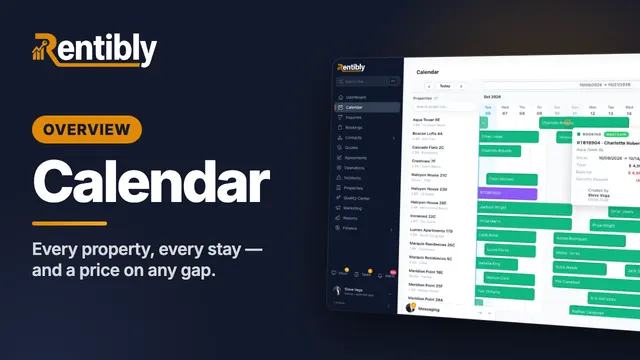
Calendar
Read every property and every stay at a glance, get anywhere in the year in a couple of clicks, find exactly the right gap — and price it on the spot. Shown live on a real Rentibly workspace.
 13:08
13:08Overview
Rentibly AI, part 1
Run your Rentibly business just by asking, shown live on a real workspace: your morning briefing, numbers you can trust and the reasoning behind them, owner payouts, incidents, listings, your inbox, your team, WhatsApp offers, email journeys and your bills — and how Rentibly AI does real work, with you approving every single change.
 6:36
6:36Overview
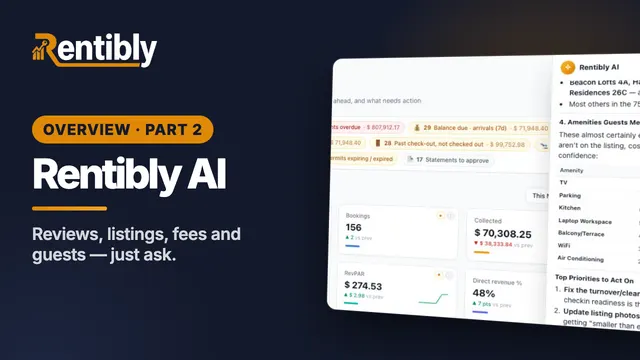
Rentibly AI, part 2
Rentibly AI, part two — shown live on a real workspace: where your portfolio is falling short across reviews, why a listing isn't getting booked, a fee analysis against similar properties, guest requests turned into tasks, upsells and announcements done by the rules, and a tidy inbox. You approve every change.
Count your subscriptions. Then count ours.
A 30-minute demo on your numbers — every tool you pay for today, mapped to its native Rentibly module.
Book a demo