Build agreement templates (who signs, fields, categories)
Updated 13 October 2026
An agreement template is the document you send for signature again and again: the text, who signs it and in what order, and the fields to fill in. You build it once, then send it from Agreements (see Send an agreement for e-signature (management, vendor, NDA…)).
Steps
Create a template
Go to Agreements and click Templates, or go straight to Agreements templates.
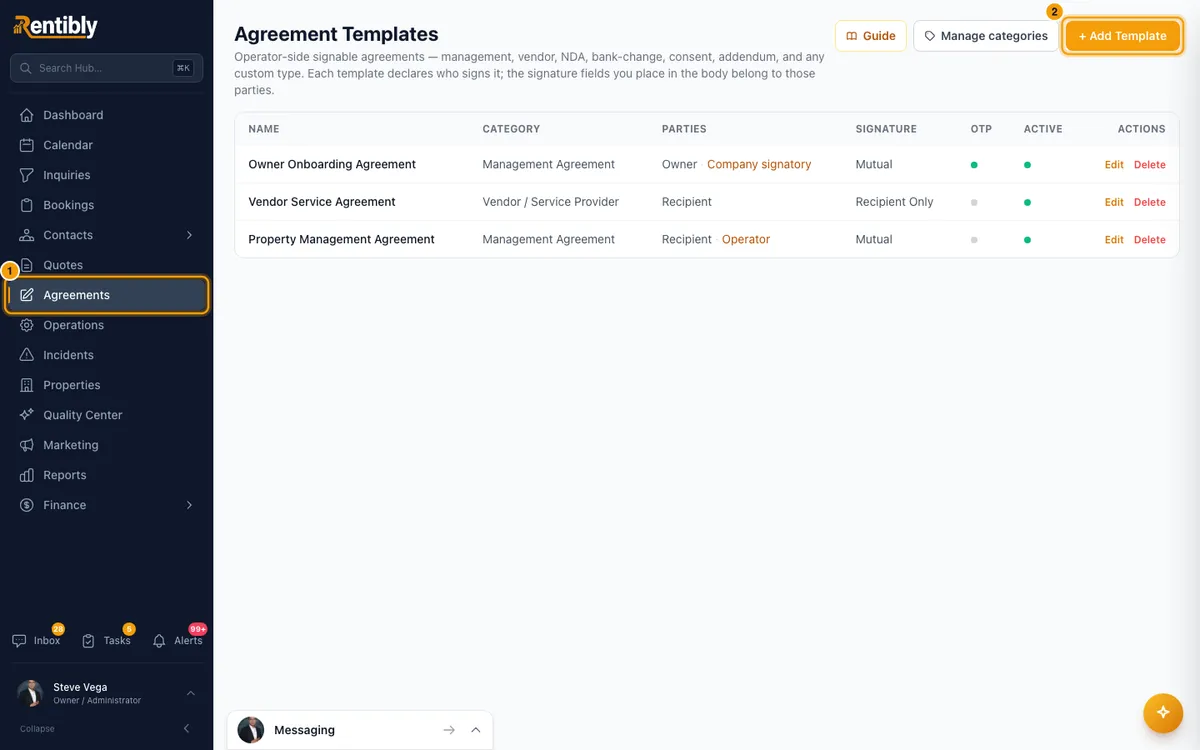
Click + Add Template. To change one, click its row or Edit.
Under Identification, enter a Name. Add a Description and pick a Category if you like.
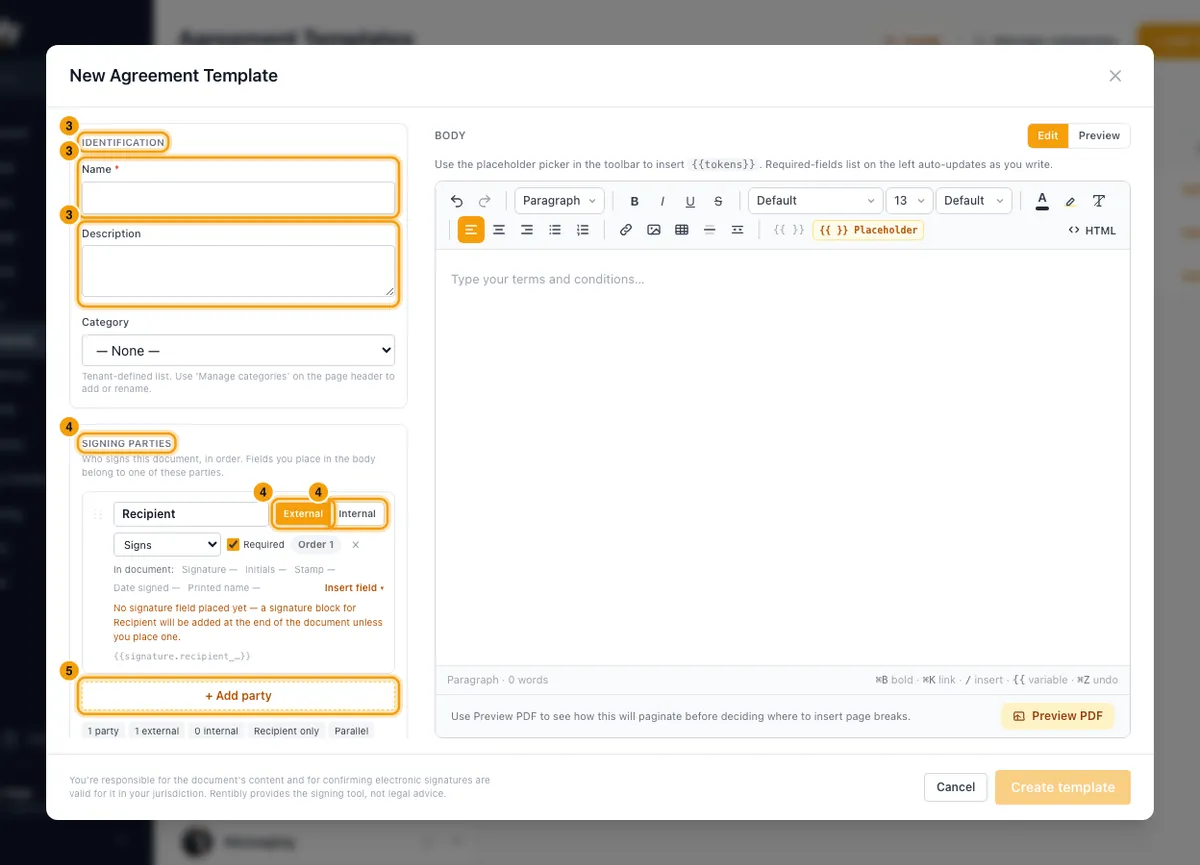
Under Signing parties, set who signs. A new template starts with one party, Recipient. For each party:
- Type its name, such as "Owner" or "Company signatory".
- Choose External (a contact, who signs from a link) or Internal (someone on your team, who signs from the agreement page).
- Choose what they do: Signs, Approves, Acknowledges or On record only.
- Tick or untick Required.
Click + Add party to add another. Drag a party by ⋮⋮ to reorder, or click × to remove it.
With two or more external parties, choose the Signing order: Everyone at once or In sequence, top to bottom.
Write the document in the Body on the right. Use the placeholder picker in the toolbar to insert details such as the contact's name or the property address.
To place a party's signature, click in the body, then click Insert field ▾ on that party and pick Signature, Initials, Stamp, Date signed or Printed name.
Under Signing security, choose Require OTP, Require identity verification to view, and the Default signing window (days).
Under Required fields, click each field that should have a value before the agreement is sent. Only fields already in the body are listed.
To add your own fields, click + Add custom field under Custom placeholders. Give it a label, pick its type (Text, Long text, Number, Date, Email or Phone), pick who fills it (Operator (filled at send time) or Contact (filled at signing time)), and tick Required if needed. Click ↳ Insert to put it in the body.
Under Visibility, leave Active ticked.
Click Preview above the body to see it with sample values, then Edit to go back.
Click Create template (or Save changes).
Manage categories
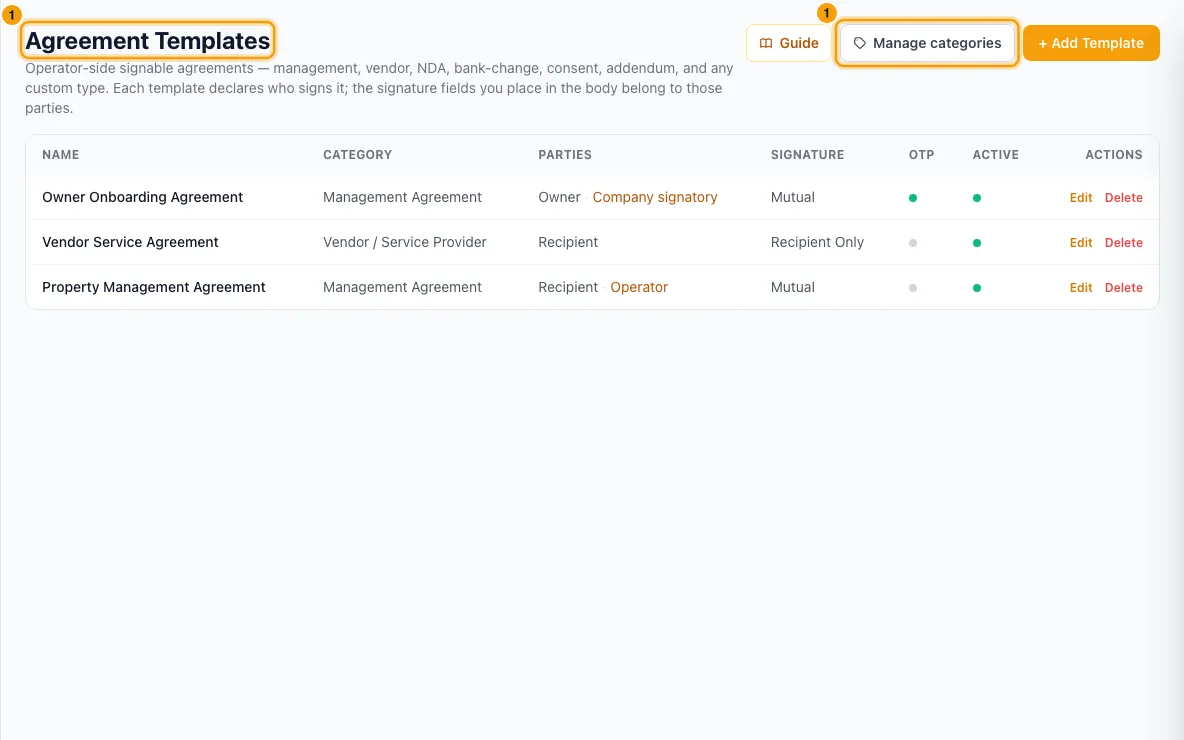
On Agreement Templates, click Manage categories.
Enter a New category label, pick a Color, and click Add.
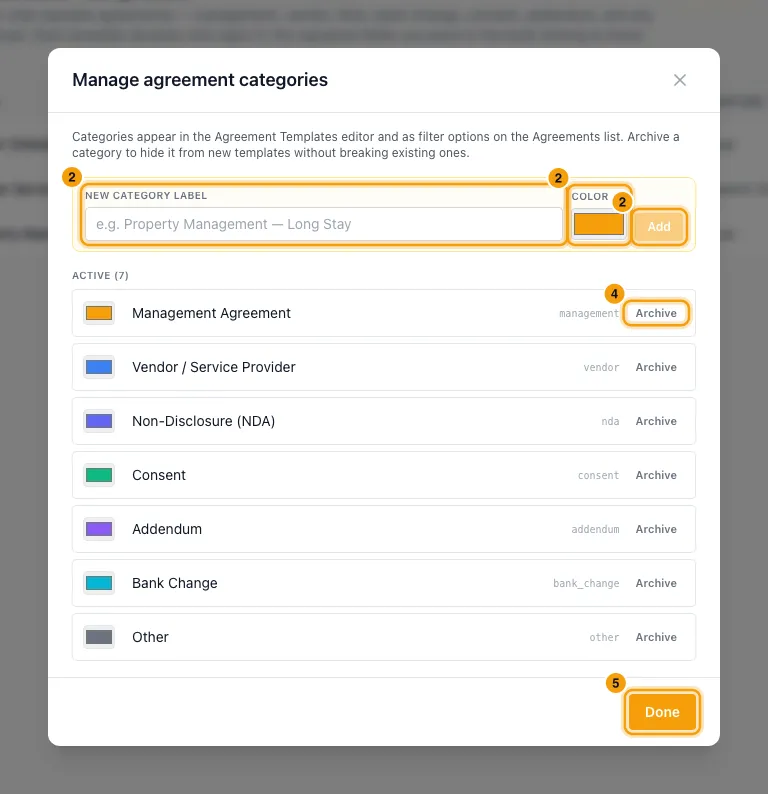
To rename one, edit its name; it saves when you click away. Click the colour square to change its colour.
Click Archive to hide a category from the picker, or Restore to bring it back.
Click Done.
Good to know
- Order: parties with the same order number act at the same time; a higher number waits for the lower ones. Internal parties are always placed last: they sign from the agreement page once every recipient has signed.
- What each action means: Signs draws a signature. Approves clicks once after verification, with no signature pad. Acknowledges types their name. On record only is just named on the agreement: nothing is sent to them (not the link, not the signed copy) and they sign nothing.
- Missing signature field: if you don't place a signature field for a party, a signature block for them is added at the end of the document. Each party's line shows which of its fields are already in the document.
- Field names lock: a party's field id (shown as
{{signature.<id>_…}}) follows its name until you place one of its fields, then it stops changing so the document keeps working. - The type of agreement follows from the parties: with an internal party, both sides sign (your company signs last). If every party only acknowledges, it is an acknowledgment. Otherwise only the recipients sign.
- Require OTP (on by default): signers must enter a 6-digit code before they can sign. Require identity verification to view (off by default): they must enter a code before they can even read it. Use it for bank details, ID copies or salaries.
- Default signing window is 1 to 365 days (30 by default). It can be changed for each agreement when you send it.
- Custom fields: operator fields are asked on the Details step when you send; a required one must be filled before you can continue. Contact fields are asked of the signer on their signing page.
- Saving checks the document. It is refused, with the reason, if a placeholder can't be filled (the message names the nearest real one), a party has no name or a name over 80 characters, two parties share an id, or no party signs, approves or acknowledges.
- Editing a template doesn't change agreements already created from it: each agreement keeps its own copy of the text.
- Active decides whether the template is offered in Request Signature. Untick it to stop using a template without deleting it.
- Delete asks you to confirm and removes the template for good. It is not blocked when agreements were made from it.
- Required fields are a warning, not a block. When you send an agreement and one of them is empty for that recipient, you see the empty fields by name and choose Send anyway or Cancel. Fields the contact fills at signing time, and signature fields, are not checked. A custom field's own Required tick is separate: see Custom fields above.
- There is no default template per category. A new Request Signature starts with no template chosen.
- Archiving a category doesn't change templates or agreements that use it.
- The Templates button shows only on a computer screen, not on a phone.
- Permissions: saving or deleting templates needs the Settings permission set to Access. Adding, renaming or archiving categories needs Agreements at Edit.
- Guest rental agreements for bookings use separate templates: see Have the guest sign the rental agreement.
Rentibly AI can help
- Ask "which agreement templates do we have?" and it answers with: who signs each one and which fields you fill.
- It can't create or edit templates yet.
Still stuck?
Open Support from your profile menu in Rentibly, or email hello@rentibly.com — we answer fast.