Send an agreement for e-signature (management, vendor, NDA…)
Updated 13 October 2026
Agreements are the documents your company signs with owners, vendors and others: management agreements, NDAs, bank-change forms, consents, addenda. You pick a template, choose who signs, and Rentibly sends each signer their own signing link. A guest's rental agreement for a booking is a different flow: see Have the guest sign the rental agreement.
Steps
Send an agreement
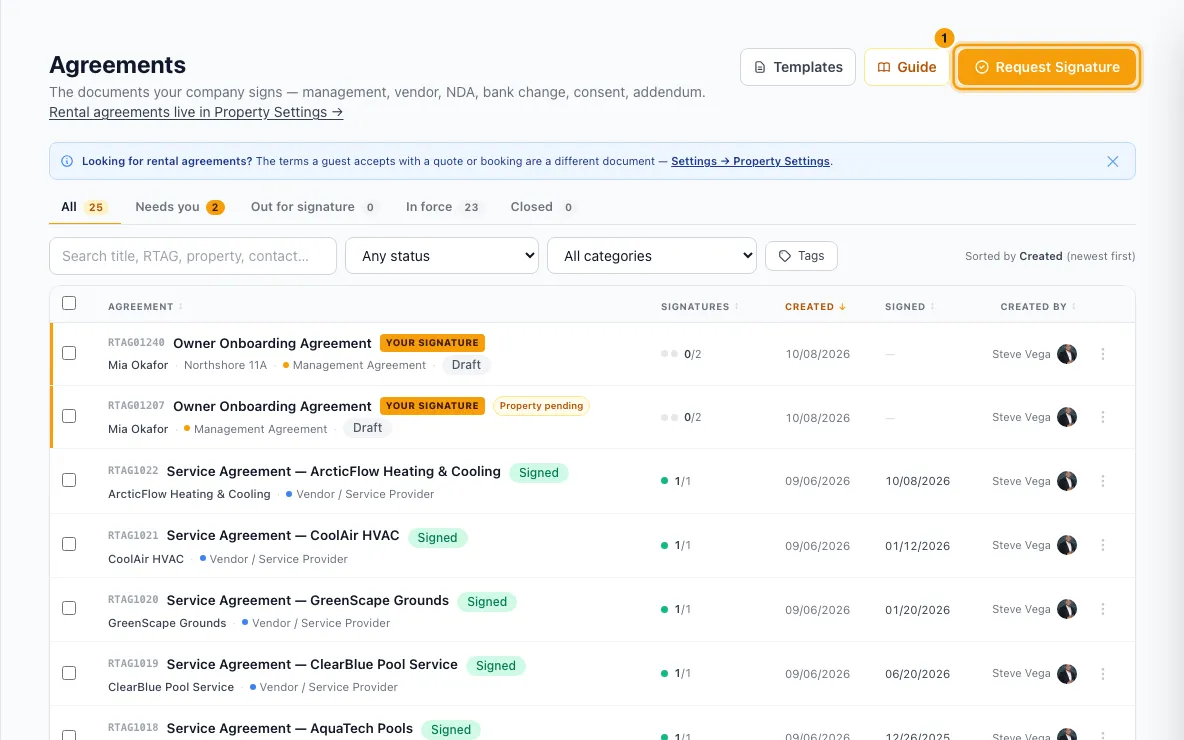
Go to Agreements and click Request Signature (on a phone, Request). You can also open a contact and choose Request Signature from its actions menu: that contact becomes the first signer.
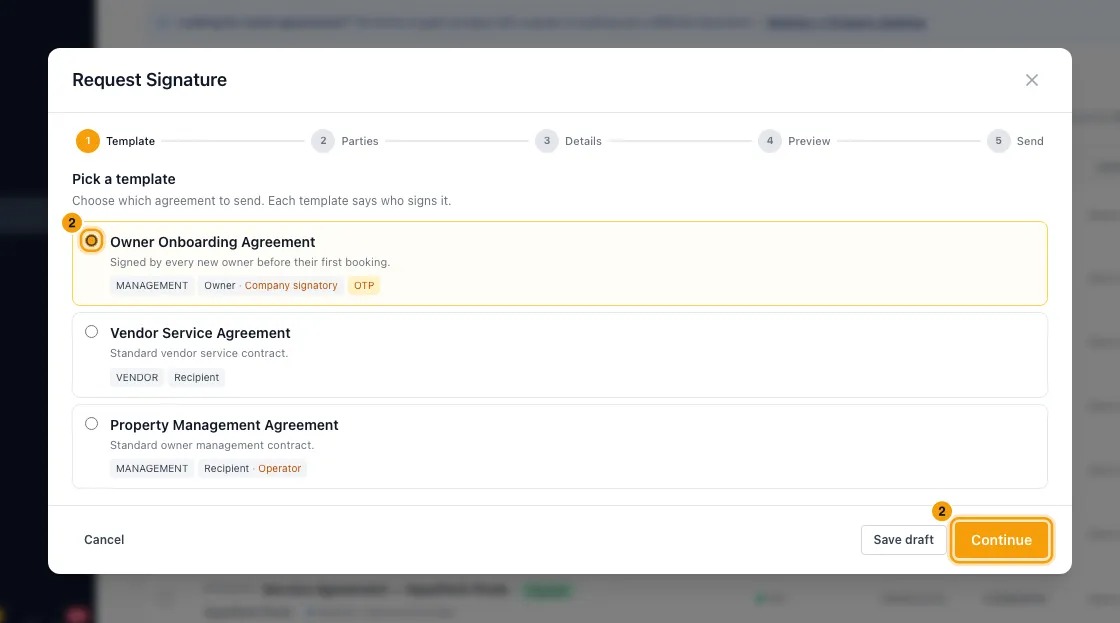
Template: pick the template and click Continue. Each one shows who signs it.
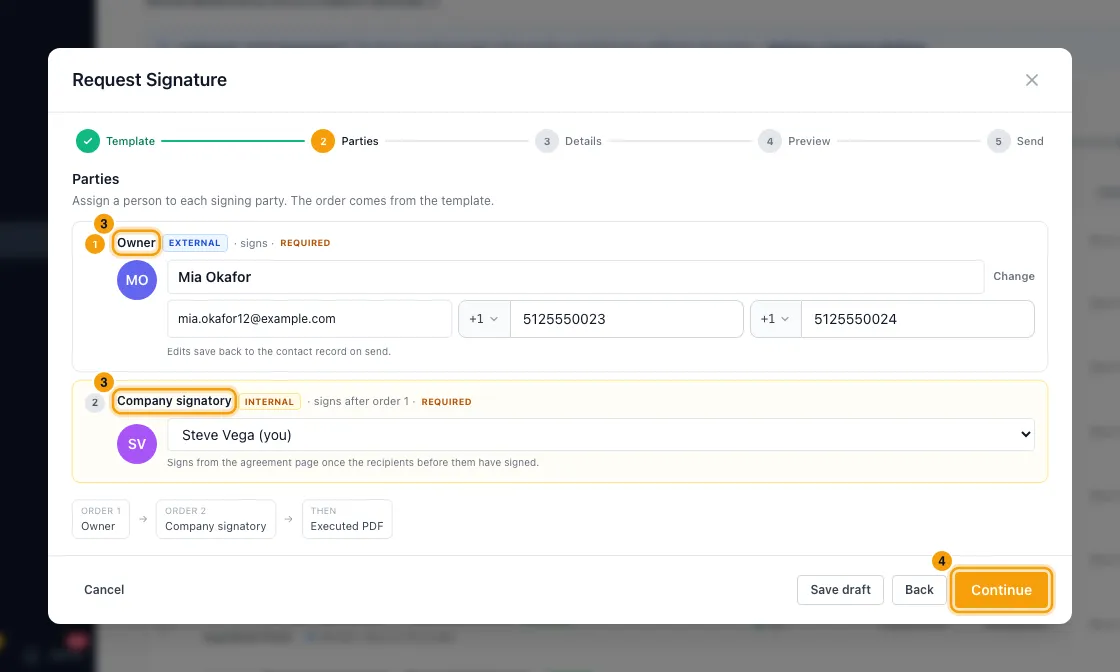
Parties: give each party a person.
- For an outside party (External), search your contacts, or click + New contact, enter a first and last name plus an email or phone, and click Create & assign. You can correct their name, email, phone or WhatsApp right there.
- For your own side (Internal), pick a team member. It is you by default.
- An optional party can be left out with Skip.
Click Continue.
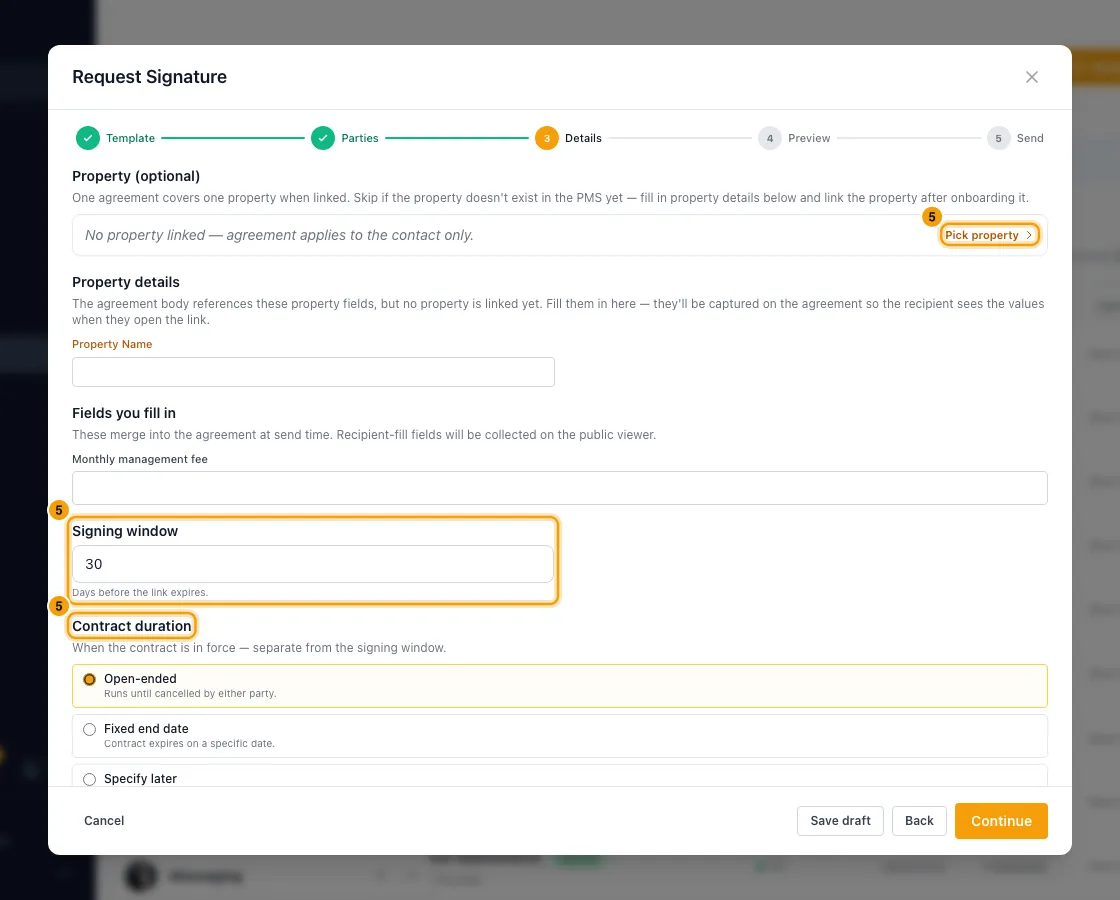
Details: fill in what the document needs.
- Property (optional): click Pick property if the document uses property details. Skip it if the property isn't set up in Rentibly yet, and type the values under Property details instead.
- Fill any Missing contact details, Other details this document asks for and Fields you fill in.
- Signing window: how many days the links stay open.
- Contract duration: Open-ended, Fixed end date (then set Effective from and Effective until) or Specify later.
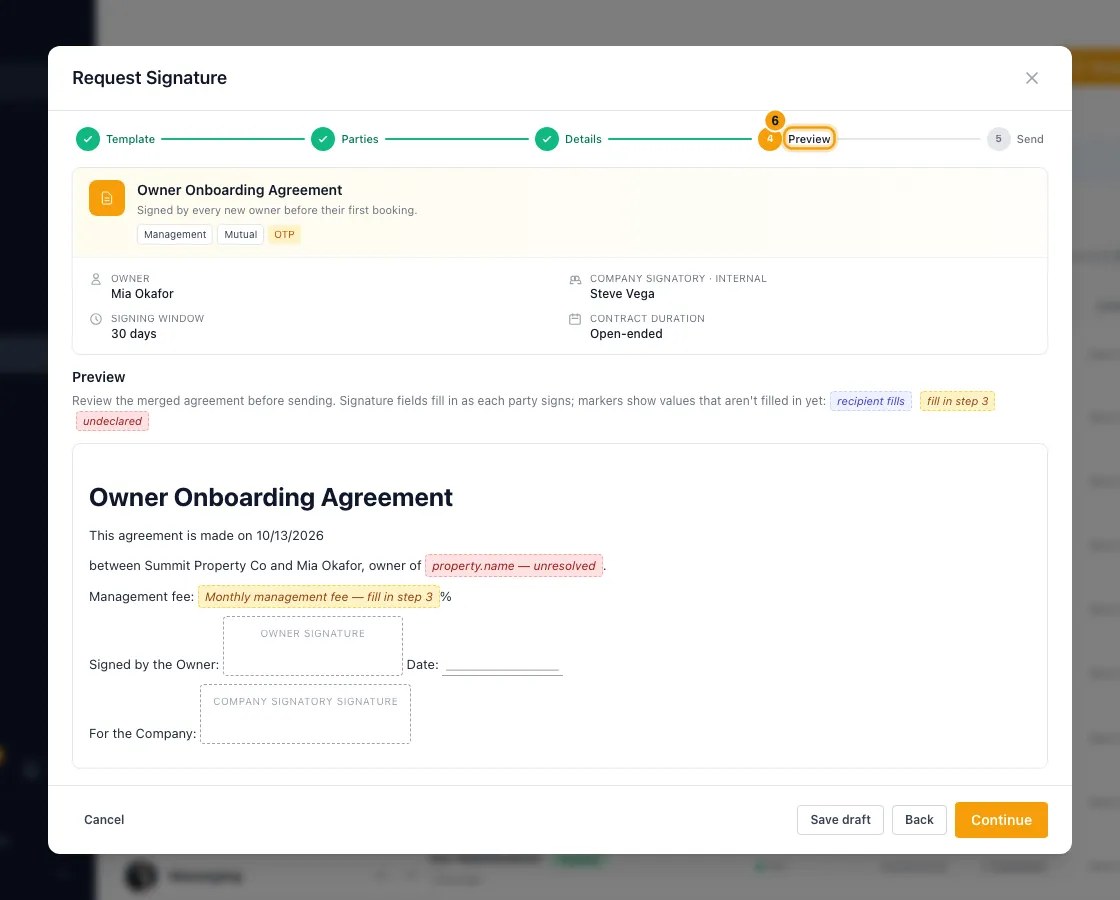
Click Continue. Preview shows the document as the signer will see it. Coloured markers show values that aren't filled in yet.
Click Continue. On Send, choose Send via WhatsApp, Send via Email, Send via WhatsApp & Email, or Just copy the link to send the links yourself.
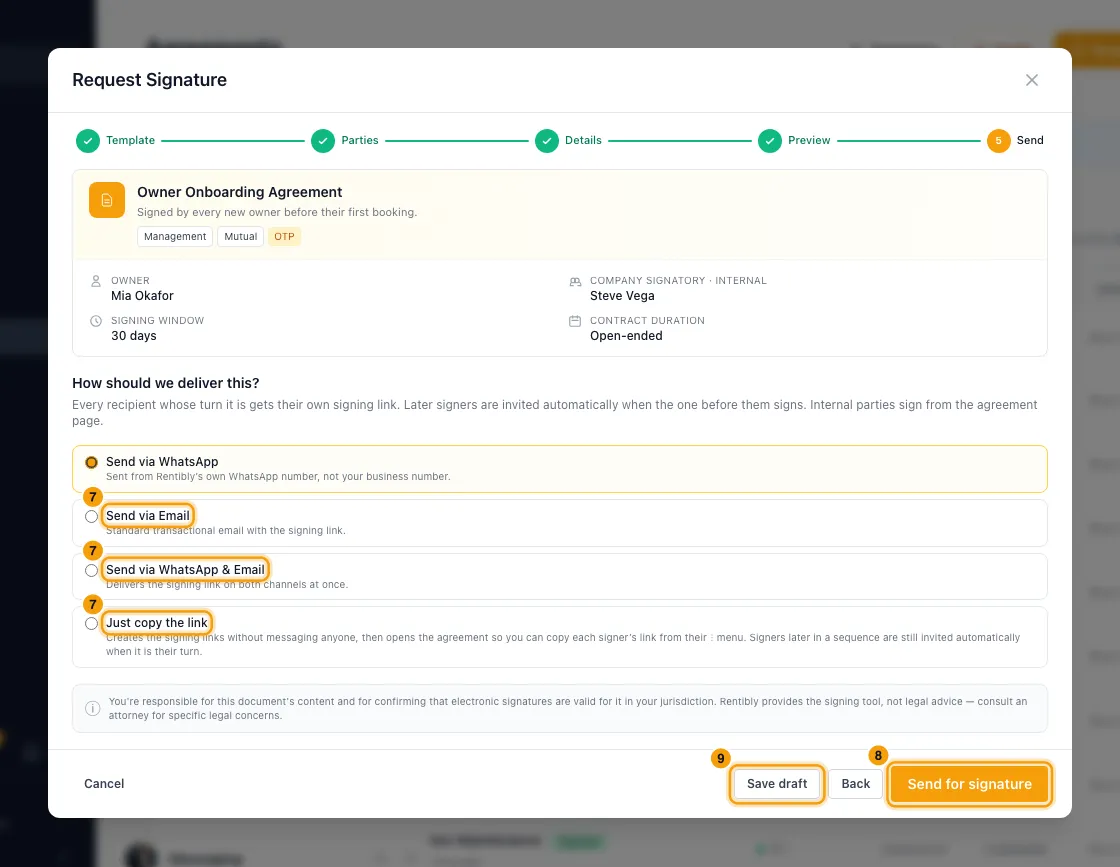
Click Send for signature (with Just copy the link, the button says Create signing links). With Just copy the link, the agreement then opens: on each signer's ⋮ menu, click Copy signing link.
- If any of the template's Required fields is empty for this recipient, a box names the empty fields first. Click Send anyway to send it as it is, or Cancel to send nothing. After Cancel the agreement is saved as a draft: go back to Details, fill the fields, and send again.
To stop and finish later, click Save draft at any step. To pick it up again, open the agreement and click Resume draft.
Follow it
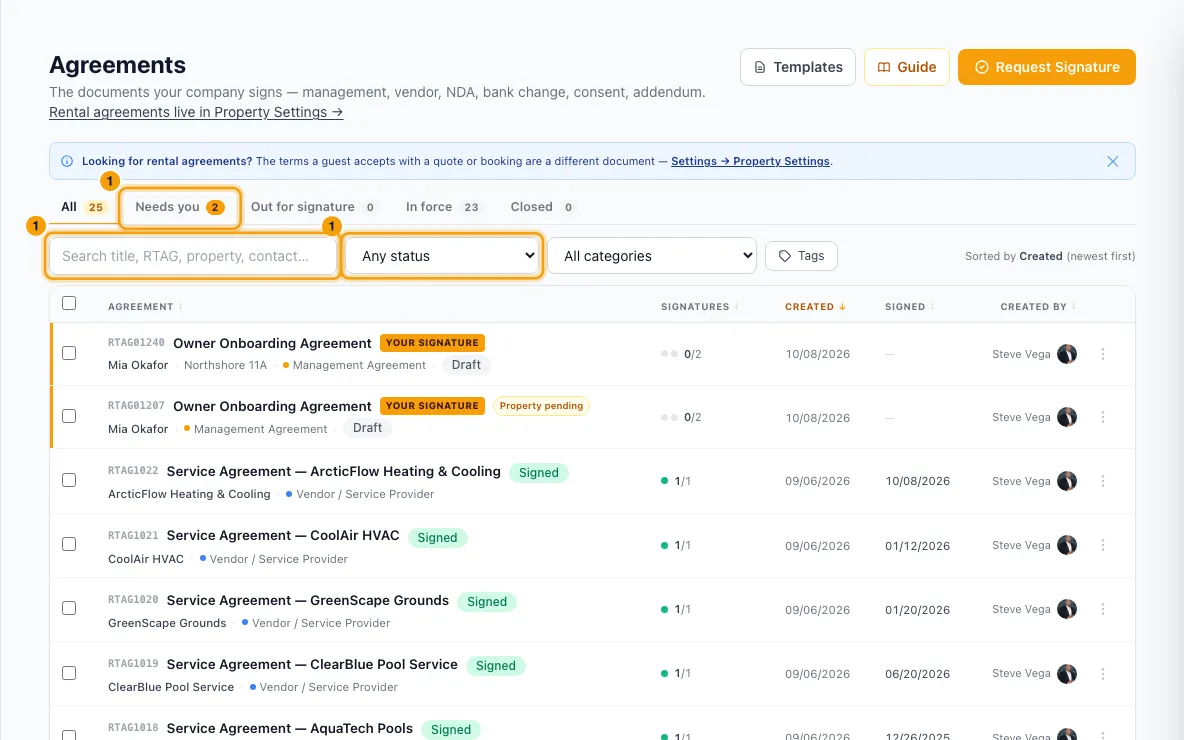
Use the tabs on Agreements: All, Needs you, Out for signature, In force and Closed. Narrow the list with the search box, Any status, All categories and the tag filter.
Click an agreement to open it. Under Parties, each person shows Waiting, Pending, Signed, Declined or Skipped, and whether their link was Sent, Delivered and Read.
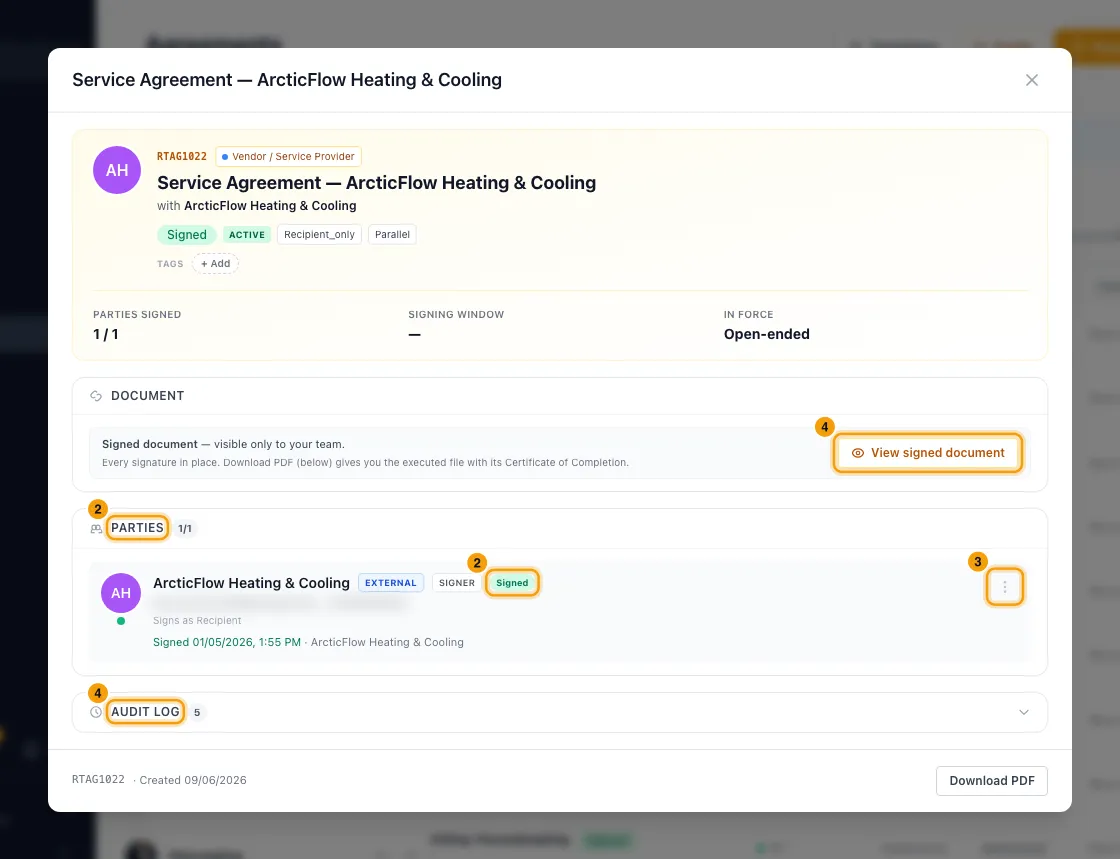
On a party's ⋮ menu: Open signing link, Copy signing link or Resend signing link.
Click Preview agreement to read the document, and open Audit log to see every step.
Sign for your company
When it's your side's turn, the agreement shows "Awaiting your side's signature". Click Sign now (older agreements say Counter-sign).
Read the document. Under Draw your signature, sign with your mouse or finger. Draw your Initials and upload the Company stamp if the document asks for them.
Type your Full legal name and tick the box.
Click Sign as party (or Counter-sign & execute).
Record a paper signature
On the party's ⋮ menu, click Mark signed offline.
Tick the box to confirm you have their wet-signed scan.
Enter the Signer name (as it appears on the scan) and choose the Scan file (PDF or image).
Click Confirm offline sign.
Finish, link or stop it
Once everyone has signed, click Download PDF.
To link a property, click + Link property, search, and pick it. To change it, click Unlink first.
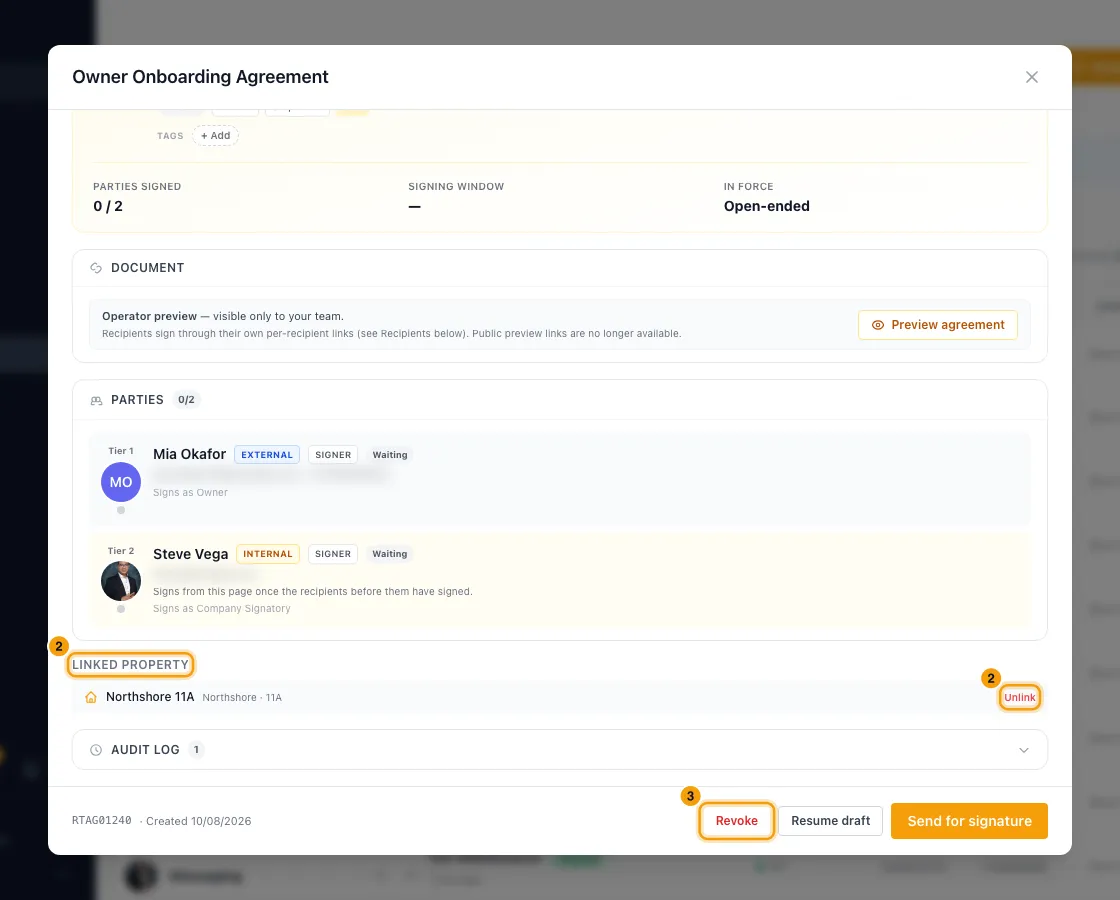
To stop an agreement before it is fully signed, click Revoke, add a reason if you like, and confirm. You can also use Revoke agreement on the row's ⋮ menu.
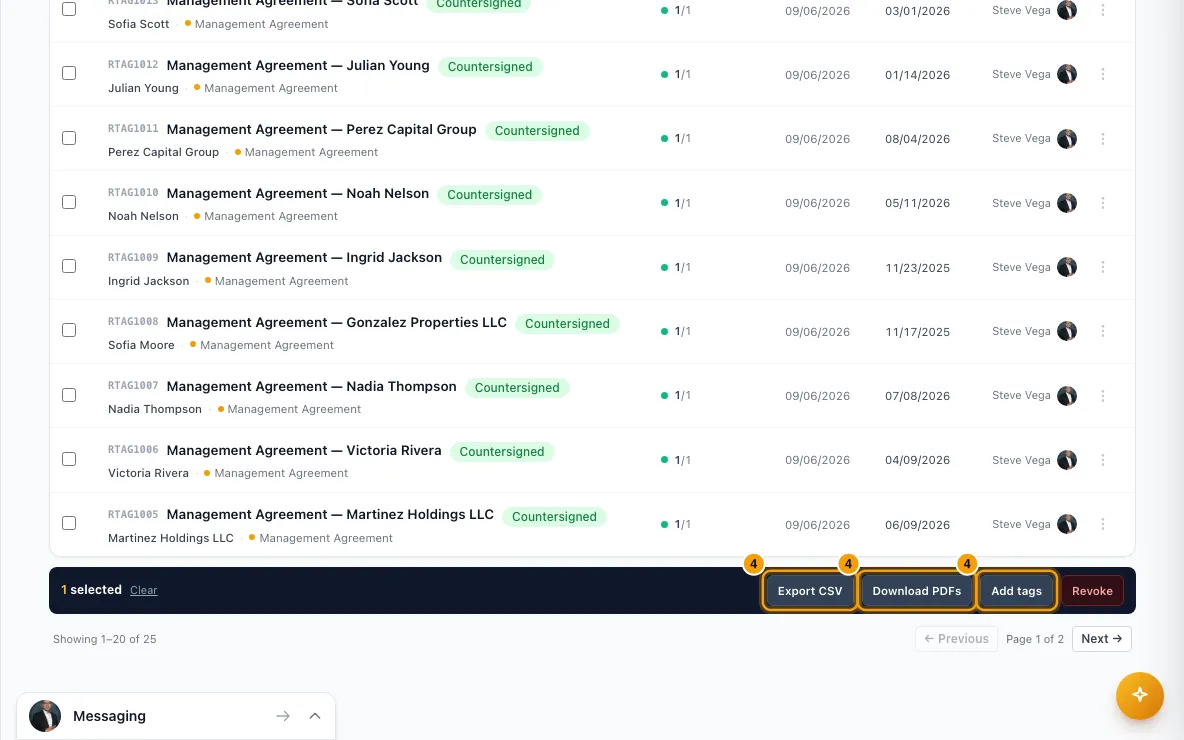
To act on several at once, tick them. Then use Export CSV, Download PDFs, Add tags or Revoke.
Good to know
- The order comes from the template. Signers set to sign "all at once" get their links together. In a sequence, each signer gets their link only after the ones before them sign. Rentibly sends those later links on its own, by WhatsApp and email (whichever they have). Your own team signs from the agreement page and never gets a link.
- How links are sent: the email comes from your sending address, or from alerts@rentibly.com if you have no verified sending domain. WhatsApp comes from Rentibly's own WhatsApp number, not yours. If the signer has no email (or no phone), Rentibly uses the other channel. A send option is greyed out when the first signer has no such detail.
- Your edits on the Parties and Details steps (name, email, phone, missing contact or property details) are saved back to the contact or property when you save or send.
- The text is frozen when you send. Later changes to the contact, property, company details or template don't change what people sign. One exception: if the document uses property details and you neither picked a property nor typed any, they show as "pending" and fill in once you link the property. Values you typed are sealed in and don't change.
- Just copy the link sends the agreement without messaging anyone: each signer whose turn it is gets a signing link, and you copy it and send it however you like. Signers later in a sequence are still invited by WhatsApp and email (whichever they have) when their turn comes. The audit log notes "Links created to copy — nobody was messaged".
- Send for signature on a saved draft's own page sends by email, or WhatsApp if the signer has no email. To choose the channel, use Resume draft instead.
- A template's Required fields warn, they don't block. The check runs when you send a draft, from Request Signature or from Send for signature on a draft agreement. Fields the signer fills on their signing page, and signature fields, are not checked. If you click Send anyway, the agreement's Audit log lists the fields that were empty. Required custom fields you fill in yourself must still be filled on the Details step before you can continue.
- Verification code: if the template requires it, signers ask for a 6-digit code on their signing page and enter it before they can sign. You can't send a code for them: the signer gets a new one with the Send code via … button on their page.
- Signers can decline. A decline revokes the whole agreement.
- Revoke works while an agreement is Draft, Sent or In progress, and while every outside signer has signed but your company still has to sign. Once it is fully signed, it can't be revoked. Signers who had received their link (or had signed) are told the request was withdrawn, and their links stop working. It can't be undone.
- Mark signed offline is for a party whose turn it is. Their link stops working, the scan is saved on the agreement, and the next signers are invited.
- When everyone has signed, the signed PDF with a Certificate of Completion is made. Each outside signer gets their copy on the channel their link went out on: the PDF by email, a link by WhatsApp. Download PDF may say it is still being prepared for a moment.
- Signing window: the day before it closes, the sender and managers get an Agreement expiring soon alert. If it closes before every outside signer has signed, the agreement becomes Signing window closed and they get an Agreement expired alert.
- Tabs: Needs you is what waits on your signature, plus your own unsent drafts. Out for signature waits on someone else. In force is fully signed with no end date or an end date not yet passed. Closed is revoked, superseded, never signed, or past its end date.
- Specify later saves no dates, the same as Open-ended.
- One agreement covers one property. A linked agreement also shows on the property's Documents tab.
- Export CSV exports every agreement in the current tab and filters (up to 5,000), not only the ticked ones.
- Tags can be changed at any time. Everything else can be changed only while it is a draft.
- From a contact, Request Signature is in the actions menu for anyone with Agreements at Edit, whether or not the contact has bookings. With Just copy the link, Rentibly then opens the agreement on the Agreements page.
- Permissions: you need Agreements at View to see agreements and at Edit to create, send, sign for your company, mark signed offline, link properties or revoke. Anyone with Edit can sign for the company, not only the person assigned; the agreement records who signed.
Rentibly AI can help
- Ask "which agreements are still waiting for signatures?" or "which contracts end in the next 60 days?" and it answers with. shows one agreement's parties and progress.
- It can resend a signing link to someone whose turn it is with. You confirm first.
- It can prepare a draft from a template with ( shows the templates). Nothing is sent: you open the draft and send it yourself.
- Sending for the first time, signing for your company and revoking stay on the Agreements page.
Still stuck?
Open Support from your profile menu in Rentibly, or email hello@rentibly.com — we answer fast.