Change your company profile, timezone, date format and business hours
Updated 13 October 2026
Your company profile holds your business details and regional settings: timezone, date and time format, currency display and number formatting. It also holds your business hours, the time daily reminders go out, and the signature and stamp used on agreements.
Steps
Click your name at the bottom of the sidebar, then Settings. Under General, open Company Profile.
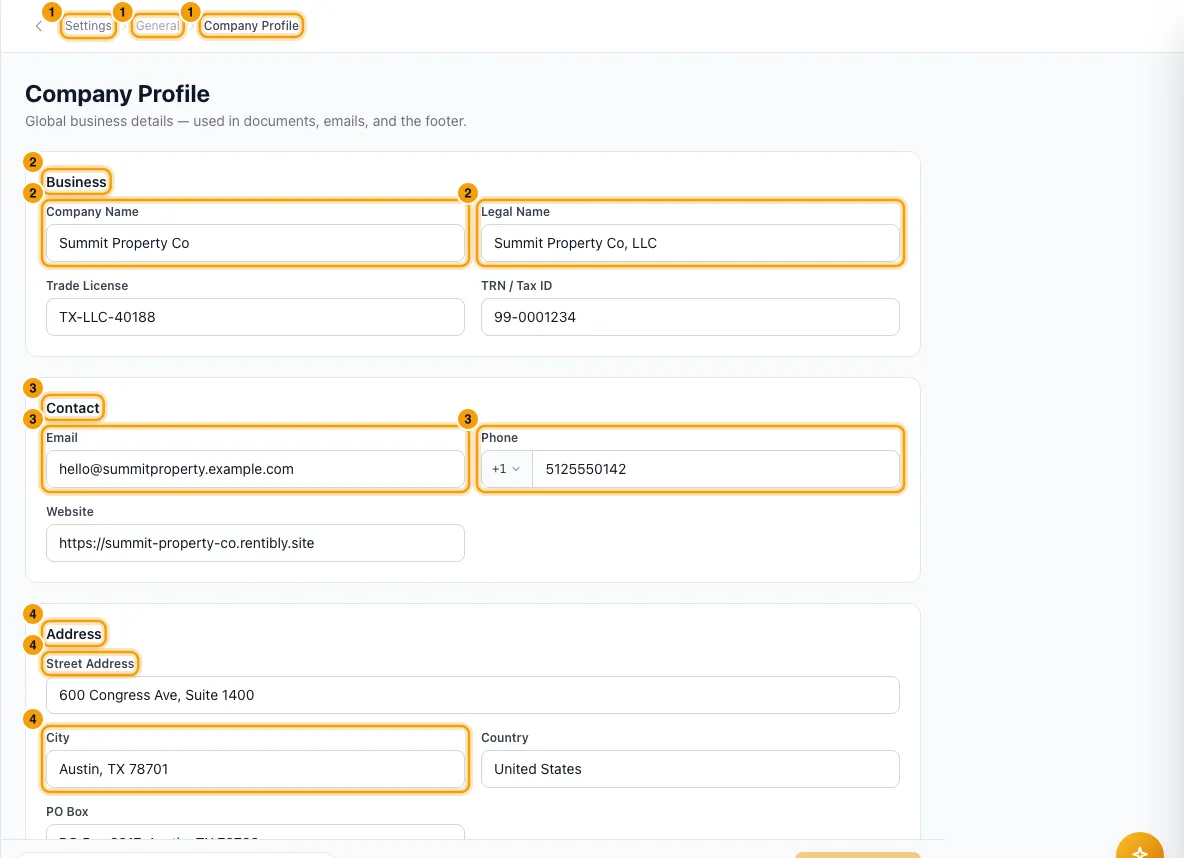
Under Business, fill in Company Name, Legal Name, Trade License and TRN / Tax ID.
Under Contact, fill in Email, Phone and Website.
Under Address, fill in Street Address, City, Country and PO Box.
Under Localization, choose the Timezone, Currency, Date Format, Time Format and Week Starts On.
Under Business hours, tick each day you are open and set its opening and closing time. Add any Public holidays as dates, separated by commas (for example 2026-12-25, 2027-01-01).
Under Notifications, set the Daily reminder time.
Under Number Formatting, change the Currency Symbol, Symbol Position, Decimal Separator and Thousands Separator if needed. Format Preview shows how amounts, dates and times will look.
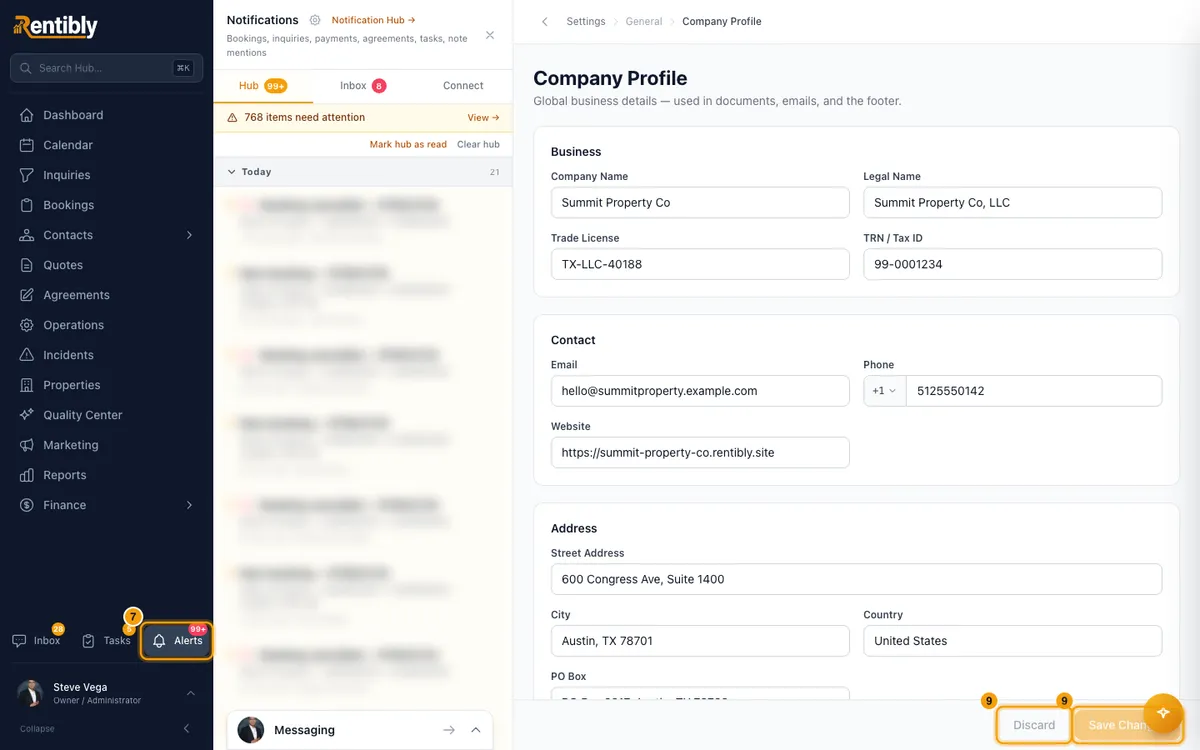
Click Save Changes. To throw away unsaved edits, click Discard.
To add a signature or stamp, go to Operator Signature & Stamp and click Click to upload under Signature or Stamp.
Good to know
- Timezone is picked from a fixed list. It sets the time zone for your business hours and your daily reminder time.
- Business hours use your company timezone. Support response deadlines only count down while you are open, for every ticket, whoever it is assigned to. Public holidays are skipped completely. If every day is closed, deadlines run around the clock.
- Business hours are also the expected working hours for anyone without a shift. See Set up shifts (working hours for your team).
- A closing time earlier than the opening time means you are open past midnight. Opening and closing can't be the same time.
- Daily reminder time (default 09:00) is when date-based reminders go out, such as payments due today, check-ins and permit expiries. Real-time alerts, such as a payment received or a guest reply, are sent straight away.
- Currency and the Number Formatting settings change how amounts are shown. An amount on a booking or payment in another currency is still shown in that currency. They also apply to amounts in your email, WhatsApp and channel message templates.
- Amounts always show two decimal places. There is no setting for this.
- Week Starts On sets the first day of the week in the Operations week view.
- There is no company Language or Fiscal Year Start setting. They were removed from this page because nothing in Rentibly used them.
- Signature and Stamp are used to sign and stamp rental agreements and other documents. Each must be an image under 2 MB; a PNG with a transparent background works best. They save as soon as you upload them; you don't need Save Changes. Use Replace or Remove to change them.
- Logos are set separately. See Brand your workspace (logos).
- You need Access on Settings in your role to change this page.
Rentibly AI can help
- It can read your settings.
- It can change the company name, email, phone, website, address, timezone, date and time format, week start, business hours and daily reminder time. It shows you a card with the current and new values first.
- Legal name, trade licence, TRN, currency and number formatting can only be changed on this page.
Still stuck?
Open Support from your profile menu in Rentibly, or email hello@rentibly.com — we answer fast.