Understand your subscription and invoices
Updated 13 October 2026
Subscription & Billing shows what you pay Rentibly: your subscription, an estimate of this period's charges, your invoices and the card we charge. Your plan itself is set up by Rentibly, so this page is mostly for reading.
Steps
Go to Settings → System → Subscription & Billing.
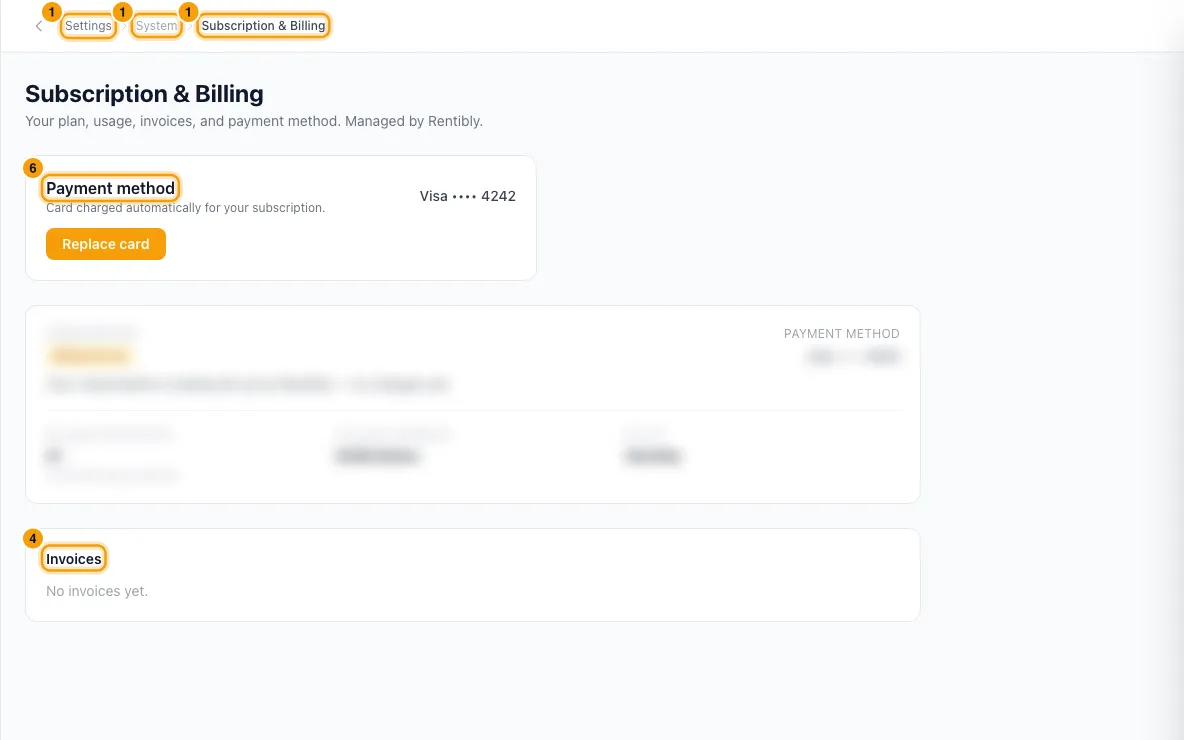
Read the Subscription card:
- The status badge: Being set up, Scheduled, Awaiting first payment, Setup expired, Trial, Active, Payment overdue, Unpaid, Paused or Cancelled.
- Renews and the next invoice date. A subscription that hasn't started yet shows Starts instead, once Rentibly has set a start date. No date line shows while there is no date yet.
- Billable properties, plus Account minimum, Billed (Monthly or Yearly) and Account credit when they apply.
Read Charges this cycle: one line per charge for the current period, then the Estimated total.
Under Invoices, click View on an invoice to see its lines, the Amount due and its Payment attempts.
To get a copy, click Print in the list, or View / Print inside an invoice. It opens in a new tab; use your browser's print dialog to print it or save it as a PDF.
To add or change the card we charge, click Add card (or Replace card) in the Payment method box. Enter the card and click Save card.
Good to know
- How billable properties are counted: every property that is not archived and not deleted. Properties still in Onboarding count, not only Active ones. To stop paying for a property, archive it.
- The invoice uses your highest count in the period. The Billable properties figure is today's count. The invoice uses the most billable properties you had at any point in the period. So archiving a property part-way through does not lower that period's bill.
- A property added part-way through is usually charged only from the day it was created. Some add-ons, such as channel-connected properties, are charged for the whole period whenever they start.
- Charges this cycle is a live estimate from your current usage, not an invoice.
- Account minimum: if your charges after discounts come to less than your account minimum, the invoice adds an Account minimum line to make up the difference.
- Account credit is taken off your next invoice automatically.
- All amounts are in US dollars, whatever currency your account uses.
- The list shows your 50 most recent invoices. Drafts Rentibly is still preparing are not shown.
- Being set up means Rentibly is still building your subscription. Nothing is invoiced while it is being set up — the page says "Your subscription is being set up by Rentibly — no charges yet."
- When a payment fails, the invoice is marked past due and a red notice appears on this page. By default Rentibly tries the card again 1 day later, then 3 days after that. After 3 failed attempts (declined card, or no card on file) the account is marked suspended. Saving a new card retries the oldest unpaid invoice straight away.
- Receipts and failed-payment emails go to your account's billing email. If none is set, they go to the account owner.
- Until a card is saved, people who can open Settings see a banner in the Hub asking them to add one. If your account is put in read-only mode for non-payment, everyone sees a red Read-only mode banner. A fully suspended account shows everyone an Account suspended screen with a Go to Billing button.
- You can't change your plan, cancel or edit invoices here. Contact Rentibly for that.
- You need the Settings permission set to Access to open this page.
Rentibly AI can help
- Rentibly AI can't read your subscription or invoices. Ask it to contact Rentibly support for you and it opens a support request with for example about a plan change or a charge you don't recognise.
Still stuck?
Open Support from your profile menu in Rentibly, or email hello@rentibly.com — we answer fast.