Change nightly rates and minimum stay
Updated 13 October 2026
Set a property's everyday price and minimum stay, change them for a season, or change them for specific dates.
Steps
Go to Properties, open the property, then go to Configurations → Rates.
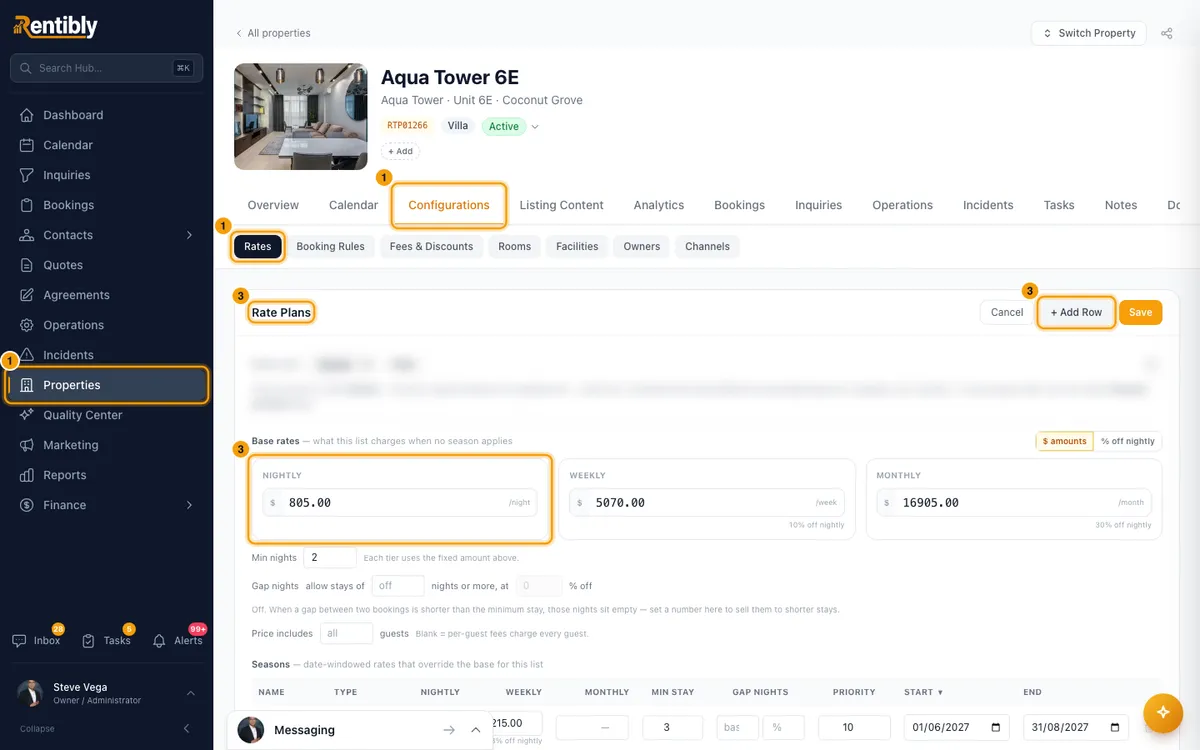
Everyday price: under Base rates, type the nightly price, plus weekly and monthly if you use them. Min nights below them is the default minimum stay. Each field saves as soon as you click out of it.
A season: in the Rate Plans card, click Edit, then + Add Row. Enter the name, Nightly price, Min Stay, Start and End, then click Save.
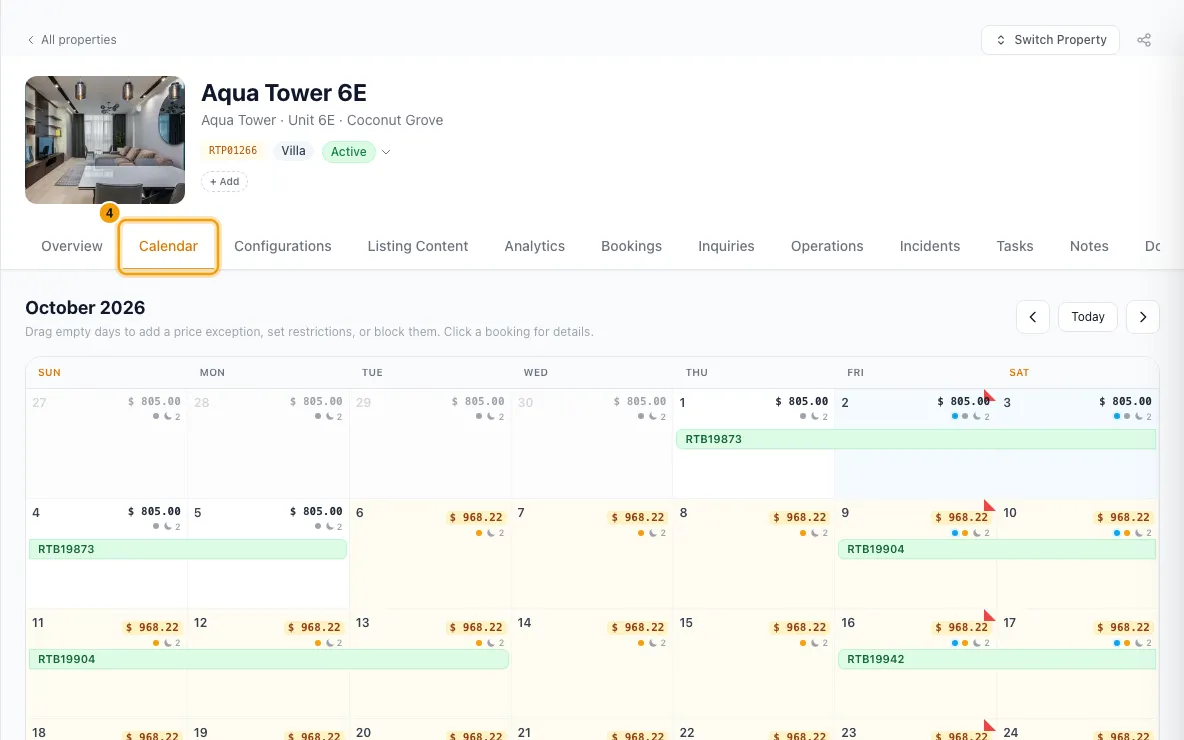
Specific dates: open the property's Calendar tab and drag across the empty days you want.
- Choose Price exception, enter the Nightly price (and Min nights if needed), then click Add price exception.
- Or choose Restrictions to set Min nights, Check-in or Check-out (Allowed, No check-in, No check-out), then click Apply to … nights. Reset to rule removes your changes for those dates.
Good to know
- Which price wins: a price exception beats a season, and a season beats the base rates. When seasons overlap, the one with the higher Priority wins.
- You can also add or edit price exceptions on the Rates tab, under Price exceptions (+ Add exception).
- Weekly and monthly can be typed as amounts or as % off nightly. Either way the amount is what's saved.
- Price lists: rates belong to the list chosen under Price list. The default list is what Airbnb sells from, and any channel without its own list. Use + New to make another list, and Channel pricing to choose which list (and markup) each channel uses.
- Gap nights: set allow stays of … nights or more, at … % off to sell short gaps between bookings that are shorter than your minimum stay. Leave it blank to keep it off.
- Rate check previews what each channel would charge for a stay.
- Price, minimum-stay and check-in/out changes are sent to the property's connected channels automatically.
- If dynamic pricing manages the property, the prices and rules it controls are read-only here and on the Calendar (marked with your dynamic-pricing tool's name). You change those in that tool (see "Connect dynamic pricing").
- Longer-term rules that aren't per date (maximum stay, which weekdays guests can arrive or leave, notice and how far ahead guests can book) are on Configurations → Booking Rules (see "Set a property's booking rules").
- To change prices across many properties for chosen dates, go to Settings → Pricing rules → Rate adjustments. Rate adjustments only apply to Active properties.
- You need Edit on Properties to change rates.
Rentibly AI can help
- It can set the price for a date range, set minimum stay or check-in/out rules for dates, change the default minimum stay, set the gap-night rule, create a price list or assign one to a channel, or add a rate adjustment across properties.
Still stuck?
Open Support from your profile menu in Rentibly, or email hello@rentibly.com — we answer fast.