Set a property's booking rules
Updated 13 October 2026
Booking rules decide which stays a property accepts: how long, how far ahead, which days guests can arrive and leave, and how many people. They also hold the house rules your booking channels show.
Steps
Go to Properties, open the property, then go to Configurations → Booking Rules.
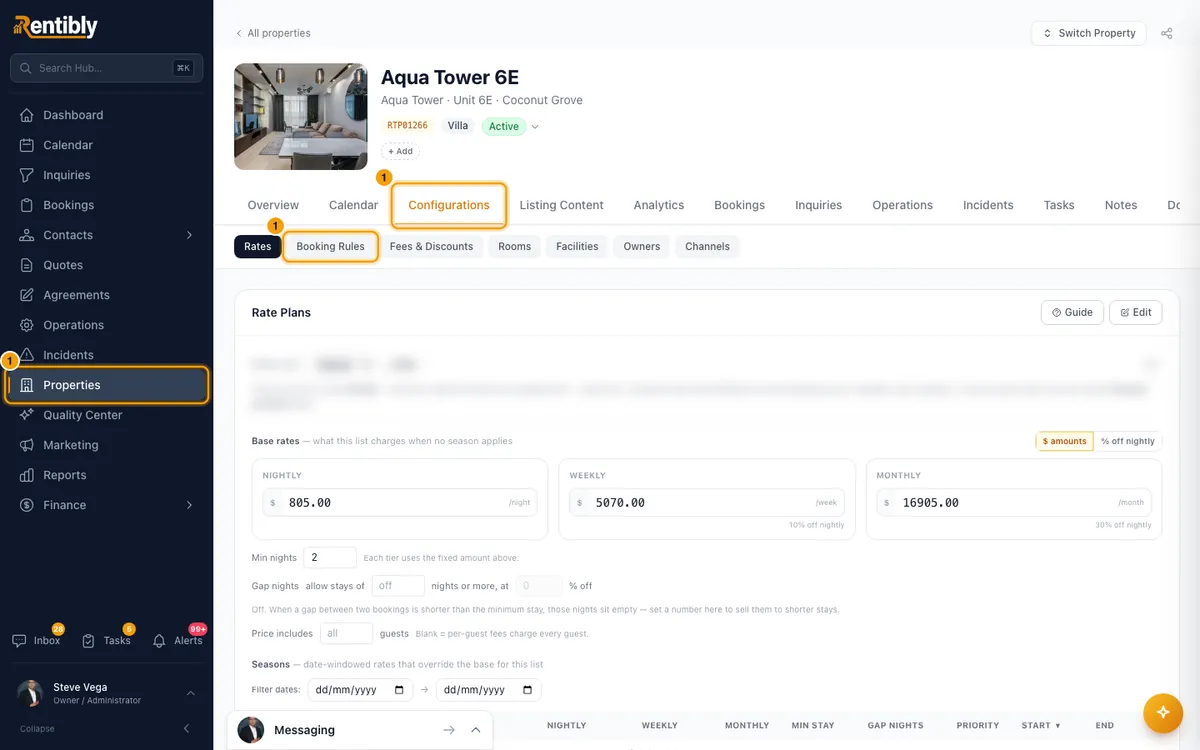
Click Edit.
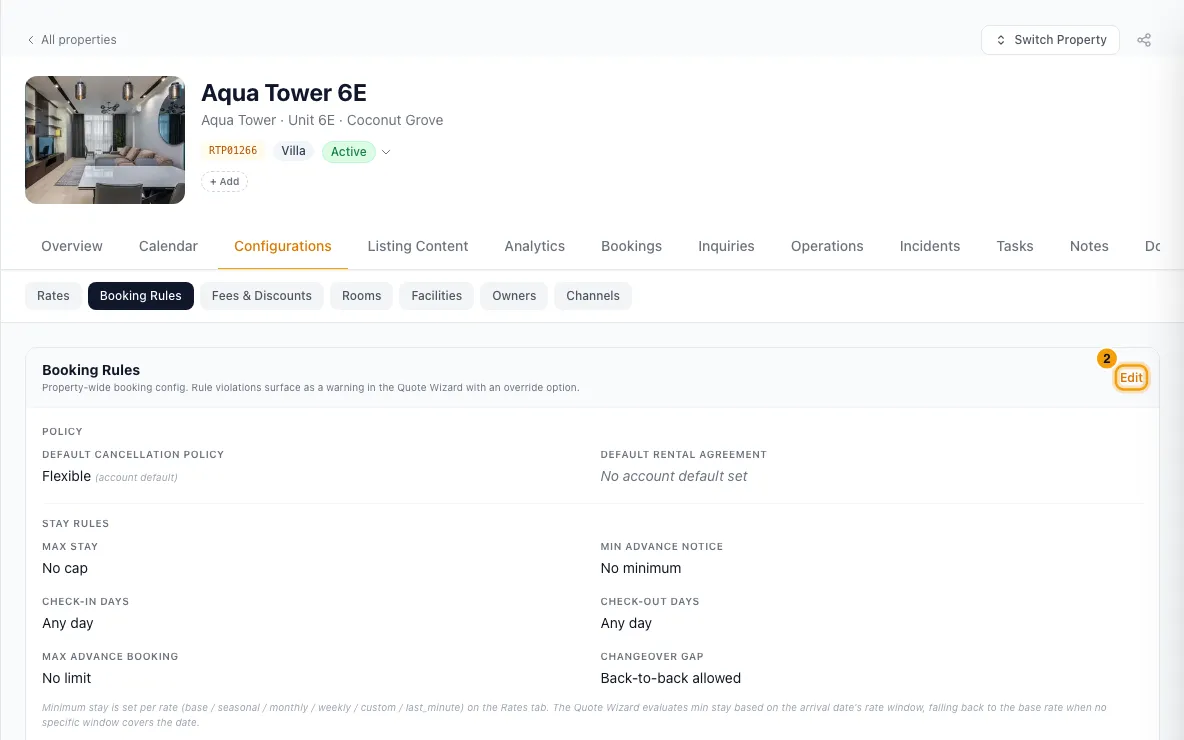
Under Policy, choose the Default cancellation policy and Default rental agreement, or leave Use account default.
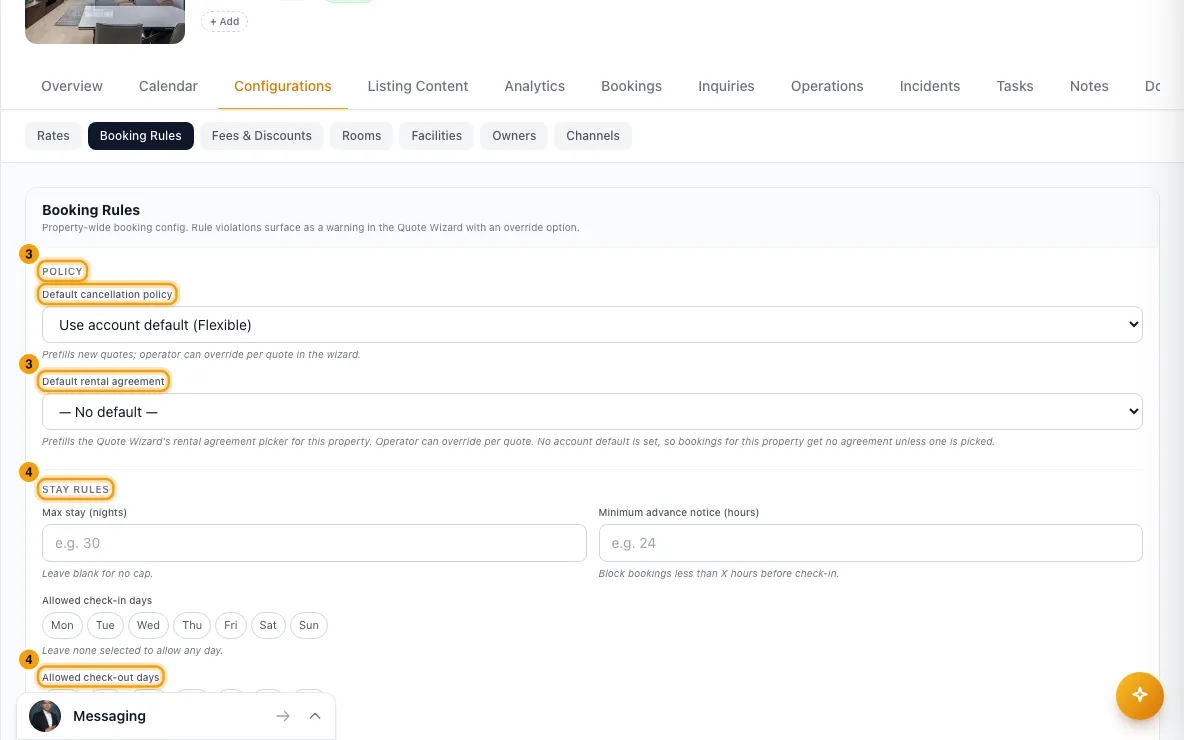
Under Stay Rules, fill in what you need: Max stay (nights), Minimum advance notice (hours), Allowed check-in days, Allowed check-out days, Max advance booking (days) and Changeover gap (nights). Leave a field blank, or no days picked, for no limit.
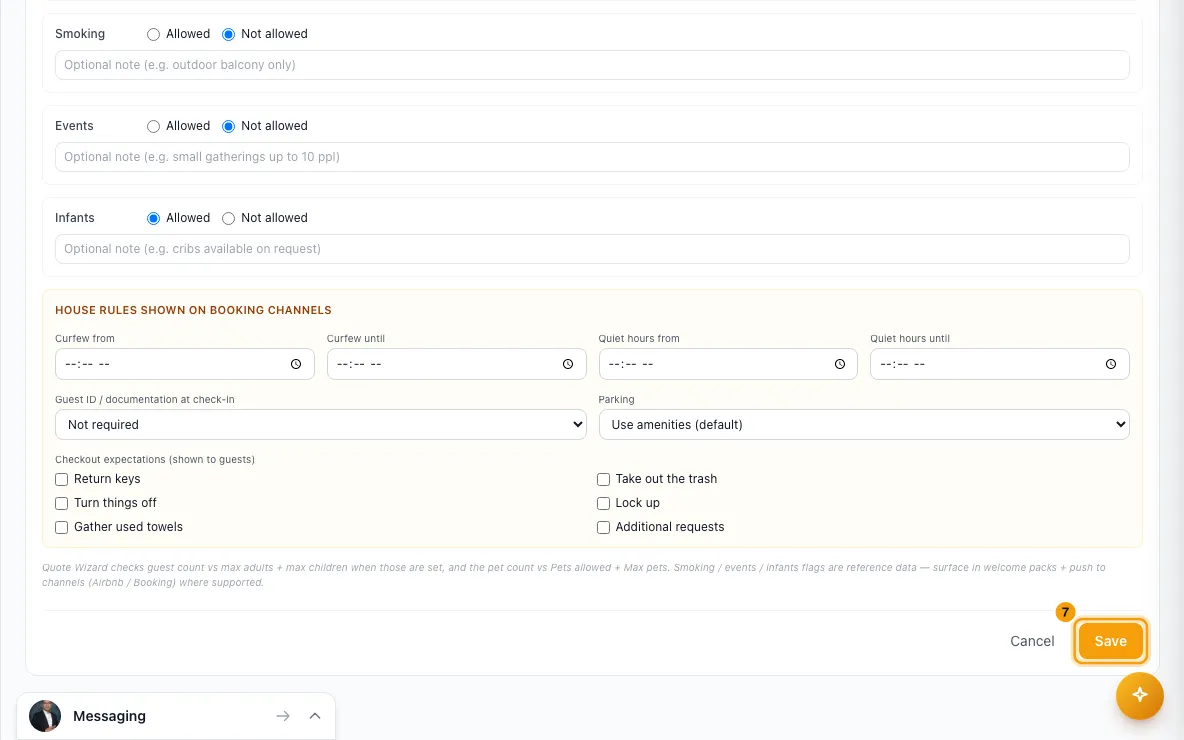
Under Occupancy & Suitability, set Min age of primary renter, Max adults and Max children. For Pets, Smoking, Events and Infants, choose Allowed or Not allowed, and add a note if you like. If pets are allowed, enter Max pets.
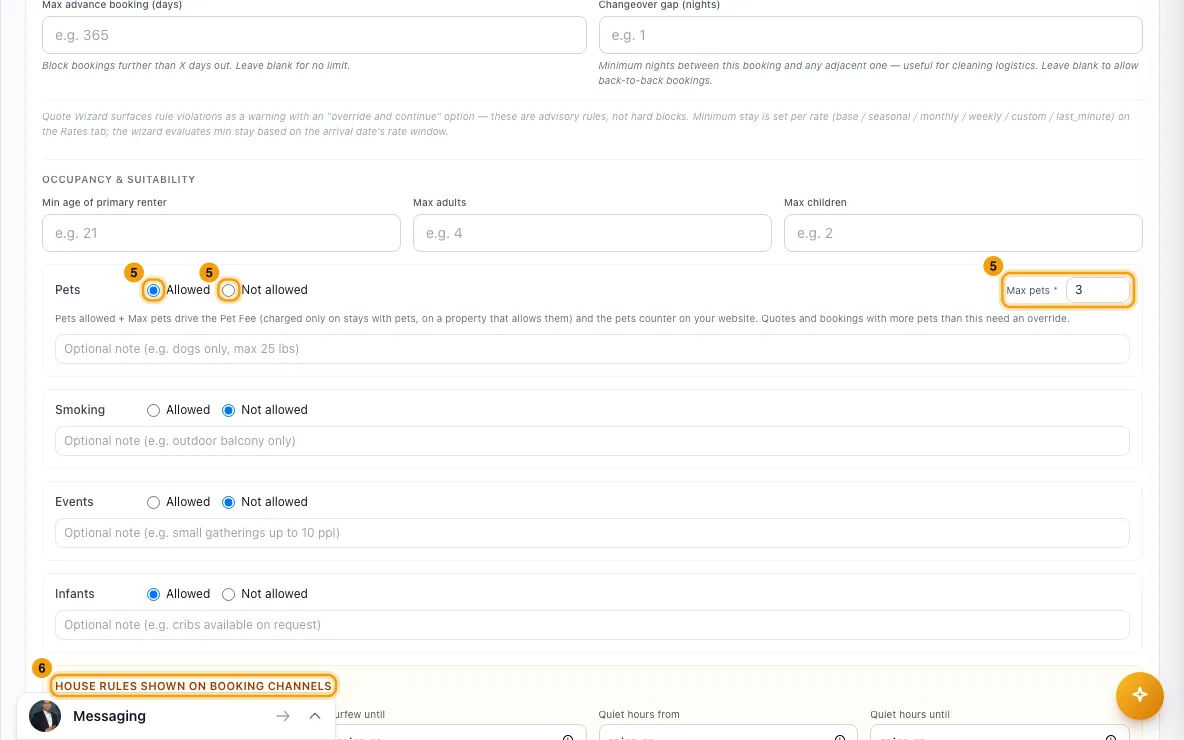
Under House rules shown on booking channels, set Curfew from / Curfew until, Quiet hours from / Quiet hours until, Guest ID / documentation at check-in, Parking, and tick the Checkout expectations guests should follow.
Click Save.
Good to know
- Minimum stay isn't here. It's set per rate on Configurations → Rates (see "Change nightly rates and minimum stay").
- Where the rules are enforced:
- Your website, booking widgets and the Open API refuse stays that break a rule: max stay, check-in/out days, notice, how far ahead, minimum stay, changeover gap, guest numbers and pets.
- Quotes show a warning instead. You can tick Override property rules and proceed anyway.
- Booking channels get max stay, check-in/out days and the changeover gap with your availability. Notice and how far ahead are sent as closed arrival days, a day at a time.
- Guest numbers: if both Max adults and Max children are set, the total guests can't go above the two added together. If only Max adults is set, the guest count is checked against it. The property's Max Guests always applies too.
- Pets: Max pets is required when pets are allowed. Without it, saving is refused, because booking channels reject the property's rules. Pets Allowed also decides whether a Pet Fee is charged. When pets are Not allowed and the property has a pet fee, the tab names it under Pets and says it is never charged. Max pets is a booking rule only: a stay you let through over it still pays the Pet Fee, and a per-pet fee counts every pet (see "Set up a pet fee").
- Sent to booking channels: min age, max adults and children, pets, smoking, events, infants, curfew and quiet hours (only when both times are set), guest ID, parking and checkout expectations. Parking left on Use amenities (default) follows the property's amenities.
- Default cancellation policy fills in new quotes and website bookings for this property. You can change it on each quote. Booking channels use the policies set up on each channel's page (see "Set up cancellation policies").
- Default rental agreement fills in new quotes, website bookings and bookings that come in from channels.
- If you leave a policy or agreement on Use account default, the default set in Settings is used. If there isn't one, nothing is attached.
- Saving re-sends the property's availability and prices to its connected channels.
- You need Edit on Properties to change booking rules.
Rentibly AI can help
- It can change Max stay, Minimum advance notice and Max advance booking for a property.
- It can't change check-in/out days, the changeover gap, occupancy, pets or the house-rule fields yet. Use the Booking Rules tab.
Still stuck?
Open Support from your profile menu in Rentibly, or email hello@rentibly.com — we answer fast.