Photos and descriptions — Rentibly How-to
How-to: Setting Up a Property · Part 2 of 10 · 3:45 · 8 chapters · Watch on YouTube
Chapters
Read the transcript
Hey, and welcome to this Rentibly how-to: photos and descriptions. We'll give our new Denver loft its photos and its words — with the AI doing the heavy lifting. Here's what we'll cover — the chapter times are right here, and in your player. Let's get started. Listing Content is everything guests see about a home, and it starts with photos.
Juniper Lofts doesn't have any yet. So — Upload Photos, and pick them all at once.
There they are — nine photos, and whichever comes first is the cover. Hover any photo, and you can give it a caption, put it in a room, move it up or down, or make it the cover. You can drag them into a new order, too.
Or let the AI tidy them up. Improve with AI. It can write the captions, rate how good each photo is, sort them into rooms, and suggest an order. Let's have it write captions, rate them, and suggest the order — on all nine. Run. It's looking at every photo now: what each one shows, how bright and sharp it is, and which would make the best first impression. And here's what it came back with. A caption for every photo — edit any of them, or untick one to leave it out. A quality rating on each. And a suggested order, with the strongest shot leading. Nothing changes until you save. Save, and it's done. The order matters: your website leads with the first photo, and the same order and captions go out to every channel you connect.
Next, the words. Each kind of channel gets its own description: your website; one shared text for the booking sites, like Airbnb, Booking.com and Vrbo; and the property portals, Bayut and Property Finder, in English and Arabic. The website text is the one the others can copy from.
Open Website. There's a headline, the main description, and five sections guests read: the space, guest access, other things to note, the neighborhood, and getting around. That's a lot of writing — so, Generate with AI. Pick the sections you want it to write — all seven, for a new home — and Generate. It's writing now. It works from the home's photos and the details we've entered, and it writes to fit the format and length of this channel. Done — every section filled in. Read it through and change anything you like: nothing is kept until you press Save. Happy with it? Save.
Now the booking sites. Open OTA Channels, and Use Default / Website copies it all across. The headline is checked against the booking sites' title rules — ours passes. See the note under the description? It's a little short for Vrbo, which wants at least four hundred characters — worth topping up before you list there. Save. One thing to know: the website and booking-site texts are copies, not linked — change one, and the other stays as it was. And once a channel is connected, saving sends the new text out to it automatically.
Thanks so much for watching! If you're already on Rentibly, open any home's Listing Content, run Improve with AI on its photos, and see what it suggests. And if you're not on Rentibly yet, book a demo call, and we'll show you all of this, live.
Upload a home's photos, let AI caption, rate and order them, then write the website description with AI and copy it to the booking sites. Shown live on a real Rentibly workspace.
More in Setting Up a Property
 3:40
3:40How-to · Part 3
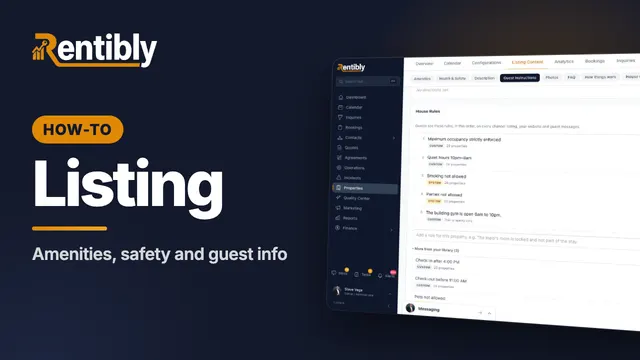
Amenities, safety and guest info
Tick a home's amenities and safety features, set its check-in details, WiFi and house rules, and answer the questions guests always ask. Shown live on a real Rentibly workspace.
 3:24
3:24How-to · Part 1
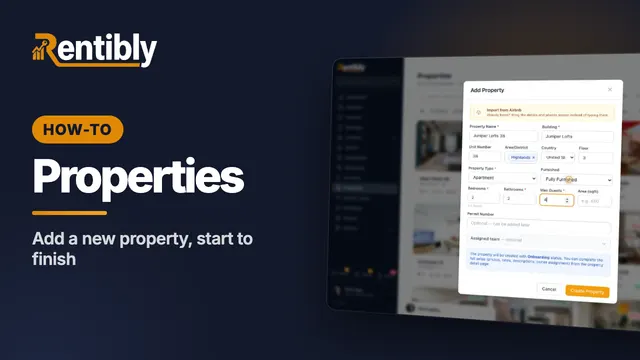
Adding a new property
Add a home from scratch: the Add Property form, the team who looks after it, the details on its page, the map pin, and taking it live. Shown live on a real Rentibly workspace.
 2:44
2:44How-to · Part 4
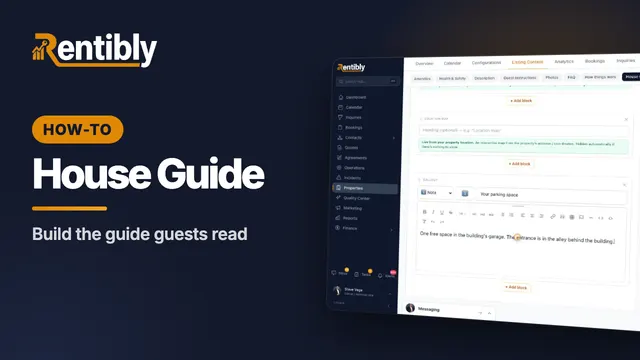
The house guide
Write the how-tos guests look up mid-stay, then build the house guide they read during their stay — with blocks that keep themselves up to date. Shown live on a real Rentibly workspace.
 2:01
2:01How-to · Part 5
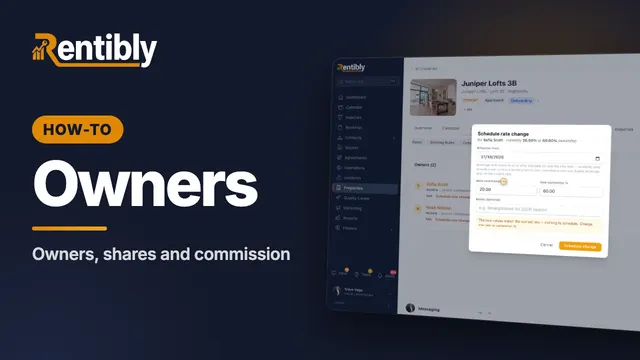
Owners and commission
Link a home to its owners: shares for co-owners, your commission, payout frequency, owner-paid taxes, and changing the rate from a future date. Shown live on a real Rentibly workspace.
 3:45
3:45How-to · Part 6
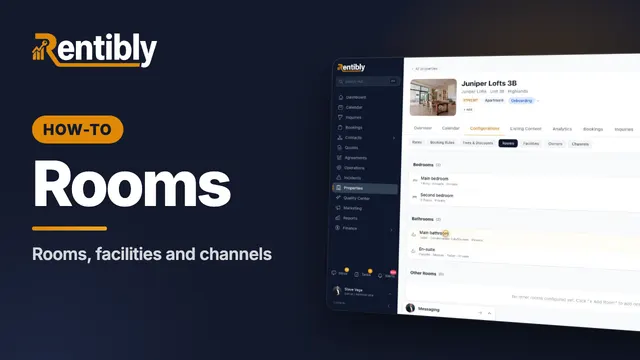
Rooms, facilities and channels
Describe each bedroom and bathroom, record access codes, utility accounts, building contacts and building info, and see where a home is listed. Shown live on a real Rentibly workspace.
 2:27
2:27How-to · Part 7
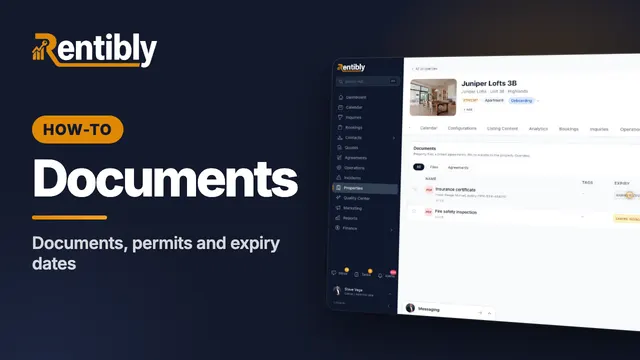
Documents and permits
Record a home's permit and insurance dates, upload its documents with expiry dates, and pin and share the ones that matter. Shown live on a real Rentibly workspace.
Count your subscriptions. Then count ours.
A 30-minute demo on your numbers — every tool you pay for today, mapped to its native Rentibly module.
Book a demo