Choose dashboards for each role, revenue recognition and occupancy
Updated 13 October 2026
Choose which dashboards each role can open and which one they land on. On the same page you also set how revenue is counted on the dashboards, and whether blocked nights count towards occupancy.
Steps
Click your name at the bottom of the sidebar, then Settings. Under General, open Dashboards & Reports.
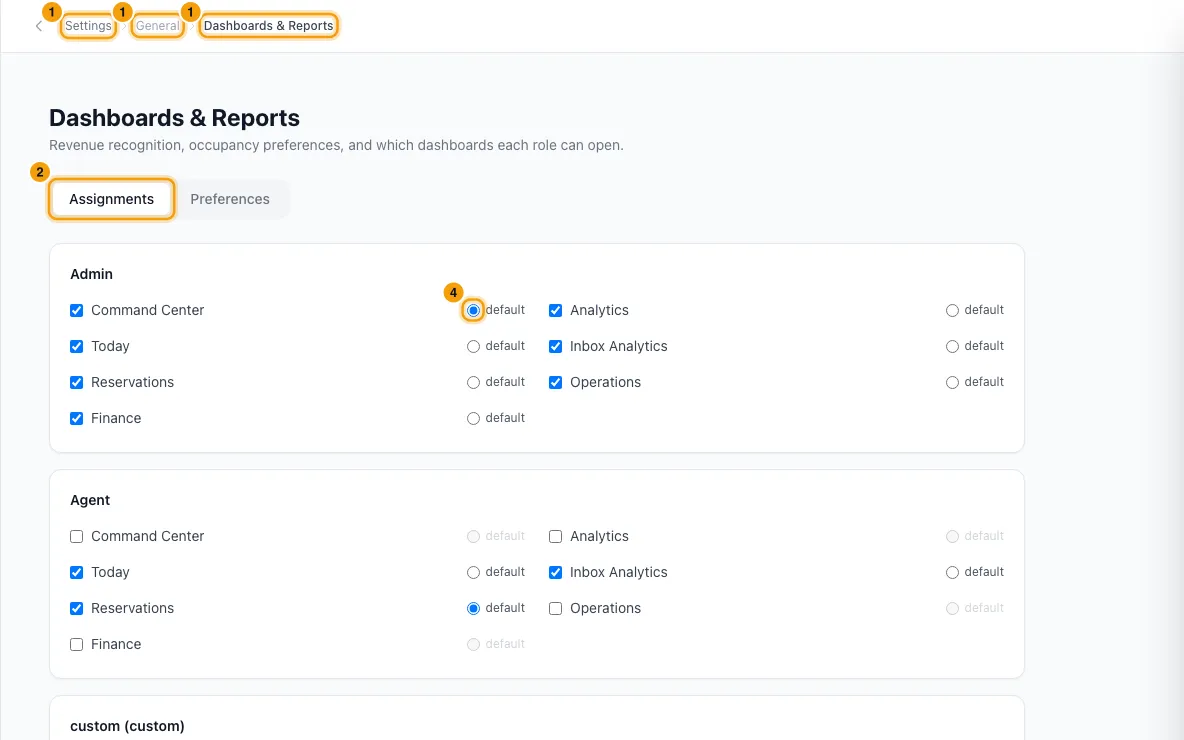
On the Assignments tab, find the role. Each role has a card listing every dashboard.
Tick each dashboard the role may open. Untick one to take it away. Each click saves straight away.
Click default next to the dashboard the role should land on. You can only pick a ticked dashboard.
Open the Preferences tab.
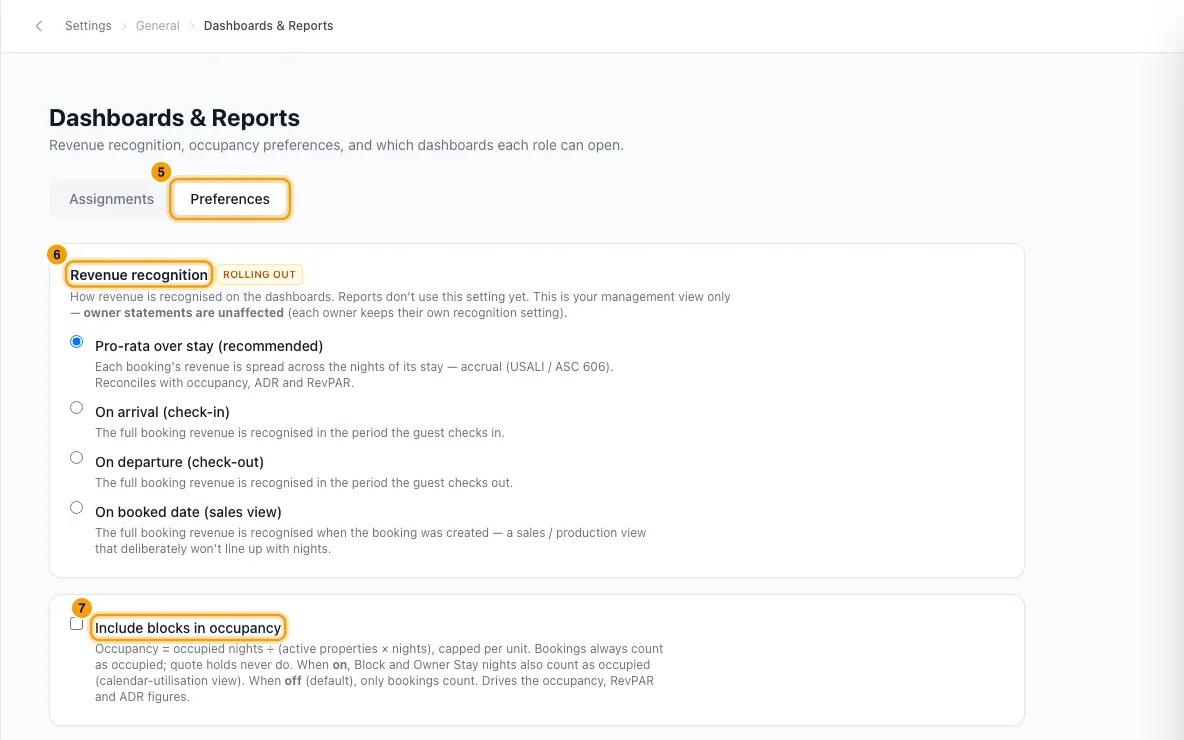
Under Revenue recognition, choose how a booking's revenue is counted:
- Pro-rata over stay (recommended): spread across the nights of the stay.
- On arrival (check-in): all of it in the period the guest checks in.
- On departure (check-out): all of it in the period the guest checks out.
- On booked date (sales view): all of it when the booking was created.
Tick or untick Include blocks in occupancy.
Good to know
- The dashboards: Command Center, Analytics, Today, Inbox Analytics, Reservations, Operations and Finance. See Use the dashboard for what each shows.
- What a new account starts with: Admin and Manager can open all seven and land on Command Center. Agent gets Reservations (default), Today and Inbox Analytics. Operations gets Today (default) and Operations. Finance gets Finance (default), Analytics and Command Center.
- A role you create starts with no dashboards ticked. Its people land on Command Center and have no dashboard switcher until you tick some here. The role's card says so.
- If you untick a role's default, its people land on the first dashboard still ticked, in the order listed.
- The dashboard list only controls which boards appear in a person's switcher. What each board shows still depends on their role: for example, revenue tiles and charts appear only for people with View on Finance, inbox figures only with Access on Inbox. See Create and manage roles and permissions.
- Revenue recognition is for your own management view. Today it changes the revenue figures and charts on the dashboards. It does not change owner statements; each owner keeps their own recognition setting. Reports don't use it yet; the setting is marked Rolling out. Recognised revenue leaves out tax.
- Include blocks in occupancy is off by default: only booked nights count as occupied. Turned on, Block and Owner Stay nights count as occupied too. Quote holds never count. It changes occupancy, ADR and RevPAR on the dashboard, the Occupancy, ADR & RevPAR report and each property's analytics.
- Dashboard figures can take up to about a minute to reflect a change.
- You need Access on Settings in your role to change this page.
Rentibly AI can help
- Rentibly AI can't change dashboard assignments or these preferences yet. Use this page.
Still stuck?
Open Support from your profile menu in Rentibly, or email hello@rentibly.com — we answer fast.