Run, filter and save reports
Updated 12 October 2026
Reports has ready-made reports for revenue, occupancy, payments, owners, operations, sales, the Inbox team and channels. You can filter any of them, see the records behind each number, and export them. With Report Builder you can make and share your own.
Steps
Click Reports in the main menu.
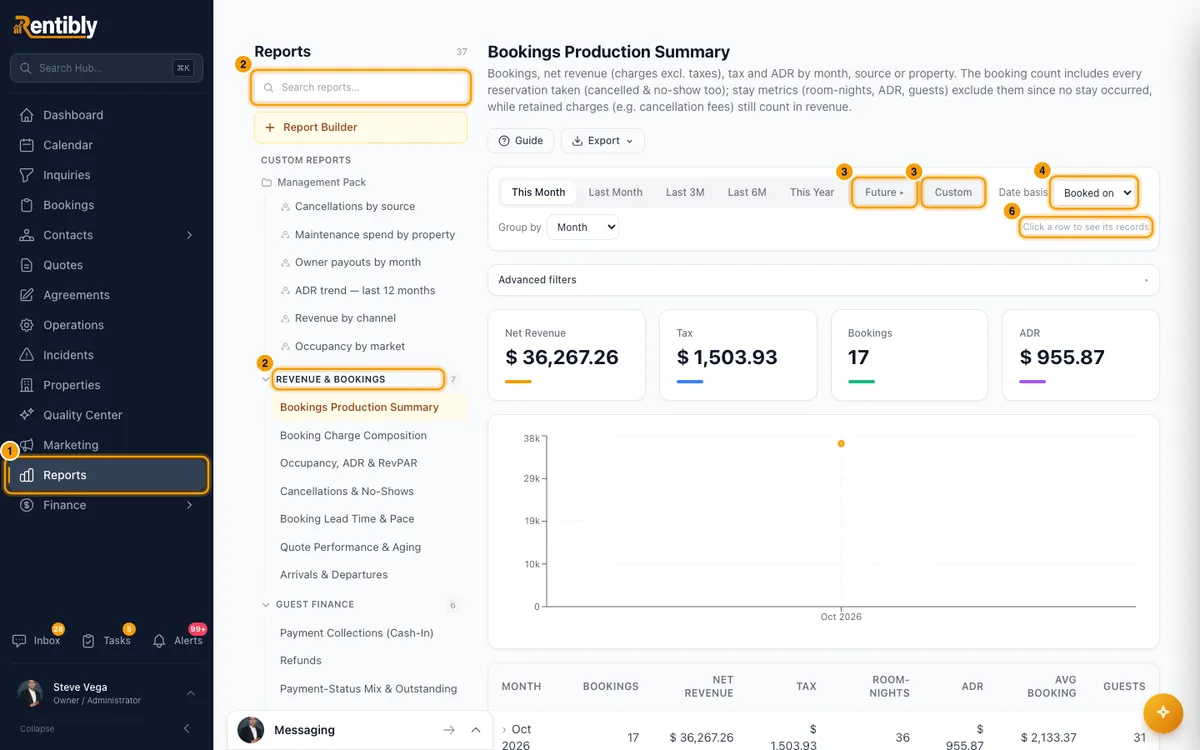
Pick a report on the left. Type in Search reports… to find one, or open a category such as Revenue & Bookings or Guest Finance.
Pick a period: This Month, Last Month, Last 3M, Last 6M or This Year. For dates ahead, click Future and pick Next 7d, Next 30d, Next 60d or Next 90d (only reports that look ahead have it). For your own dates, click Custom and set the start and end.
Where shown, choose a Date basis (for example the booking date or the check-in date) and a Group by.
Click Advanced filters to narrow by Property and the report's own filters, such as source, tags or agent. Click Clear all to remove them.
Read the number cards, the chart and the table. Where the report says Click a row to see its records, click a table row to see the records behind it, then click a record to open it. Use a column's header menu to sort, or to filter by a word or a value.
Click Guide to see what the report shows, what each number means and how it is worked out.
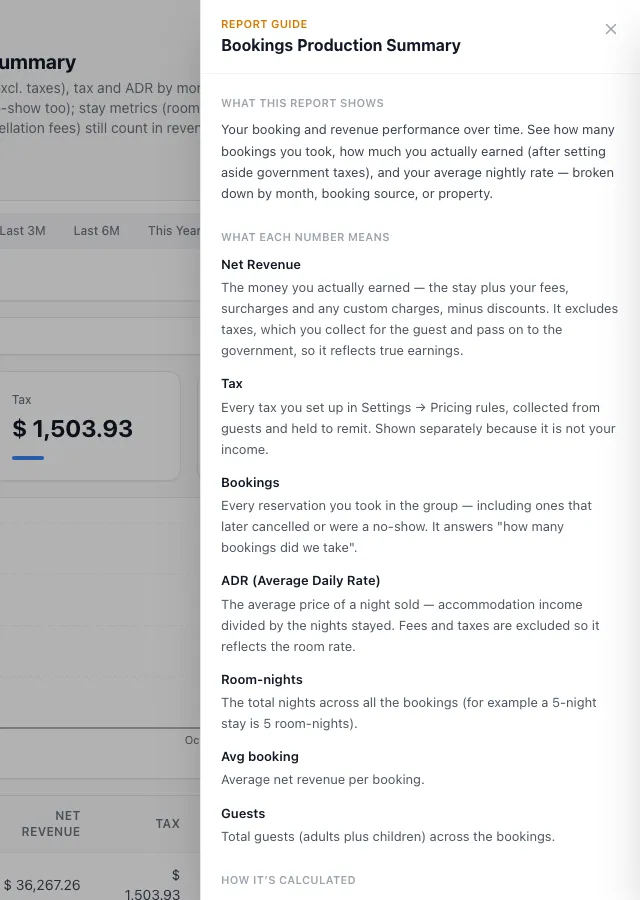
Click Export and choose CSV spreadsheet or PDF document.
Build your own report
On Reports, click Report Builder.
Click the name at the top (Untitled report) and type a name.
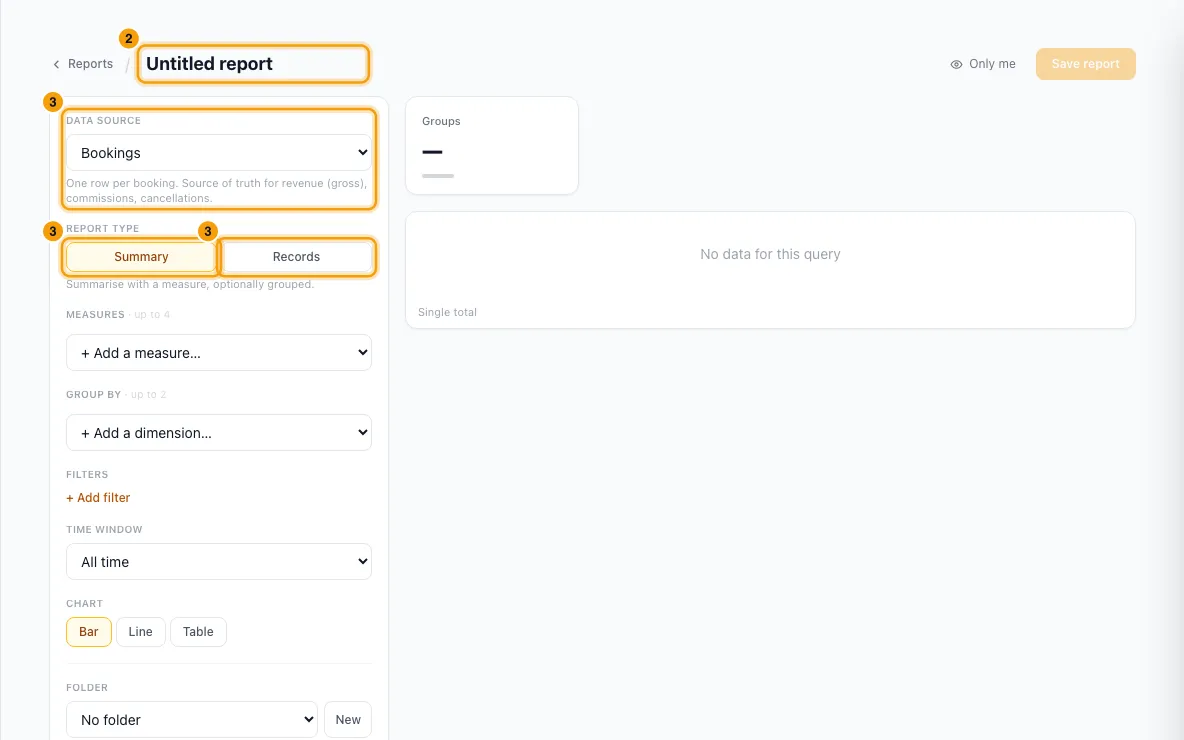
Pick a Data source, then a Report type: Summary (totals, optionally grouped) or Records (a list of individual records).
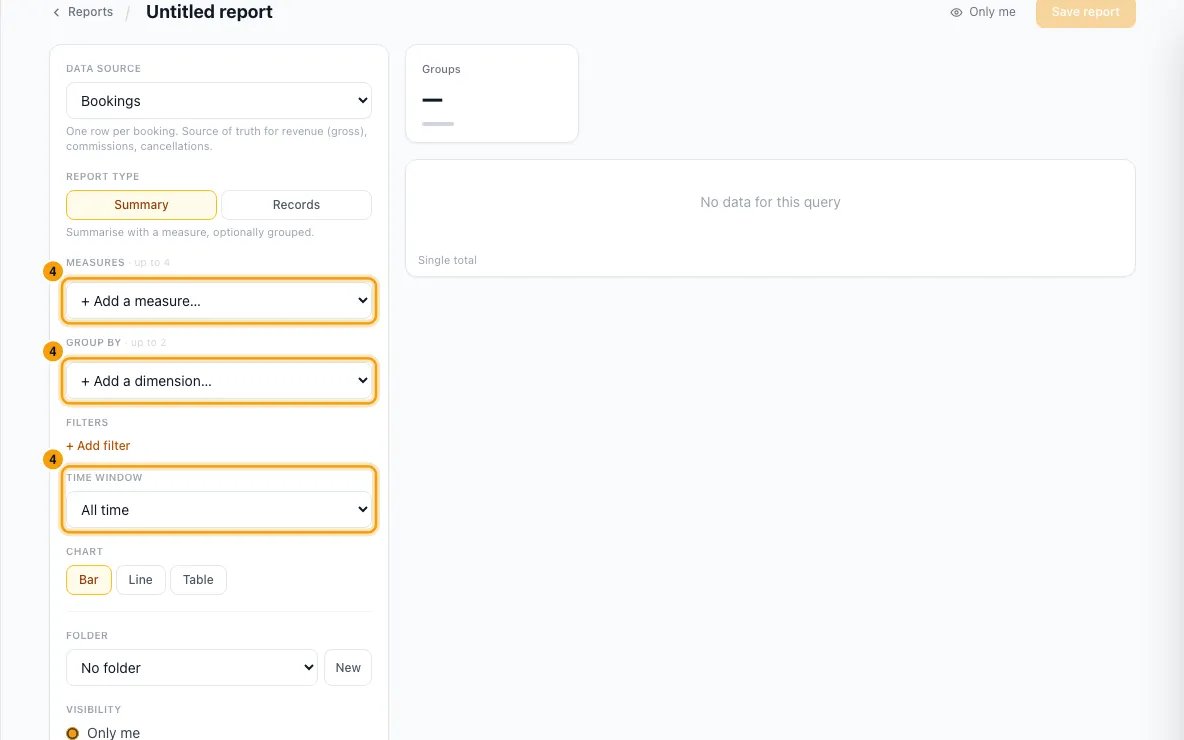
For Summary: + Add a measure… (up to 4), + Add a dimension… under Group by (up to 2), a Time window, and a Chart (bar, line or table). A date dimension can be bucketed by Month, Quarter, Year, Week or Day.
For Records: click + Add columns, tick the fields in Choose columns and click Apply. Drag ⋮⋮ to reorder them. Set a Sort and a Row limit (up to 100).
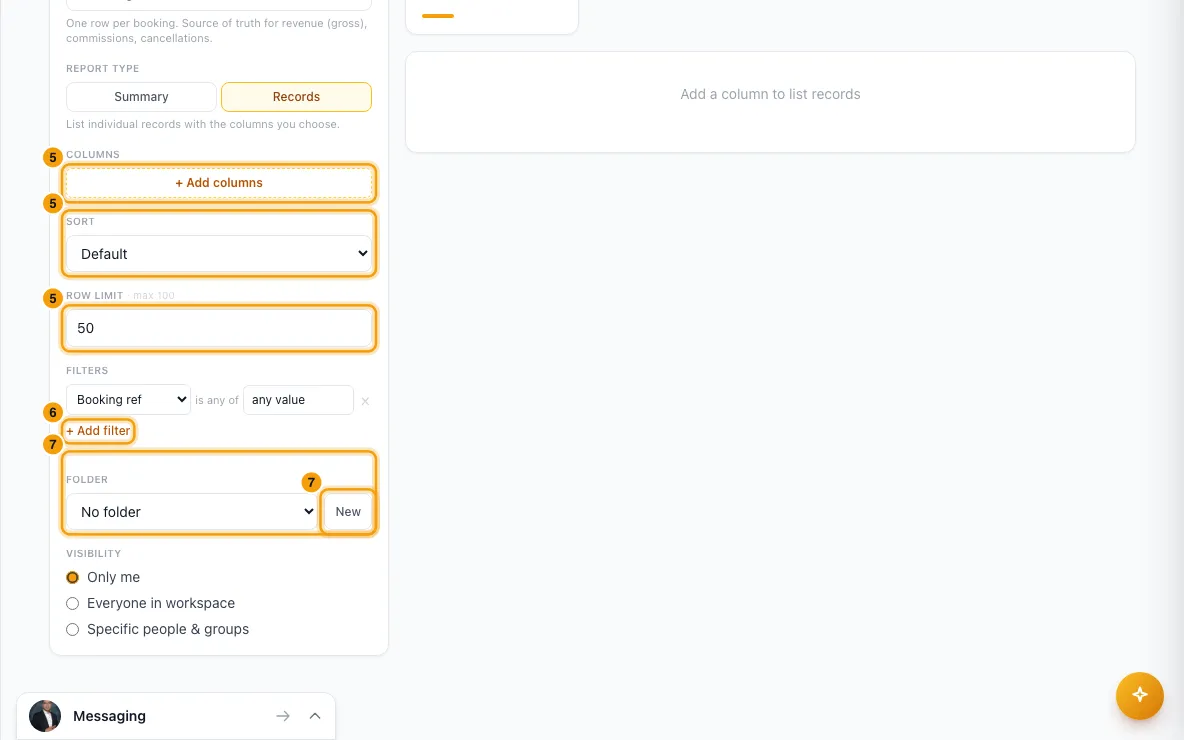
Click + Add filter for each condition, such as "Status is any of Confirmed".
Under Folder, pick one or click New to create one.
Under Visibility, choose Only me, Everyone in workspace, or Specific people & groups and add them.
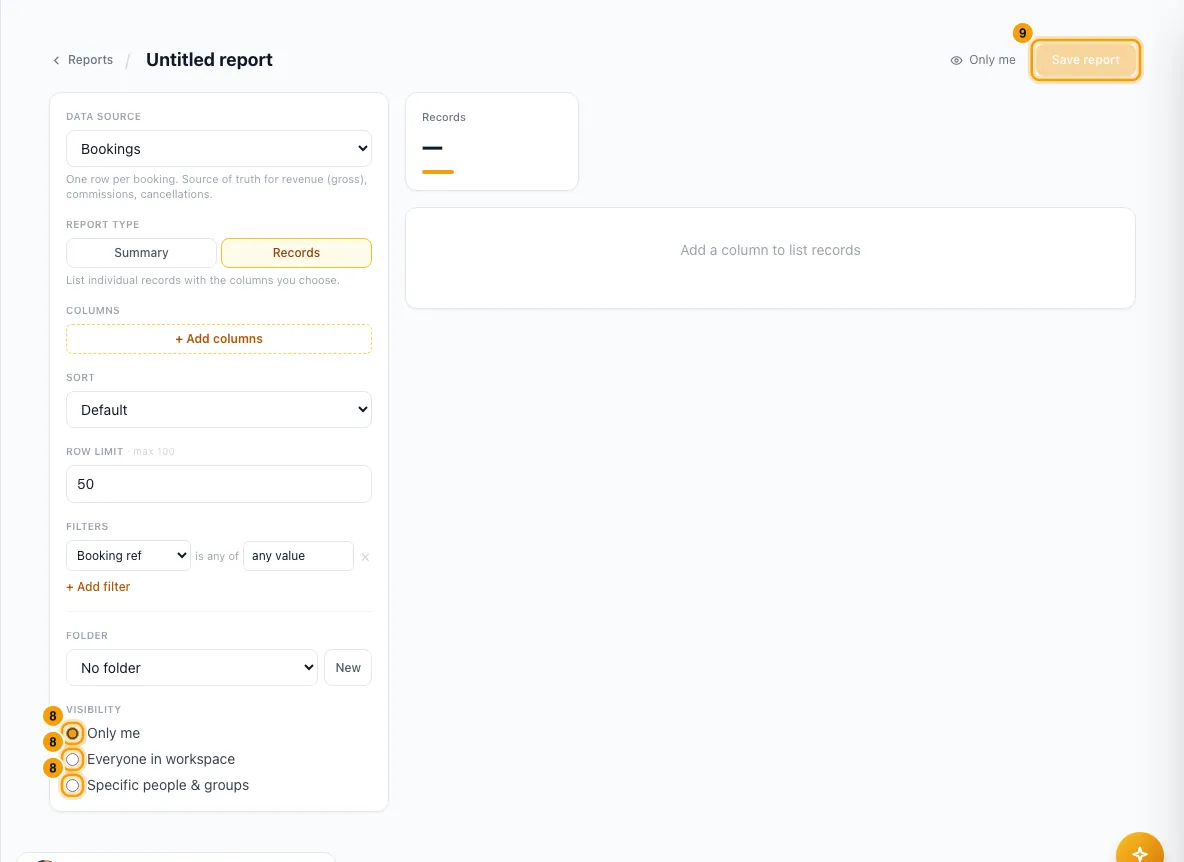
Watch the preview update, then click Save report. It appears on Reports under Custom reports, in its folder.
To change it later, open it under Custom reports and click Edit. To remove it, click Delete and confirm.
Good to know
- Reports opens on This Month. Last 3M and Last 6M include the current month. A custom range covers at most 5 years.
- Choosing a Future period switches the date basis to one that can lie ahead, such as check-in.
- Some reports are a snapshot of today, such as AR Aging — Scheduled Installments. They have no period buttons.
- Clicking a row shows up to 5,000 records. If there are more, it says "Showing a capped set — refine filters or export for all".
- Export gives the full records behind the report for your current filters, up to 50,000 rows. A report with no record view exports its summary rows. The PDF carries your logo and the report's chart.
- Bookings, quotes, inquiries and contacts open over the report, so you keep your place. Other records open on their own page.
- Permissions:
- Everything on this page needs Reports at View level: the Reports menu item, the ready-made reports, and custom reports. Without it the menu item is hidden, and so is View all → on the dashboard's Agent leaderboard. The built-in Agent and Operations roles include it.
- On top of that, Guest Finance reports need Finance at View level. Owner Economics reports and Owner Portfolio & Ownership Mix need Owners. Message Volume & Coverage and Ticket Resolution & Backlog need Inbox.
- User Roster & Access Review and Login & Security Audit check a permission the role editor doesn't offer, so in practice only people with Full access can run them.
- You still see a report you can't run in the list; opening it shows a permission error.
- Report Builder permissions:
- Building and saving needs Reports at Edit level. The Report Builder button, and Edit and Delete on a custom report, show for people with Reports at Edit level.
- Sharing with roles, teams or Everyone in workspace needs Share reports with the whole team. Without it you can share with named people only.
- Bank and payout fields need Edit owner bank details and payout settings.
- Anyone a report is shared with sees all of its columns, including bank and payout fields the author added. The exception is login data: a report using it won't open for someone without the Settings permission.
- Only the person who made a report, or someone with Full access, can change or delete it.
- A deleted custom report goes to the Recycle Bin (Settings → System → Recycle Bin), where it can be restored.
- Reports you ask Rentibly AI to save or export also appear under Custom reports.
Rentibly AI can help
- Ask "Run the agent scorecard for last week" or "Occupancy by area this year". Rentibly AI runs the same reports and shows the same figures. It needs the same permissions as the page, starting with Reports at View level.
- Ask "Why is occupancy low this month?" to see what drove the change.
- Ask "Export confirmed bookings for March as a CSV" for a download link, or "Save this as a report called Monthly revenue". These also need Reports at View level, because the link opens a custom report; without it Rentibly AI says so instead of giving you a link that won't open. A saved report is yours only unless you ask to share it with the team, which needs Share reports with the whole team. Without that permission Rentibly AI won't share it and offers to save it for you only.
- For a full presentation, see Create a business review presentation. It needs Reports at View level too.
Still stuck?
Open Support from your profile menu in Rentibly, or email hello@rentibly.com — we answer fast.