Create a business review presentation
Updated 12 October 2026
Rentibly AI can turn your numbers into a business review presentation for any period, with charts, KPIs against a comparison period, a summary and recommendations. You download it as PowerPoint (with editable charts) or PDF.
Steps
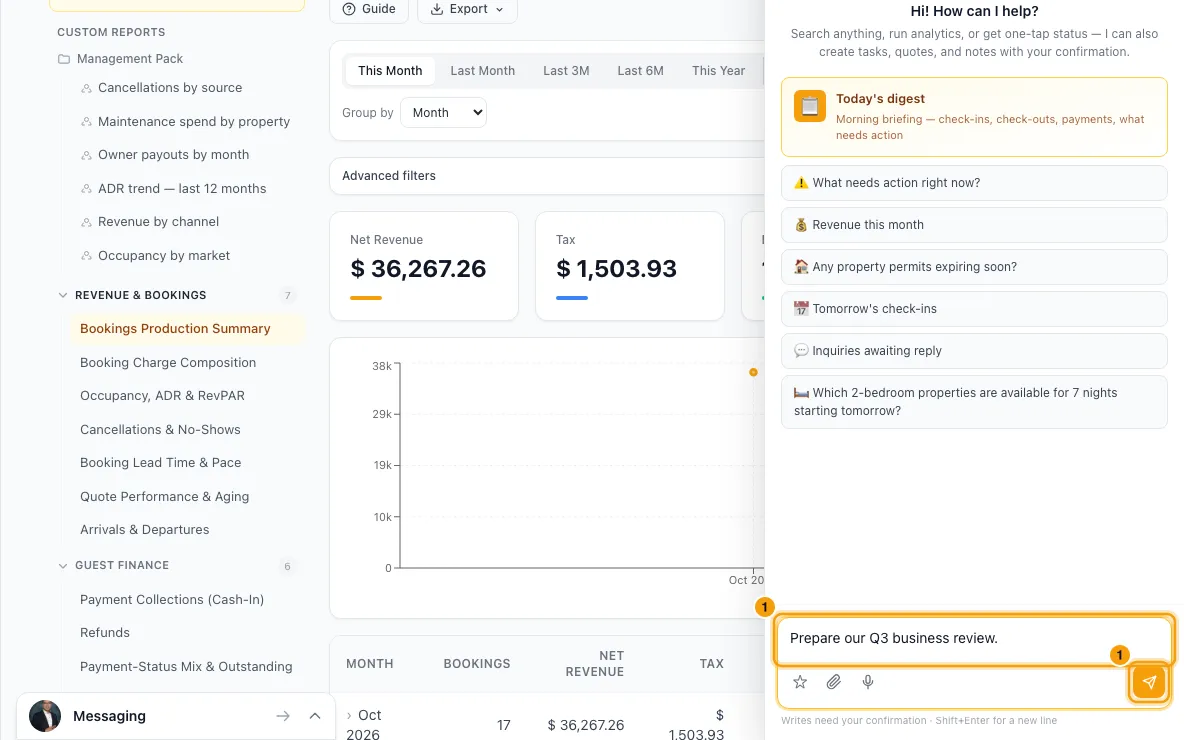
Open Rentibly AI (the round amber button at the bottom right, or Ctrl + J / ⌘ + J) and ask, for example: "Prepare our Q3 business review."
Answer its questions: the period, what to compare with (the previous period, the same period last year, or nothing), and anything you want it to emphasise or leave out. You can tailor it in your own words, for example "for the reservations team", "for guest services", or "exclude financials".
Check the card. It lists every section Rentibly AI can include: revenue and bookings, channel mix, demand and conversion, guest experience, portfolio and listings, pricing and fees, operations, guest service and team, reservations team, guest services team, finance and collections, owners and management income, marketing and growth, and the outlook. The ones that fit your request are pre-ticked. Tick or untick anything; your ticks are final.
Click Confirm. The review is built in the background, usually in about a minute, and you can keep working meanwhile. The card shows Download PowerPoint and Download PDF when it is ready, and you get a notification, Your business review is ready, that opens the chat.
Tailored reviews
| Ask for | Starts with |
|---|---|
| A business review (default) | Every section with data except the two team sections |
| A reservations team review | Reservations team (inquiries and conversion per agent, quotes, what stops inquirers booking), demand, channels, revenue, outlook |
| A guest services team review | Guest services team (replies and response times per agent, first-reply SLA, backlog, how guests rate communication and check-in), guest experience |
| An operations review | Operations, portfolio and listings, guest experience |
| A finance review | Revenue, channels, finance, owners, pricing and fees |
| A portfolio and owners review | Portfolio, owners, revenue, outlook |
Tailoring also sets who the summary and insights are written for. "Exclude financials" leaves out finance, owners, and pricing and fees; you can still tick them back on the card.
Good to know
- The figures come from the same reports as your Reports page, so the presentation matches what you see there. Guest experience comes from the Quality Center.
- A period can be up to two years long.
- A period of whole months (a month, quarter or year) is compared with the same number of months just before it, so September is compared with August. Any other span is compared with the same number of days just before it. A figure whose comparison period has nothing to measure, such as occupancy before your properties went live, shows no comparison rather than a change from zero.
- Guest experience covers reviews written in the review period, compared with the same dates last year.
- Rentibly AI writes the executive summary, a line or two of insight per slide and the recommendations from those numbers only. A line quoting a figure that isn't in your data is removed automatically.
- You need Reports at View level, the same as the Reports page. Without it Rentibly AI tells you so and builds nothing. The built-in Agent, Operations, Manager and Admin roles include it.
- Greyed-out sections either have no data for the period or need a permission you don't have. For example, finance and collections needs Finance, owners needs Owners, and guest experience needs Quality Center.
- The presentation is for internal use. It includes team performance and your management income, so check it before sharing outside the company.
- The download buttons stay on the card in that chat, including when you reopen it from Chat history. Only you can open the files.
- Like every card, it must be confirmed within 10 minutes.
- You can build one review at a time, and at most three can be built at once across your whole account. If one is still building, Rentibly AI asks you to wait.
- Nothing in your account changes. The only things saved are the two files.
Rentibly AI can help
- This is a Rentibly AI feature: ask in the chat as in step 1. For how cards, downloads and chat history work, see Ask Rentibly AI to do things for you.
Still stuck?
Open Support from your profile menu in Rentibly, or email hello@rentibly.com — we answer fast.