Report and handle an incident (complaint, damage, breakdown)
Updated 13 October 2026
An incident records something that went wrong during a stay: a broken AC, a complaint, damage, a theft. It has an owner on your team, moves through set statuses, and keeps a timeline of everything done about it. The repair itself is an operation, which you link to the incident.
Steps
Report an incident
Go to Incidents and click + New Incident. Or open the booking from Bookings, go to its Incidents tab and click + Report incident.
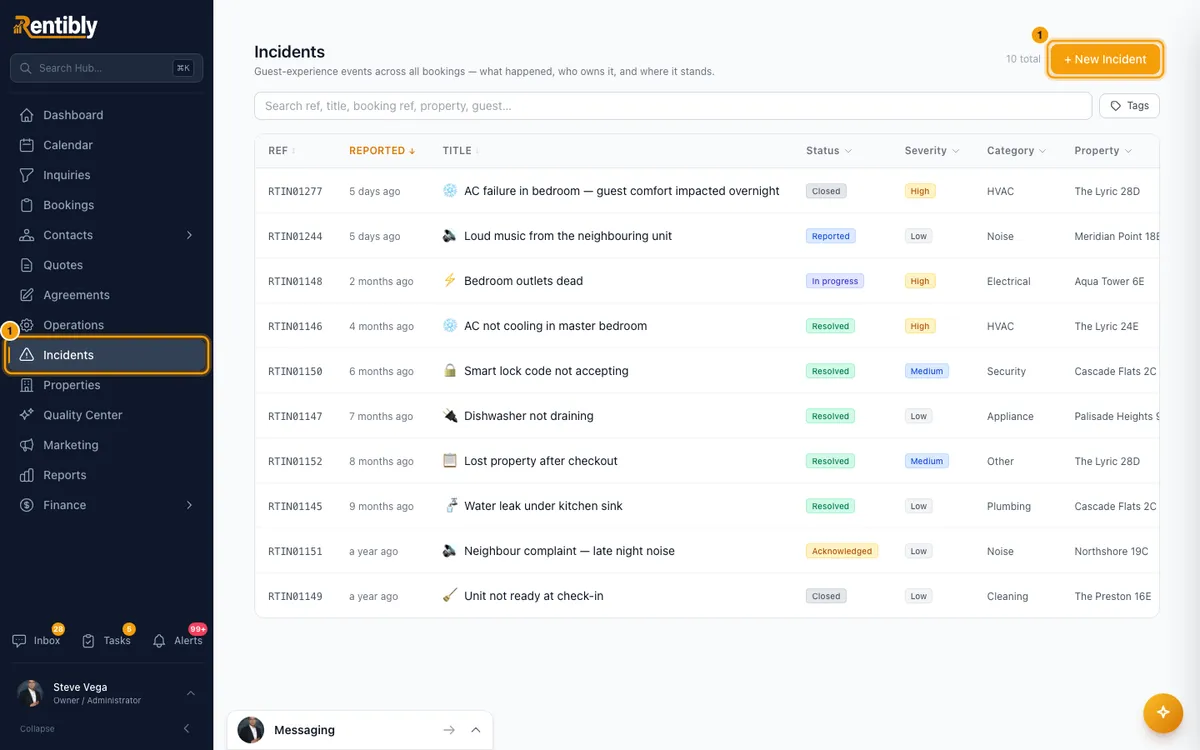
In the Report incident window, pick the Booking: search by booking ref, guest or property. (From a booking's tab, the booking is already set.)
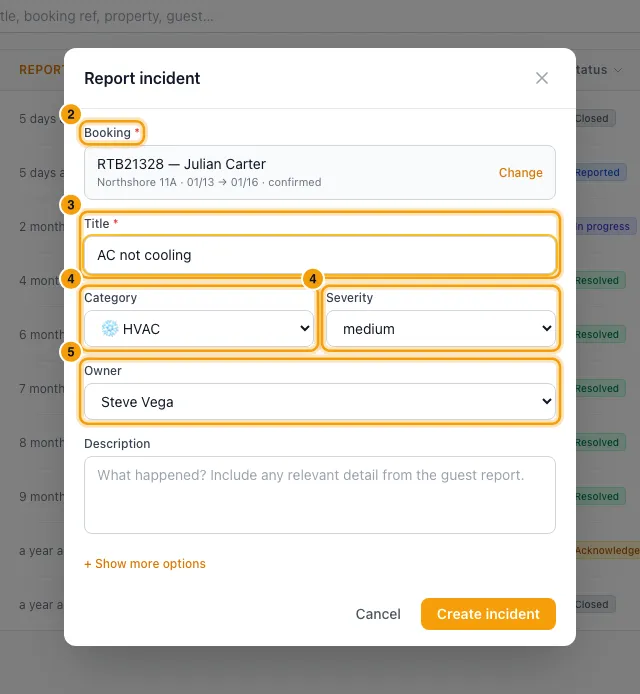
Enter a Title, for example "AC not cooling".
Pick a Category and a Severity (low, medium, high or critical).
Check the Owner. It is you by default. Pick a teammate, or — Unassigned —.
Add a Description if you like.
For more detail, click + Show more options: Subcategory (optional), Affected check-in, Affected check-out, Guest impact (minutes) and Tags.
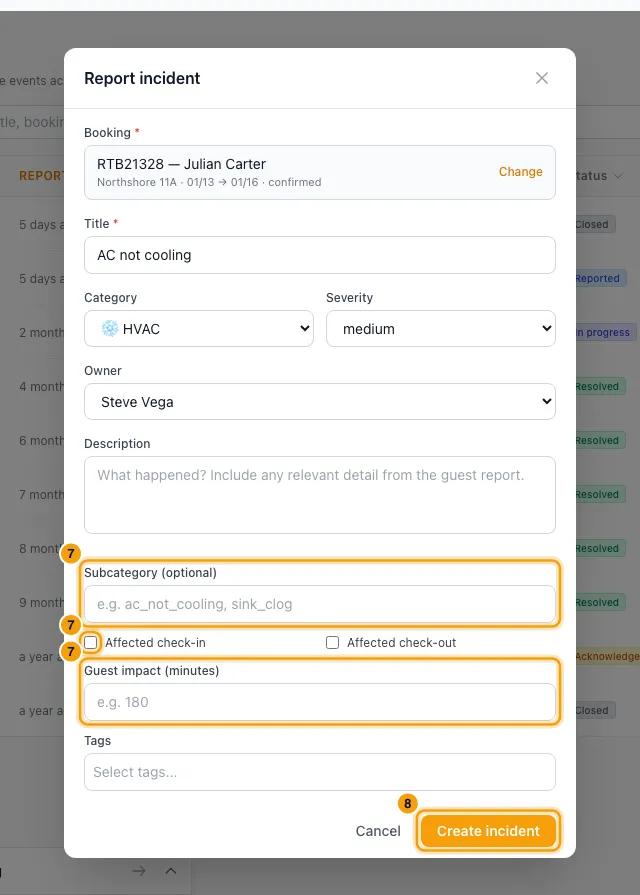
Click Create incident. On the Incidents page, the new incident opens straight away.
Move it to done
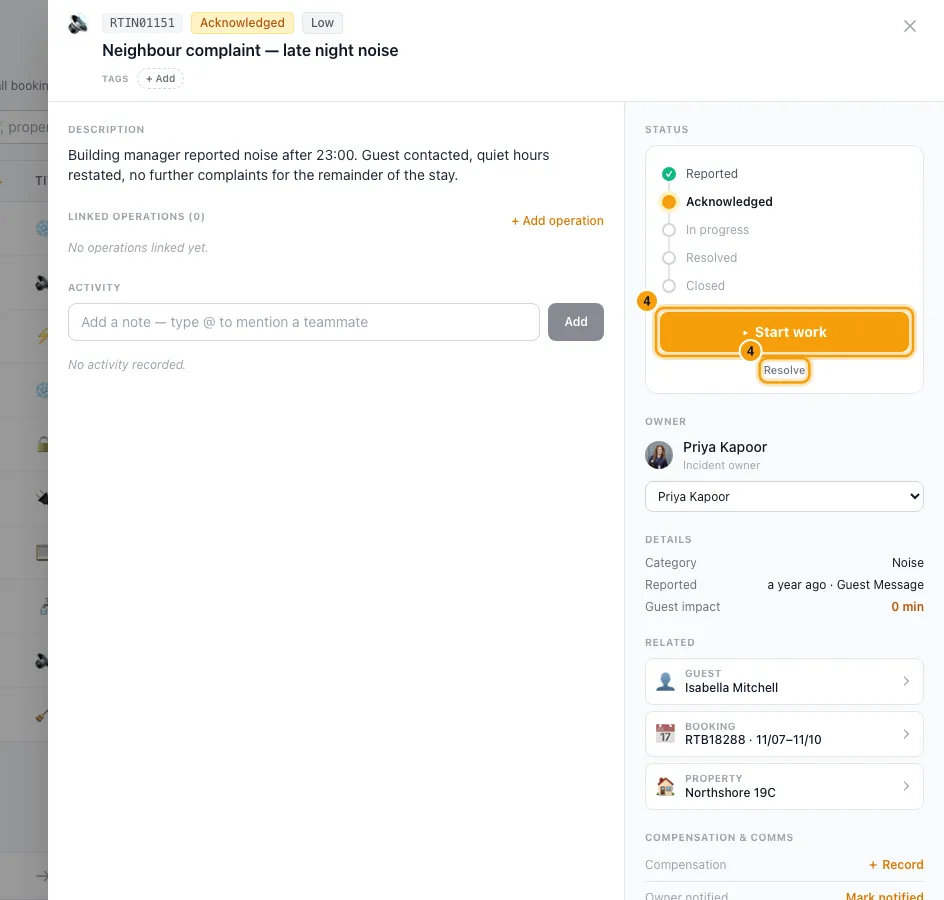
Click an incident to open it. The Status panel on the right shows the steps: Reported, Acknowledged, In progress, Resolved, Closed.
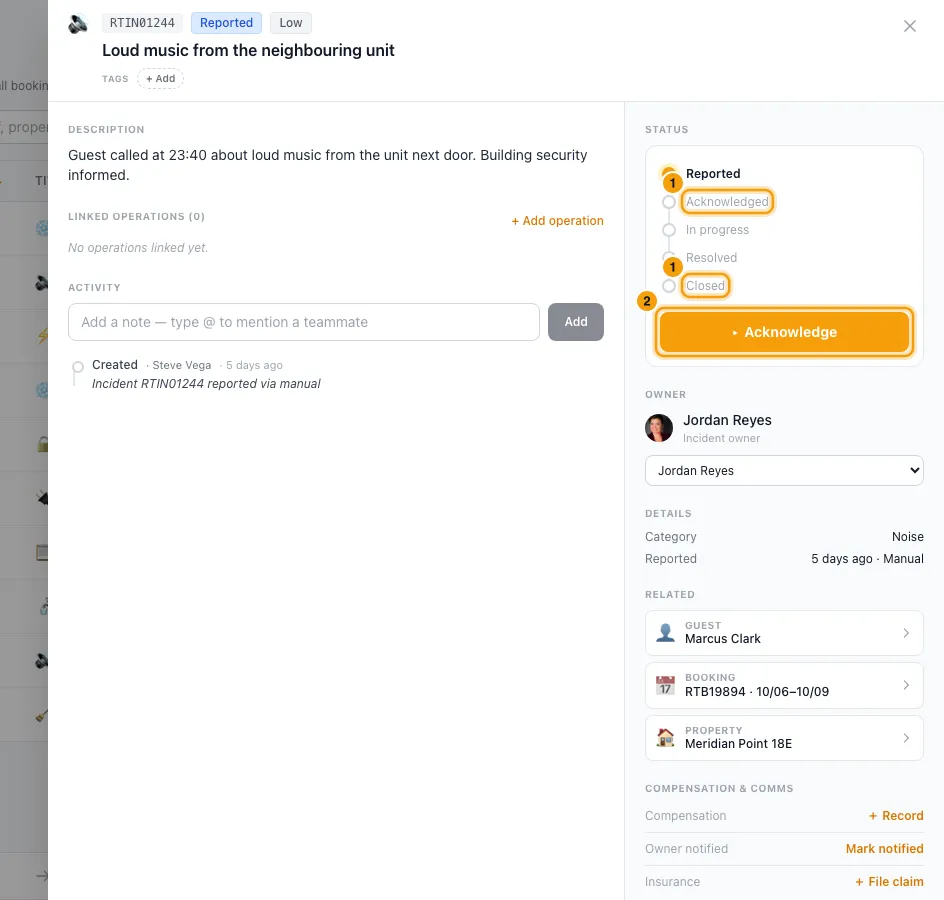
Click the big button for the next step: Acknowledge, then Start work, then Mark resolved, then Close incident.
When you resolve it, the Resolve incident window asks how it was fixed. The note is optional. Click Mark resolved.
The small links under the button offer the other allowed moves: Resolve straight from Acknowledged, and Reopen on a resolved incident.
Work on it
To hand it to someone else, pick them in the Owner list.
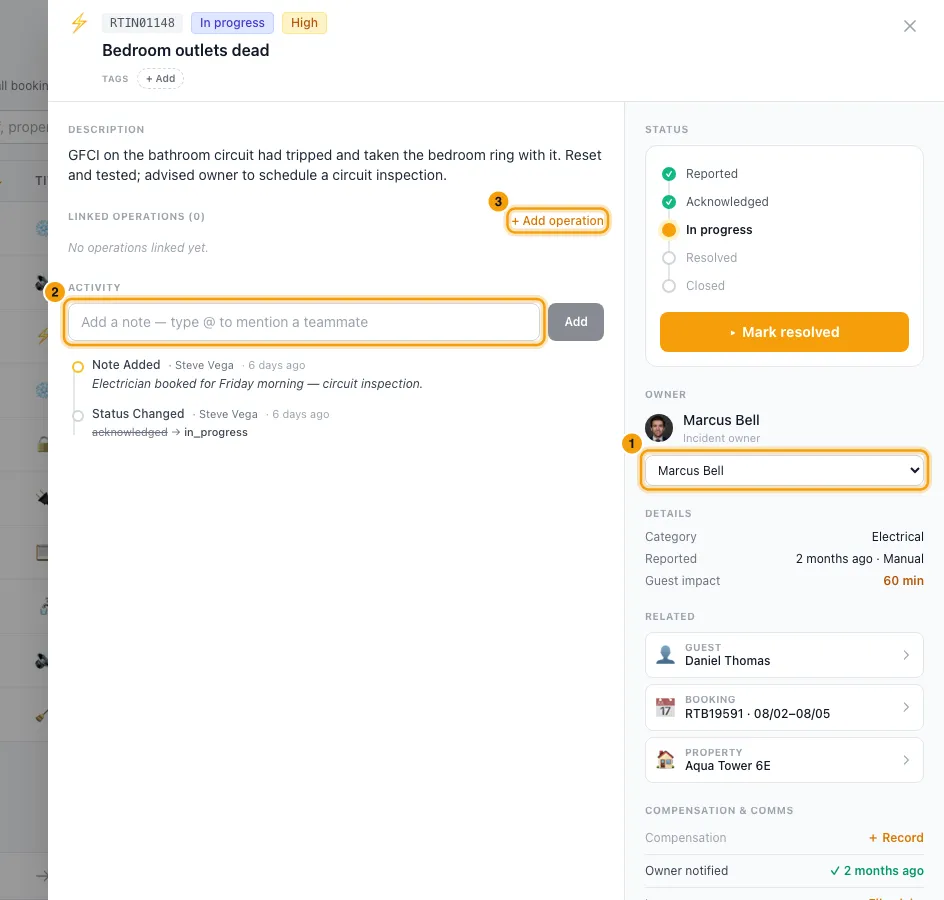
To add a note, type in Add a note — type @ to mention a teammate under Activity, then click Add (or press Enter).
To send someone to fix it, click + Add operation under Linked operations. Operations opens in a new tab with the property, booking, title and description filled in. Save the operation there and it is linked to this incident.
To record compensation, click + Record next to Compensation. Pick Refund, Credit, Gift, Future discount or None, enter the Amount and an optional note, and click Record.
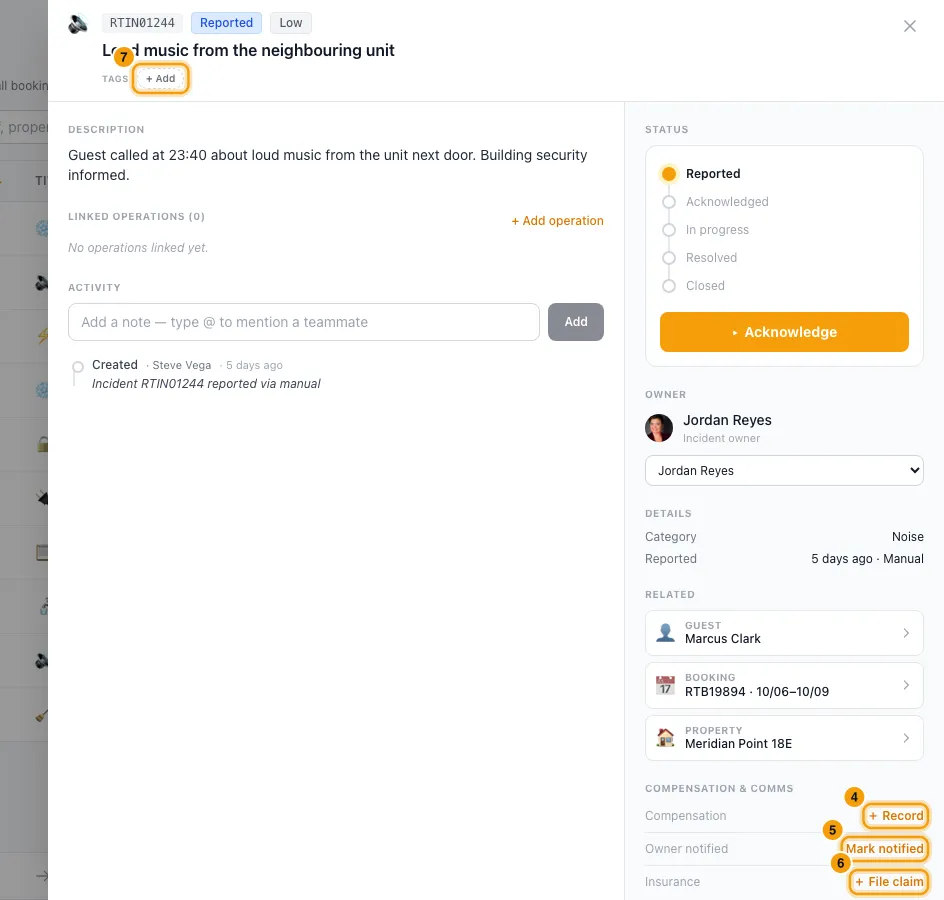
Once you have told the property owner, click Mark notified next to Owner notified.
If you file an insurance claim, click + File claim next to Insurance and enter the claim reference (optional).
To tag it, use the tags under the title.
Find incidents
On Incidents, type in Search ref, title, booking ref, property, guest….
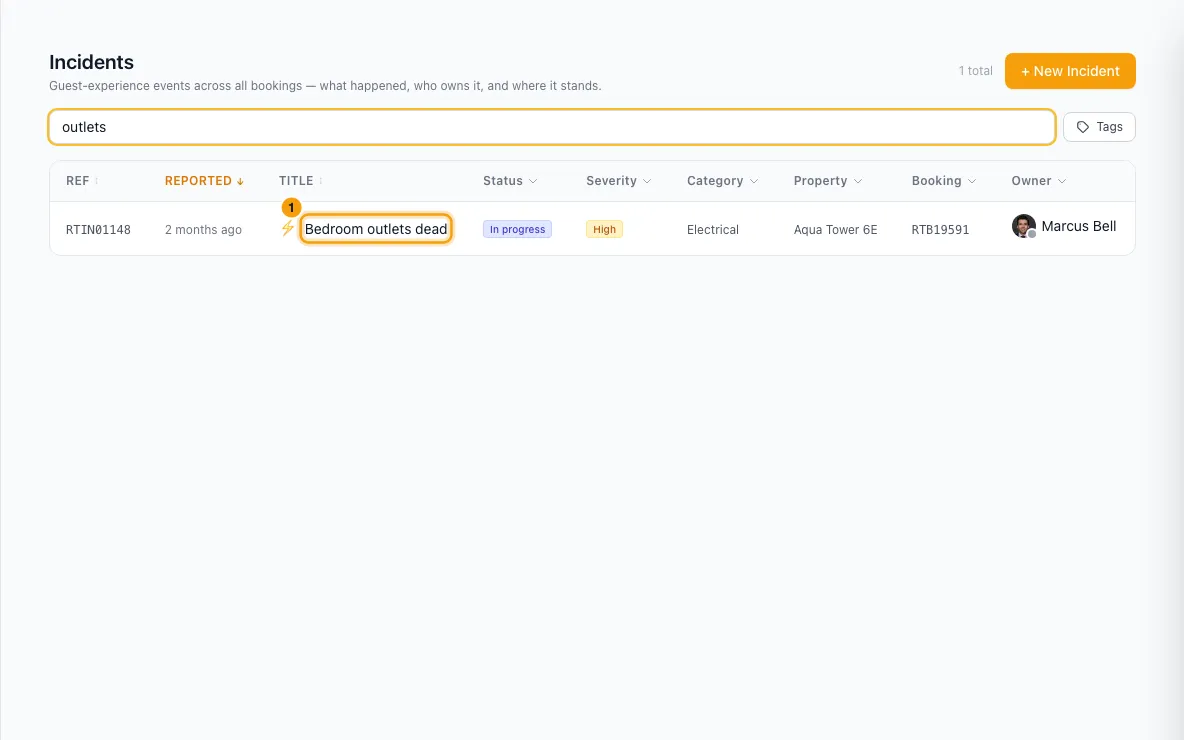
Use the column headers to filter by Status, Severity, Category, Property, Booking (type a booking ref and click Apply) or Owner (including Assigned to me). Use the tag filter for tags. Clear filters resets the column filters.
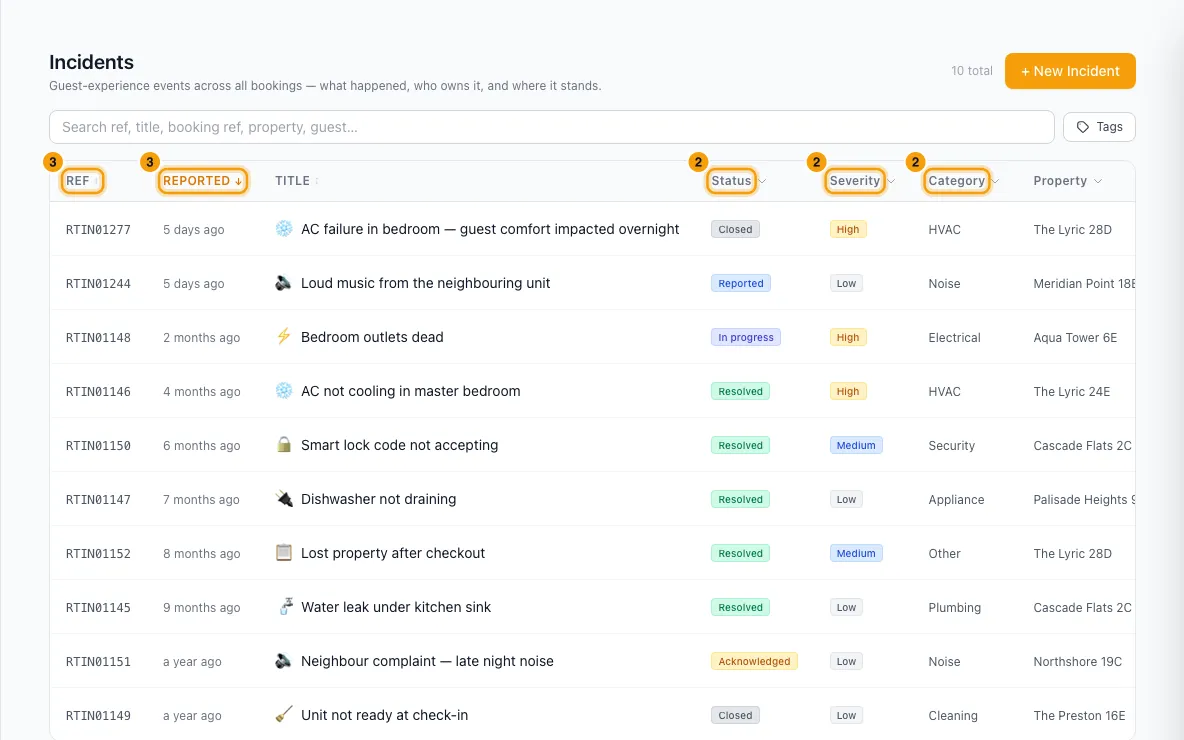
Click Ref, Reported, Title, Status or Severity to sort.
Good to know
- Every incident belongs to a booking. The property and the guest come from that booking. Each incident gets a reference number starting with RTIN.
- Status rules: the steps go in order, except that an acknowledged incident can be resolved without starting work. A resolved incident can be reopened; its old resolution note is cleared, so the next resolve records who fixed it and how. Closed is final: its status can't change again. Every change is saved in the Activity timeline, with who did it.
- The owner is the teammate responsible. New incidents are assigned to whoever creates them, unless you pick someone else.
- Records only: Record, Mark notified and + File claim only note what you did. Rentibly doesn't refund or credit the guest, doesn't message the owner and doesn't file a claim. To give money back, see Refund a guest payment. Once recorded, these can't be changed or undone from the incident.
- Compensation is always in your account's currency (Company Profile → Regional).
- Alerts: Rentibly sends no alert about incidents on its own. To be told, set up a rule (see Set up a notification rule (e.g. email the guest before check-in)) on events such as Incident reported, Incident resolved or Incident assigned to someone. Teammates you @mention in a note get the built-in mention alert. Clicking it opens the incident with that note highlighted in Activity.
- Incidents created or moved by Rentibly AI (in the chat, from an Inbox suggestion, or alongside an operation it suggests) trigger those rules too, the same as changes made on the incident itself. The person who approved the AI's card counts as the one who made the change.
- Where incidents show: the booking's Incidents tab; on Bookings, a 🚨 badge under the booking's Ref and the 🚨 Incidents status filter (open = not resolved or closed); a guest's Incidents tab in Contacts; and Linked incidents in an operation's details. In the Inbox, open the booking and use its Incidents tab.
- Inbox suggestions: with Rentibly Inbox AI Assist turned on (Settings → Rentibly AI), Rentibly AI may suggest a Create incident card on a guest's message. Click Approve to create it, with you as the owner. Nothing is created until you approve.
- Search matches the ref, title, description, category, property name, booking ref, owner's name and the guest's name (the guest on the incident, or else the booking's guest).
- Linking an operation here always links it as "caused by" this incident. To link an existing operation, use Link incident in that operation's details (see Schedule an operation).
- There is no delete button. Close an incident instead.
- The list shows 50 incidents per page.
- Permissions: you need Incidents at View to see incidents, and at Edit to report one, change its status or owner, add notes, link operations, or record compensation, owner notice or insurance.
Rentibly AI can help
- Ask "any open incidents at <property>?" or "what went wrong this month?" and it answers with. gives the full detail of one (by RTIN number).
- It can report an incident on a booking with or turn an Inbox conversation into one with. You confirm each one first.
- It can move an incident's status with (same rules as above), link it to an operation with and add a follow-up task with.
Still stuck?
Open Support from your profile menu in Rentibly, or email hello@rentibly.com — we answer fast.