Set up digital check-in forms
Updated 12 October 2026
A check-in form is what guests fill in before they arrive: their details, ID documents and anyone travelling with them. You design the forms here; each booking then gets its own secure link to the form that applies to it.
Steps
Click your name at the bottom of the sidebar, then Settings. Under Property Settings, open Digital Check-in.
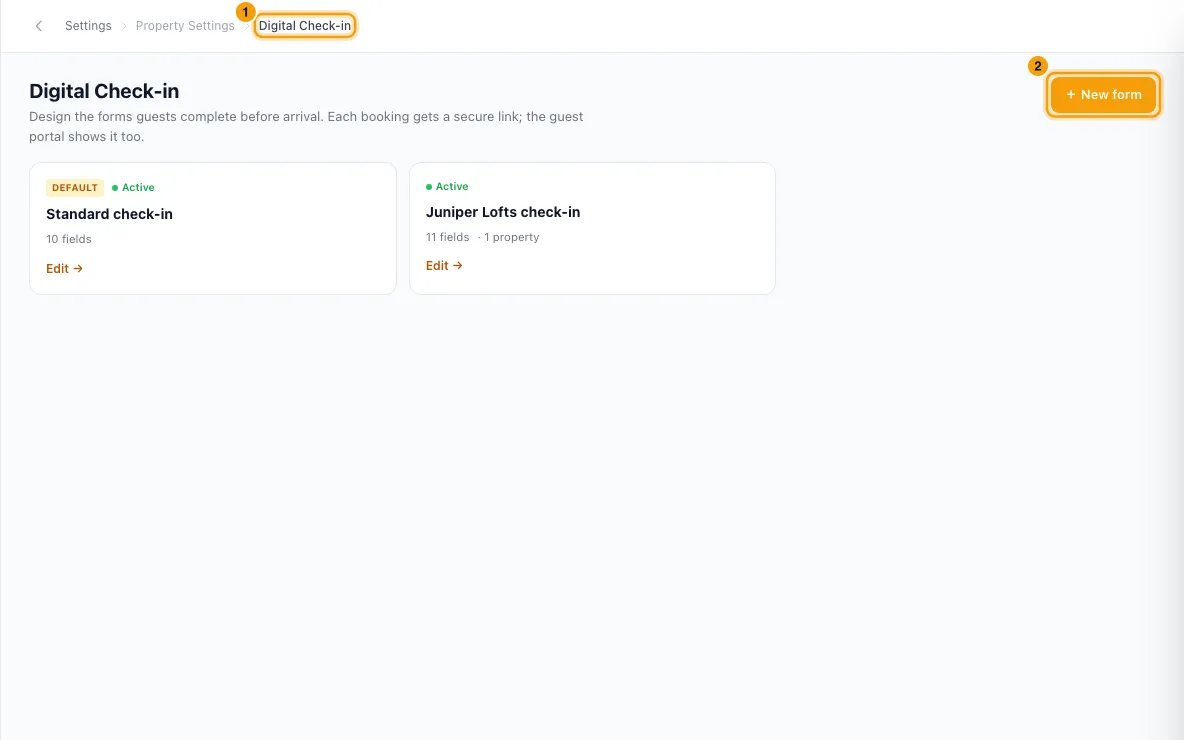
Click + New form, or click a form to edit it.
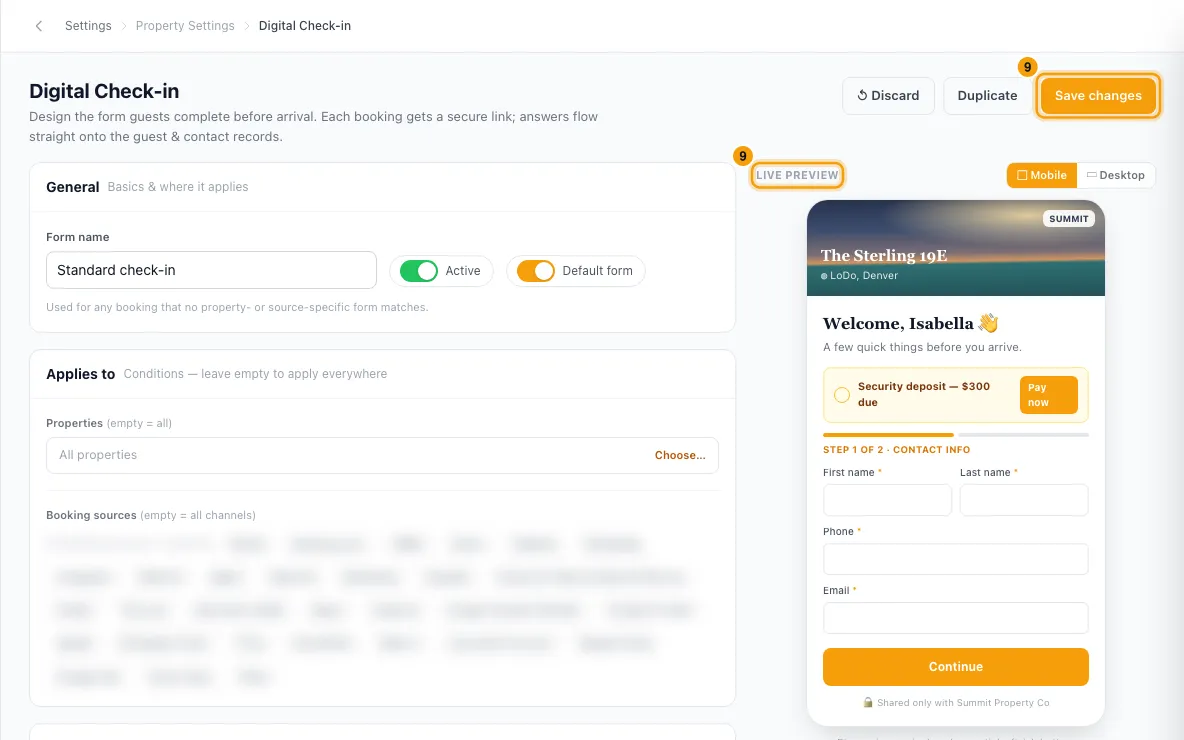
Under General, enter the Form name. Leave Active on. Turn on Default form if this form should cover every booking that no other form matches.
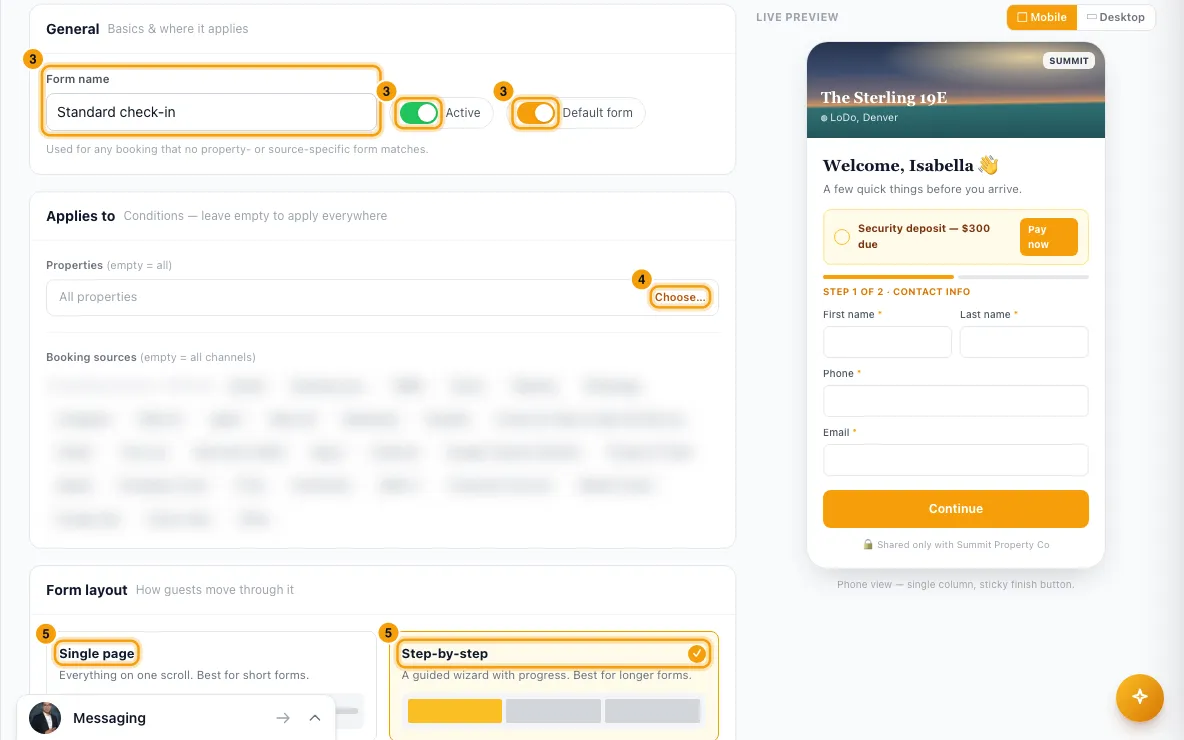
Under Applies to, click Choose… to pick Properties, and pick Booking sources. Leave both empty to use the form everywhere (it must then be the Default form).
Under Form layout, choose Single page or Step-by-step. For step-by-step, use + Add step and name each step.
Under Fields, click + Add field for each question:
- Type the Field label.
- Choose the type, such as Short text, Date, Dropdown, File upload or Marketing consent.
- Choose where the answer is saved, such as Passport number or ID document (upload), or Don't map (custom question).
- Choose Full width or Half, and tick Required if needed. For a step-by-step form, choose the step.
Drag fields by ⠿ to reorder them.
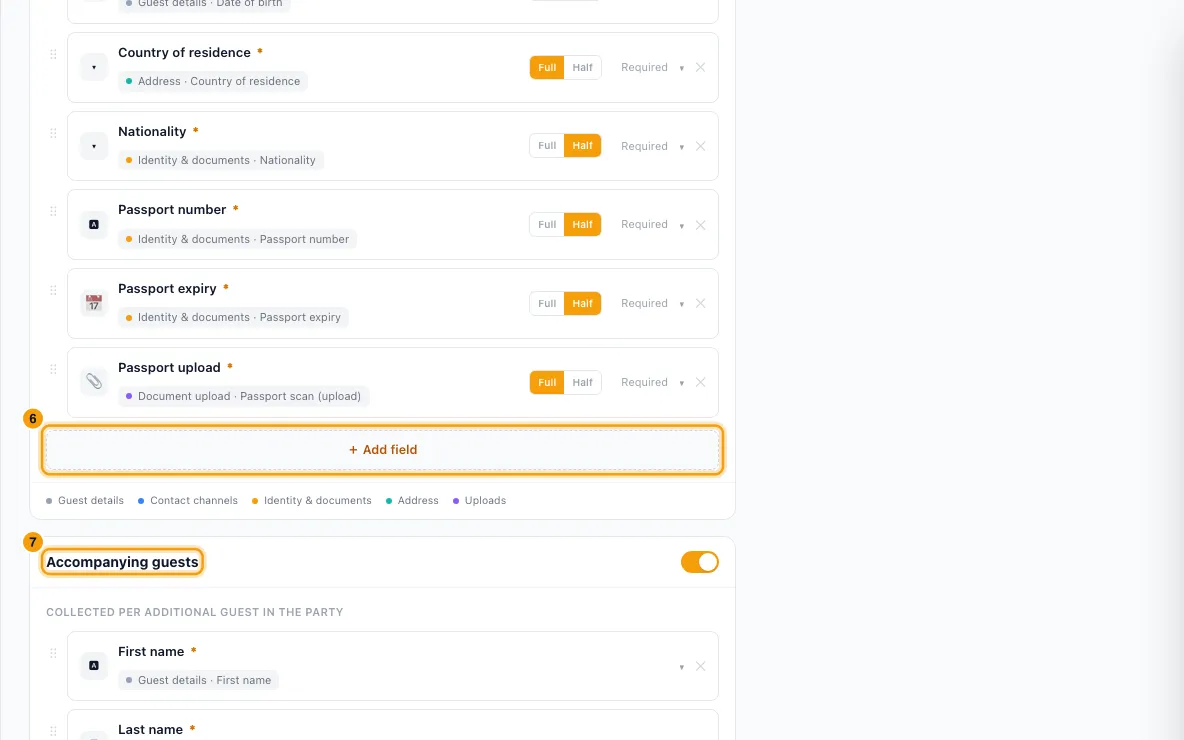
To collect everyone in the party, turn on Accompanying guests. It starts with first name, last name, age group and relation; use + Add companion field for more.
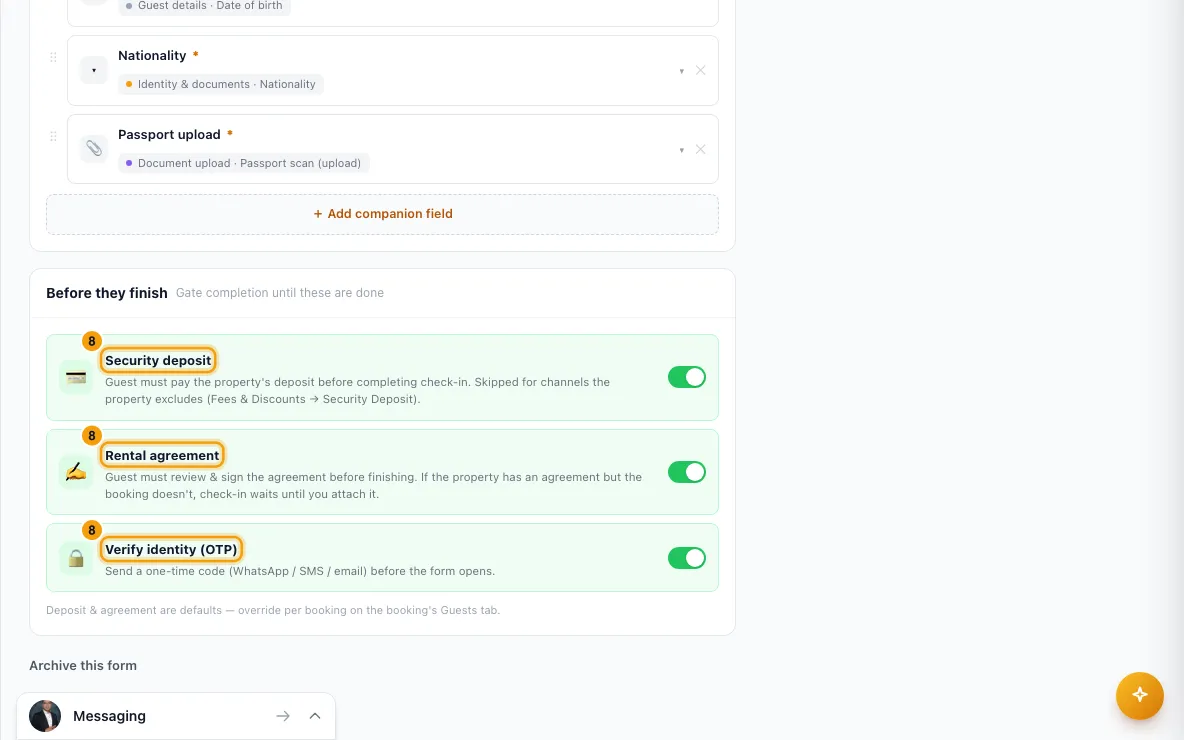
Under Before they finish, turn on any of Security deposit, Rental agreement and Verify identity (OTP).
Check the Live preview (▢ Mobile or ▭ Desktop), then click Save changes.
To make a variation of a form, open it and click Duplicate. The copy is called "Copy of …" and starts inactive.
Archive a form you no longer use
Check-in forms are archived, not deleted, because links already sent to guests keep showing the form they were sent with.
- Open the form and click Archive this form at the bottom, then Archive to confirm.
- The form leaves the list and is no longer used for new check-in links. Links already sent keep working.
- To see archived forms, tick Show archived above the list. To bring one back, click Restore on its card, or open it and click Restore.
The default form can't be archived. Make another form the Default form first, then archive this one.
Good to know
- Which form a booking gets: only active forms that aren't archived count. A form scoped to a property and a booking source beats one scoped to a property only, which beats one scoped to a source only, which beats the default form. Between equal matches, the oldest form wins.
- A form with no properties, no sources and Default form off is never used. Its card shows "unscoped".
- Only one form can be the default. Making a form the default takes the mark off the other.
- Where answers go: mapped answers are saved on the guest's record on the booking and on their contact. Booking and contact custom fields can be mapped too. Uploads are saved as documents. If the guest's name plus a passport, ID, email or phone matches an existing contact, the guest is linked to that contact.
- Marketing consent: a ticked box records that the guest opted in. An unticked box changes nothing.
- Every field needs a label. If a field can't be saved (no label, or a file upload mapped to a text field), Save is refused and the message names the field by its position, so nothing is lost without you knowing. A form can have up to 60 fields, and a dropdown up to 40 options.
- Before they finish:
- Security deposit: the guest must pay the property's deposit to finish. It is skipped for booking sources the property excludes (Fees & Discounts → Security Deposit).
- Rental agreement: the guest must sign the agreement to finish. If the property has one but the booking doesn't, check-in waits until you attach it.
- Verify identity (OTP): the guest gets a one-time code by WhatsApp, SMS or email before the form opens.
- Deposit and agreement are defaults; you can change them for one booking on its Guests tab.
- The guest can submit once. Required fields and required uploads must be filled in.
- When a guest submits, your team gets the Hub alert Guest completed digital check-in. Choose who gets it under Settings → Notifications → Hub.
- A booking's link stops working two days after check-out.
- Changes to a form apply to links not yet submitted. A link keeps the form it was made with until someone opens the booking's check-in link box, which switches it to the form that now applies.
- Forms can't be deleted, only archived. An archived form can still be opened and edited, but it can't be made the default until you restore it.
- Archiving a form or turning Active off both stop it being used for new links. Links already sent keep opening. A link not yet submitted switches to the form that now applies the next time someone opens the booking's check-in link box.
- To send the link to guests, see Send the guest their digital check-in link and instructions.
- You need the Settings permission to see or change check-in forms.
Rentibly AI can help
- Rentibly AI can't create or change check-in forms yet. It can explain what each setting does.
Still stuck?
Open Support from your profile menu in Rentibly, or email hello@rentibly.com — we answer fast.