API keys and connected apps — Rentibly How-to
How-to: Data & Reports · Part 6 of 6 · 1:54 · 6 chapters · Watch on YouTube
Chapters
Read the transcript
Hey, and welcome to this Rentibly how-to: API keys and connected apps. Let's connect your own software — safely, with only the access it needs. Here's what we'll cover — the chapter times are right here, and in your player. Let's get started.
If your own software needs your Rentibly data — an accounting tool, a spreadsheet, a custom dashboard — it connects with an API key. Settings, System, Developer. Your active keys are listed here — none yet on this workspace — and anything a key changes shows up in your activity log, labelled with that key.
New API key. Give it a name you'll recognise — Accounting sync — and, if you like, an expiry date. Then grant only what it needs: here, reading bookings and payments. Sensitive permissions, like door codes and commission rates, are clearly marked.
Create key shows the key exactly once — copy it straight into your other system, because Rentibly never shows it again. And if a key is ever exposed, Revoke stops it immediately. We'll cancel this one.
Further down, webhooks: Rentibly calls your own systems the moment a booking or contact is created, with every request signed. And Zapier connects Rentibly to thousands of other apps without any code — it's in private beta, so request access here.
Thanks so much for watching! If you're already on Rentibly, open Settings, System, Developer, and check each key still needs the access it has. And if you're not on Rentibly yet, book a demo call, and we'll show you all of this, live.
Give your own software safe access to your Rentibly data with an API key — plus webhooks and Zapier. Shown live on a real Rentibly workspace.
More in Data & Reports
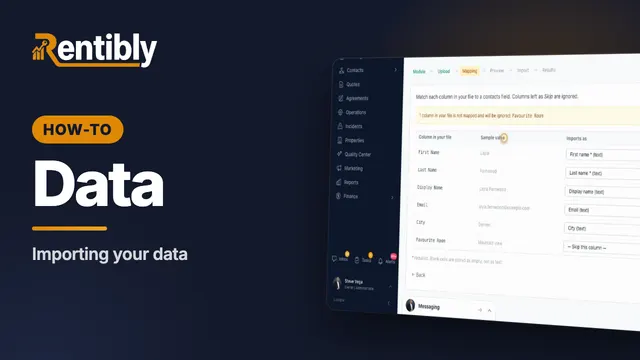 2:08
2:08How-to · Part 1
Importing your data
Bring a spreadsheet of contacts into Rentibly, export your data, and answer a guest's request for their personal data. Shown live on a real Rentibly workspace.
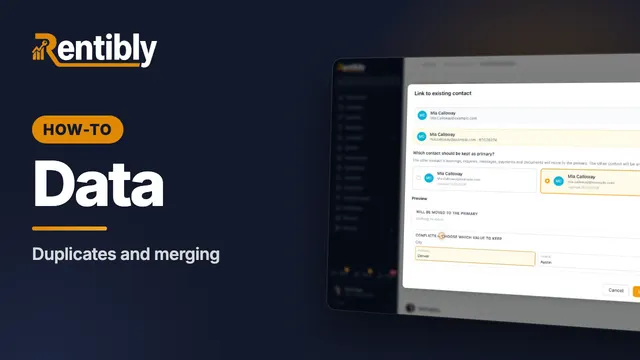 1:57
1:57How-to · Part 2
Duplicates and merging
Find guests who are in Rentibly twice, merge them into one record, and undo a merge if you need to. Shown live on a real Rentibly workspace.
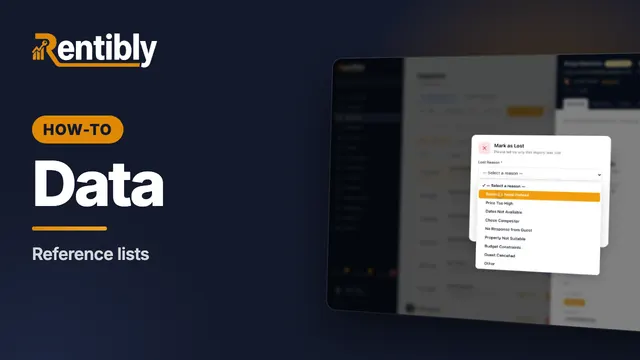 2:13
2:13How-to · Part 3
Reference lists
Sources, tags and lost reasons: the lists behind your reports — and how to add your own. Shown live on a real Rentibly workspace.
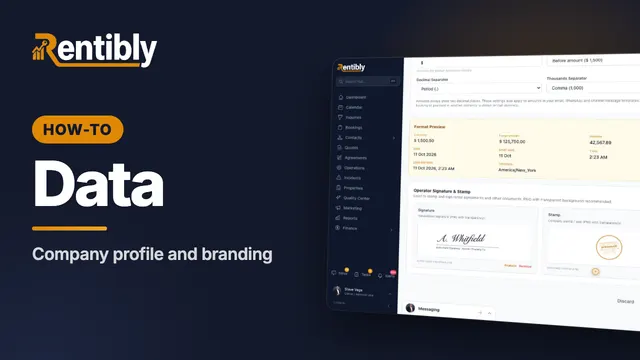 2:02
2:02How-to · Part 4
Company profile and branding
Your company details, time zone and formats, business hours, signature and stamp — and the logos on everything you send. Shown live on a real Rentibly workspace.
 1:37
1:37How-to · Part 5
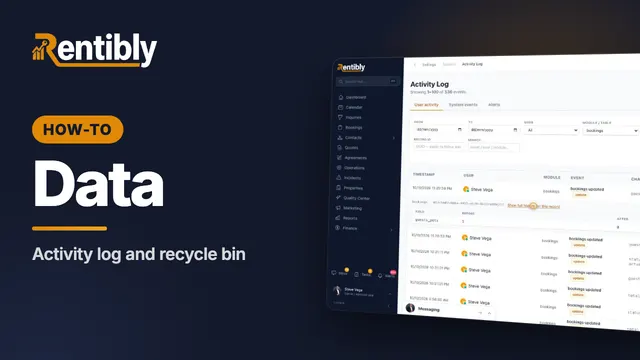
Activity log and recycle bin
See who changed what, field by field — and bring back a record that was deleted by mistake. Shown live on a real Rentibly workspace.
Count your subscriptions. Then count ours.
A 30-minute demo on your numbers — every tool you pay for today, mapped to its native Rentibly module.
Book a demo