Reference lists — Rentibly How-to
How-to: Data & Reports · Part 3 of 6 · 2:13 · 7 chapters · Watch on YouTube
Chapters
Read the transcript
Hey, and welcome to this Rentibly how-to: reference lists. These small lists decide what your reports can tell you — let's make them yours. Here's what we'll cover — the chapter times are right here, and in your player. Let's get started.
Every inquiry, booking and contact carries a source, so your reports show where your business really comes from. Settings, Data Management, Reference Lists. The built-in sources — Airbnb, Booking.com, Direct — are always there. And this column marks each one as an OTA, which takes a commission, or Direct: that's what your direct-revenue share is built on.
Add your own with Add Source: a key, a label — Google Ads — and a colour. Save, and it's offered wherever you pick a source.
Tags are your own labels, each with the modules it belongs to and how many records carry it. Add Tag: Accessibility needs, in the Guest Preferences group, for contacts and bookings. Save.
And Lost Reasons — one list for booking inquiries, and one for owners. Add Reason: Booked a hotel instead. Save.
Here's where these show up. Open Inquiries, and filter to the conversations you're already having — Contacted. Take one: Priya Ramirez, three nights in December. If this one falls through, choose Lost, and it asks for a reason — your new one's right there at the top of the list. We'll cancel.
Thanks so much for watching! If you're already on Rentibly, open Settings, Data Management, Reference Lists, and add the sources and reasons your team actually uses. And if you're not on Rentibly yet, book a demo call, and we'll show you all of this, live.
Sources, tags and lost reasons: the lists behind your reports — and how to add your own. Shown live on a real Rentibly workspace.
More in Data & Reports
 2:02
2:02How-to · Part 4
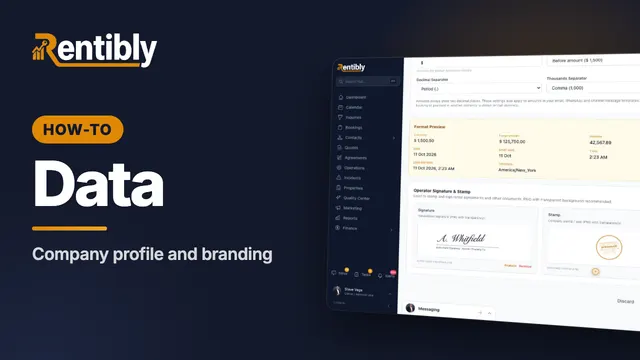
Company profile and branding
Your company details, time zone and formats, business hours, signature and stamp — and the logos on everything you send. Shown live on a real Rentibly workspace.
 2:08
2:08How-to · Part 1
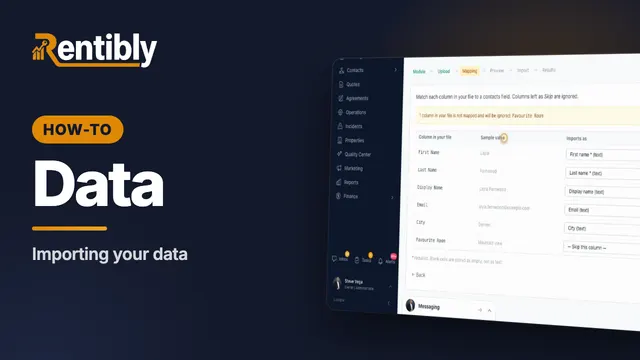
Importing your data
Bring a spreadsheet of contacts into Rentibly, export your data, and answer a guest's request for their personal data. Shown live on a real Rentibly workspace.
 1:57
1:57How-to · Part 2
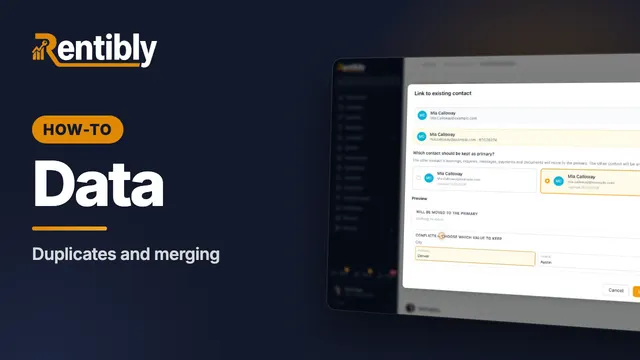
Duplicates and merging
Find guests who are in Rentibly twice, merge them into one record, and undo a merge if you need to. Shown live on a real Rentibly workspace.
 1:37
1:37How-to · Part 5
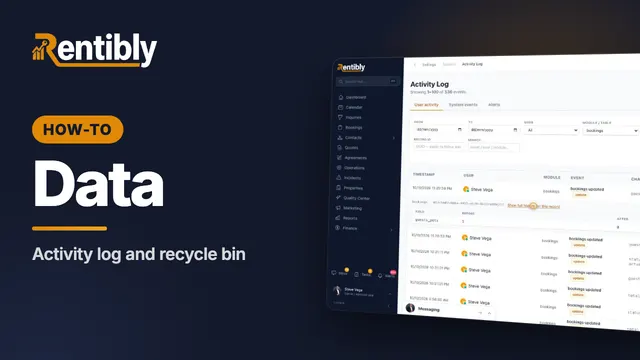
Activity log and recycle bin
See who changed what, field by field — and bring back a record that was deleted by mistake. Shown live on a real Rentibly workspace.
 1:54
1:54How-to · Part 6
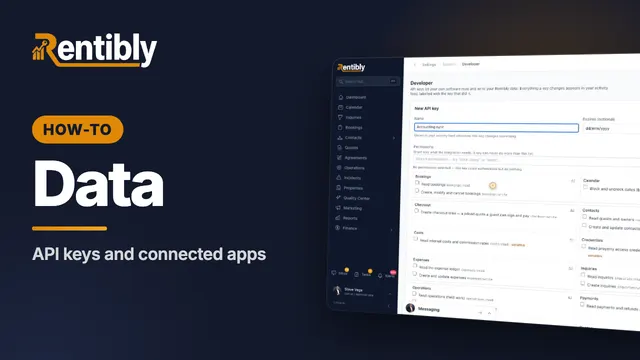
API keys and connected apps
Give your own software safe access to your Rentibly data with an API key — plus webhooks and Zapier. Shown live on a real Rentibly workspace.
Count your subscriptions. Then count ours.
A 30-minute demo on your numbers — every tool you pay for today, mapped to its native Rentibly module.
Book a demo