Add guest instructions, FAQs and a house guide
Updated 13 October 2026
Give guests what they need for their stay: check-in times and instructions, answers to common questions, how the appliances work, and a house guide they read in the guest portal. Each part has its own tab under the property's Listing Content.
Steps
Go to Properties, open the property, then click Listing Content.
Guest Instructions
Open Guest Instructions.
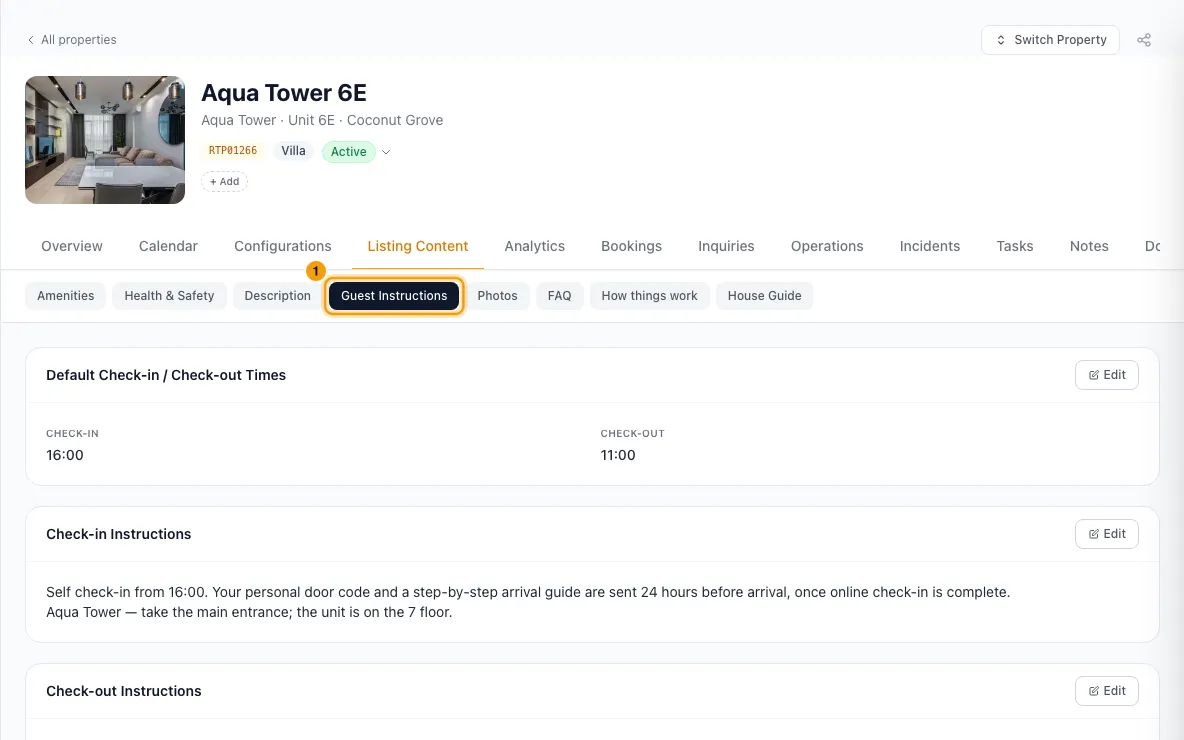
On each card, click Edit, fill it in, and click Save. The cards are Default Check-in / Check-out Times, Check-in Instructions, Check-out Instructions, House Manual, WiFi (Network Name and Password), Parking and Directions.
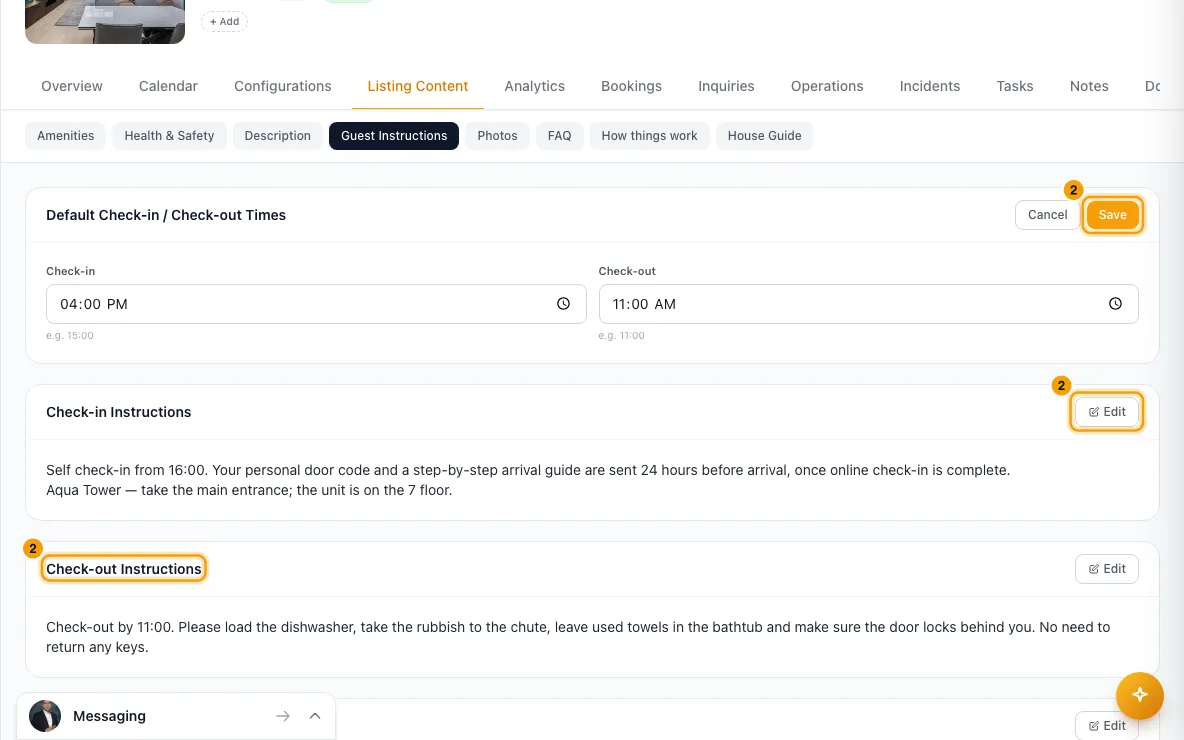
The House Rules card at the bottom shows the rules that apply to this property (see "Set house rules for some or all properties").
FAQ
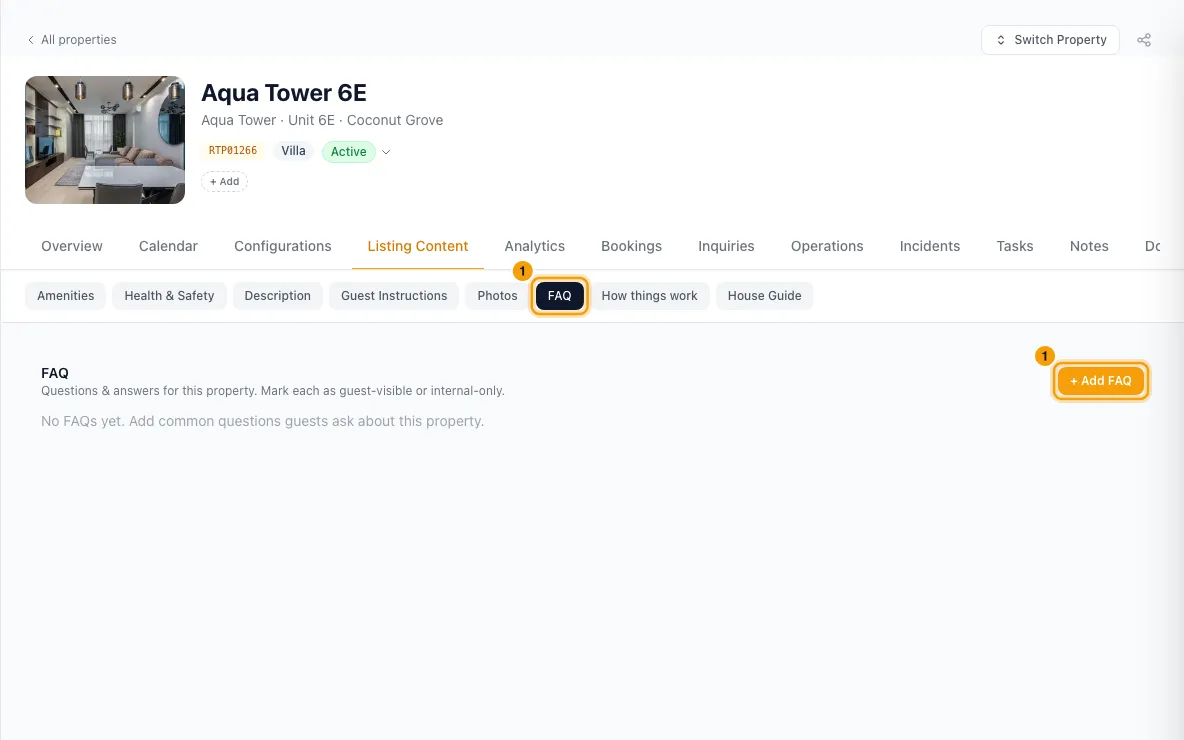
Open FAQ and click + Add FAQ.
Type the question and the answer.
Choose Guest visible or Internal only. For a guest-visible FAQ, leave Publish to booking channels ticked to send it to your channels too.
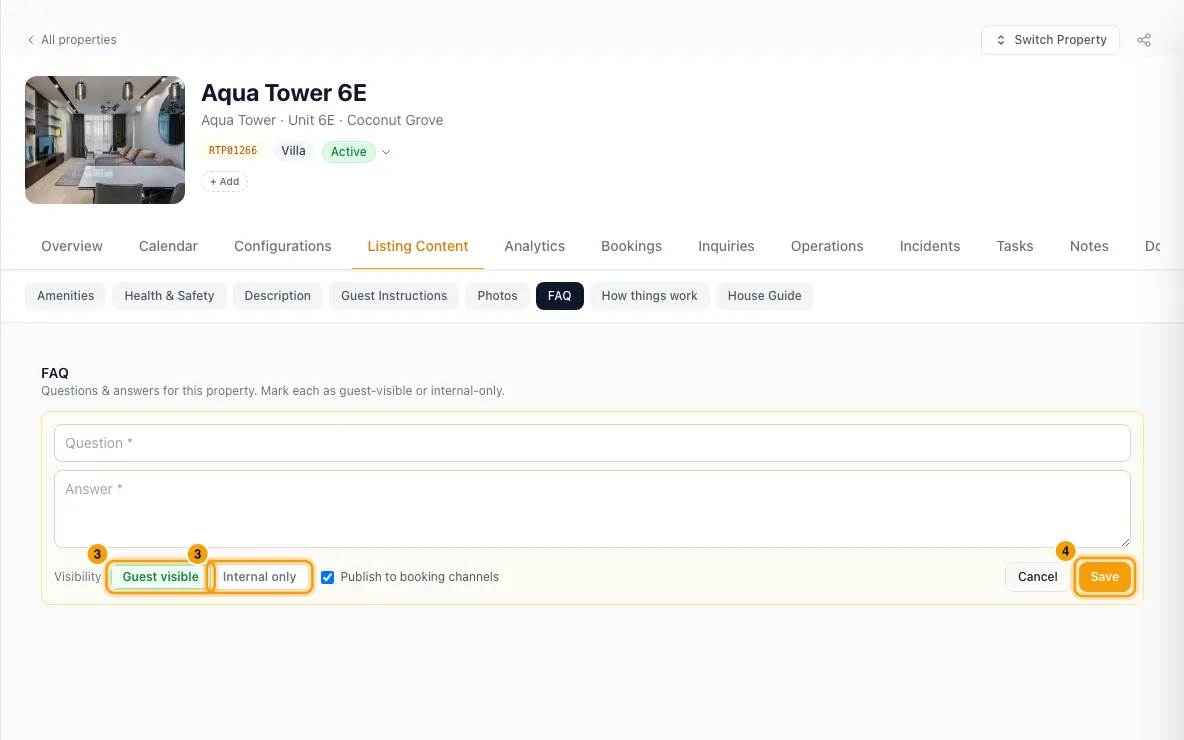
Click Save. Hover an FAQ to edit or delete it.
How things work
Open How things work. Click a suggestion (made from the property's amenities), or + Add instruction.
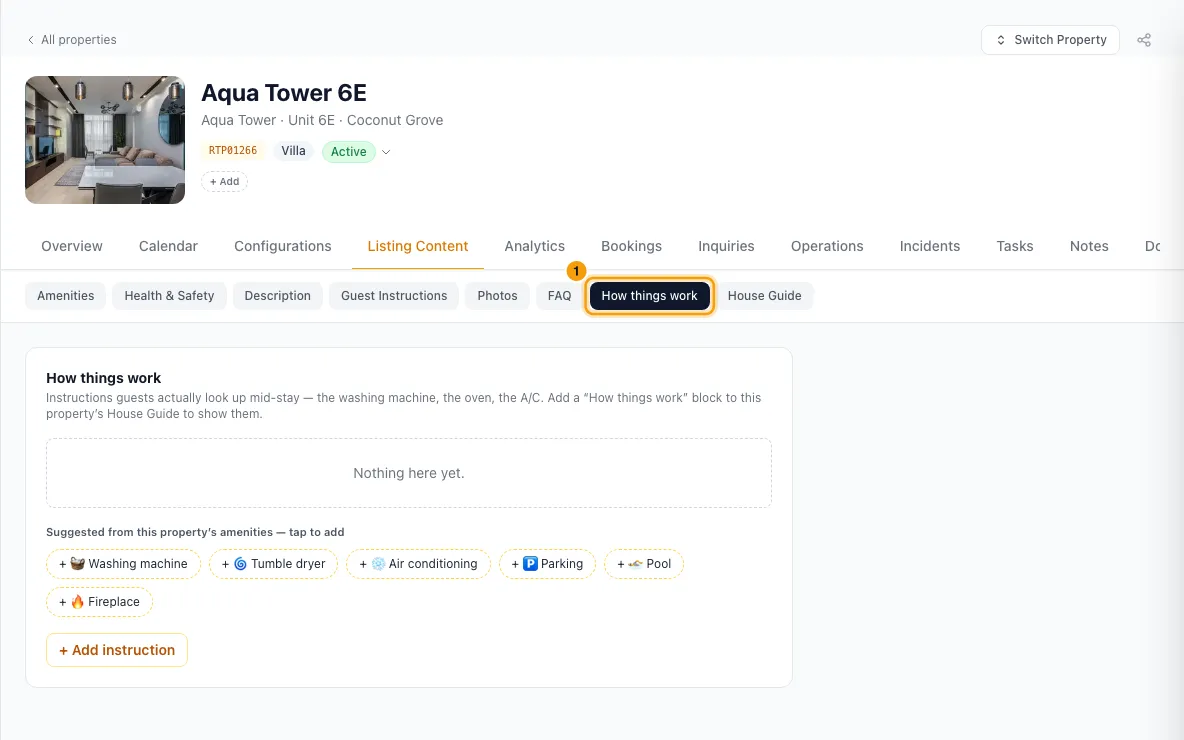
Click the icon box to choose an icon: pick a suggestion, or search all emoji. Then fill in the title, where it is, the Steps (+ Add step for more), and any notes. Optionally add a short clip link and a photo.
Untick Show to guests to keep it for your team only.
Click Save.
House Guide
Open House Guide.
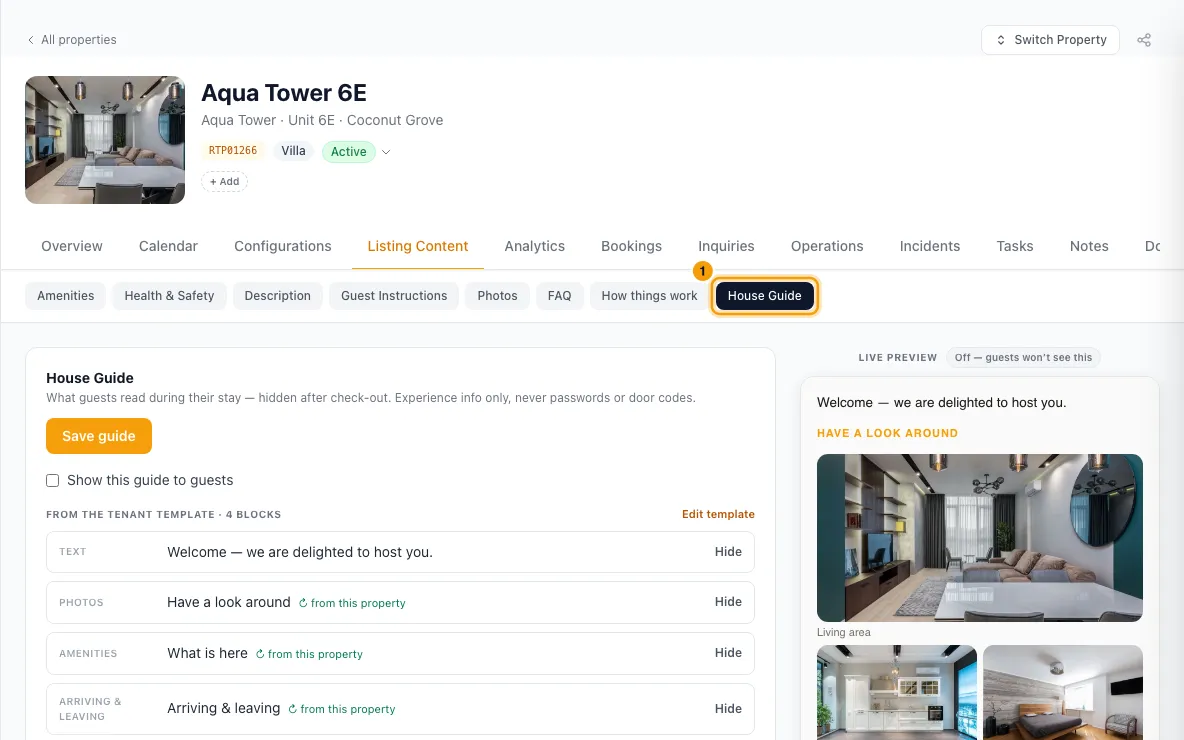
Click + Add block. Choose a block that fills itself from this property (Photos, Amenities, Rooms, Arriving & leaving, FAQ, How things work, Property video, Location map), or write your own (Heading, Text, Images, Video, Callout, Buttons, Divider, List).
Drag the ⠿ handle to reorder blocks. Click ✕ to remove one.
Tick Show this guide to guests.
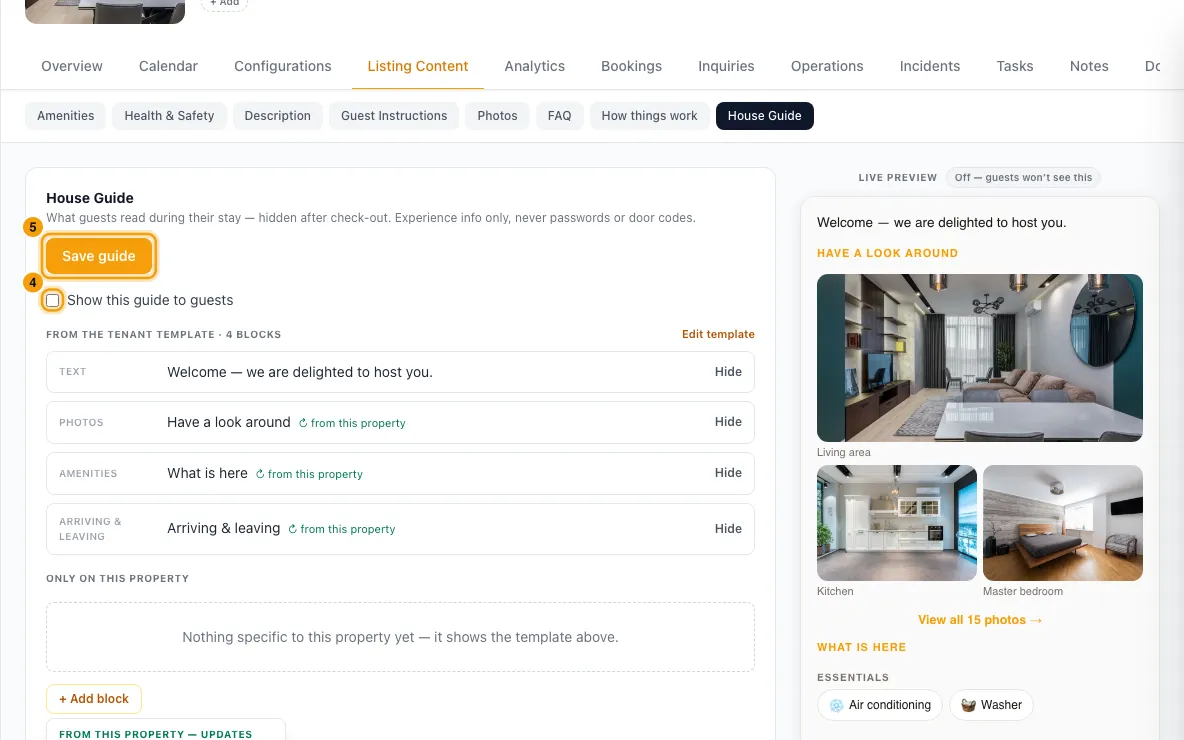
Check the preview, then click Save guide.
Good to know
- Check-in and check-out times: until you set them, quotes and bookings for this property show no arrival or departure times. Clicking Edit fills in 15:00 and 11:00 for you; click Save to keep them.
- What reaches booking channels:
- Check-in and check-out times.
- The House Manual, as the channel's guest manual. Never put codes or passwords in it.
- Guest-visible FAQs with Publish to booking channels ticked, added to that guest manual.
- The WiFi network name and password, as the listing's internet details.
- Changes are sent to connected channels automatically.
- The house guide is shown to the guest in the guest portal during their stay. It's hidden from the day after check-out, and never shown for cancelled or no-show bookings.
- The Arriving & leaving block shows the check-in and check-out times, instructions, directions and parking from Guest Instructions. The FAQ block shows only guest-visible FAQs. How things work shows only instructions with Show to guests ticked. Linked blocks update by themselves when the property changes.
- If your account uses a house guide template, its blocks are listed under From the tenant template. Use Hide or Show to choose which ones this property uses. Your own blocks always come after the template blocks. To change the template itself, click Edit template (see "Set up a house guide template for all properties").
- If a block is empty or a button link isn't http(s), it's dropped when you save and the page tells you how many.
- Icons: click the icon box on a how-to, a Callout or a button to choose one. The picker shows suggestions first, and you can search every emoji. Clear goes back to the default: 🔧 for a how-to, and the callout type's own icon for a callout. A button has no icon unless you choose one. An emoji too long to save there is refused with a message, so pick another.
- If someone else saved the guide while you were editing, your changes stay on screen. Click Reload to see theirs, then re-apply yours.
- Keep door codes and Wi-Fi passwords out of the house guide and How things work. Guests get those in their access details near arrival.
- FAQ questions are cut at 500 characters and answers at 4,000. A how-to has up to 20 steps of 500 characters.
- If a how-to can't be saved or removed, a message says why. A how-to you were editing stays open, so nothing you typed is lost. If the list can't load, the tab says so and offers Try again.
- You need Edit on Properties to change these. The house guide also accepts Settings access.
Rentibly AI can help
- It can set check-in and check-out times, check-in and check-out instructions, parking, directions and the Wi-Fi network name. It never reads or changes the Wi-Fi password.
- It can't write FAQs, how-tos or the house guide yet. Use the tabs above.
Still stuck?
Open Support from your profile menu in Rentibly, or email hello@rentibly.com — we answer fast.