Set house rules for some or all properties
Updated 13 October 2026
Write a house rule once and apply it to all your properties or only some of them. Guests see it on every channel listing, on your website and in guest messages and emails.
Steps
Click your name at the bottom of the sidebar, then Settings. Under Property Settings, open House Rules.
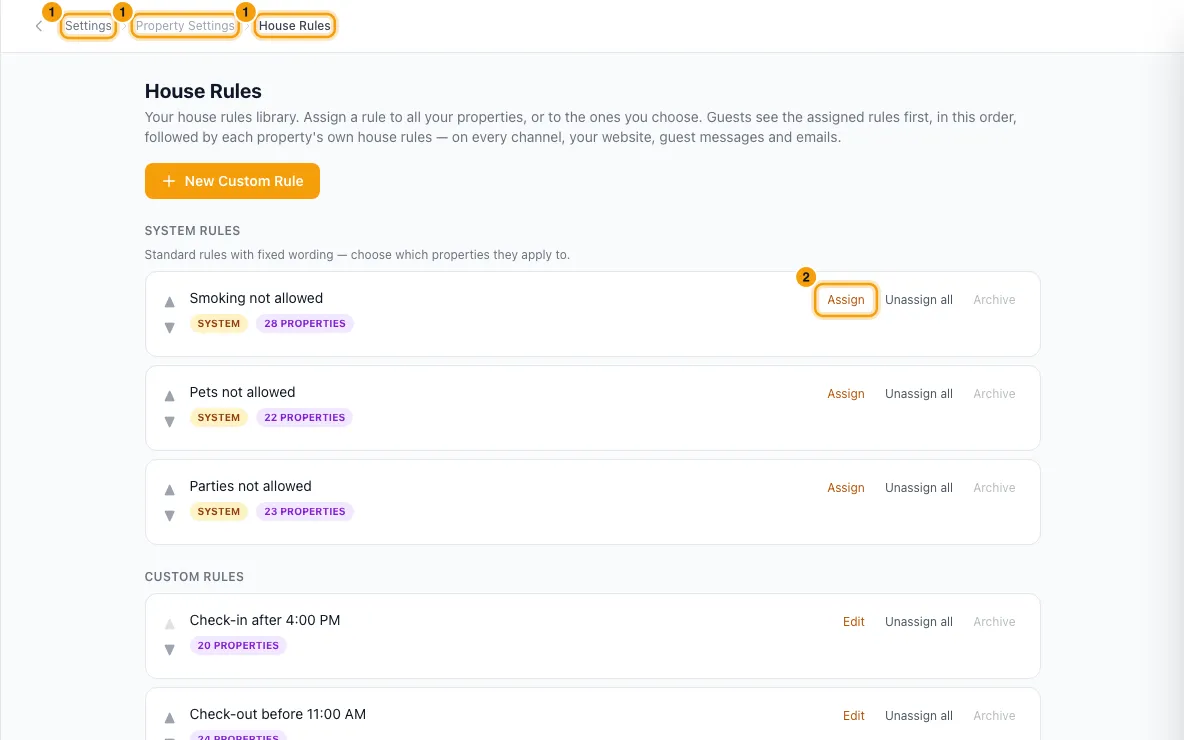
For a standard rule (under System rules), click Assign. The wording of these rules is fixed.
For your own rule, click New Custom Rule and type it in the Rule box. To change one you wrote, click Edit on it.
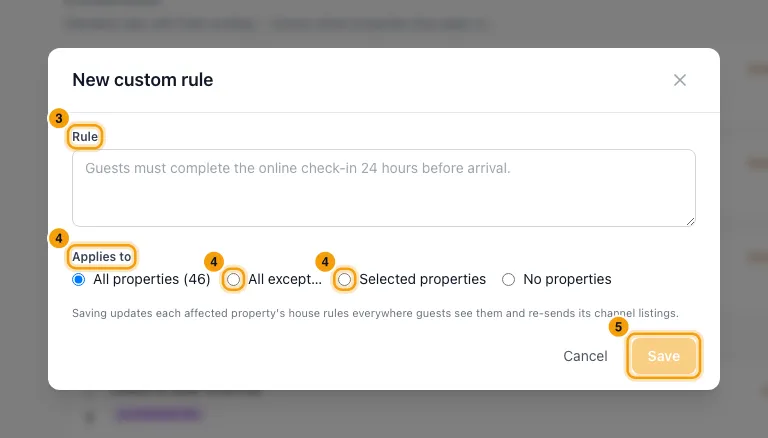
Under Applies to, choose All properties, All except…, Selected properties or No properties. For All except… and Selected properties, tick the properties in the list (use Search properties… to find one).
Click Save. The affected channel listings are sent again automatically.
To change the order guests see, use ▲ and ▼ on each rule.
For one property: open the property from Properties and go to Listing Content → Guest Instructions → House Rules.
- Use the switch on a shared rule to turn it off for this property only. It stays on your other properties.
- Open More from your library and switch a rule on to add it here.
- Type a rule in the box and click Add rule to add a rule for this property only. A rule written this way can be changed with Edit or taken off with Remove.
- Click Manage library → to go back to the full list.
Good to know
- The three system rules are Pets not allowed, Smoking not allowed and Parties not allowed.
- A new custom rule starts on All properties. Change it before saving if it should apply to fewer.
- A rule can be up to 1,000 characters.
- You can't write the same rule twice. If your wording matches a system rule, assign the system rule instead. Case, spacing and a final full stop don't count as a difference.
- A rule is refused if it would make any property's house rules longer than a channel listing carries (10,000 characters). Shorten the rule or that property's own text.
- Guests see library rules first, in the order on this page, then the property's own free text (from an import or the API) last.
- All except… also covers properties you add later.
- Turning a shared rule off on a property page makes that property an exception to the rule. The rule stays on every other property, including new ones.
- Rules are never deleted. Once a rule is on no properties (use Unassign all), you can Archive it. Open Archived at the bottom of the page and click Restore to bring it back. Remove on a property's own rule archives it the same way.
- Only the listings of properties that gained or lost a rule are sent again. Changing a rule's wording re-sends every property it is on.
- Pets, smoking, events, quiet hours and similar rules that channels show as separate fields are set on the property's Configurations → Booking Rules tab, not here. To charge for pets, see Set up a pet fee.
- Anyone can see the rules on a property. Adding, changing or archiving them, here or on the property page, needs the Settings permission.
Rentibly AI can help
- It can add a rule to all or chosen properties, reword or reassign one, and list your rules.
Still stuck?
Open Support from your profile menu in Rentibly, or email hello@rentibly.com — we answer fast.