Write a property's listing content (amenities, description, photos)
Updated 13 October 2026
A property's Listing Content is what guests see on your channels and website: its amenities, safety features, descriptions and photos. Each part has its own tab. Guest instructions, FAQs and the house guide are covered in "Add guest instructions, FAQs and a house guide".
Steps
Go to Properties, open the property, then click Listing Content.
Amenities
Open Amenities and click Edit.
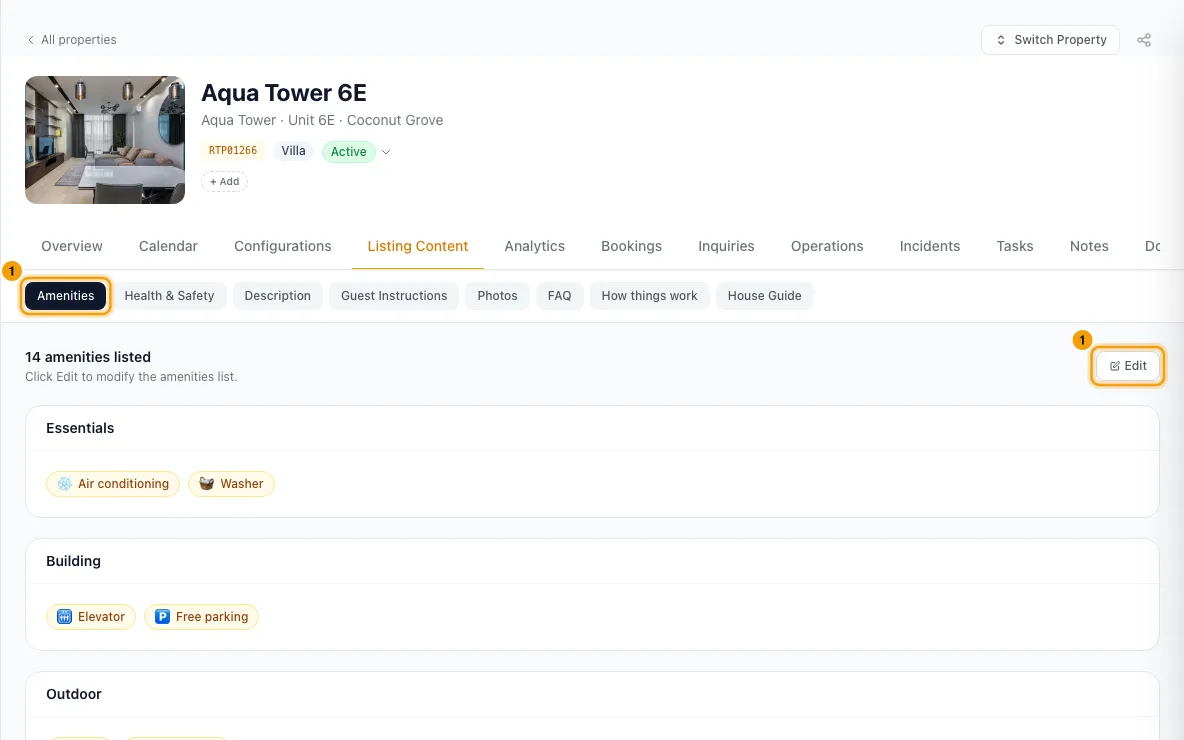
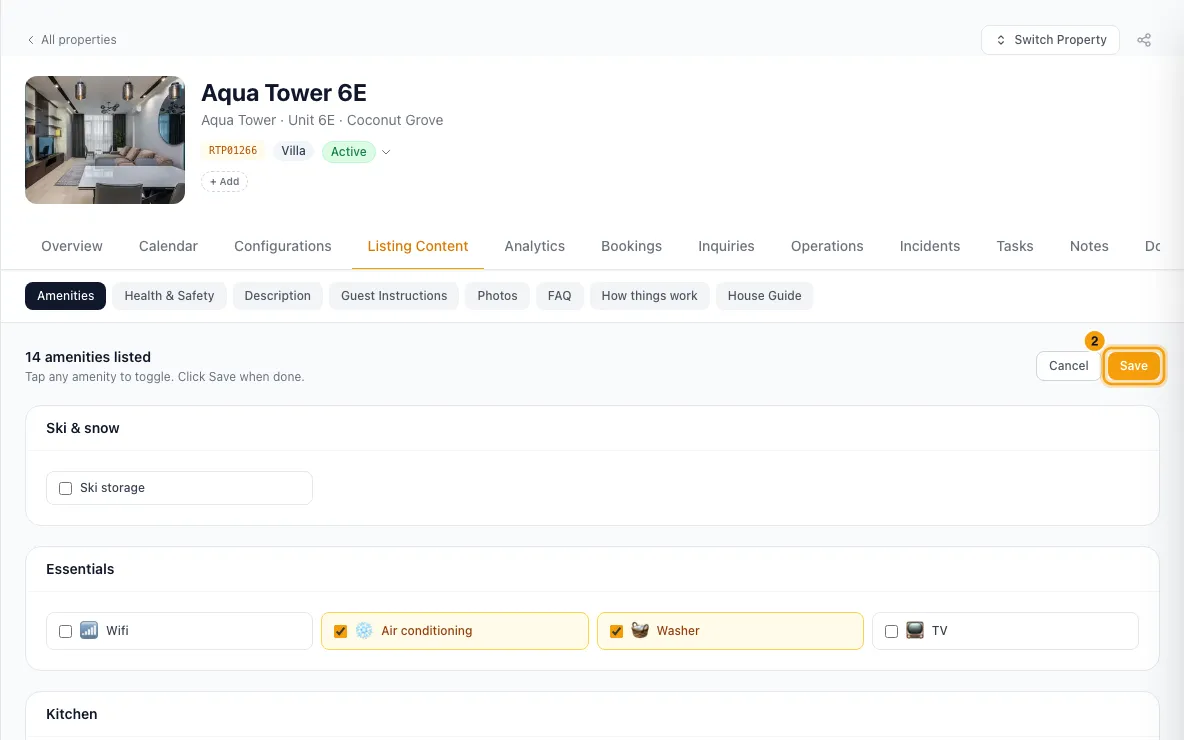
Tick each amenity the property has. Click Save.
Health & Safety
Open Health & Safety.
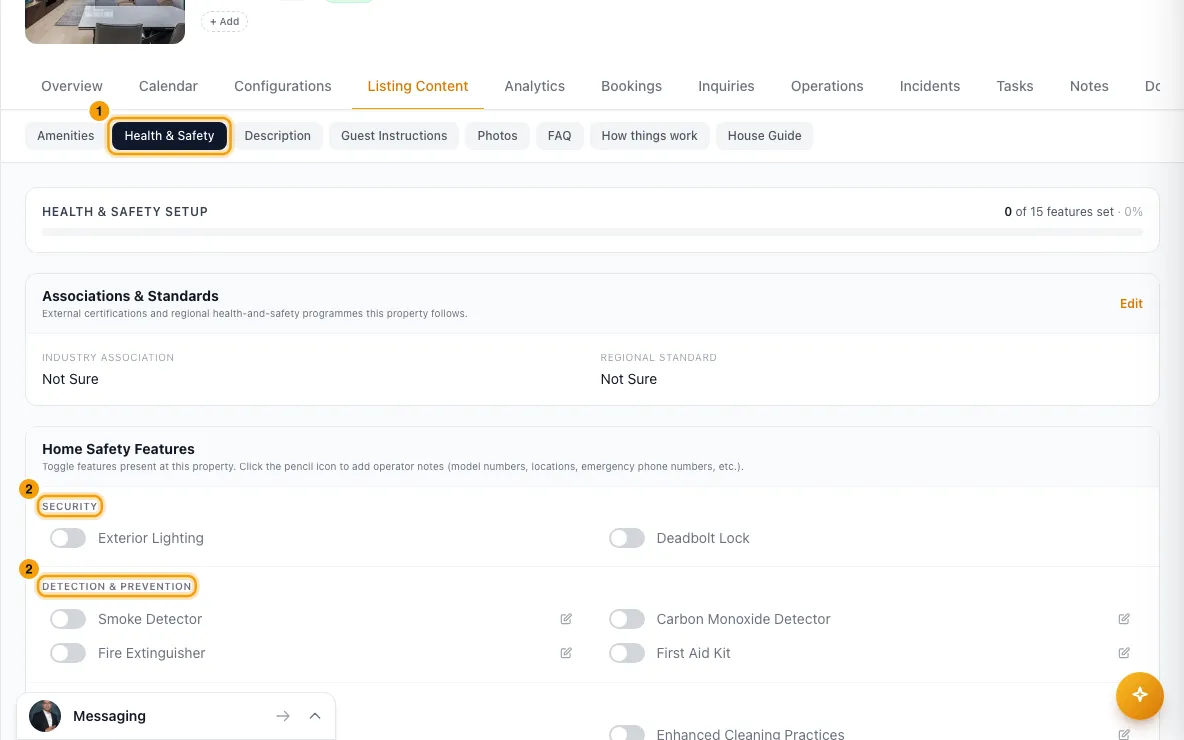
Switch on each feature the property has, under Security, Detection & Prevention, Cleaning & Hygiene and Emergency Information. Each switch saves straight away.
To add a note (a model, where it is, a phone number), click the pencil next to a feature, type it under Details and click Save.
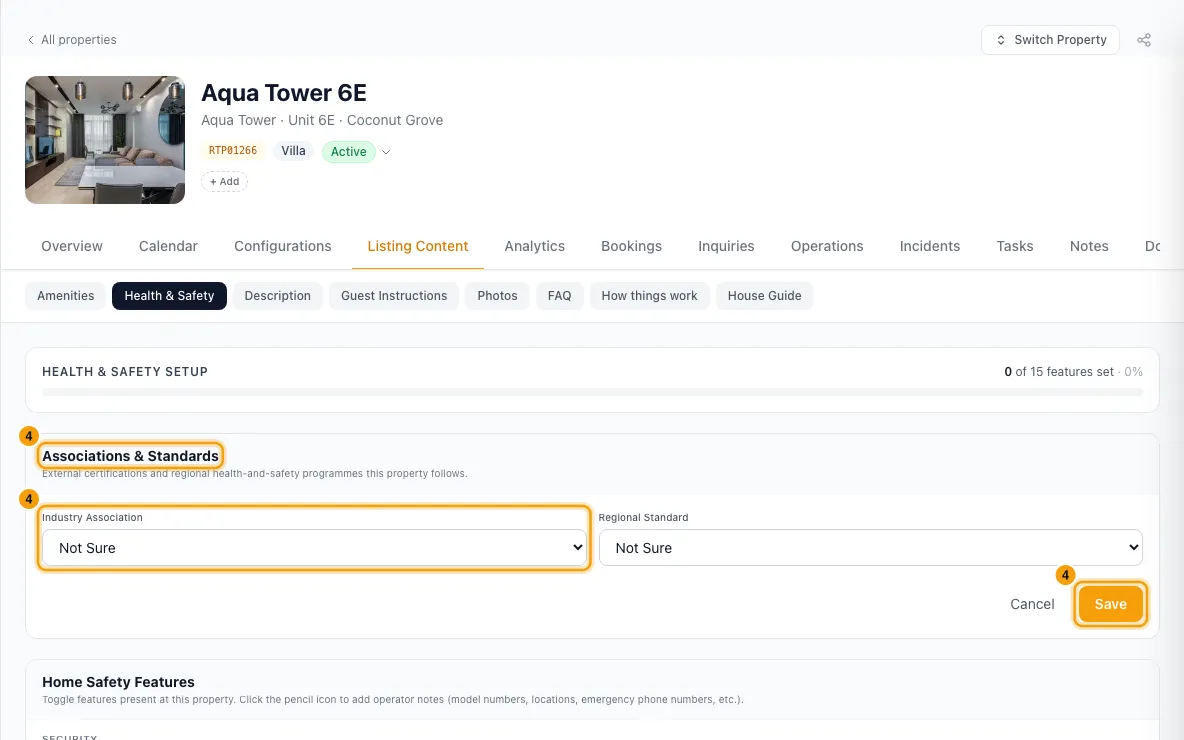
Under Associations & Standards, click Edit, pick an Industry Association and a Regional Standard, and click Save.
Description
Open Description and click a card: Default / Website, OTA Channels, Bayut or Property Finder.
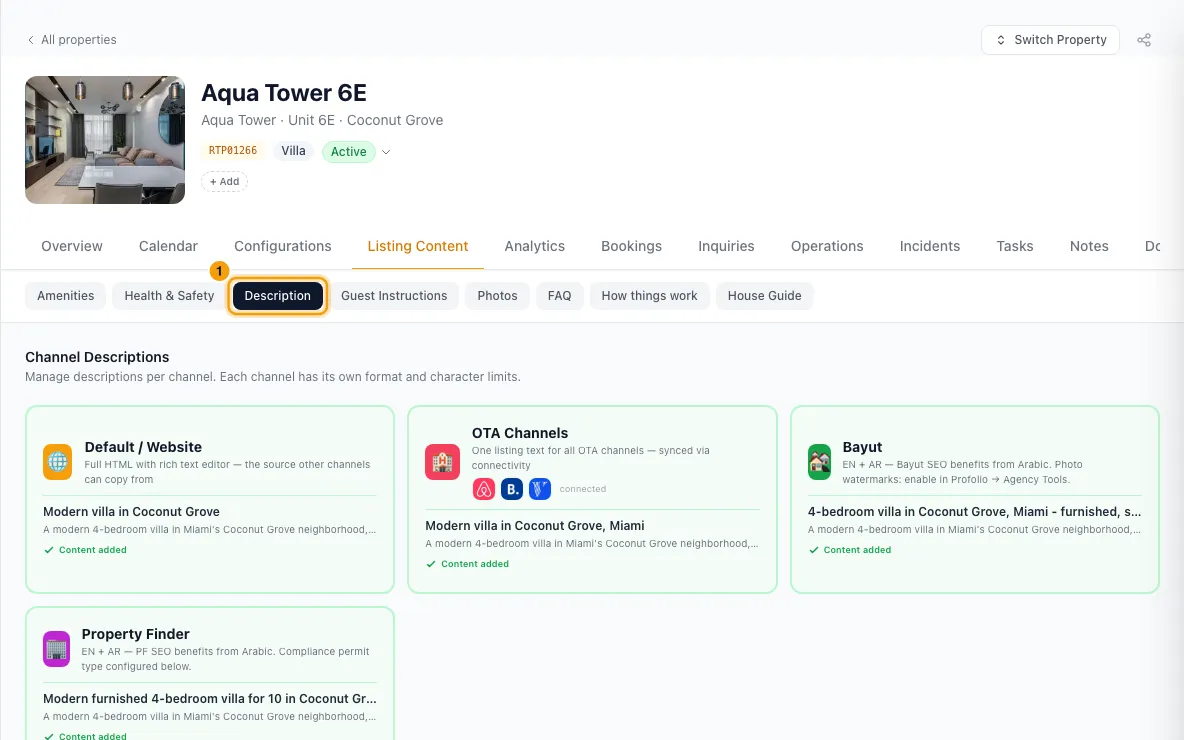
Fill in the fields. For Default / Website and OTA Channels these are Headline / Title, Listing Description, The Space, Guest Access, Other Things to Note, Neighborhood Overview and Getting Around. Bayut and Property Finder take a headline and a description in English and Arabic.
To start from your website text, click ⧉ Use Default / Website on another card.
To let AI write it, click Generate with AI, tick the sections to fill, and click Generate … sections. Read what it wrote.
Click Save.
Photos
Open Photos and click + Upload Photos, or drop photos onto the tab.
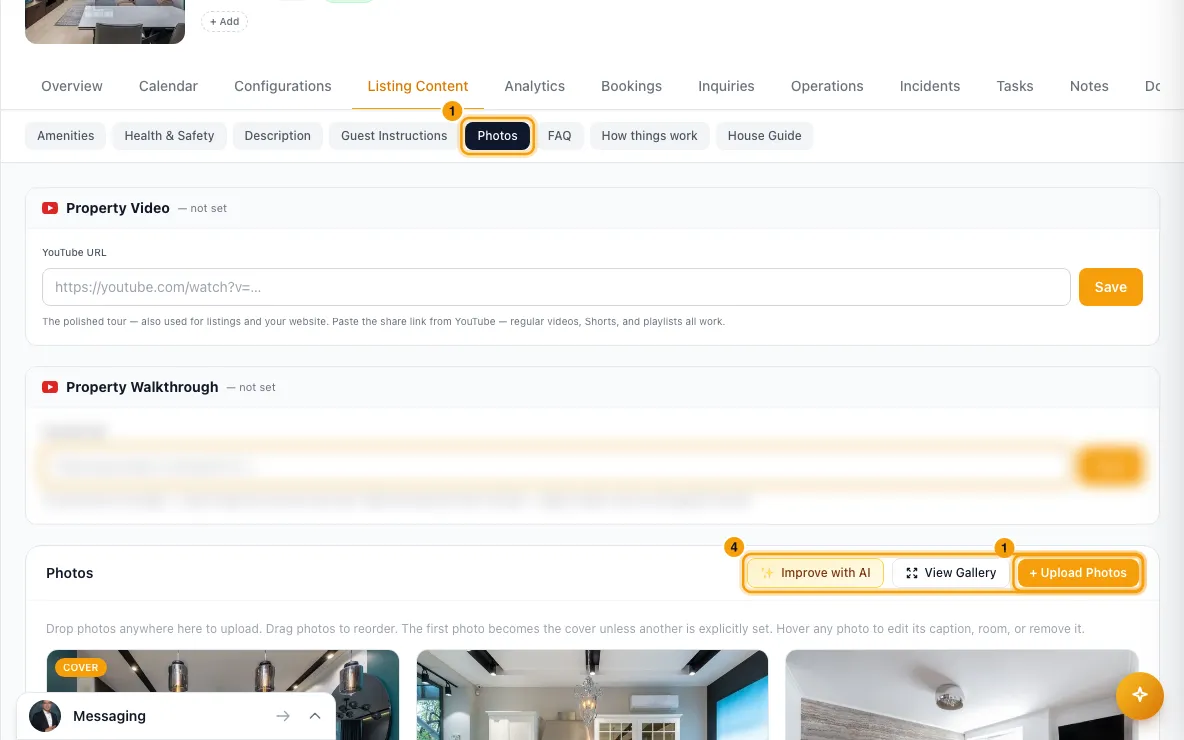
Drag photos to change their order, or hover a photo and use ↑ and ↓.
Hover a photo to type a Caption…, pick its room, click Set cover, or click Delete.
To let AI help, click Improve with AI. Pick the jobs (Write captions, Rate quality, Detect rooms, Suggest order) and the photos, then click Run on … photos.
Check the results. Untick or edit anything you don't want, then click Save ….
Good to know
- Where it goes:
- OTA Channels is one text shared by Airbnb, Booking.com, Vrbo and your other booking channels. The card shows the logos of the channels it feeds.
- Default / Website is for your own website, and is the text the other cards can copy from. Copying is a one-time copy: later website edits don't change the other cards.
- Bayut and Property Finder each have their own text.
- OTA Channels length: the headline should be 20 to 50 characters and the description 400 to 500. Vrbo refuses descriptions under 400. The counter turns amber when text is too short and red when too long. Website headlines are up to 50 and descriptions up to 500. The longer sections take up to 10,000 characters. Bayut allows 100 / 8,000 and Property Finder 75 / 4,000.
- The OTA headline becomes your listing title on booking channels. It can't have emoji, repeated punctuation like
!!, more than 3 capitals in a row, more than 15 capitals, or more than half capitals, and a dot must be followed by a space. Save stays off until it's fixed, and a Use "…" suggestion appears when one can be made. With no headline, the property name is used as the title, and you're warned if it breaks these rules. - On booking channels, Guest Access and Other Things to Note appear inside "The space" with their titles added for you, and Getting Around appears under the neighborhood section. Write only the content.
- Generate with AI needs at least one photo, and uses the cover plus up to 8 others. Sections that already have text start unticked. Nothing is saved until you click Save.
- Amenities come from your list in Settings → Amenities. If the tab says none are defined, add groups and items there first.
- Health & Safety: smoke detector, carbon monoxide detector, fire extinguisher, first aid kit and the cleaning features are sent to booking channels as amenities when switched on. Details notes are for your team.
- Photos can be up to 10MB each. Larger ones are skipped and named. The first photo uploaded becomes the cover until you set another. Deleting the cover makes the next photo the cover. Deleting a photo removes the file and can't be undone.
- A caption saves when you click away from it. If it can't be saved, a message says why.
- Photo rooms come from Configurations → Rooms. A photo's room decides how booking channels label it.
- Improve with AI: Rate quality marks each photo hero, good, usable or weak (shown on the photo). Suggest order ranks the whole gallery, and applying it makes the lead photo the cover. Detect rooms can create rooms and assign photos to them. Each job is reviewed and saved on its own.
- Generate with AI and Improve with AI need Rentibly AI. Without it, the button shows a 🔒 and explains how to get it.
- Saved changes to amenities, safety features, descriptions and photos are sent to the property's connected channels automatically.
- You need Edit on Properties to change listing content.
Rentibly AI can help
- It can add or remove amenities, and find amenities guests ask for that a property doesn't list.
- It can write descriptions for one property or draft them for many properties for you to review.
- It can caption and rate a property's photos and set up its rooms from the photos. It asks you to confirm before saving.
Still stuck?
Open Support from your profile menu in Rentibly, or email hello@rentibly.com — we answer fast.