Connect smart locks and give guests door codes
Updated 13 October 2026
Connect your lock provider, link each lock to its property, and Rentibly can create a door code for every stay. The code works for the stay's dates, follows date changes, and is removed when the booking is cancelled. Whether a code really opens the door is decided by the lock and its provider, so Rentibly only calls a code Working once the provider confirms the lock accepted it.
Steps
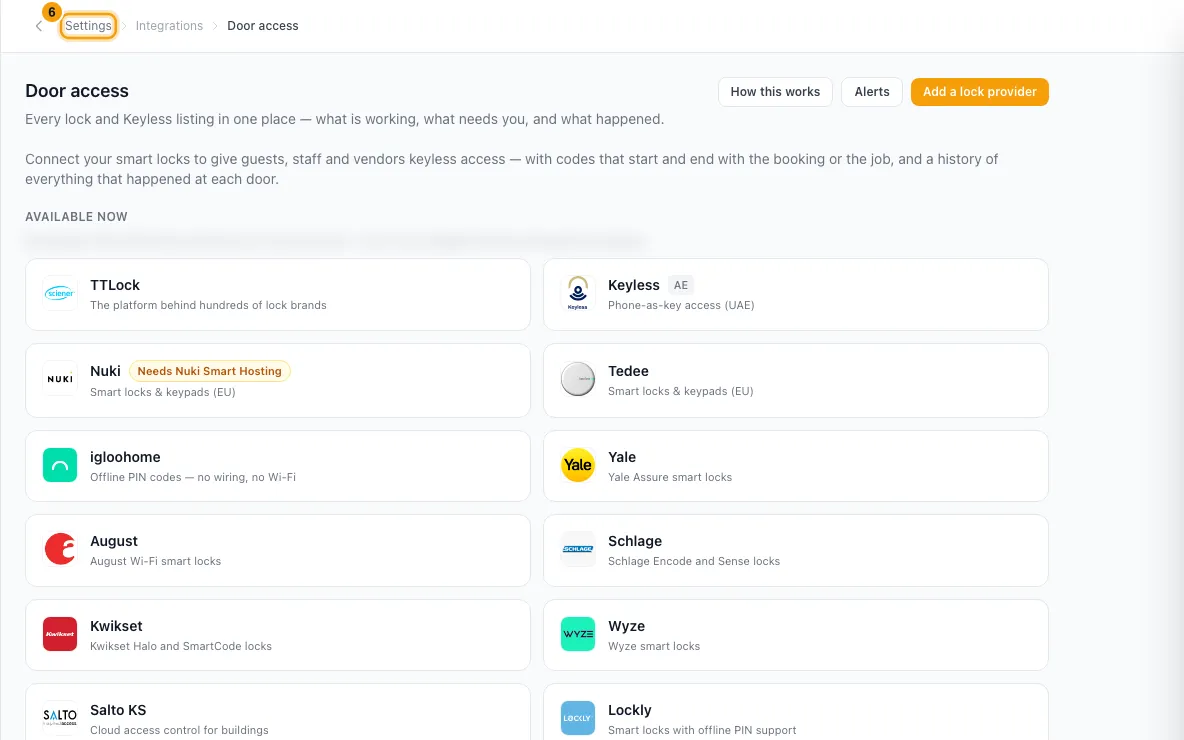
Open Settings, then go to Integrations → Door access.
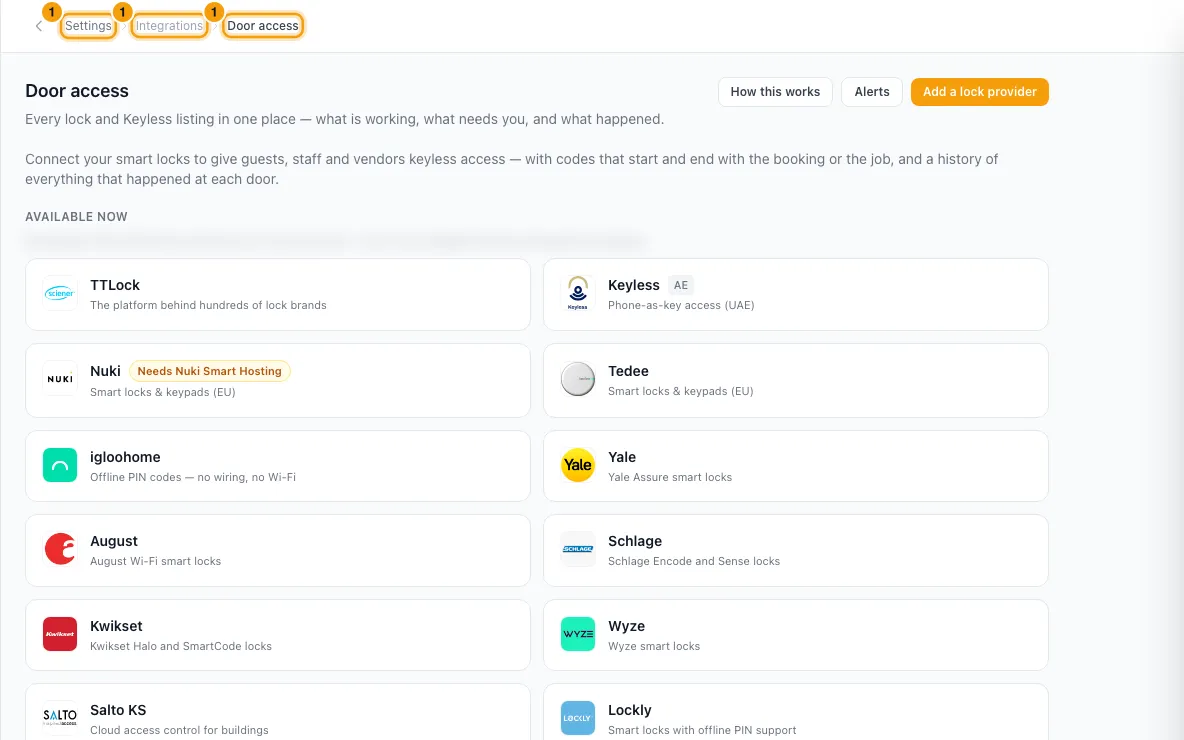
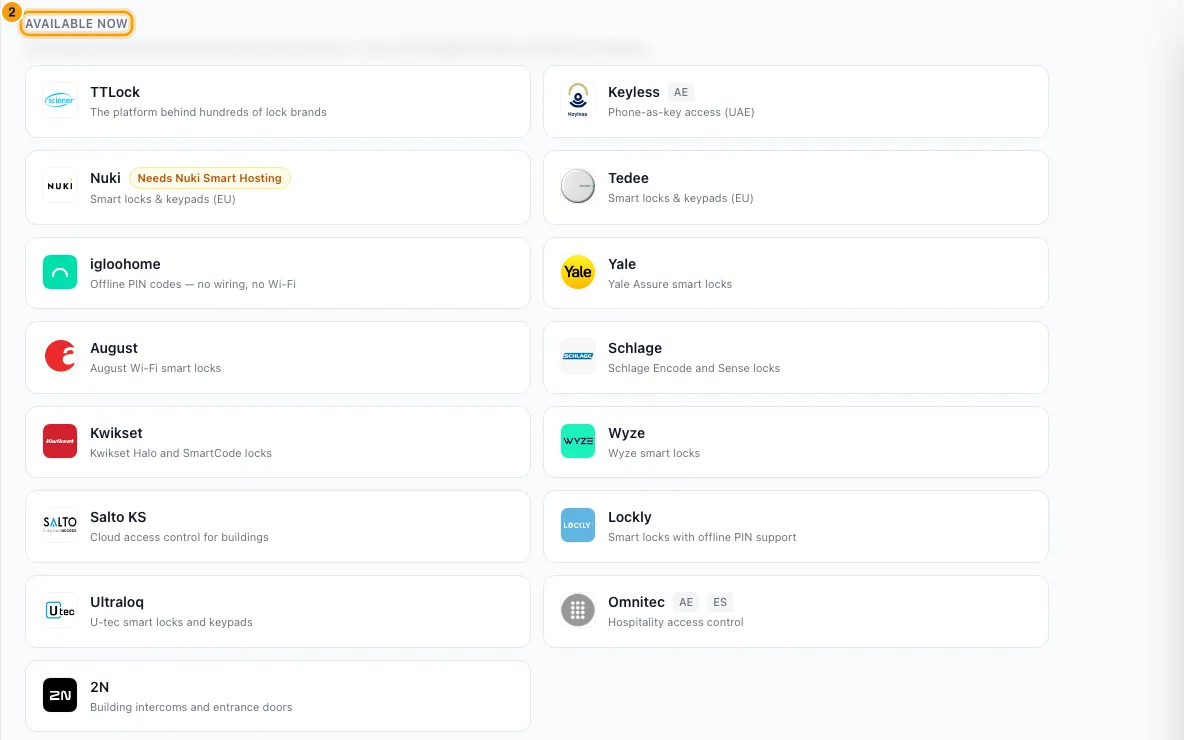
Click Add a lock provider, then click your brand under Available now.
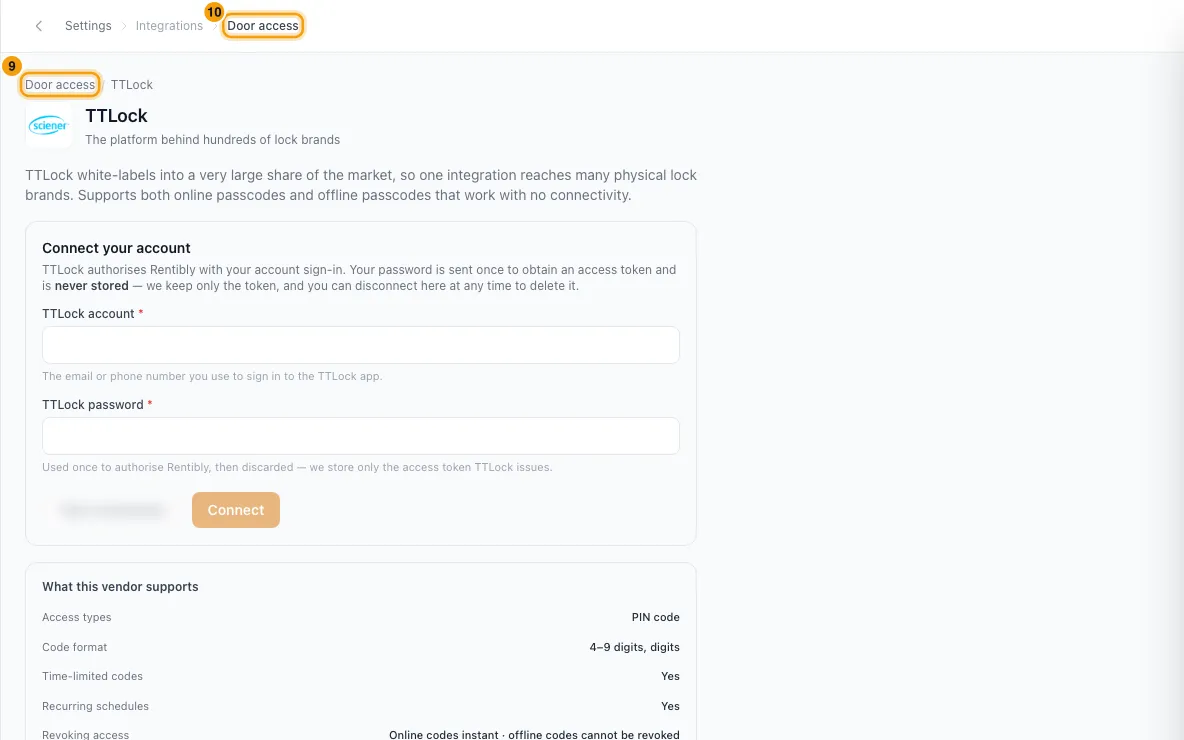
Connect your account. What you see depends on the brand:
- A sign-in button (Connect and the brand name): click it and sign in to the brand's own site in the window that opens. Leave the Rentibly page open until your locks appear. If the brand shows a paid plan it needs first (for example Nuki Smart Hosting), tick the box to confirm you have it.
- A form: fill in the fields (for TTLock, TTLock account and TTLock password), click Test connection to see how many locks were found, then click Connect.
On the Locks tab, find the lock. Locks under Ready to use can take codes from Rentibly. Locks under Manual only can't (usually no gateway), so you create their codes in the brand's app.
In the lock's Property dropdown, choose the property it is fitted to. The lock now shows the property name with a tick.
Go to the Settings tab and tick Create door codes automatically for upcoming bookings if you want codes made for you.
Choose when under Create the code (from on the day of arrival to 14 days before arrival).
Under How long a code works, choose Starts and Stops if guests need time before check-in or after check-out.
To make a code by hand instead, open the booking, go to its Guests tab, and click Create a code in the Door access card. You can also type your own digits and click Use this code.
To see the digits, click Show in the booking's Door access card.
Good to know
- Connecting is free. You are charged only for locks linked to a property, and linking one needs the Smart Locks add-on. Without it, linking shows "Connecting a smart lock requires the Smart Locks add-on. Subscribe from Settings → Billing." Unlinking stops the charge from the next billing period, not the current one.
- One lock per property. A property that already has a lock is left out of the dropdown. Only properties in the active stage are offered. Lock names come from your provider; rename them there and they update on the next sync.
- A gateway or Wi-Fi is needed to send codes remotely. If you add a gateway later, click Sync now on the provider page. The lock moves to Ready to use with no other change.
- Unlink takes a lock off its property. Codes already on the lock keep working until they expire.
- Automatic codes are off by default. When on, a code is made for each confirmed or checked-in booking on a linked lock, once the booking is inside your Create the code window. The window opens at midnight in your company time zone, that many days before the arrival day. Rentibly checks every hour and whenever the booking changes. A guest who was already staying when the lock was linked gets no automatic code.
- Per property: on the property, go to Configurations → Facilities → Smart Lock and click edit. Under Automatic door codes, For this property can be Follow account setting, Always create automatically or Never — I create them myself. Create the code can follow the account or use its own timing. These two need the Settings permission set to Access.
- When a code works: from the booking's check-in time to its check-out time, in your company time zone. Rentibly uses the booking's own times, then the property's default times, then 15:00 and 11:00. Starts and Stops add up to 12 hours either side and apply to every code, including hand-made ones. Extra time after check-out can overlap the next guest's code on a same-day turnover.
- The code follows the booking. New dates or times move the window and keep the same digits. Moving the booking to another property removes the old code; the new property's lock may make a new one. Cancelling, a no-show or deleting the booking removes the code. A safety check runs every 5 minutes for anything missed.
- A new code is not usable at once. It shows Sending to lock… until the lock confirms. You can't reveal it, and it isn't sent in messages, until then. Click Check again to ask the lock now. Rentibly keeps asking, and after 24 hours without an answer it marks the code failed.
- Refresh code puts new digits on the lock. The old code stays until the new one is confirmed. After a refresh, the card warns you to send the new code, because the old digits no longer work.
- Some locks make offline codes that can't be cancelled early. The card says This code can't be cancelled early. Removing it in Rentibly doesn't stop it working at the door before it expires.
- No smart lock, or a lock that can't take codes? Type the code you give people and click Save. It is recorded for your messages and portal, but not sent to any lock.
- Fallback code: on the property, Configurations → Facilities → Smart Lock has a Default code (no lock linked) or Fallback code (lock linked). It is used only when a stay has no code of its own. Access Codes on the same tab holds Building, Parking and Mailbox codes.
- What guests see:
- The guest portal shows the stay's code, or the property's fallback code if the stay has none.
- It shows it only when check-in access details are switched on, under Settings → Guest Experience → Manage → Guest access. It shows it from 2 days before check-in by default, until the day after check-out. It never shows it for cancelled or no-show bookings.
- The Door Code variable in messages fills in only once a stay's code is confirmed on the lock (or entered by hand). It does not use the fallback code.
- Jobs: an operation marked Needs to get in gets a Door access card too. Its code is valid around the job's own time slot, with buffers set on the job type, not around the stay. Field staff see the job's code (or the property's fallback code) in the Ops Portal.
- Bookings & codes tab on the provider page lists every code by state (Coming up, In stay, Waiting on the lock, Failed, Not yet due, Ended). It never shows digits. Activity lists every change, and who revealed a code. History starts from 3 October 2026.
- Door access page:
- Locks & listings, Next 7 days, Codes on doors now and Batteries sum up every provider.
- Needs attention clears itself once a problem is fixed.
- Alerts opens Door access alerts. Set Battery alert at or below (%) (5–50, default 20) and Offline alert after (minutes) (5–1440, default 15) there. The battery level on a provider's Locks tab turns red at the same level.
- Who gets the alerts is set like other alerts; see "Choose who gets the Hub's built-in alerts".
- If a provider shows Needs reconnecting, no code can be created, changed or removed until you reconnect. On the Settings tab, Disconnect unlinks every lock and deletes the stored login. Codes already on the locks keep working until they expire.
- Battery level, online status and which code features a lock has depend on the brand. The provider page lists them under What this vendor supports.
- Permissions:
- Connecting providers, linking locks and changing these settings need the Settings permission set to Access.
- Creating, refreshing and removing a code on a booking needs Bookings at Edit. Revealing it needs Bookings at View.
- On a job, the same actions need Operations at Edit (or Bookings at Edit), and revealing its code needs Operations at View (or Bookings at View).
- Without the Edit permission, the Door access card shows the code and Show, but no buttons to create, refresh or remove it.
- Editing the Smart Lock and Access Codes cards needs Properties at Edit.
- For Keyless mobile keys instead of codes, see "Use Keyless digital keys".
Rentibly AI can help
- Rentibly AI can't connect locks or create, show or change door codes. Door codes never pass through chat. It can explain how door access works.
Still stuck?
Open Support from your profile menu in Rentibly, or email hello@rentibly.com — we answer fast.