Use Keyless digital keys
Updated 13 October 2026
With Keyless, guests don't get a door code. Rentibly sends each booking to Keyless (guest, dates and lock), Keyless emails the guest to register on its app, and their phone becomes the key. Cleaners and contractors on a job are sent the same way.
Steps
Open Settings, then go to Integrations → Door access and click Keyless.
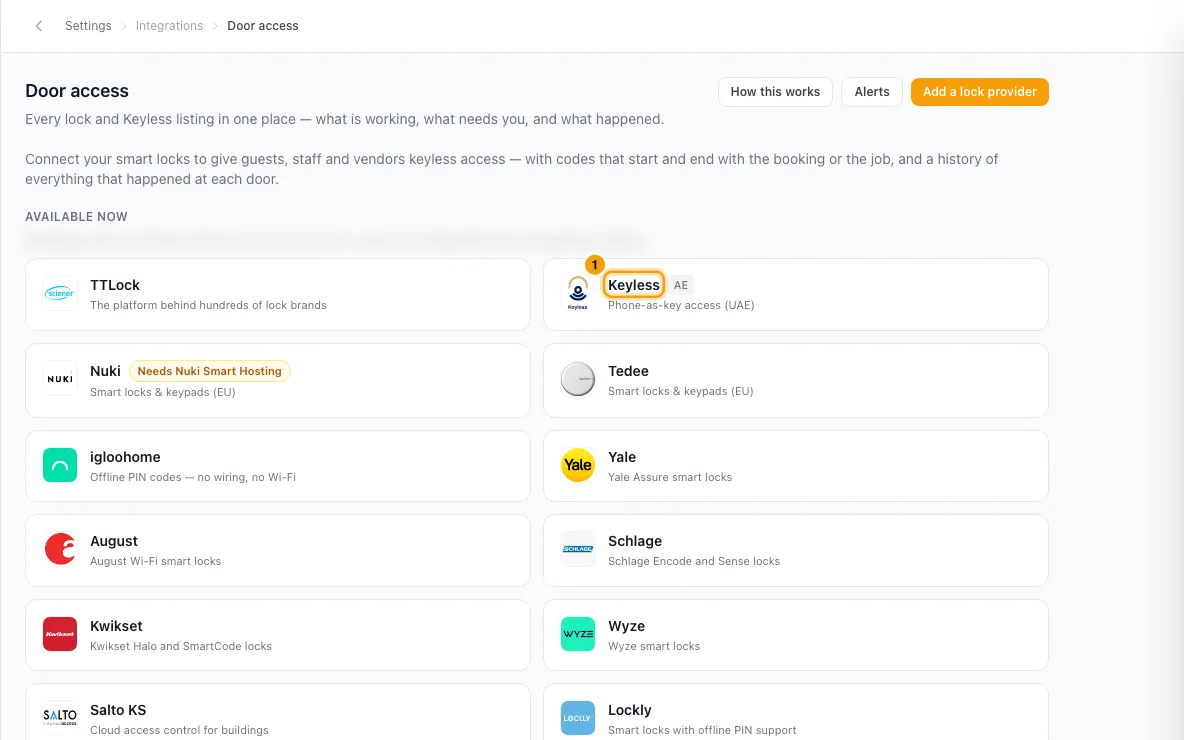
Paste the Secret key from your Keyless account manager and click Connect. Rentibly checks it with Keyless before saving it.
On the Listings tab, under Add a property, choose the Property.
Paste the Listing ID of the lock: the listing ID you set on that property's lock in Keyless.
Click Connect.
Go to the Settings tab and set Send to Keyless this many days before check-in.
Under When the key works, set Starts this many hours before check-in and Ends this many hours after check-out.
Check the Bookings tab. Each booking shows Sent, Waiting to send, Needs details, Failed or Withdrawn. For a failed one, fix the cause, then click Retry.
To change your secret key, go to the Settings tab, click Replace key, paste the new key and click Save new key.
Good to know
- A listing ID belongs to the lock, not the property. It stays with the lock in Keyless. If you move a lock to another unit, update it here too, or guests keep getting a key to wherever that lock now is.
- Rentibly can't check a listing ID. Keyless offers no way to look it up, so a wrong ID is only found when a booking is sent, or not at all. Tip from the page: set each lock's listing ID to its own lock ID in Keyless, then paste that same ID here.
- One listing per property, and one property per listing. A listing already used elsewhere is refused, naming the property that holds it. Only properties in the active stage can be connected.
- What is sent: every booking on the property that is confirmed or checked in — the same bookings that get a door code. A booking already marked checked out is never sent a new key; a key it already has keeps working until it ends. With 0 days it is sent as soon as the booking is made. A larger number (up to 30) holds it until that many days before check-in.
- Needs details means the booking isn't due yet, but Keyless would refuse it as it stands. The guest needs at least an email address or a mobile number. A phone number needs its country code. Click Edit guest to fix it before it is due.
- The key works from the booking's check-in time to its check-out time, plus the hours you set (up to 12 either side). Changing these updates every booking already sent. A key for a guest who is already staying starts from the moment it is sent, because Keyless doesn't accept a start time in the past.
- Keys follow the booking. New dates, times or guest name update the booking at Keyless. A new guest email, phone or listing withdraws the old key and sends a new one. Moving the booking to another property withdraws the key, and sends a new one if that property also uses Keyless. Cancelling, a no-show or deleting the booking withdraws the key. These reach Keyless within minutes, from any channel.
- Not sent: a guest who was already staying when the property was connected to Keyless is never sent. Only arrivals after that are handled.
- Jobs: an operation on a Keyless property is sent up to 48 hours before it starts, to the team member or vendor assigned to it — while it is pending or in progress. A job on hold, awaiting review or completed is not sent a new key. Its key works around the job's own time slot, using the buffers on the job type. Unassigning the job withdraws the key.
- Failed bookings are retried automatically for some errors. Others wait until the booking changes or you click Retry. A failure also appears under Needs attention on the Door access page, with its own Retry.
- Disconnect on the Listings tab removes one property. Upcoming guests there lose their keys; anyone staying now keeps theirs until check-out.
- Withdraw keys and disconnect on the Settings tab withdraws every key Rentibly sent, including guests staying right now, then deletes the saved key. If Keyless refuses some, you are asked before disconnecting anyway, and you must remove those bookings in the Keyless dashboard yourself.
- Replace key instead of disconnecting when Keyless gives you a new key. Bookings already sent stay as they are.
- On a booking's Guests tab, the Door access card shows the Keyless status and when the key works. On the property, Configurations → Facilities → Smart Lock shows Keyless as the lock type.
- What the guest receives, and how the key opens the door, is handled by Keyless and its app, not by Rentibly.
- Connecting is free. Keyless properties are never charged on the Smart Locks add-on.
- You need the Settings permission set to Access to use this page. Anyone with Bookings at View sees the Keyless status on a booking.
- For PIN code locks, see "Connect smart locks and give guests door codes".
Rentibly AI can help
- Rentibly AI can't connect Keyless or send, retry or withdraw keys yet. It can explain how Keyless works.
Still stuck?
Open Support from your profile menu in Rentibly, or email hello@rentibly.com — we answer fast.