Ask Rentibly AI to do things for you
Updated 13 October 2026
Rentibly AI is a chat that answers questions about your bookings, properties, guests and money, and can make changes for you. It never changes anything until you click Confirm on the card it shows you.
Steps
Click the round amber button at the bottom right of any page, or press Ctrl + J (⌘ + J on a Mac). In the Inbox, click Rentibly AI in the reply box instead; that chat knows which conversation you are in. In Rentibly Connect, click Rentibly AI at the bottom of the sidebar.
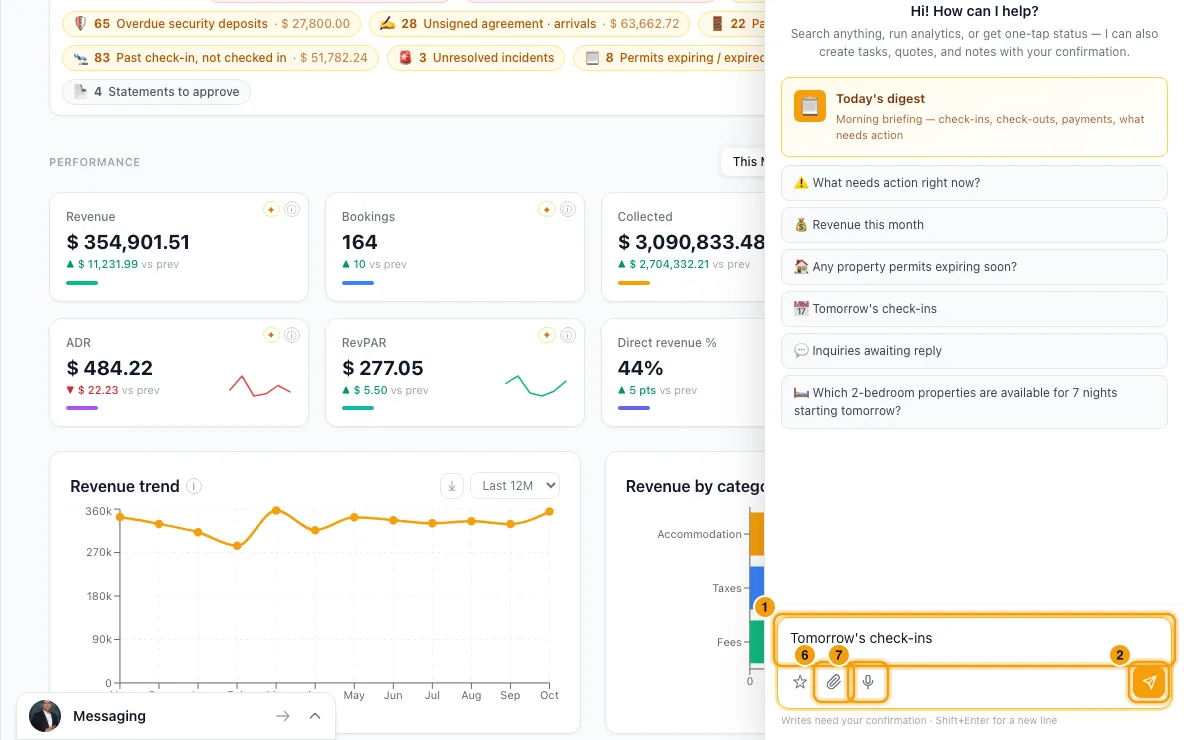
Type what you want in plain words, for example "Tomorrow's check-ins" or "Block the penthouse from the 12th to the 15th as an owner stay", and press Enter. Press Shift + Enter for a new line. Click Stop to interrupt an answer.
When Rentibly AI wants to change something, it shows a card headed Confirm required. Read what it will do. If the card has choices (tick boxes, one option to pick, or a list per guest), set them.
Click Confirm to go ahead, or Cancel to drop it. A confirmed card turns green with ✓ Confirmed and executed. A business review shows Download buttons on its card. An export comes as a download link in the answer.
To undo a change, click Undo on its green card, or type "undo my last change". Rentibly AI shows a new card listing what it will put back; click Confirm.
To attach files, click the paperclip, pick photos or PDFs, then send your message with them. Click a file to preview it.
To dictate, click the microphone, speak, and click it again to stop. Check the words in the box, then send.
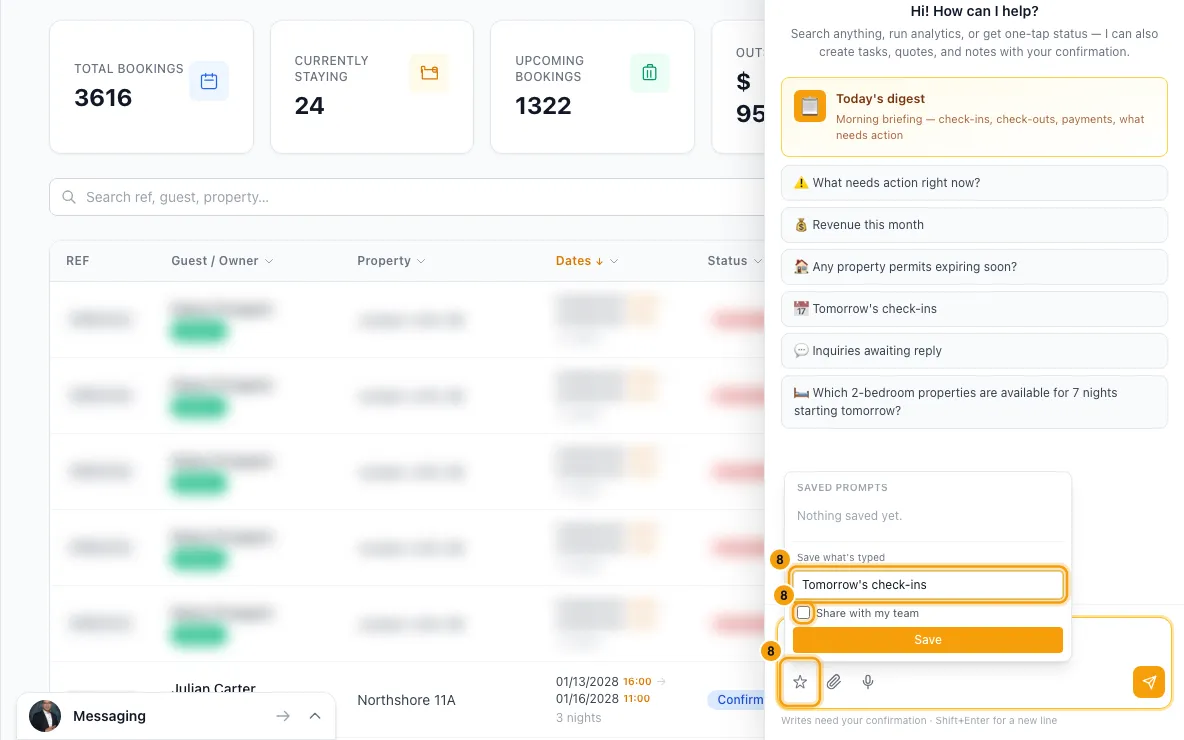
To reuse a prompt, click ☆. Pick a saved prompt to put it in the box (it is not sent). To save what you typed, enter a name, tick Share with my team if you like, and click Save.
To see past chats, click the clock (Chat history). Filter by last activity, click a chat to reopen it, or use ⋮ to Rename or Delete it. Click + (New chat) to start fresh.
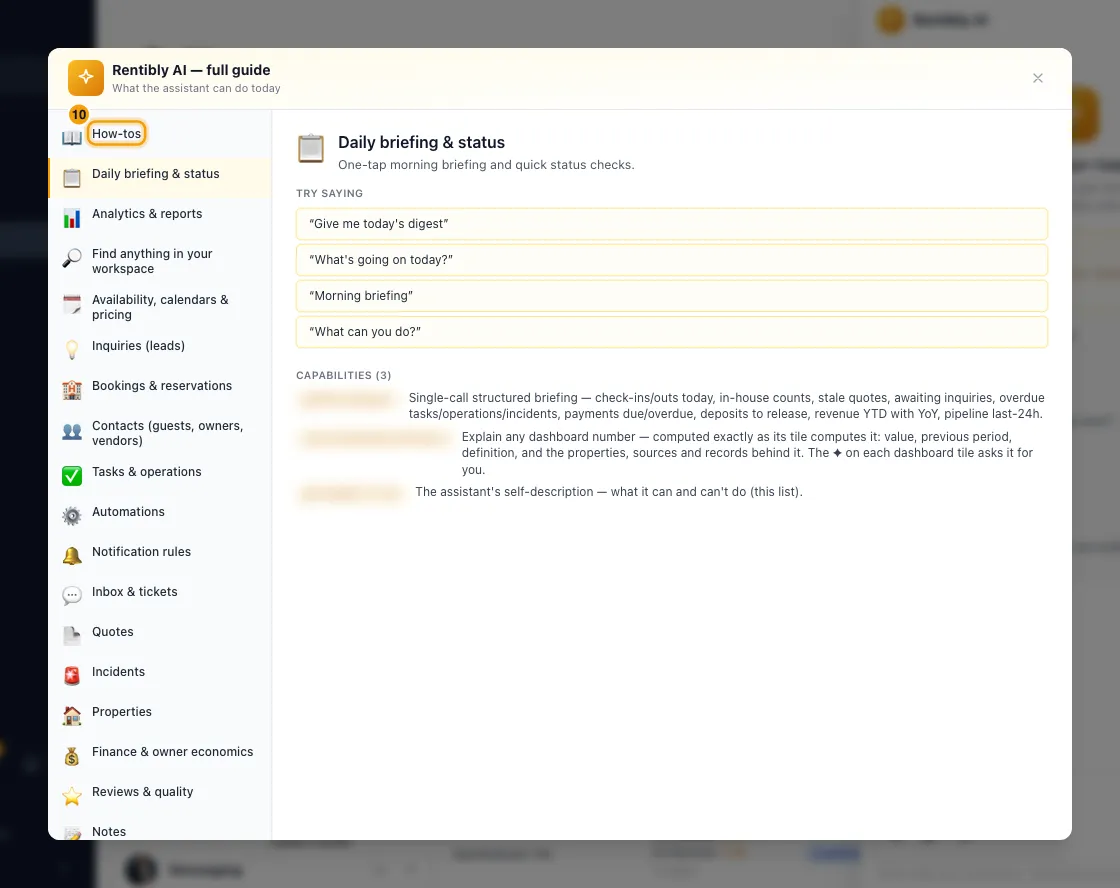
Click ? (What can Rentibly AI do?) for the full guide, with examples you can click to try, and the How-tos tab.
Good to know
- Cards expire after 10 minutes. Confirming later gives "This confirmation expired — ask Rentibly AI to propose it again."
- Cards are checked again when you click Confirm. If something changed in the meantime (your permission, the record, or it was already handled), nothing happens and you see "Not done — nothing was changed", with the reason.
- A card runs once. A cancelled card can never be confirmed later. A confirmed card can't be edited; ask again and Rentibly AI makes a new card.
- Undo works only on your own changes, from the last 7 days, once each, and only where the card offered it. It puts back old values and archives or switches off what was created. Nothing is deleted. You still need the permission to make that change today.
- Files: photos (JPG, PNG, WebP, GIF) and PDFs only, up to 10 MB each and 30 at a time. Rentibly AI can't read a PDF over 4.5 MB, but it can still attach it. Only you can open your chat files. Rentibly AI can put them on an operation, through a card you confirm.
- Voice: dictation stops by itself after 2 minutes. What it heard is never sent on its own. It works in English and Arabic. The button is hidden if your browser can't record.
- Saved prompts: up to 100 each. A title is up to 80 characters, a prompt up to 4,000. Shared prompts appear for the whole team. Only the owner, or someone with the Settings permission, can change a shared one. archive hides one of yours; nothing is deleted.
- History shows only your own chats, up to your 100 most recent. Chats started from an Inbox conversation are marked Inbox. Delete hides a chat from your list. A reopened chat shows each card's real outcome: confirmed, cancelled, expired or "Did not go through".
- In a long chat, Rentibly AI reads only the latest 40 messages. Start a New chat for a new topic.
- Each person can make up to 10 requests a minute: sending a message, confirming a card and opening chat history all count. Past that you see "Too many requests. Please wait a moment and try again."
- What it can do: your daily digest, reports and analytics, finding any record, availability and rates, inquiries and quotes, tasks and operations, automations and notification rules, the Inbox, properties, owner statements, reviews and the Quality Center, notes and tags, marketing, team roles, and how-tos. The full list is in the guide (?).
- What it can't do: create or change a booking directly, record payments or issue refunds, add a property owner, edit settings catalogs (fees, tags, custom fields, sources, agreement templates, channel connections), or send email and website-chat replies. It can't delete anything, and it can't see passwords, ID documents or owner bank details. Bulk changes stop at 100 records per card.
- Everything follows your role. Rentibly AI only offers actions your permissions allow.
- You can use Rentibly AI only if your account has the add-on and an admin switched on your Access. See Set up Rentibly AI for your team.
Rentibly AI can help
- Ask "What can you do?" for its own list, or "How do I…?" for a how-to with links. If no how-to covers it, it can open a case with Rentibly support for you.
- Say "undo that" or "what can I undo?" to reverse a recent change.
- Say "save this as a prompt called Weekly check" to keep a prompt.
Still stuck?
Open Support from your profile menu in Rentibly, or email hello@rentibly.com — we answer fast.