Export or erase a person's data (data requests)
Updated 13 October 2026
When someone asks what personal data you hold about them, or asks you to erase it, use the Data requests tab. It builds a file of everything you hold about one person, or removes their identity from your records.
Steps
Send someone their data
Go to Settings → Data Management → Import / Export and open the Data requests tab.
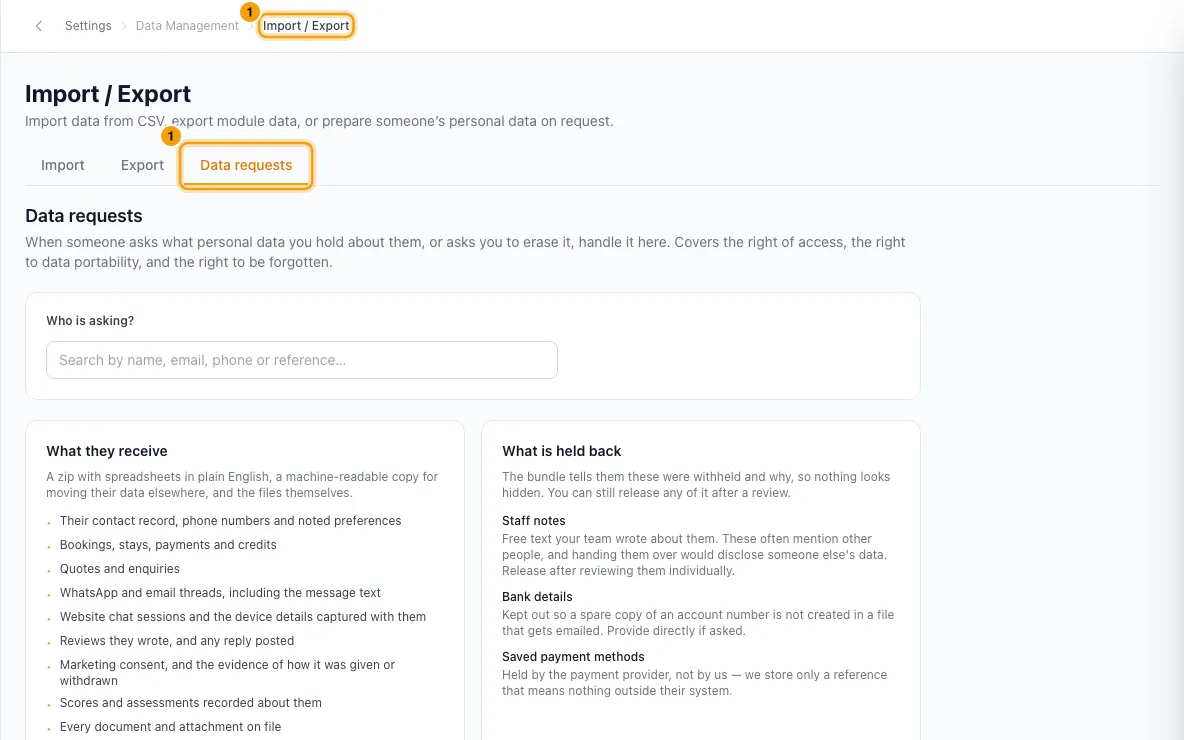
Under Who is asking?, search by name, email, phone or reference, and click the person.
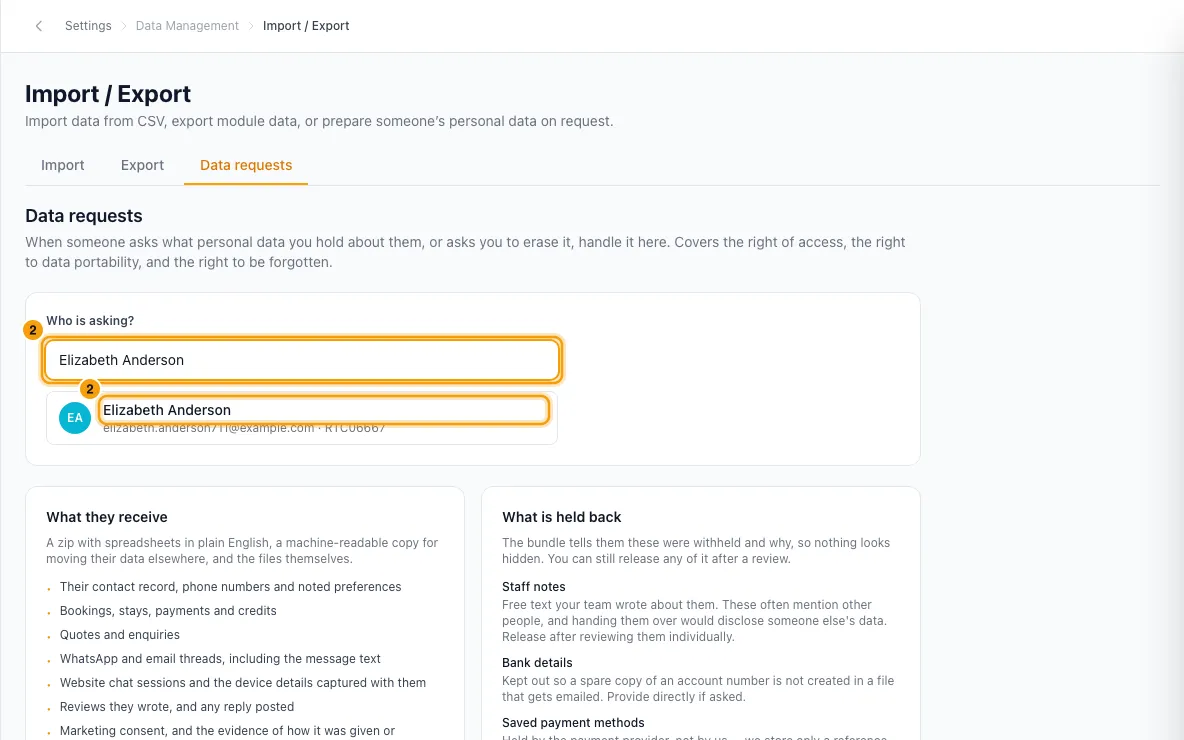
Read What they receive and What is held back.
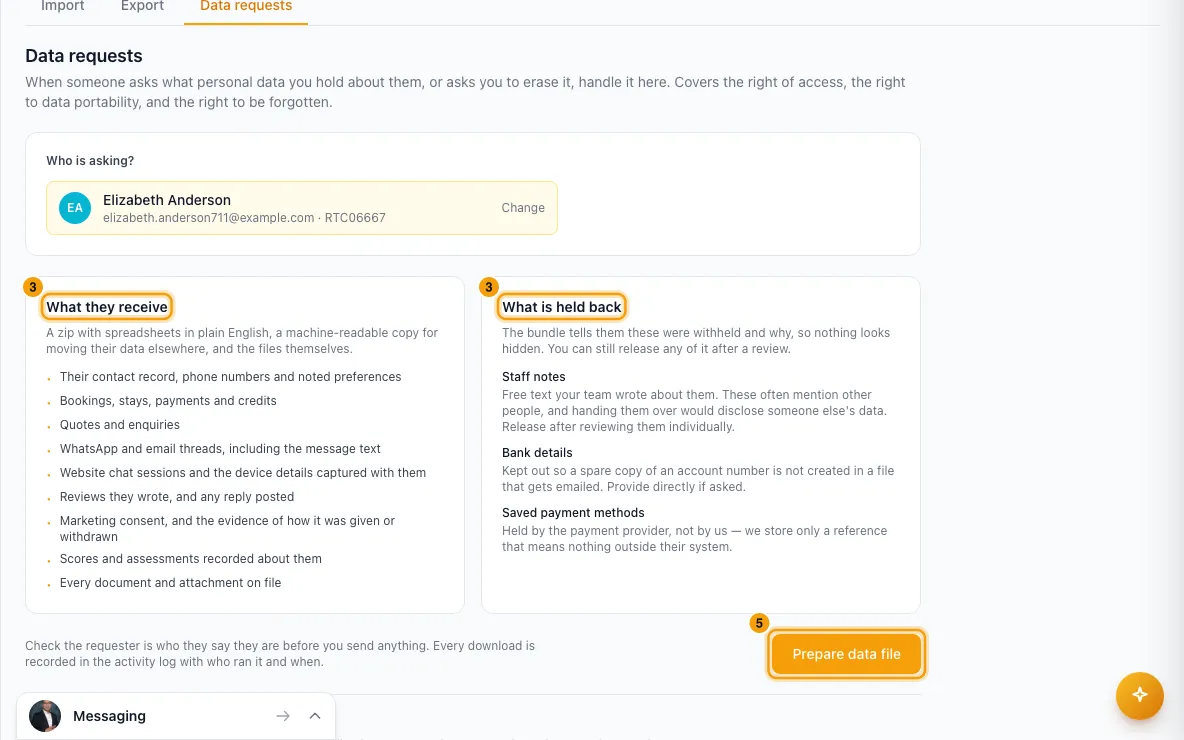
Check the person is who they say they are.
Click Prepare data file. A zip file downloads.
Send the file to the person yourself.
Erase someone
On the same tab, pick the person under Who is asking?.
Under Erase someone from your records, click Check what would be erased.
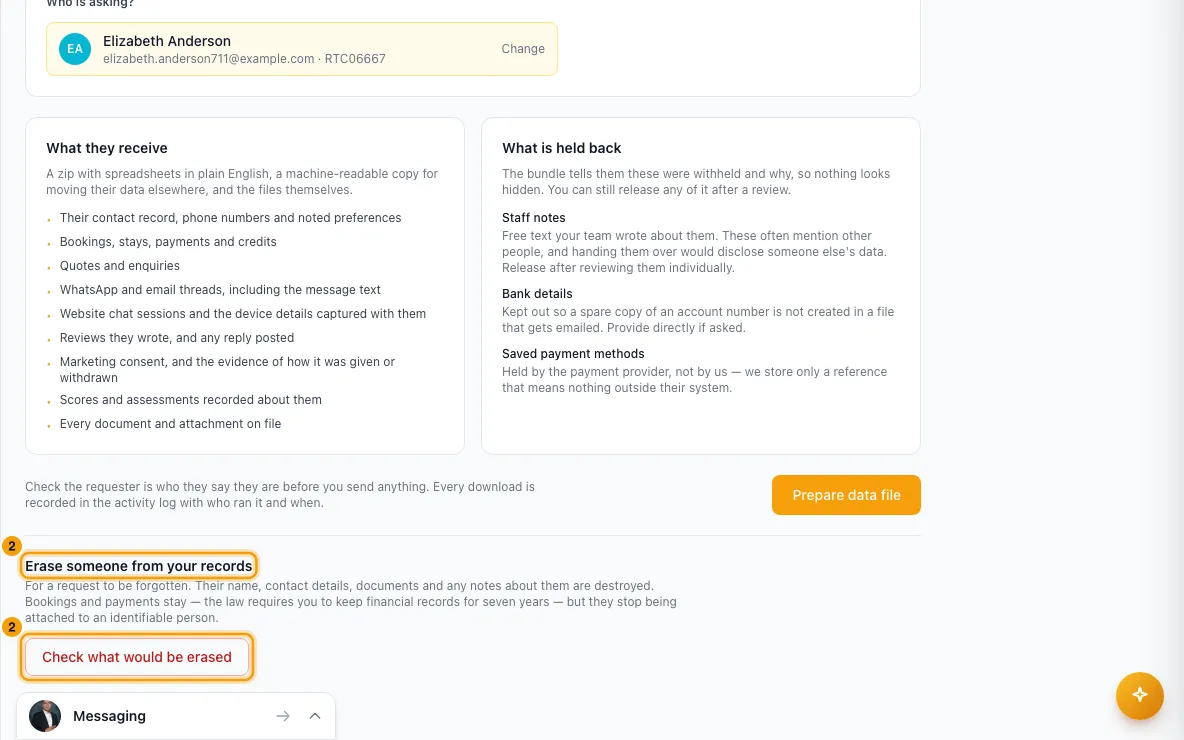
Read the three boxes: Destroyed, Identity removed, row kept and Kept — legally required.
Type the word shown in the red box to confirm. It is the person's reference number, or ERASE if they have none.
Optionally type a Reason. It is kept in the audit log.
Click Erase permanently.
Good to know
The data file
- The zip has plain-English spreadsheets, a machine-readable copy for moving the data elsewhere, and the files themselves.
- It includes their contact record, bookings, stays, payments and credits, quotes and enquiries, WhatsApp and email threads, website chats, reviews, marketing consent, scores recorded about them, and every document on file.
- It holds back staff notes, bank details and saved payment methods. The file tells the person these were withheld and why. You can release them yourself after a review.
- Every download is recorded in the Activity Log with who ran it and when.
- Only a few files can be built at once, and each account has a limit per hour. If the system is busy, it tells you how long to wait.
Erasing
- It can't be undone. Nothing goes to the Recycle Bin.
- Their name, contact details, documents and notes about them are destroyed.
- Bookings and payments stay, because you must keep financial records, but they are no longer linked to an identifiable person.
- Documents attached to their bookings, quotes or enquiries stay with those records.
- The Activity Log records the erasure with the reference number, not the name.
- If the person was already erased, the page shows the date it happened instead.
Who can do this
- You need the Settings permission set to Access to open the page.
- Preparing a data file needs Export data to spreadsheets. The account owner and roles with Full access can always do it. Without it, the tab names the permission you need.
- Erasing needs Edit on Contacts (the account owner and Full access roles always can). Without it, the erase section doesn't show.
- To move many records at once, use the Import and Export tabs instead. See "Import and export data (CSV)".
Rentibly AI can help
- Rentibly AI can't prepare a data file or erase anyone. Use this tab.
Still stuck?
Open Support from your profile menu in Rentibly, or email hello@rentibly.com — we answer fast.