Set up Rentibly AI for your team
Updated 13 October 2026
Rentibly AI is an add-on. You turn it on for your account, then choose which team members may use it and which extras run: AI cards in the Inbox, guest sentiment scoring and the Reservations Agent. Everything is on one page: Settings → Rentibly AI.
Steps
Click your name at the bottom of the sidebar, then Settings. Under Integrations, open Rentibly AI.
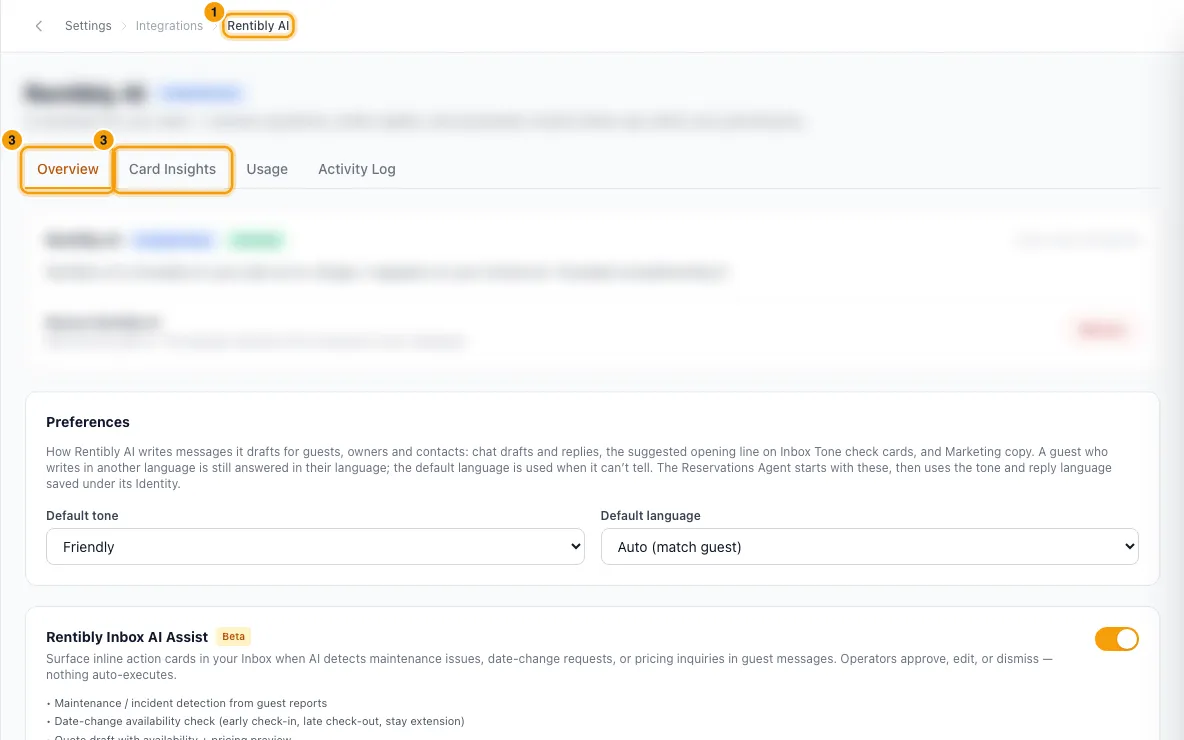
If the badge says Not subscribed, read the price on the Add Rentibly AI card, then click Add to my subscription and confirm with Add Rentibly AI. If you have no card on file, the button reads Add a payment method first and takes you to billing.
Once it is on, the page shows four tabs: Overview, Card Insights, Usage and Activity Log. Stay on Overview.
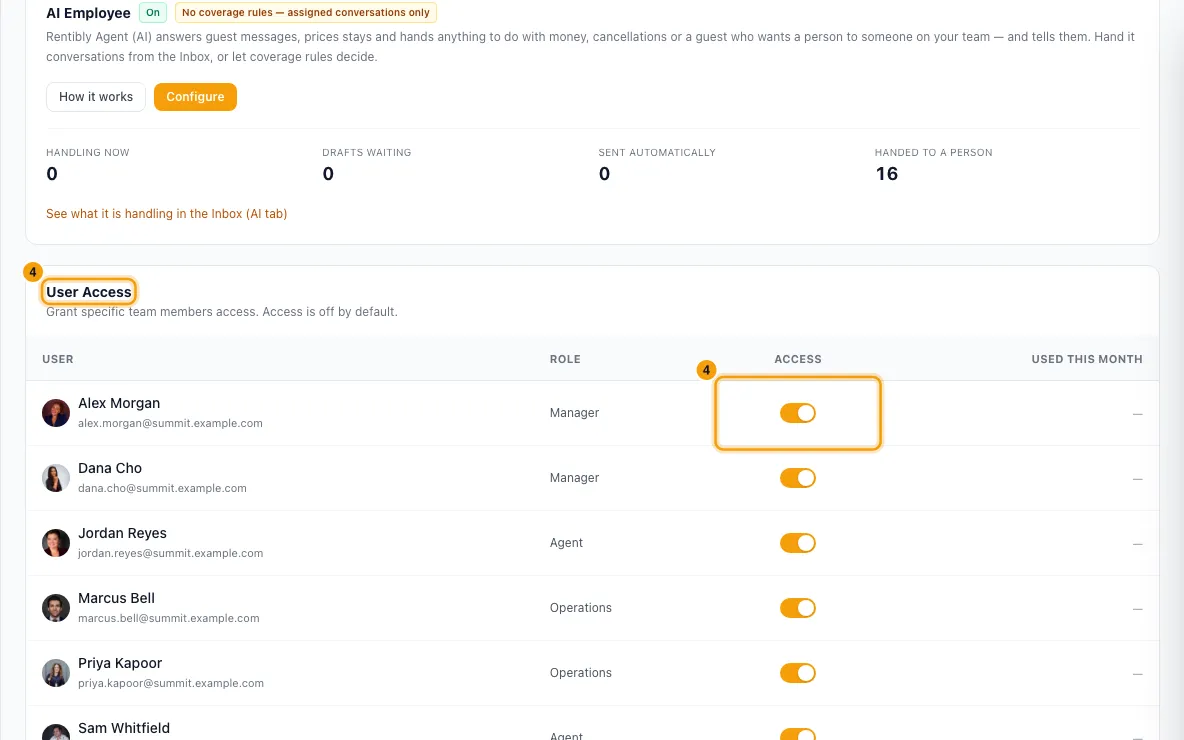
Give people access. Scroll to User Access and switch Access on for each team member who should use Rentibly AI. Each switch saves on its own and shows Saved.
AI cards in the Inbox (optional). Switch on Rentibly Inbox AI Assist to get suggestion cards in conversations: maintenance and incidents, date-change checks, quote drafts and pricing answers.
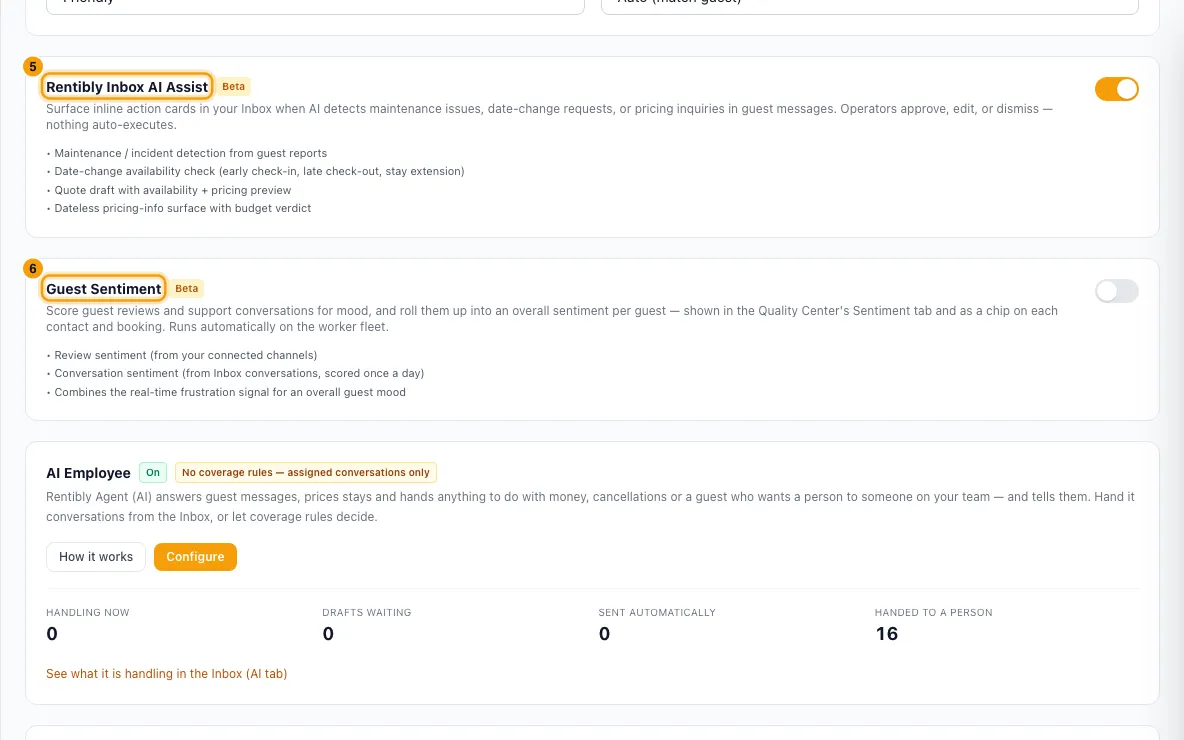
Guest mood scores (optional). Switch on Guest Sentiment to score reviews and guest conversations. Results appear on the Quality Center's Sentiment tab.
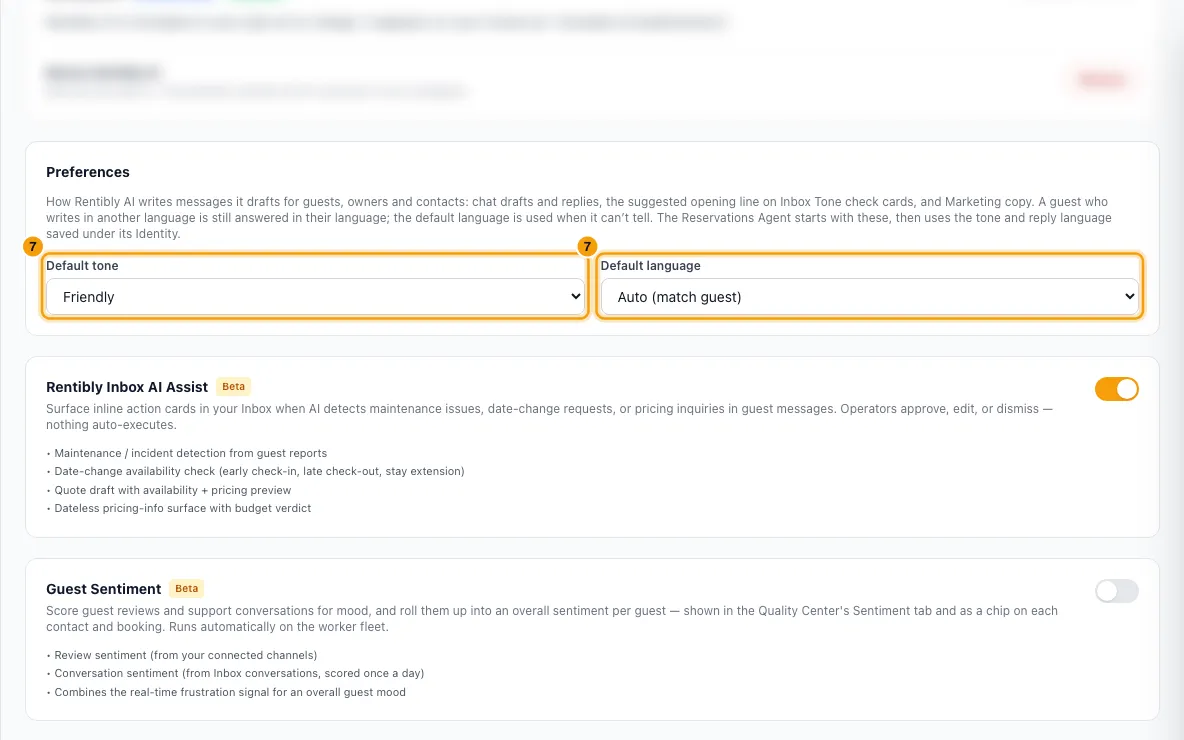
Preferences. Pick a Default tone (Friendly, Formal or Concise) and a Default language (Auto (match guest), English or Arabic) for messages Rentibly AI drafts. Each saves as soon as you pick.
Turn on the Reservations Agent (optional)
The Reservations Agent is an AI colleague that answers guest messages and hands off what it should not touch. It starts fully off.
On the Reservations Agent card, click How it works to read the guide, then click Configure.
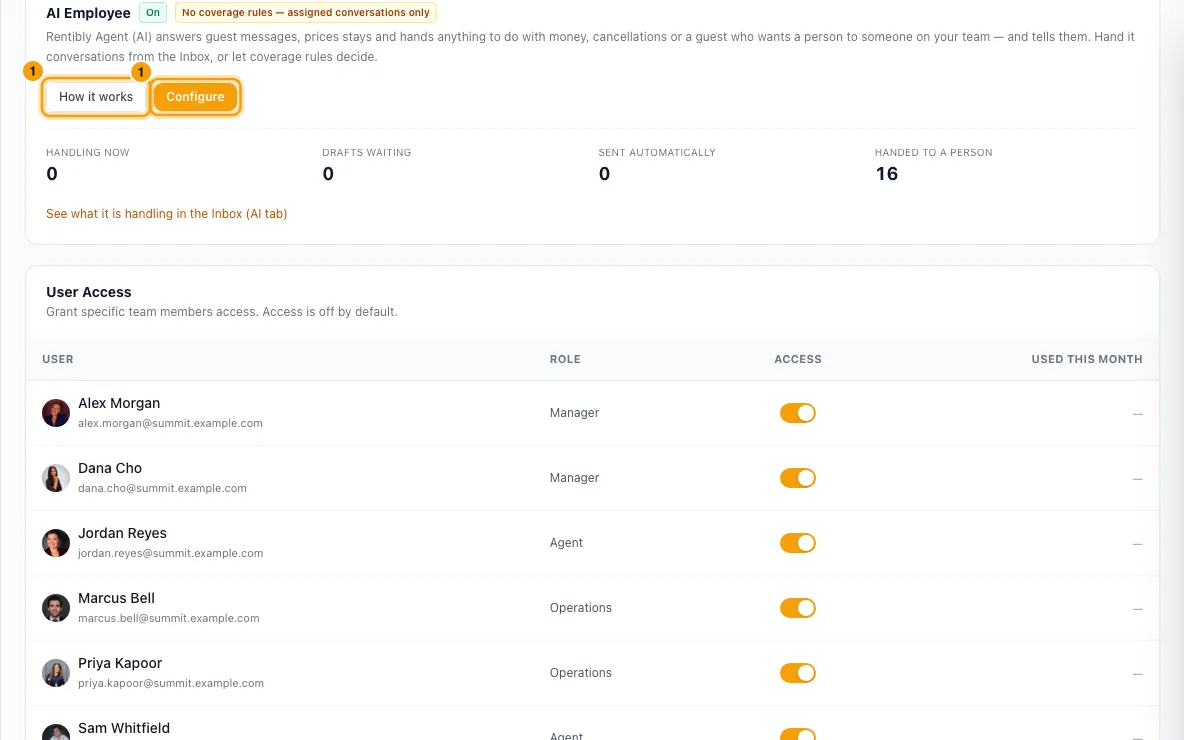
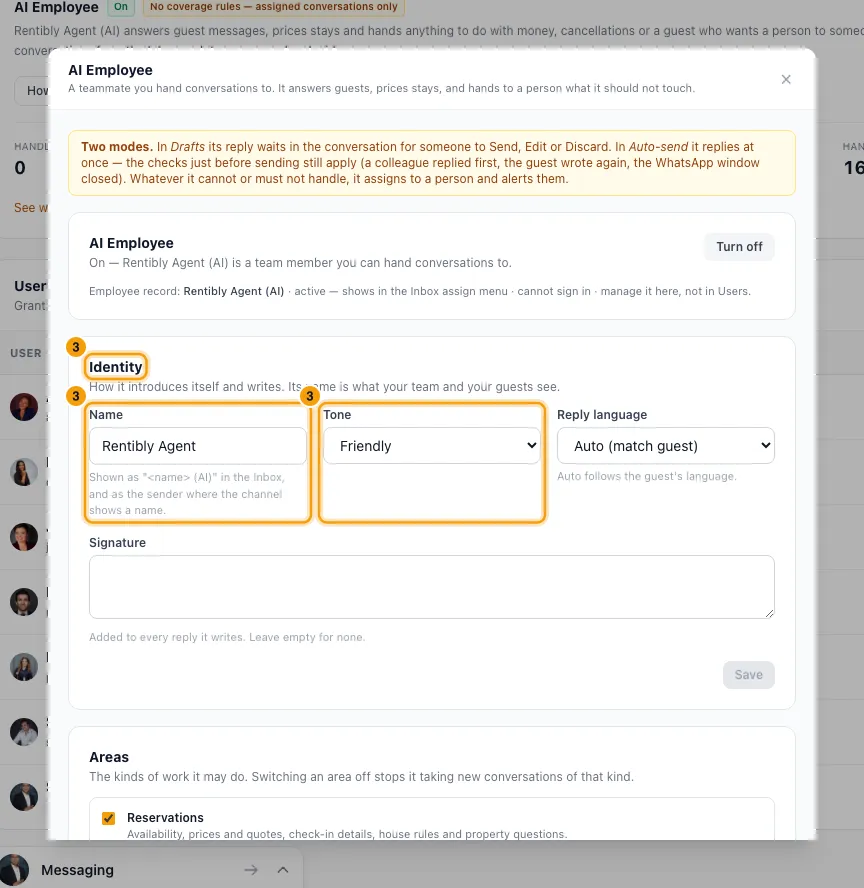
In Reservations Agent, click Enable. This creates the agent's own team-member record. It can't sign in, and you manage it here, not in Users.
In Identity, set the Name, Tone, Reply language and Signature guests see, then click Save.
In Coverage, tick Every property, including ones added later or pick properties. Choose what happens Outside company hours: Cover or Silent. Click Save.
In Autonomy, choose per channel and per type of question what the agent may do: Off, Shadow (it only records what it would have said), or Draft (its reply waits in the conversation for a person to send). Click Save.
Optional: set Discount authority, a WhatsApp Re-engagement template, and the Guardrails (Hold window (minutes) and Confidence floor).
Click Review what it would have said on the card. For each reply, pick a verdict (Would send as-is, Minor edits, Would not send or Should have handed off), add a note if you like, and click Save verdict.
Good to know
- Price and billing. The add-on is charged per active property per month, in USD on your Rentibly invoice. The first charge is prorated to your billing date. Usage is unlimited: there is no monthly cap and no overage charge.
- Removing it. On the Rentibly AI card, click Remove and confirm. If the add-on was already invoiced, your team keeps it until the end of the paid period, and you can click Restore before then. If it was never invoiced, it switches off at once.
- Trial ended. The card reads Your Rentibly AI trial has ended. Adding it to your subscription keeps your AI history, user access and preferences.
- Switched off by Rentibly. If the page says Rentibly AI is not enabled for your tenant, only Rentibly support can turn it back on.
- Access is off for everyone by default, admins included. A person without the Access switch on gets "You do not have access to Rentibly AI" in the chat. Only active team members are listed. The Reservations Agent is not listed: it is not a person, and you manage it on its own card.
- Each person only sees and changes what their own permissions allow. Rentibly AI never gives someone more access than their role.
- Inbox AI Assist and Guest Sentiment are off until you switch them on. With Inbox AI Assist on, each conversation also gets its own Rentibly AI Assist switch in the Inbox, to turn the cards off for that one guest. Nothing on a card runs until a person approves it.
- Guest Sentiment runs once a day. It scores new reviews and guest messages. Only conversations active since the day you switched it on are scored; switching it off and on again starts from the new day.
- Preferences shape the messages Rentibly AI drafts for guests, owners, vendors and contacts: replies and other drafts in the Rentibly AI chat, the suggested opening line on an Inbox Tone check card, and Marketing copy (Draft, subject lines and Improve; Translate uses the language you pick there). They don't change how Rentibly AI talks to you, or messages to your team in Connect.
- Default language is a fallback. A guest who writes in another language is still answered in their language. The default is used when Rentibly AI can't tell: the person hasn't written yet and their contact has no preferred language. With Auto (match guest), the chat writes in the language you are using with it, Inbox AI cards in English, and Marketing in the language of your brief. If you ask for a tone or language for one message, that wins.
- The Reservations Agent starts with your Default tone and Default language as its Tone and Reply language. Once you save its Identity, it uses its own settings, and changing the Preferences later doesn't change it.
- The Reservations Agent needs Inbox AI Assist on. It also stays quiet on any conversation where that conversation's Rentibly AI Assist switch is off. Whatever its settings, it always hands off payments and refunds, cancellations, complaints, legal or safety matters, and any guest who asks for a person. It also stays quiet on a message with no text it can read — for example an Airbnb video, which Airbnb doesn't pass on to Rentibly — so someone on your team can look at it on Airbnb.
- Hold & send and Send are locked at first. They unlock only when Rentibly's daily safety tests pass and none of your reviewed drafts is rated Should have handed off. The card shows why they are locked.
- Card Insights shows how your team treats Inbox AI cards: Total cards, Accept rate, Dismiss rate and Median time to decide, per card type. Pick a Window of 7 days, 30 days, 90 days or 1 year. A high dismiss rate means that type of suggestion is less useful to your team. You can't turn off one card type or change how the cards are written; you can switch Rentibly Inbox AI Assist off as a whole on Overview.
- Usage shows Messages this month, Team members using it, Messages, last 30 days, the messages per team member, and a 30-day trend. It is for information only; nothing stops when it grows. On Overview, the Used this month column in User Access shows each person's messages too.
- Activity Log lists every action Rentibly AI took: who, what it did (for example Listed operations or Create a task), the module, the action type (Read, Change or Draft), the result, and when a card was confirmed. Filter by User, Module, Action, From and To, then click Apply.
- You need the Settings permission to open this page and change it.
Rentibly AI can help
- Rentibly AI can't change these settings. Ask it "What can you do?" to see everything it can do today.
Still stuck?
Open Support from your profile menu in Rentibly, or email hello@rentibly.com — we answer fast.