Import and export data (CSV)
Updated 13 October 2026
The Import / Export page brings records in from a CSV file, for example when you move from another system, and downloads your records as a CSV file. Its third tab, Data requests, is for one person's personal data: see "Export or erase a person's data".
Steps
Import a CSV file
Go to Settings → Data Management → Import / Export. The Import tab opens first.
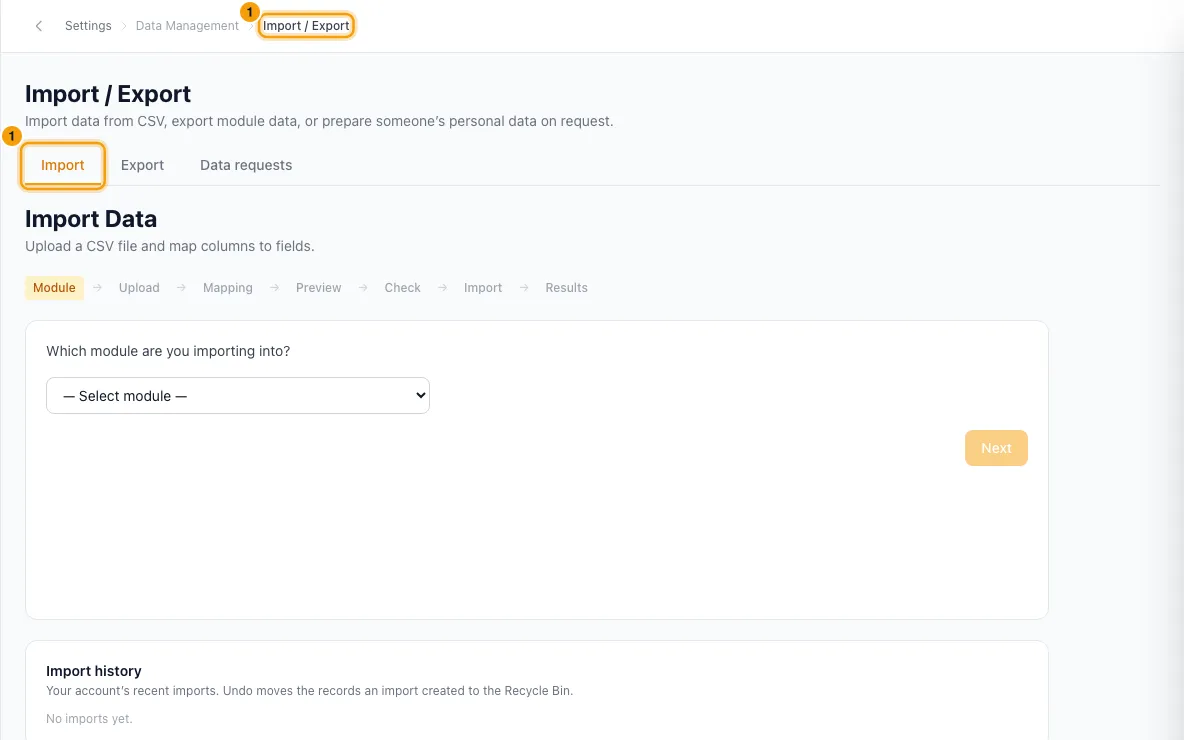
Under Which module are you importing into?, pick the module: Contacts, Properties, Bookings, Inquiries, Vendors, Tasks, Operations, Guest reviews or Expenses.
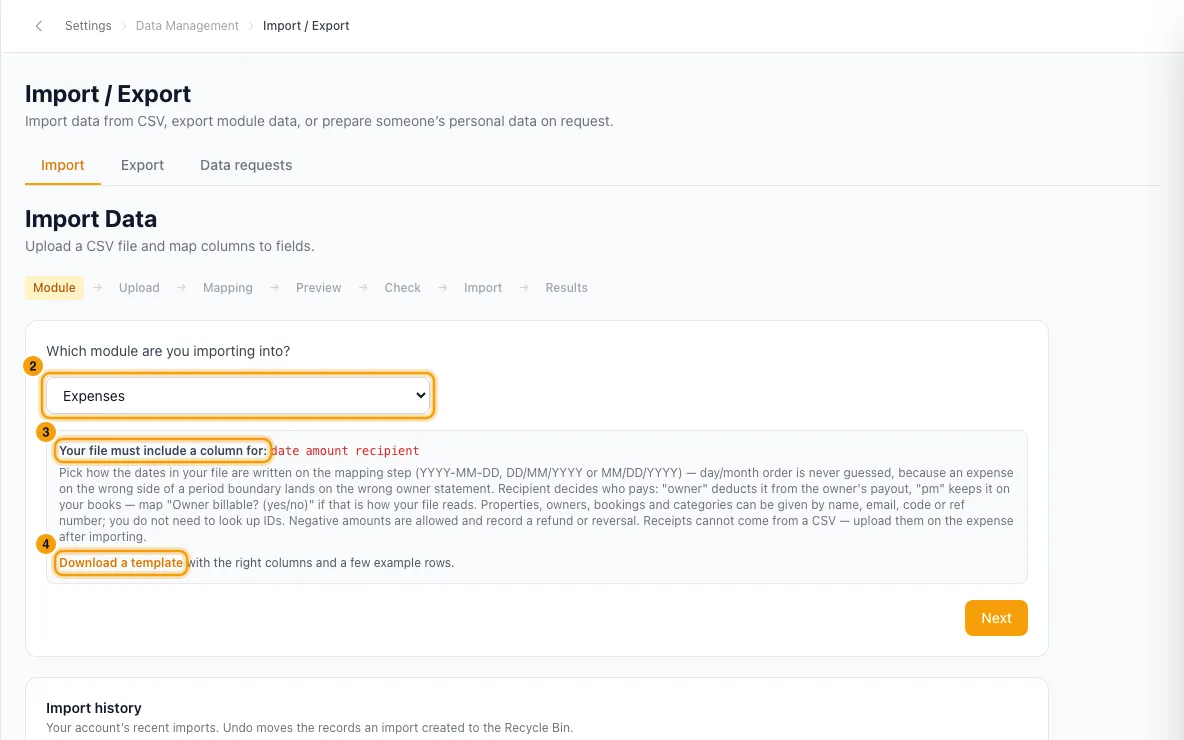
Read Your file must include a column for: and the note under it.
For expenses, you can click Download a template to get a file with the right columns and example rows. Replace the examples with your own data.
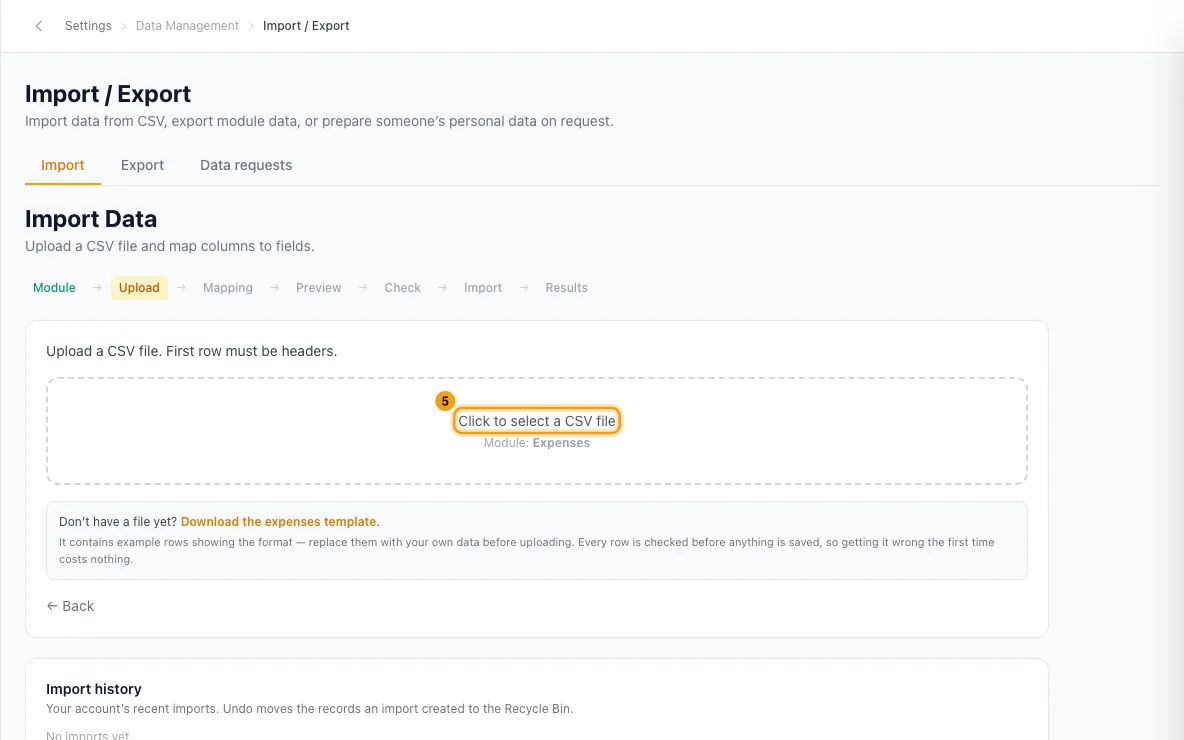
Click Next, then click Click to select a CSV file and choose your file. The first row must be the column headers.
On the mapping step, check each row of the table. For every Column in your file, pick the field it Imports as, or — Skip this column —. Rentibly fills in the matches it can recognise. Fields marked \* are required.
If you mapped a date column, pick how Dates in your file are written as: YYYY-MM-DD, DD/MM/YYYY or MM/DD/YYYY. Check the line that reads your first date back in words.
Fix anything shown in red, then click Preview.
Check the first 10 rows, then click Check file. Every row is checked. Nothing is saved yet.
If you see Nothing was imported., read the rows listed (or click Download errors CSV), fix them in your file, and click Upload a corrected file.
When you see All N rows passed the check., click Import N rows.
Read the results: Imported, Failed and Total. To get the full list of row errors, click Download errors CSV.
Click Import Another to start again.
Undo an import
On the Import tab, scroll to Import history. It lists your account's recent imports, newest first.
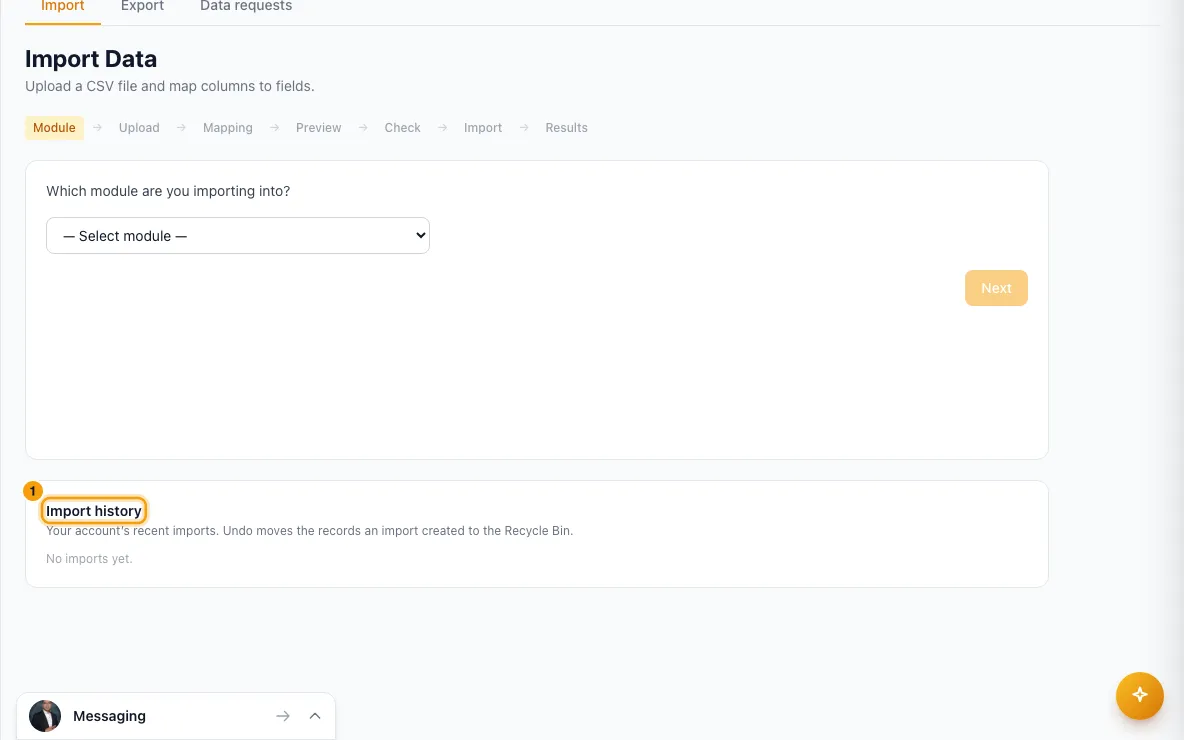
Find the import and click Undo this import.
Read the message and click Undo import.
If some records were left in place, they are listed under the import with the reason.
Export to a CSV file
On the same page, open the Export tab.
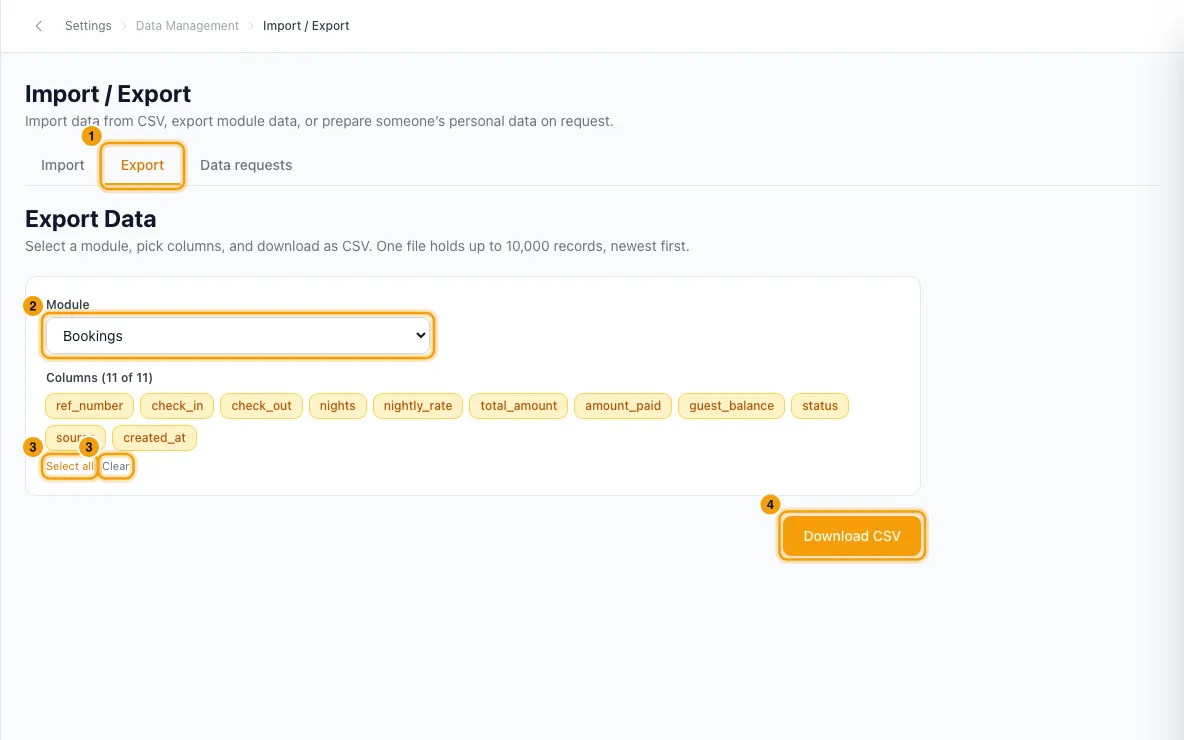
Under Module, pick Contacts, Properties, Bookings, Inquiries, Vendors, Tasks, Operations, Guest reviews or Expenses.
Every column is picked. Click a column to leave it out, or use Select all and Clear.
Click Download CSV.
Good to know
Importing
- Every row is checked before anything is saved. The check covers required fields, numbers, yes/no values, dates, record IDs, allowed values (for example a status), text length, records that already exist (for example a contact with the same email or phone number), rows that repeat each other within the file, and the database's own rules. If any row has a problem, nothing is saved. Fix the file and upload it again; no duplicates are created.
- Rows are then saved in groups of 100. If something changes between the check and the save (for example someone adds a contact with the same email), the rows affected are listed and the other rows are saved. If a whole group is refused, the import stops there and the groups before it stay saved. Either way, use Undo this import to remove what was saved, or fix just the listed rows. Don't import the same file again, or the saved rows will be added twice.
- Undo moves the records the import created to the Recycle Bin (Settings → System → Recycle Bin), where they can be restored for 30 days. A record stays where it is, and is listed with the reason, if it was edited after the import, if another record now uses it (for example a booking for an imported contact), or, for expenses, if it is on an approved owner statement or a locked booking. Undoing an imported expense updates the booking's commission the same way deleting it by hand does.
- Imported records show in their list (for example Contacts or Properties), and in a search, the next time you open or refresh it. Records an undo removed are gone from it the same way.
- Properties, bookings and guest reviews imports can't be undone: properties are archived, never deleted; bookings are cancelled, never deleted; reviews are hidden in the Quality Center.
- Only the person who ran an import, or an admin, can undo it. They also need the import permission for that module (see below). An import can be undone once.
- Contacts and vendors are saved the same way as a contact added by hand: email addresses in lower case, phone numbers in international format, and the display name made from the first and last name. A vendor gets the status active if the file doesn't give one.
- The mapping step stops you if a required field isn't mapped, if two columns point at the same field, or if two columns set the same thing.
- A column name that isn't a field is refused, with the field it probably meant.
- Blank cells are saved as empty.
- bookings and reviews need Rentibly record IDs, not names. Export contacts and properties first to get them.
- vendors are saved as contacts marked as vendors. A contact person's first and last name are required with the company name.
- Owner portal access can be imported on contacts and vendors only by someone with Set up the owner portal. Without it, a row that turns portal access on, or sets a portal configuration, is listed by row number and nothing in the file is imported. Clear those cells, choose — Skip this column —, or ask someone with that permission to import the file. Rows with portal access no or blank import as usual.
- expenses: you can give the property, owner, booking and category by name, email, code or reference, so you don't need IDs. Owner billable? (yes/no) decides whether the owner pays. Negative amounts record a refund. Receipts can't come from a file; add them to the expense afterwards. Leave currency blank to use your account currency. Imported expenses get the same commission updates as expenses typed in by hand.
- Imported rows are written directly. They don't run the automations or notifications that creating a record by hand can.
- The results table shows the first 50 errors. The errors CSV has them all.
Exporting
- One file holds up to 10,000 records, newest first. If there are more, a message tells you the file holds the newest 10,000 only. The Export tab has no filter: for a smaller file, ask Rentibly AI (below); for everything, ask support for a full extract.
- Deleted records are not exported.
- Vendors exports every contact marked as a vendor, including someone who is also a guest or an owner.
- Column names are Rentibly's field names, for example
first_name. - Exports are limited per account, by default 20 an hour. When the limit or the server is busy, the page tells you how long to wait.
Who can do this
- You need the Settings permission set to Access to open this page.
- Importing also needs the permission to add that kind of record by hand: Edit level on Contacts (for contacts and vendors), Properties, Bookings, Inquiries, Tasks or Operations; Quality Center at Edit for reviews; Owners at Edit for expenses. Without it you get "Permission denied" naming the missing permission, for example
contacts.create. An Admin role or Full access can import anything. - Exporting Contacts, Vendors or Bookings needs Export data to spreadsheets (or an Admin role). The other modules need an Admin role or Full access; anyone else gets "Only an admin or someone with Full access can export …".
Rentibly AI can help
- Ask for a spreadsheet, for example "export June's operations for Marina properties to CSV". It builds the file with your filters and gives you a download link. It holds up to 5,000 rows and is saved under your reports so you can run it again. This needs Reports at View level, the same as the download link; without it Rentibly AI tells you so.
- It can't import files.
Still stuck?
Open Support from your profile menu in Rentibly, or email hello@rentibly.com — we answer fast.