Digital check-in — Rentibly How-to
How-to: Setting Up a Property · Part 9 of 10 · 3:30 · 9 chapters · Watch on YouTube
Chapters
Read the transcript
Hey, and welcome to this Rentibly how-to: digital check-in. We'll look at the form guests complete before they arrive, make one just for our Denver loft, and see how each guest gets their link. Here's what we'll cover — the chapter times are right here, and in your player. Let's get started.
Digital check-in is the form guests fill in before they arrive — their details, their ID, and who's coming with them. You'll find it in Settings, under Property Settings. This workspace already has one, set as the default. Let's open it.
Up top: its name, whether it's active, and Default — the form for any booking that no other form matches. Applies to narrows a form to certain homes, or certain booking sources. Leave both empty, and it applies everywhere. On the right, a live preview, with sample details.
Guests can get one long page, or step by step — this one has two steps: contact info, then identification. Then the fields. Each one maps to a place in Rentibly: the first name goes on the guest record, the phone and email on their contact, and the passport scan into their documents. Click a field to change it: its label, its type, and where it maps — or leave it unmapped, as a question of your own.
Accompanying guests: the main guest lists everyone else staying, with a short form for each. And before they finish — the guest pays the security deposit, signs the rental agreement, and confirms who they are with a one-time code. Those last checks can be changed for any single booking, too. Nothing here saves until you press Save changes. We haven't changed anything, so: Discard.
One home needs something extra? Give it its own form. Open the standard one, and Duplicate — you get an unsaved copy, switched off, and not the default. Name it Juniper Lofts check-in, and switch it on. Under Applies to, Choose — search for Juniper, tick it, Done. The most specific form wins: one for this home beats the default.
Now the extra question. Add field: Estimated arrival time. We leave it unmapped — it's simply a question for this home, and the answer is kept with the check-in. Save changes.
How does a guest get the form? Every booking has its own secure link. Here's a booking at The Sterling, arriving on the thirteenth. On the Guests tab: the link, awaiting the guest, and which form it uses. Here you can switch the deposit or the agreement on or off for just this booking. And the link itself: Rentibly doesn't send it on its own — copy it here, or add the Digital Check-in Link field to your arrival message, so every guest gets theirs. When they finish, their answers land on the guest and contact records.
Thanks so much for watching! If you're already on Rentibly, open Settings, Digital Check-in, and make sure your arrival message includes the check-in link. And if you're not on Rentibly yet, book a demo call, and we'll show you all of this, live.
Design the form guests fill in before arrival — fields that land on the right records, companions, deposit and agreement checks — and get each guest their link. Shown live on a real Rentibly workspace.
More in Setting Up a Property
 2:23
2:23How-to · Part 10
Areas, amenities and custom fields
Shape how every home is described: your areas and neighborhoods, the amenities catalog, and custom fields for details Rentibly doesn't track out of the box. Shown live on a real Rentibly workspace.
 3:24
3:24How-to · Part 1
Adding a new property
Add a home from scratch: the Add Property form, the team who looks after it, the details on its page, the map pin, and taking it live. Shown live on a real Rentibly workspace.
 3:45
3:45How-to · Part 2
Photos and descriptions
Upload a home's photos, let AI caption, rate and order them, then write the website description with AI and copy it to the booking sites. Shown live on a real Rentibly workspace.
 3:40
3:40How-to · Part 3
Amenities, safety and guest info
Tick a home's amenities and safety features, set its check-in details, WiFi and house rules, and answer the questions guests always ask. Shown live on a real Rentibly workspace.
 2:44
2:44How-to · Part 4
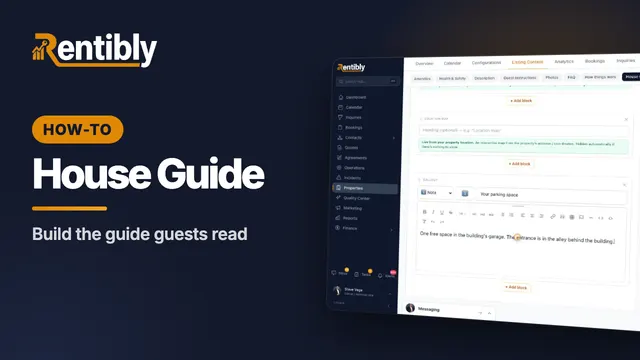
The house guide
Write the how-tos guests look up mid-stay, then build the house guide they read during their stay — with blocks that keep themselves up to date. Shown live on a real Rentibly workspace.
 2:01
2:01How-to · Part 5
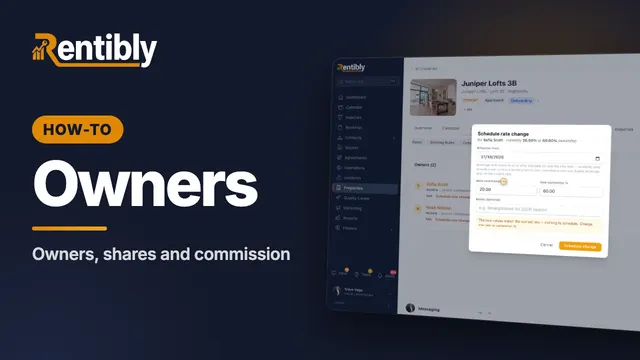
Owners and commission
Link a home to its owners: shares for co-owners, your commission, payout frequency, owner-paid taxes, and changing the rate from a future date. Shown live on a real Rentibly workspace.
Count your subscriptions. Then count ours.
A 30-minute demo on your numbers — every tool you pay for today, mapped to its native Rentibly module.
Book a demo