Email setup — Rentibly How-to
How-to: Communication · Part 1 of 5 · 2:40 · 8 chapters · Watch on YouTube
Chapters
Read the transcript
Hey, and welcome to this Rentibly how-to: email setup. Let's make sure every email you send looks like it came from you. Here's what we'll cover — the chapter times are right here, and in your player. Let's get started.
Every email Rentibly sends for you — booking confirmations, quotes, statements, receipts — goes out under one default sender. Settings, Communication, Email. Right here: mail currently goes out as Summit Property Co, from an address Rentibly manages for you — so you can send from day one, with no DNS setup.
The company display name is what guests see in the From line. The reply-to is where their replies go — so make it a real mailbox your team watches. And each email template can override both.
Want to send from your own brand? Add your own domain. Type it in, and Rentibly gives you the DNS records to paste into your domain provider. We'll cancel — until you add one, the managed domain stays your default.
Then the addresses you send from — reservations, billing, offers. Add address. Keep Rentibly delivery: bounces and complaints are tracked, bad addresses are suppressed, and opens and clicks show in Insights. Your own mail server is there if company policy needs it. Choose the address, and a display name if it should differ. We'll cancel this one too.
Incoming mail is set up under Inbox accounts. Our Guest replies account feeds the team inbox. Open it: forwarding is the recommended way in — forward your mailbox to this private address, and mail arrives in seconds, with no password needed. IMAP works too, checked once a minute. Keep that address to yourself, like a password.
Last, signatures. Inbox Signatures: each inbox account has its own. Add signature, and name it — Reservations team. Write the sign-off, and use the placeholder button: the agent's first name, and the company name, filled in when it's used. Default for this account, and Save. Your team adds it from the Insert menu when they reply — and you can edit it, or make another one the default, from its menu here.
Thanks so much for watching! If you're already on Rentibly, open Settings, Communication, Email, and make sure your display name and reply-to are right. And if you're not on Rentibly yet, book a demo call, and we'll show you all of this, live.
Choose who your email comes from, send from your own domain, bring guest replies into the Inbox, and give your team a signature. Shown live on a real Rentibly workspace.
More in Communication
 2:40
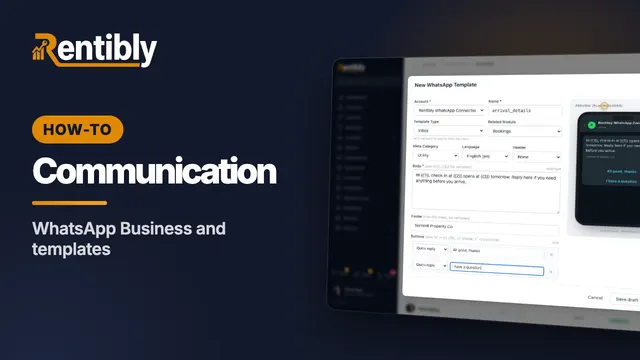
2:40How-to · Part 2
WhatsApp Business and templates
Your WhatsApp numbers and credit, the 24-hour rule, and how to write a template ready for Meta's approval. Shown live on a real Rentibly workspace.
 2:38
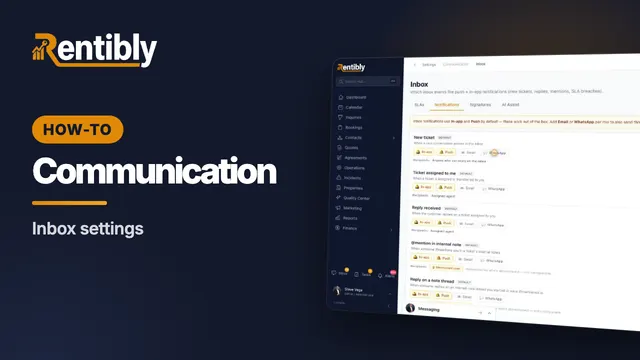
2:38How-to · Part 3
Inbox settings
Response-time targets, the auto-stale cleaner, who gets notified, and what blocking a sender really does. Shown live on a real Rentibly workspace.
 2:25
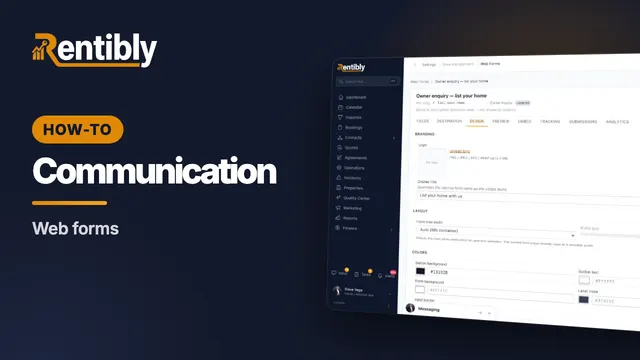
2:25How-to · Part 4
Web forms
Build a form for your website that sends owners, guests or leads straight into Rentibly — then embed it anywhere. Shown live on a real Rentibly workspace.
 2:09
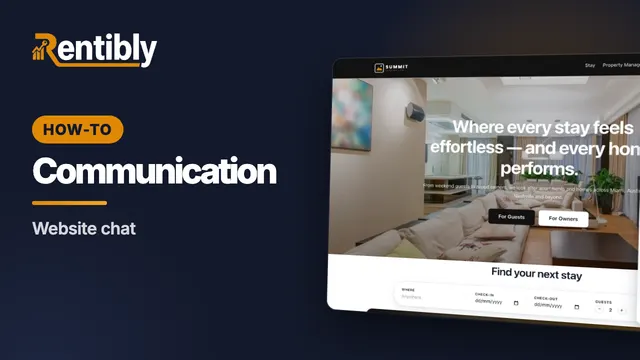
2:09How-to · Part 5
Website chat
Put a chat bubble on your Rentibly website, greet visitors automatically, and answer them from your Inbox. Shown live on a real Rentibly workspace.
Count your subscriptions. Then count ours.
A 30-minute demo on your numbers — every tool you pay for today, mapped to its native Rentibly module.
Book a demo