WhatsApp Business and templates — Rentibly How-to
How-to: Communication · Part 2 of 5 · 2:40 · 8 chapters · Watch on YouTube
Chapters
Read the transcript
Hey, and welcome to this Rentibly how-to: WhatsApp Business and templates. Let's see how your numbers are set up, and write a template your team can send. Here's what we'll cover — the chapter times are right here, and in your player. Let's get started.
Your WhatsApp numbers live under Settings, Communication, WhatsApp Business. Each connected number is listed here — this one's active, and in the Inbox. Messages draw on your Rentibly WhatsApp credit: add credits when you need them, or set up auto top-up so it never runs dry. And View pricing shows what each kind of conversation costs.
Open the number. The overview shows its status, its health, and its messaging tier — how many new conversations it can start in a day. Under Settings: Show in Inbox lets your team reply from this number, one number is the default for new conversations, and you choose whether guests see blue ticks when you've read their message.
Here's the rule that matters most: once twenty-four hours have passed since a guest's last message, WhatsApp only lets you send an approved template. Templates live in Settings, Templates, on the WhatsApp tab — each with its type, Meta's category, and its status: a draft, or approved by Meta.
Let's write one. Add Template. A name, in lower case — arrival details. The type: Inbox, so your team can pick it in a conversation. It's about a booking, and Meta's category is Utility: a message about a stay the guest already booked.
Now the message. Variables are numbered: one for the guest's name, two for the home, three for the check-in time. A short footer, and buttons — two quick replies the guest can tap. The preview updates as you type.
Next asks for sample values, so Meta's reviewers see a real example: Emma, Palisade Heights 9C, three PM. Submit to Meta sends it for review — once it's approved, your team can send it from the Inbox. We'll keep it as a draft for now: Save draft.
Thanks so much for watching! If you're already on Rentibly, open Settings, Templates, WhatsApp, and draft the message your guests need most. And if you're not on Rentibly yet, book a demo call, and we'll show you all of this, live.
Your WhatsApp numbers and credit, the 24-hour rule, and how to write a template ready for Meta's approval. Shown live on a real Rentibly workspace.
More in Communication
 2:38
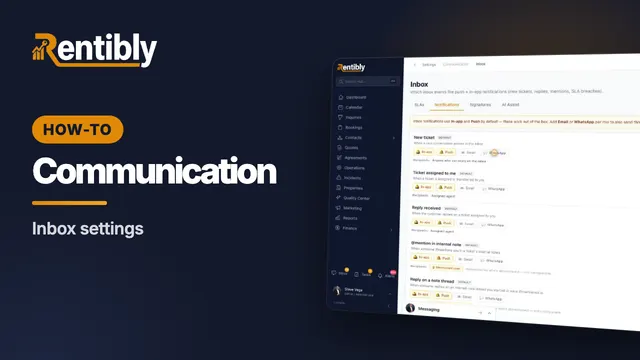
2:38How-to · Part 3
Inbox settings
Response-time targets, the auto-stale cleaner, who gets notified, and what blocking a sender really does. Shown live on a real Rentibly workspace.
 2:40
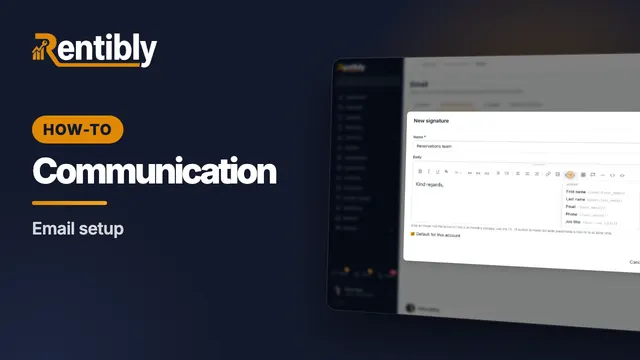
2:40How-to · Part 1
Email setup
Choose who your email comes from, send from your own domain, bring guest replies into the Inbox, and give your team a signature. Shown live on a real Rentibly workspace.
 2:25
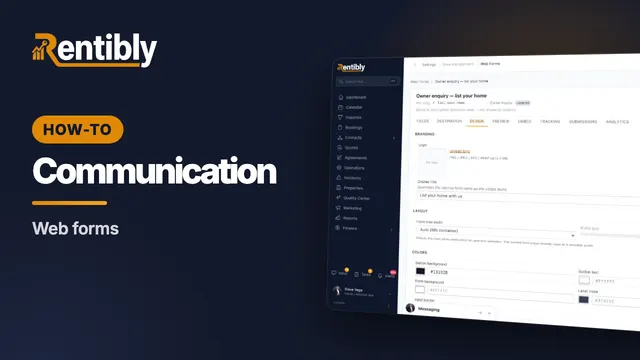
2:25How-to · Part 4
Web forms
Build a form for your website that sends owners, guests or leads straight into Rentibly — then embed it anywhere. Shown live on a real Rentibly workspace.
 2:09
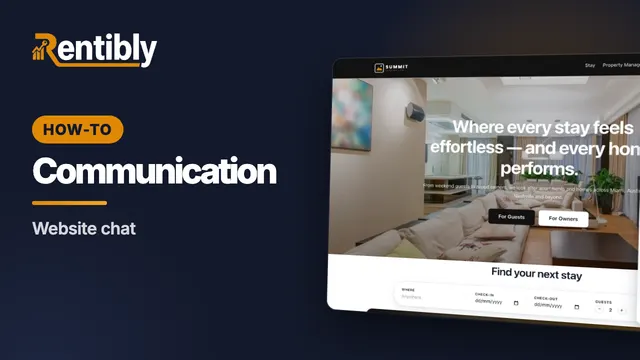
2:09How-to · Part 5
Website chat
Put a chat bubble on your Rentibly website, greet visitors automatically, and answer them from your Inbox. Shown live on a real Rentibly workspace.
Count your subscriptions. Then count ours.
A 30-minute demo on your numbers — every tool you pay for today, mapped to its native Rentibly module.
Book a demo