Inbox settings — Rentibly How-to
How-to: Communication · Part 3 of 5 · 2:38 · 8 chapters · Watch on YouTube
Chapters
Read the transcript
Hey, and welcome to this Rentibly how-to: inbox settings. Let's set how quickly your team should answer — and who hears when they don't. Here's what we'll cover — the chapter times are right here, and in your player. Let's get started.
How fast your team answers guests is set in Settings, Communication, Inbox. First, the auto-stale cleaner — off here. Switch it on, and a conversation waiting on the guest moves to Pending Client after two days, then closes after seven more days of silence. And it never closes a conversation nobody replied to.
Response deadlines only count during your business hours — set once, in Company Profile, with your time zone. With no hours set, the clock runs around the clock.
Then a policy for each priority. First response: five minutes for urgent, fifteen for high, thirty for normal, and two hours for low. New conversations arrive as Normal, so thirty minutes is your everyday target. Follow-up response, left blank here, would also time every later reply from the guest. And untick Policy active to give a priority no deadline at all.
Notifications decide who hears about what: new conversations, assignments, guest replies, mentions — and SLA breaches. In-app and push work straight away; email or WhatsApp can be added to any row. And Edit chooses who's told.
Signatures are here too — the same ones you'll find in Email settings, one set for each inbox account. And AI Assist: the Rentibly AI drawer sits on every conversation to help draft replies and look things up, and it can be switched off for a single conversation from that ticket's sidebar.
Last, Blocks and Reports. Block a sender from a conversation's menu in the Inbox, and their WhatsApp and email messages stop reaching you — they're never told. Airbnb, Booking.com and the other channels have no blocking, so there you report the message instead.
Thanks so much for watching! If you're already on Rentibly, open Settings, Communication, Inbox, and check your first-response targets match how your team really works. And if you're not on Rentibly yet, book a demo call, and we'll show you all of this, live.
Response-time targets, the auto-stale cleaner, who gets notified, and what blocking a sender really does. Shown live on a real Rentibly workspace.
More in Communication
 2:25
2:25How-to · Part 4
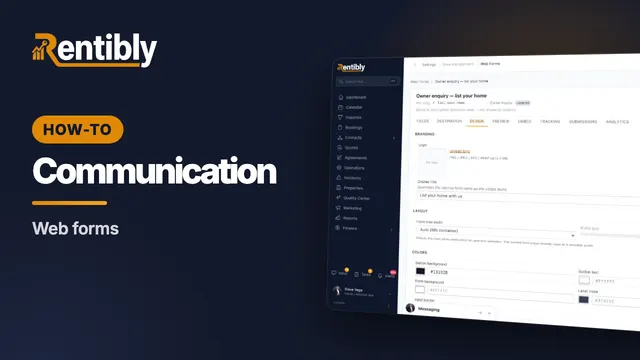
Web forms
Build a form for your website that sends owners, guests or leads straight into Rentibly — then embed it anywhere. Shown live on a real Rentibly workspace.
 2:40
2:40How-to · Part 1
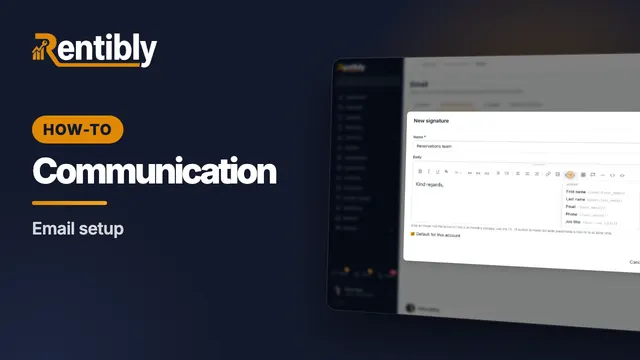
Email setup
Choose who your email comes from, send from your own domain, bring guest replies into the Inbox, and give your team a signature. Shown live on a real Rentibly workspace.
 2:40
2:40How-to · Part 2
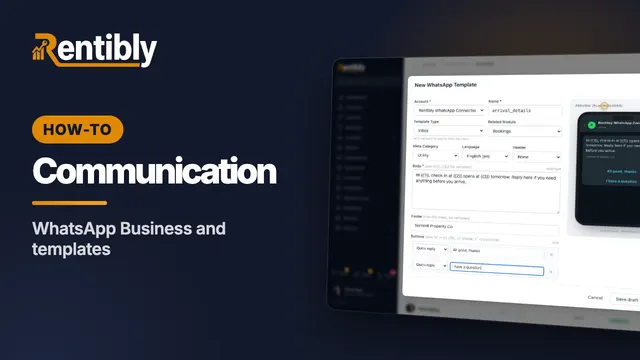
WhatsApp Business and templates
Your WhatsApp numbers and credit, the 24-hour rule, and how to write a template ready for Meta's approval. Shown live on a real Rentibly workspace.
 2:09
2:09How-to · Part 5
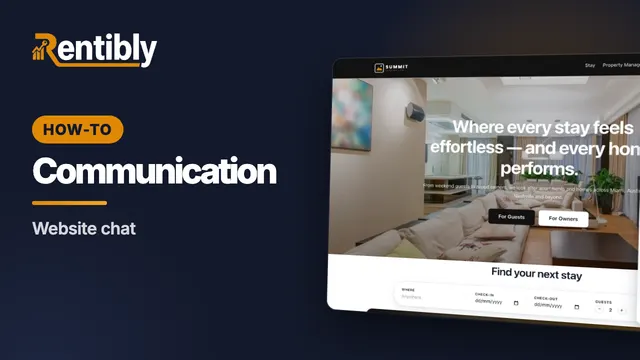
Website chat
Put a chat bubble on your Rentibly website, greet visitors automatically, and answer them from your Inbox. Shown live on a real Rentibly workspace.
Count your subscriptions. Then count ours.
A 30-minute demo on your numbers — every tool you pay for today, mapped to its native Rentibly module.
Book a demo