Payments and deposits — Rentibly How-to
How-to: Bookings & Guests · Part 2 of 6 · 2:29 · 7 chapters · Watch on YouTube
Chapters
Read the transcript
Hey, and welcome to this Rentibly how-to: payments and deposits. Hannah's transfer has just landed — let's record it, take her security deposit, and see where it all shows up. Here's what we'll cover — the chapter times are right here, and in your player. Let's get started.
Hannah's booking is confirmed, but nothing's paid yet. Everything about money lives on the Payments tab: the totals up top, payments received, the security deposit, and her schedule — the deposit due now, and the balance in November.
Her bank transfer has arrived. Open the deposit installment. From here you could send a payment link or charge a saved card — she paid by transfer, so: Record Manual. The amount is filled in, with today's date and the method — Bank Transfer. Add the bank's reference, so finance can match it. Record payment. There it is under Payments received, and her balance drops to five hundred and fifty-seven fifty — the rest is due on the second of November.
Now a security deposit — three hundred dollars, refundable. Add Security Deposit. The amount. Charge takes the full amount and refunds it after check-out; an authorization hold just holds it on her card. She's already sent it by transfer — so Already paid, by Bank Transfer. Add security deposit.
A deposit paid by transfer is returned by hand. After she checks out, open it and choose Return deposit. Full return gives it all back; partial return keeps some — say, for a breakage — with a reason and an explanation that lands on the booking's charges. Her stay hasn't happened yet, so we'll go back.
And every payment, across every booking, comes together in Finance, under Guest Payments — what's been received, refunded, and what's still scheduled.
Thanks so much for watching! If you're already on Rentibly, open Finance, Guest Payments, and see what's still scheduled to come in. And if you're not on Rentibly yet, book a demo call, and we'll show you all of this, live.
Record a guest's bank transfer against their payment schedule, add a refundable security deposit, see how it's returned, and find every payment in Finance. Shown live on a real Rentibly workspace.
More in Bookings & Guests
 2:44
2:44How-to · Part 3
Changing a booking
Change a confirmed booking the right way: the guest count, new dates and how re-pricing works, moving to another home, and adding a charge mid-stay. Shown live on a real Rentibly workspace.
 5:34
5:34How-to · Part 1
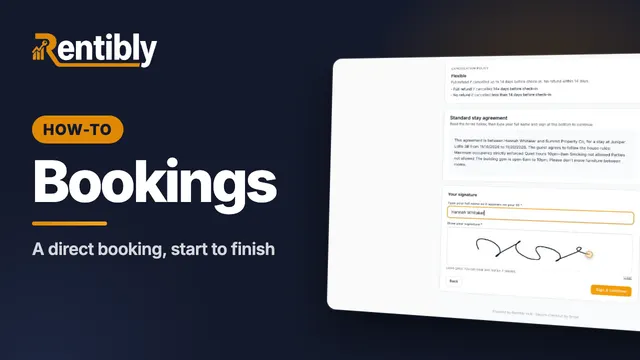
A direct booking, start to finish
Take a direct enquiry all the way: the inquiry, a quote with fees and a payment schedule, the guest signing and accepting, and the confirmed booking. Shown live on a real Rentibly workspace.
 2:10
2:10How-to · Part 4
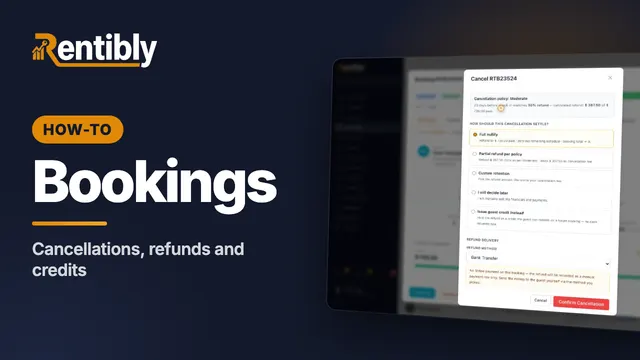
Cancellations, refunds and credits
Cancel a paid booking under its policy: the refund Rentibly calculates, the five ways to settle, guest credit, and where the refund shows up. Shown live on a real Rentibly workspace.
 2:32
2:32How-to · Part 5
Arrival day
Run an arrival day: the Today dashboard, checks before a guest arrives, recording a door code, adding an early check-in fee, and checking the guest in. Shown live on a real Rentibly workspace.
 1:50
1:50How-to · Part 6
The guest portal
What your guests see on their phone: every stay in one place, the house guide, extras to add, and messages to your team. Shown live on a real Rentibly workspace.
Count your subscriptions. Then count ours.
A 30-minute demo on your numbers — every tool you pay for today, mapped to its native Rentibly module.
Book a demo