Taxes — Rentibly How-to
How-to: Pricing & Revenue · Part 6 of 11 · 2:03 · 7 chapters · Watch on YouTube
Chapters
Read the transcript
Hey, and welcome to this Rentibly how-to: taxes. We'll add a two percent city tax that applies itself to every home in Austin — and see the right way to change a tax rate later. Here's what we'll cover — the chapter times are right here, and in your player. Let's get started. Taxes sit on their own tab under Settings, Pricing rules.
This account charges an occupancy tax and a sales tax on every stay. Let's add a local one: a two percent city tax on homes in Austin.
Add Tax. The name guests see on the bill. The category — city or tourist tax — which is also how the booking sites label it. And the type: a percentage.
Effectivity holds the rate and its dates: two percent, from the ninth of October, with no end date. And the authority you pay it to — the City of Austin. Owner economics: a tax passes through to the authority — or, if it's yours to keep, your company keeps it.
Applicability: auto-apply, with one condition — the area is Austin. Done, and Add Tax. It's in the list now, marked auto-apply, on every Austin home. A percentage tax is charged on the rent plus any taxable fees, less taxable discounts.
When a rate changes, don't edit the old one — use Supersede. It closes the old rate on the day before your new one starts, so past bookings keep the rate they were charged.
Thanks so much for watching! If you're already on Rentibly, open Settings, Pricing rules, and make sure every local tax is set up. And if you're not on Rentibly yet, book a demo call, and we'll show you all of this, live.
Add a local tax: name and category, rate, dates and authority, where the money goes, which homes it applies to — and how to change a rate safely. Shown live on a real Rentibly workspace.
More in Pricing & Revenue
 2:43
2:43How-to · Part 7
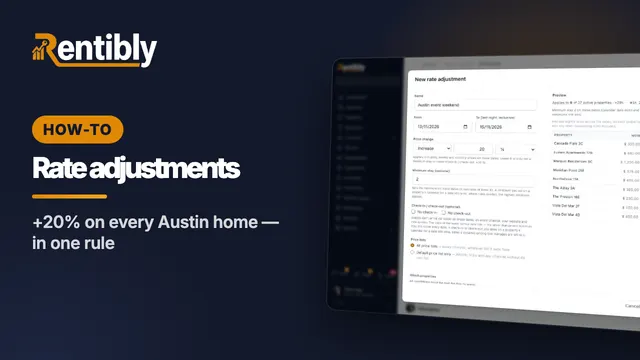
Rate adjustments
Raise or lower prices on many homes at once for set dates: price change, minimum stay, arrival rules, which price lists and homes — with a live preview, and pause to undo. Shown live on a real Rentibly workspace.
 3:25
3:25How-to · Part 1
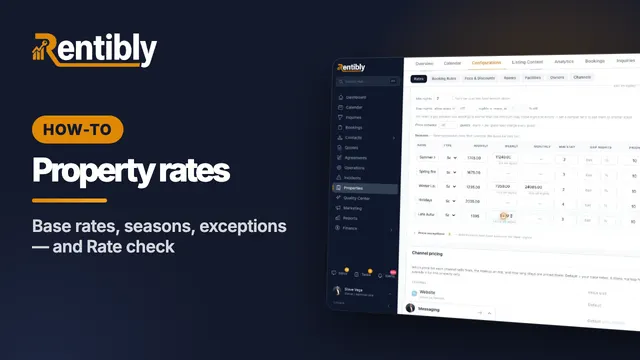
Setting a property's rates
How a night is priced, base rates and long-stay tiers, minimum and gap nights, seasons, price exceptions — and checking what a stay costs on every channel. Shown live on a real Rentibly workspace.
 2:13
2:13How-to · Part 2
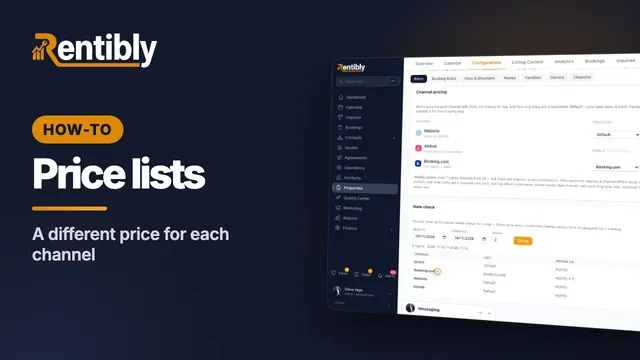
Price lists for each channel
Charge differently depending on where the booking comes from: create a price list, copy and mark it up, assign it to a channel, and check the result. Shown live on a real Rentibly workspace.
 2:22
2:22How-to · Part 3
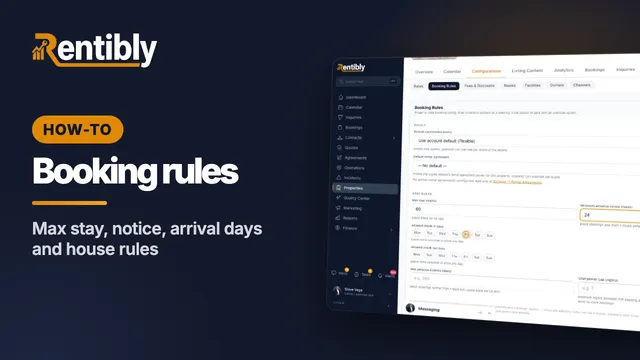
Booking rules
Decide which stays a home takes: cancellation policy, maximum stay, advance notice, arrival days, booking window, who the home suits, and the house rules the booking sites show. Shown live on a real Rentibly workspace.
 2:32
2:32How-to · Part 4
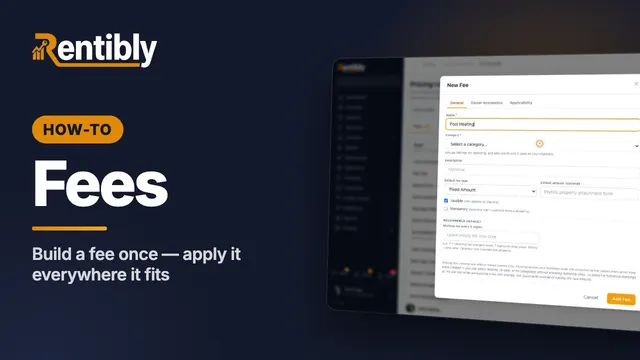
Fees
Create a fee once for your whole account: name, category, type and amount, who keeps the money, and which properties and bookings it applies to. Shown live on a real Rentibly workspace.
 2:19
2:19How-to · Part 5
Discounts
Set up your own discount for direct and website bookings — a long-stay discount that applies itself — and see it come off the price. Shown live on a real Rentibly workspace.
Count your subscriptions. Then count ours.
A 30-minute demo on your numbers — every tool you pay for today, mapped to its native Rentibly module.
Book a demo