Create a quote and turn it into a booking
Updated 12 October 2026
A quote prices a stay for a guest. Once the guest agrees, you convert it into a confirmed booking.
Steps
Open Quotes and click New Quote. (From an inquiry in the Contacted stage you can instead click Create Quote, which opens the same wizard with the inquiry filled in.)
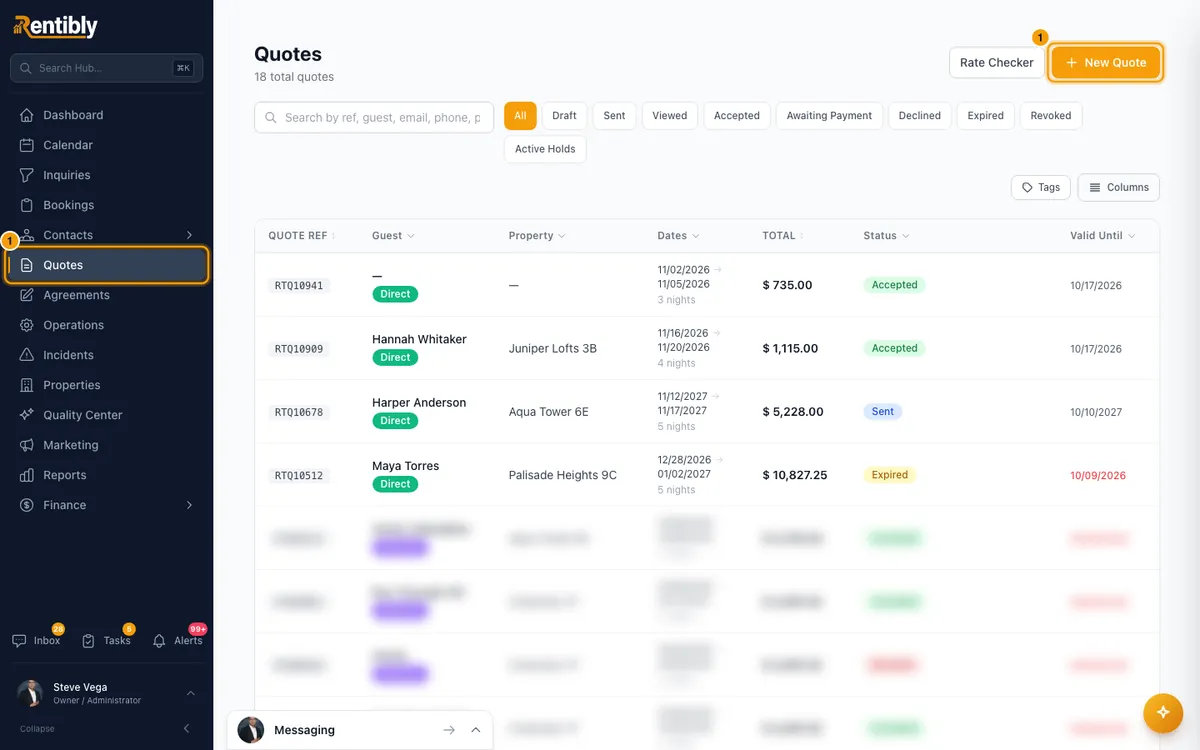
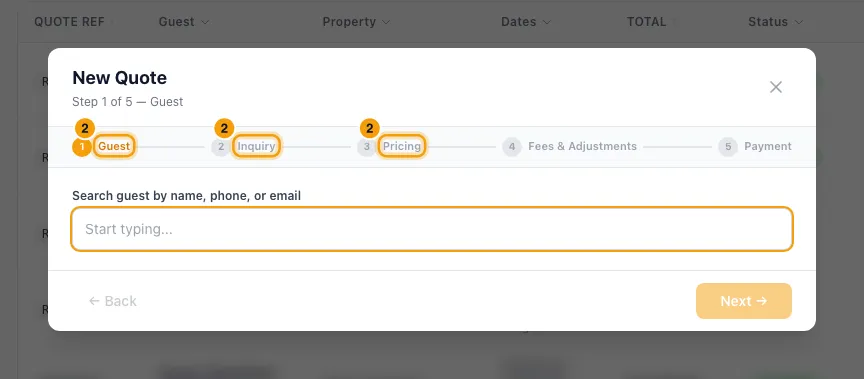
Work through the steps: Guest → Inquiry (property, check-in, check-out and Source are required; enter Guests and, if the guest is bringing any, Pets) → Pricing → Fees & Adjustments → Payment. Click Next → between steps, then Create Quote.
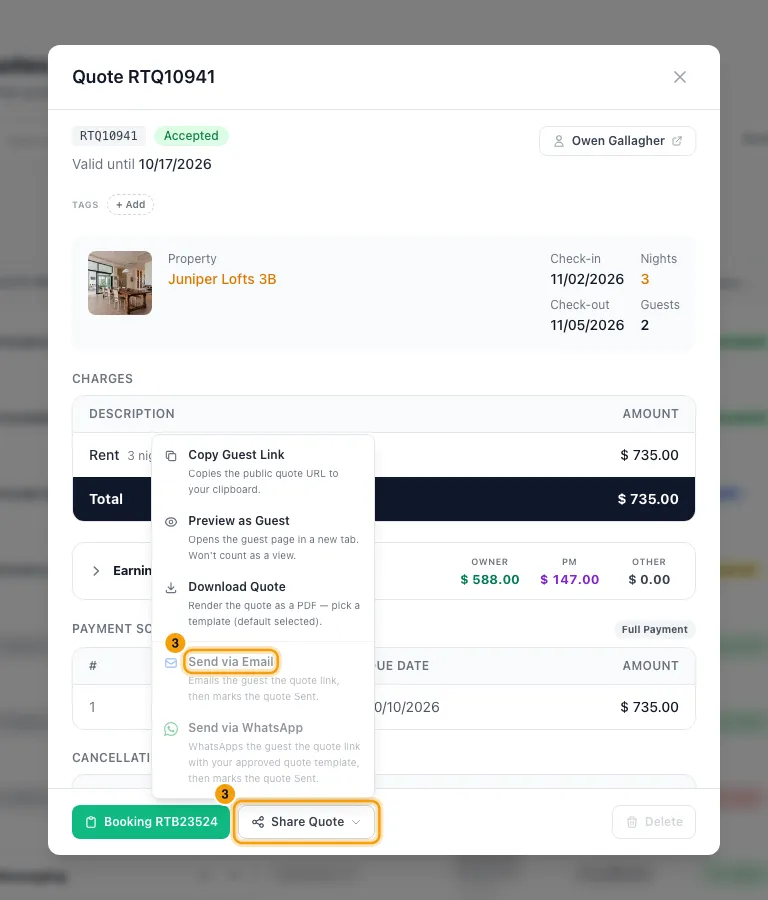
Open the quote and use Share Quote → Send via Email or Send via WhatsApp. The guest is sent the quote link and the quote is marked Sent. WhatsApp needs an approved WhatsApp template for quotes; see "Send, hold, revoke or follow up a quote". The same menu has Copy Guest Link, Preview as Guest and Download Quote. If you shared it another way, click Mark Sent instead.
When the guest agrees, open the quote and click Convert to Booking, then Confirm — Create Booking.
If the guest accepted from their link but no booking was created yet, the quote shows Confirm Booking instead. Click it, then Confirm Booking in the dialog.
Good to know
- Convert to Booking only appears on quotes that are Sent or Viewed, and only when the dates don't clash with another calendar entry. The dialog re-checks availability and refuses if there's a conflict.
- On the Payment step, the payment schedule must add up to the quote total before you can continue.
- Confirm Booking doesn't record any money. Record payments afterwards on the booking's Payments tab.
- Revoke means you withdrew the quote. Mark Declined means the guest said no.
- On an accepted quote with no booking yet, Revise turns it back into a draft you can edit. The guest's acceptance and signature are cleared, so they must accept again.
- Converting marks the linked inquiry Booked. The booking takes over the quote's hold on the calendar, and keeps the guest's signed agreement and the quote's terms.
- To create a booking without a quote: on Bookings click + New Booking. It has the same five steps; the last button is Create Booking. On the Inquiry step you can set Booked on, the date the reservation was really made; leave it blank for today.
- Sending, Mark Sent, Revise, Revoke and Mark Declined need Edit on Quotes. Convert to Booking, Confirm Booking and + New Booking need Edit on Bookings.
- Pets are not guests. The property's Pet Fee is added only when the quote has pets and the property allows pets, and a per-pet fee is multiplied by the number of pets. Changing the pet count re-prices the quote.
- Entering pets on a property that doesn't allow pets, or more than its Max pets, shows a property-rule warning. Tick Override property rules and proceed anyway to continue.
- On a property that doesn't allow pets, no Pet Fee is added automatically; add one under Fees & Adjustments → + Add Fee if you want to charge it.
- Over Max pets, the Pet Fee is still added, and a per-pet fee is charged for every pet, not just up to Max pets. The warning and the Fees & Adjustments step say so.
- The pets are copied to the booking when the quote is converted.
Rentibly AI can help
- It can create, edit and send a quote. Sending emails (or WhatsApps) the guest the quote link, then marks the quote sent. Converting the quote into a booking is done in the app.
- It can price a stay with pets, for example "2 adults and a dog", including the Pet Fee.
Still stuck?
Open Support from your profile menu in Rentibly, or email hello@rentibly.com — we answer fast.