Add a fee, tax or discount to a booking
Updated 13 October 2026
Add an extra line to a booking's charges, such as a cleaning fee, a damage fee, a tax or a discount. Every line must come from your catalog in Settings → Pricing rules.
Steps
Go to Bookings, open the booking and go to the Financials tab.
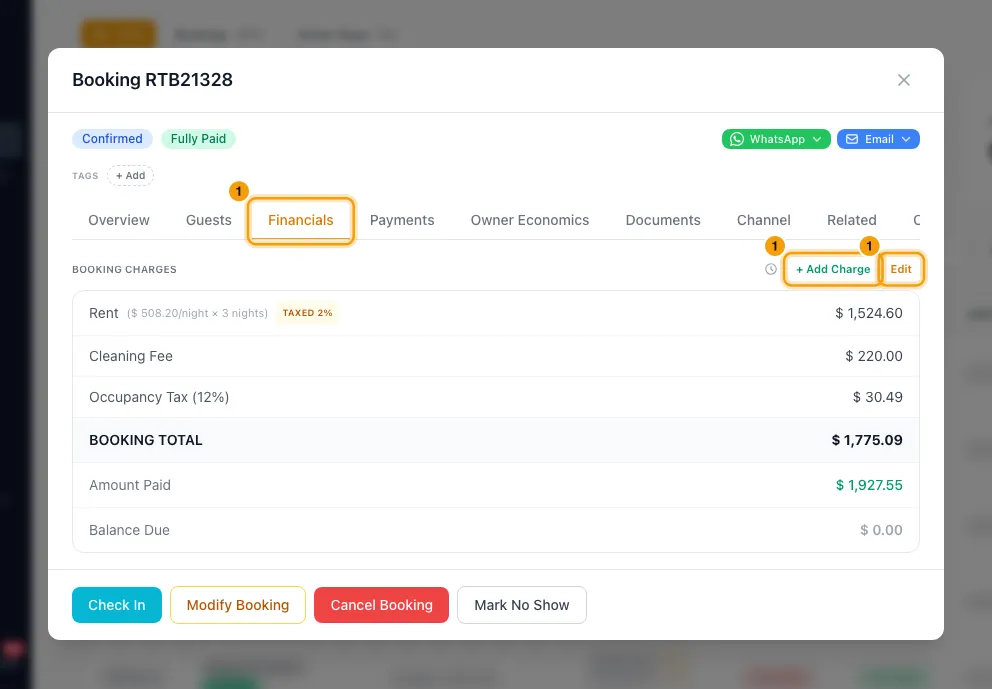
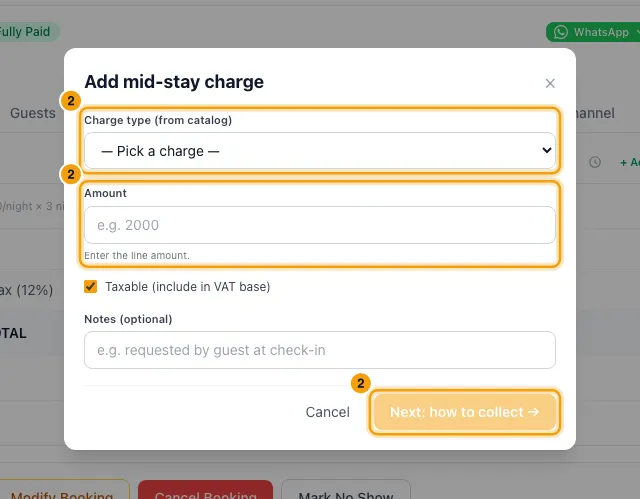
To add a fee or tax and decide how to collect it: click + Add Charge. In Add mid-stay charge, pick the Charge type (from catalog). Enter the Amount the guest pays. For a percentage charge such as VAT 5%, choose Auto-calculate to have it worked out from the booking, or Enter amount to type the exact figure. Untick Taxable (include in VAT base) if no VAT applies. Then click Next: how to collect →. Under How should this be collected? choose Charge now, Add as new installment (pick its Due date), Append to next installment or Leave open, then click Add charge.
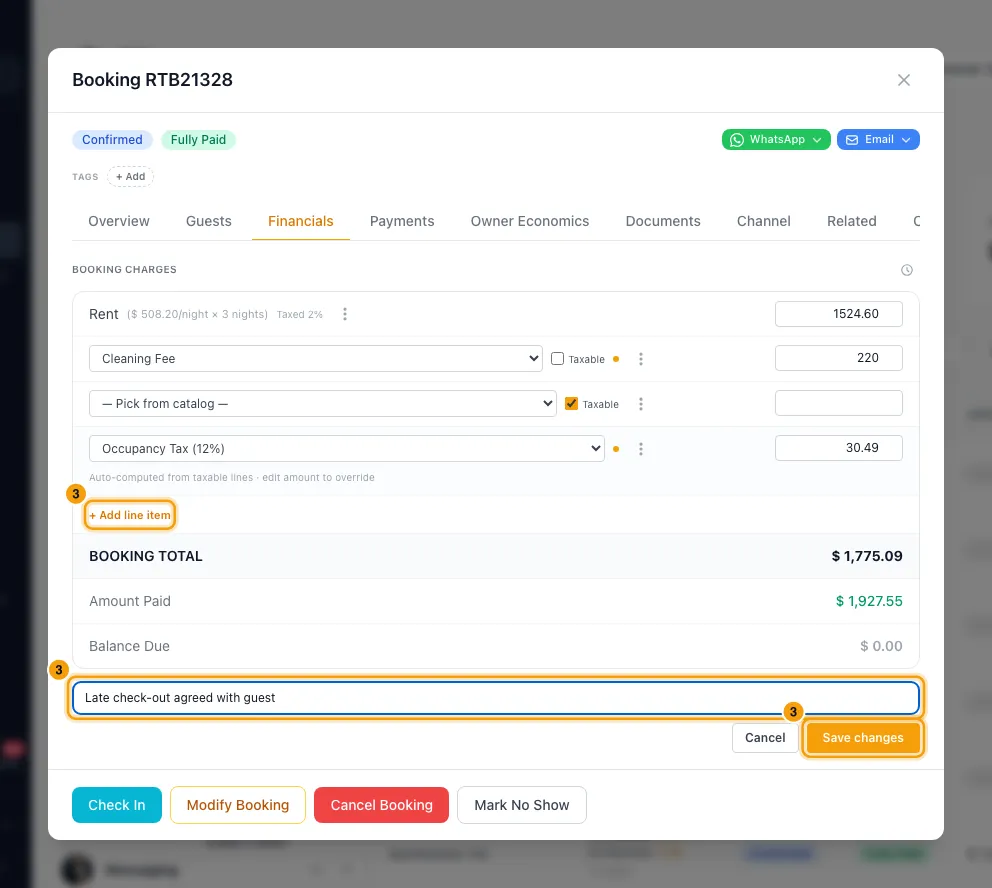
To add a discount, or edit several lines at once: click Edit, then + Add line item. Pick from the catalog (Fees, Taxes or Discounts) and enter the amount. Fill in Reason for change, which is required, and click Save changes.
Good to know
- Charges can't be typed in freely. If the catalog is empty, add items in Settings → Pricing rules first.
- How to collect (with + Add Charge):
- Charge now adds the charge, then opens the Charge Now window with that amount filled in and the reason Service add-on. Pick the guest's saved card, or type a card in, add Notes and charge it. To send a payment link instead, close the window and use the Payments tab → Actions → Create Payment Link. On a cancelled or no-show booking you are warned first.
- Add as new installment adds a payment to the schedule on the date you pick. Existing installments don't change.
- Append to next installment adds the amount to the next unpaid installment. It is only offered when there is one.
- Leave open adds the amount to what the guest owes, with nothing scheduled.
- + Add Charge only takes positive amounts. Use Edit for a discount.
- Enter a discount as a negative amount; the amount is added to the total as typed.
- Auto-calculate works a percentage out the way a quote does. A percentage fee is a share of the accommodation. A percentage tax such as VAT is a share of the accommodation plus taxable fees. If the booking already carries that tax (its VAT line), only the missing part is added. If nothing is missing, there is nothing to add.
- With + Add Charge, a typed amount for a taxable fee includes VAT; an auto-calculated fee is before VAT, and its VAT is added on top. The fee's line shows the amount before VAT, and the VAT is added to the booking's VAT line (one is created if the booking has none), so the lines always add up to the Booking Total. Taxes such as Tourism Dirham or VAT never have VAT added to them. Removing the fee takes its VAT back off the VAT line.
- On a booking from a connected channel, the channel's own amounts are read-only, but + Add Charge still works. Edit opens the charges with the channel's lines locked, while charges you added in Rentibly are fully editable, the same as on a disconnected booking: change the charge type or the amount (before VAT; the VAT line follows), tick or untick Taxable, remove them, or add new ones with + Add line item. On the channel's own lines you can still tick or untick Taxable, and use each line's ⋮ menu to change its commission and expense, the Rent line included. These settings are kept when the channel updates the booking. To change one of the channel's own lines, disconnect the booking on its Channel tab. To take off a charge you added, click Edit, open its ⋮ menu and choose Remove, then save.
- Pet Fee after changing the pet count: changing the pets under Modify → Number of Guests records the new count but doesn't re-price the booking. Add or remove the Pet Fee here yourself (with + Add Charge, or Edit → Remove). A later date change or property move that you choose to re-price charges the Pet Fee for the booking's pets automatically, but only if the property allows pets.
- A booking that is fully paid out and locked can't be changed until it's unlocked: click Unlock on the Owner Economics tab. That tab only shows to people with the Edit owner bank details and payout settings or Create and send owner statements permission.
- Every charge change is listed in the history: click the clock icon next to Booking charges.
- You need Edit on Bookings.
Rentibly AI can help
- It can add a catalog fee, tax or discount line to a booking. You approve it on a card first.
- On a booking from a connected channel it adds the line the same way + Add Charge does: as a charge added in Rentibly, which the channel's updates keep. The channel's own lines don't change.
- The line it adds carries no commission. Change that from the line's ⋮ menu on the Financials tab.
- It refuses cancelled bookings and locked bookings.
Still stuck?
Open Support from your profile menu in Rentibly, or email hello@rentibly.com — we answer fast.