Send, hold, revoke or follow up a quote
Updated 12 October 2026
After you create a quote you send it, can hold its dates, follow up, and close it if the guest says no or you withdraw it. To create a quote or turn it into a booking, see "Create a quote and turn it into a booking".
Steps
Open Quotes. Use the status buttons to find what needs action: Draft, Sent, Viewed, Accepted, Awaiting Payment, Declined, Expired, Revoked and Active Holds. The Valid Until column filter shows Expired, Expiring in 7 days or Expiring in 30 days.
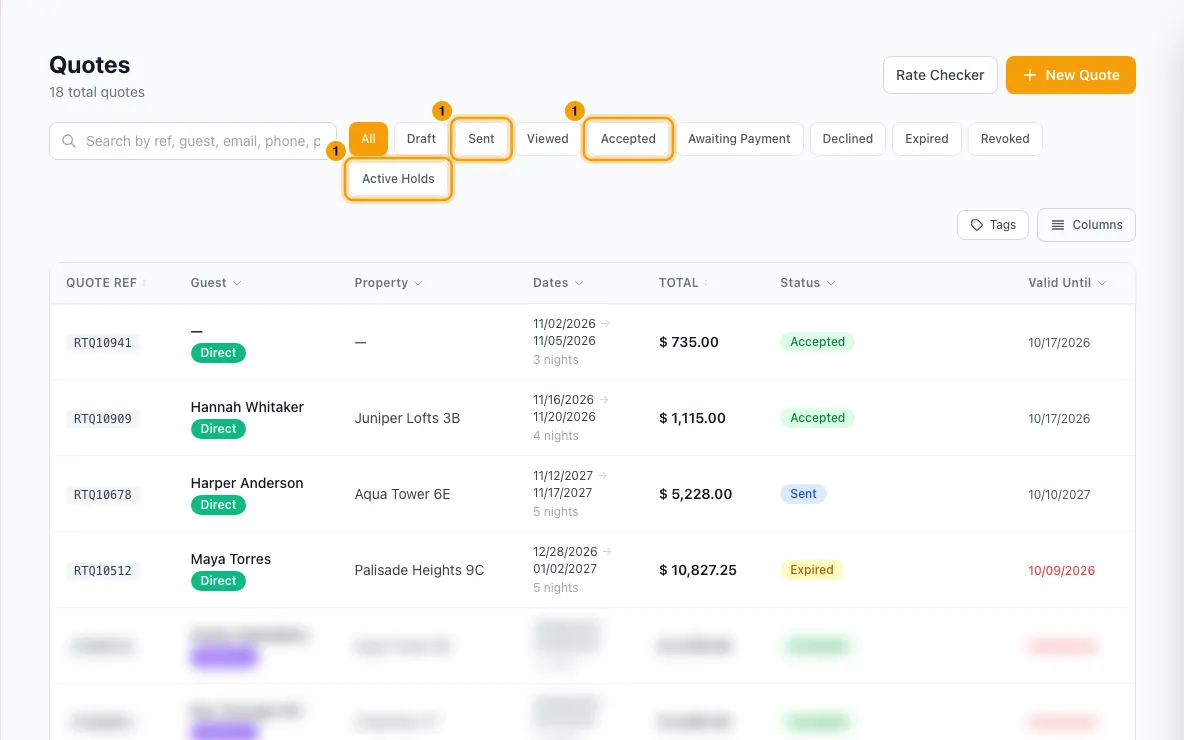
Click a quote to open it.
Send it: click Share Quote → Send via Email or Send via WhatsApp. Check the address in the Send via window. If you change it, choose whether to update the contact: Just send to the new address, Save as secondary on the contact or Replace the primary on the contact. Click Send via email (or Send via WhatsApp). The guest is sent the quote link at that address, and the quote is marked Sent.
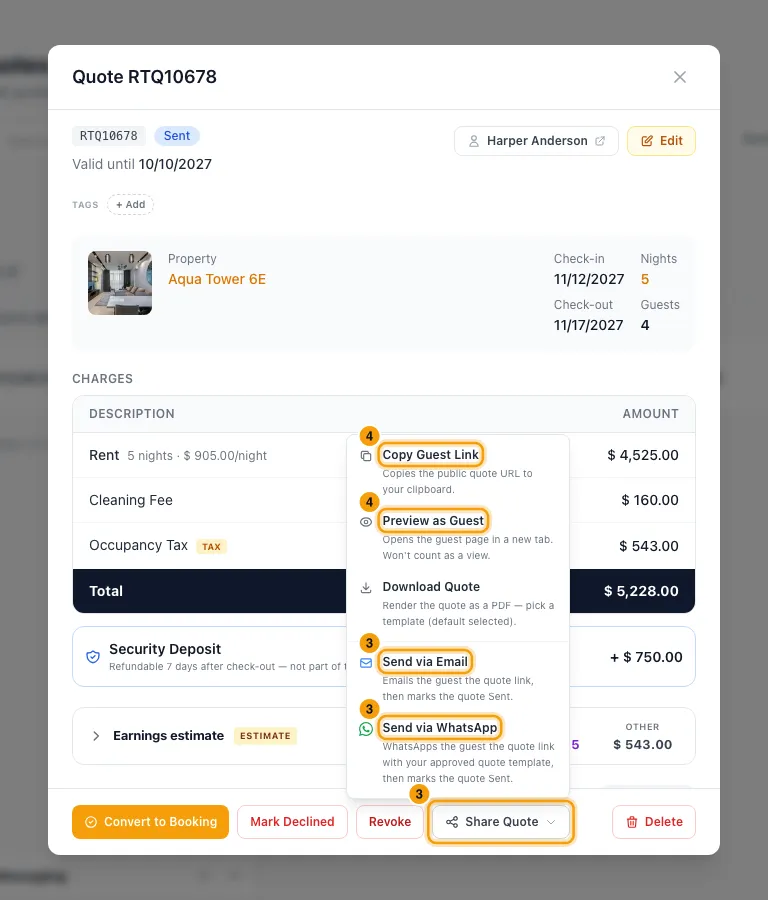
Share the link yourself: Share Quote → Copy Guest Link, or Preview as Guest to see the guest's page.
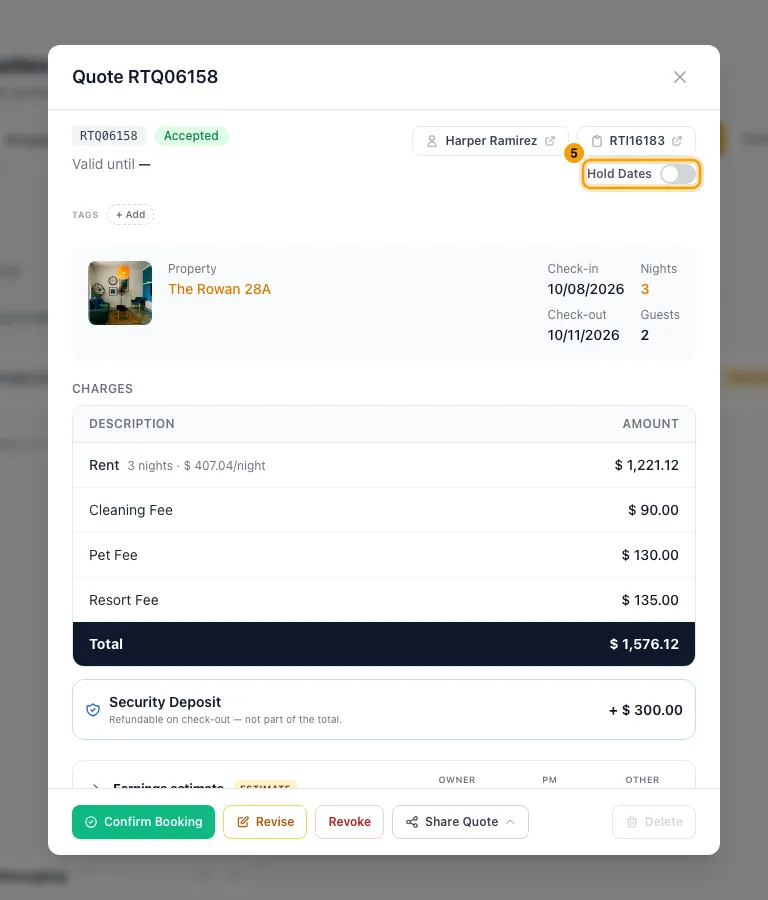
Hold the dates while the guest pays: on an accepted quote with no booking yet, switch on Hold Dates and pick 24 hours, 48 hours, 72 hours or a Custom time. Click the time-left chip to extend it. Switch it off to release the dates.
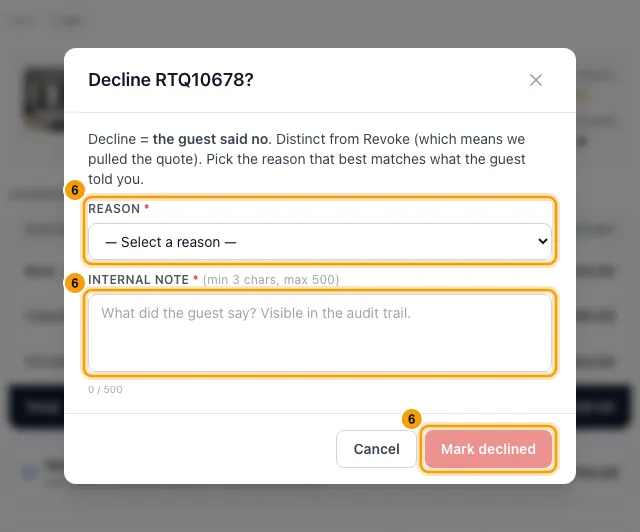
The guest said no: click Mark Declined. Pick a Reason, write an Internal note, then click Mark declined.
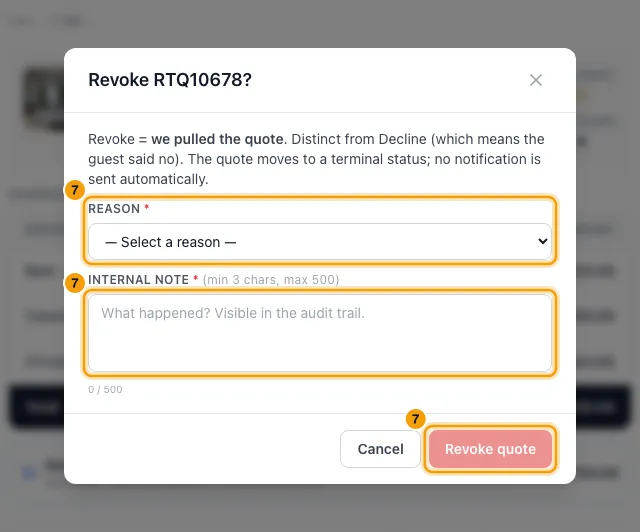
You're withdrawing it: click Revoke. Pick a Reason, write an Internal note, then click Revoke quote.
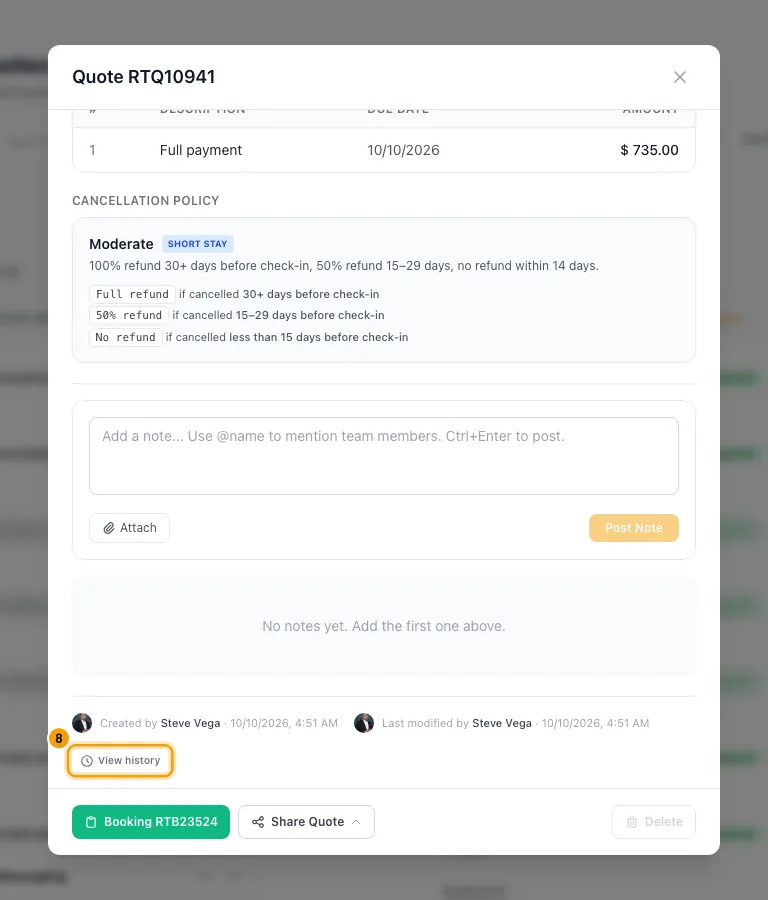
Follow up: at the bottom of the quote, see Guest first viewed and the number of views. Click View history for every edit, price change and guest action.
Good to know
- Send via Email emails the guest a short message with the quote link, from your usual sending address. If you have a notification rule on the Quote sent event for the quote contact (Settings → Notifications, Notifications), its email is used instead. See "Set up a notification rule (e.g. email the guest before check-in)".
- Send via WhatsApp needs that rule to have an approved WhatsApp template with the Quote Link (guest view) in it. Without one you see No approved WhatsApp template for quotes, nothing is sent and the quote stays as it was. Use Send via Email, or Copy Guest Link and share it yourself.
- If a send fails (no address, or the email or WhatsApp is refused), the Send via window shows Not sent — the quote is unchanged and why. Fix it and click send again.
- Each send is listed in the contact's communications and in your notification log. The guest gets one copy: a Quote sent rule doesn't message them again, though your team on that rule is still told.
- Mark Sent marks the quote Sent without sending anything. Use it when you shared the quote yourself.
- Share Quote is hidden on revoked and expired quotes and when the dates clash with another calendar entry. Sending is only offered on Draft, Sent and Viewed quotes.
- Valid until: set on the Payment step of the wizard under Quote Valid Until (tomorrow by default; quick buttons 24h, 3d, 7d). After that date the guest can't accept it and the quote becomes Expired. You're reminded about 24 hours before (Quote expiring soon), and told when the guest first opens it (Quote viewed by guest).
- Holding dates before acceptance: tick Hold these dates on the wizard's Payment step. The hold blocks your calendar and closes the dates on your channels until the quote is declined, revoked or expires.
- Hold Dates on an accepted quote must have an end, at most 30 days away. It is released when that time passes, when the booking is confirmed, or if the quote is revised or revoked. If another booking or hold already covers the dates, the hold is saved but can't be placed, and you're told.
- You can also release a hold from the Calendar: right-click it and choose Release hold. The quote stays.
- Revoke reasons: Pricing or terms changed, Property no longer available, Guest withdrew interest, Replaced by a revised quote, Created in error / duplicate, Guest or policy concern, Other. Decline reasons: Price too high, Dates no longer needed, Property not a fit, Booked elsewhere, Guest changed plans, No response from guest, Other.
- The internal note must be 3 to 500 characters. When the quote has an inquiry, Also mark the linked inquiry as Lost is ticked for you; the reason is saved on the inquiry, and a note ("Marked Lost — synced from quote …" with the reason and your note) appears on the inquiry's Notes tab. Marking it Lost runs your Inquiry lost notification rules once. If the inquiry can't be marked Lost (for example it's already Booked), you're told why.
- Revoking or declining releases any hold, and the guest isn't notified. Revoke works on Draft, Sent, Viewed and accepted-but-unpaid quotes. Mark Declined works on Sent and Viewed quotes.
- Edit works on expired and revoked quotes too. Saving brings them back to Draft, ready to send again.
- Revise on an accepted quote asks Revert this quote to draft for editing? Click Revert to draft: the guest's acceptance and signature are cleared and any pending card payment is cancelled.
- Delete removes the quote and releases its hold, without telling the guest. It is greyed out when the quote has a booking or belongs to an inquiry.
- Awaiting Payment marks accepted quotes with no booking yet. Payment Failed means the guest's card was declined and won't be retried; contact the guest.
- Rate Checker on the Quotes page previews a property's charges for dates without creating a quote.
- Sending, holds, Revise, Revoke, Mark Declined and deleting need Edit on Quotes.
Rentibly AI can help
- It can find quotes, for example ones expiring soon or awaiting a reply, and show one in full.
- It can send a draft quote to the guest: it emails (or WhatsApps) the quote link to the contact's address, then marks the quote sent. The confirmation card shows where it goes. If nothing could be sent, the quote stays as it was. It can edit a quote, including its validity, and price a stay.
- It can't hold dates, revoke or decline a quote. Do that on the quote.
Still stuck?
Open Support from your profile menu in Rentibly, or email hello@rentibly.com — we answer fast.