Work an inquiry from new to booked or lost
Updated 13 October 2026
Move a guest's inquiry through the pipeline: assign it, reply, send a quote, and close it as booked or lost.
Steps
Open Inquiries. Stay on the Booking Inquiries tab. Use the stage buttons (All, Unassigned, New, Contacted, Quoted, Booked, Lost, Junk) or the search box to find it, then click it.
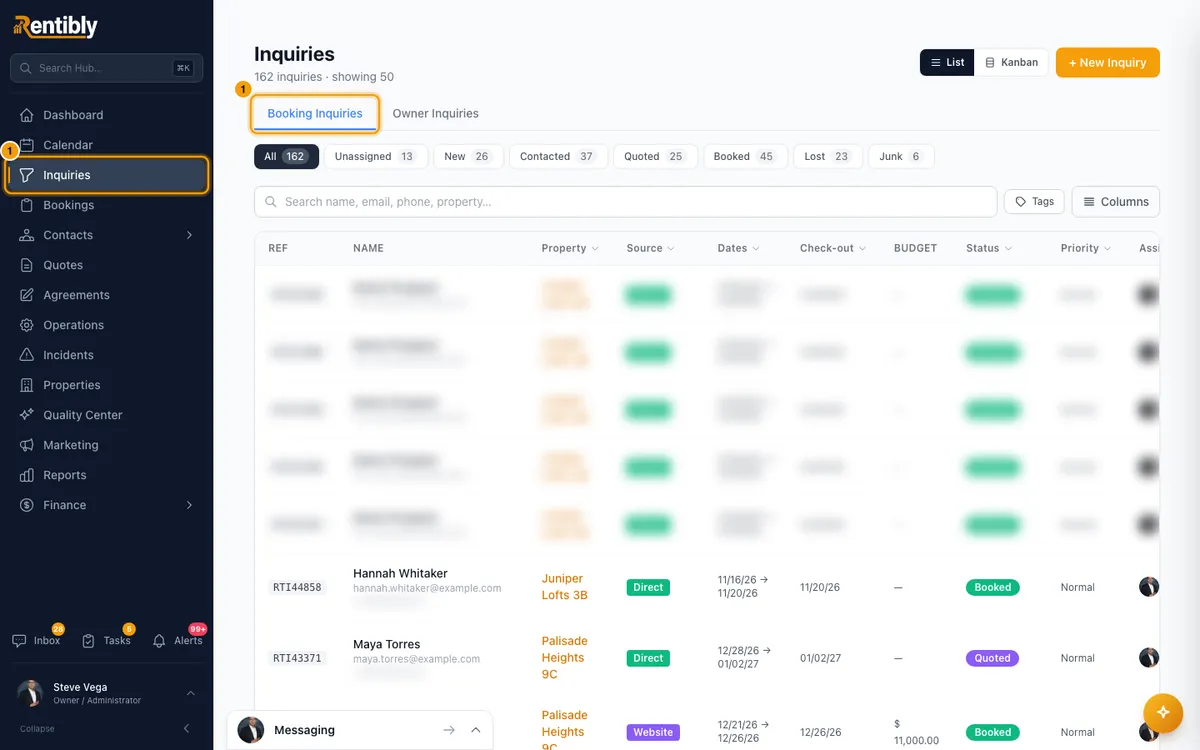
Assign: in the dark header, click Assign (or Reassign) and pick a teammate, or click Assign to me.
Reply: open the Communications tab and click a conversation; it opens in the Inbox. If the guest has no open conversation, click Create Ticket.
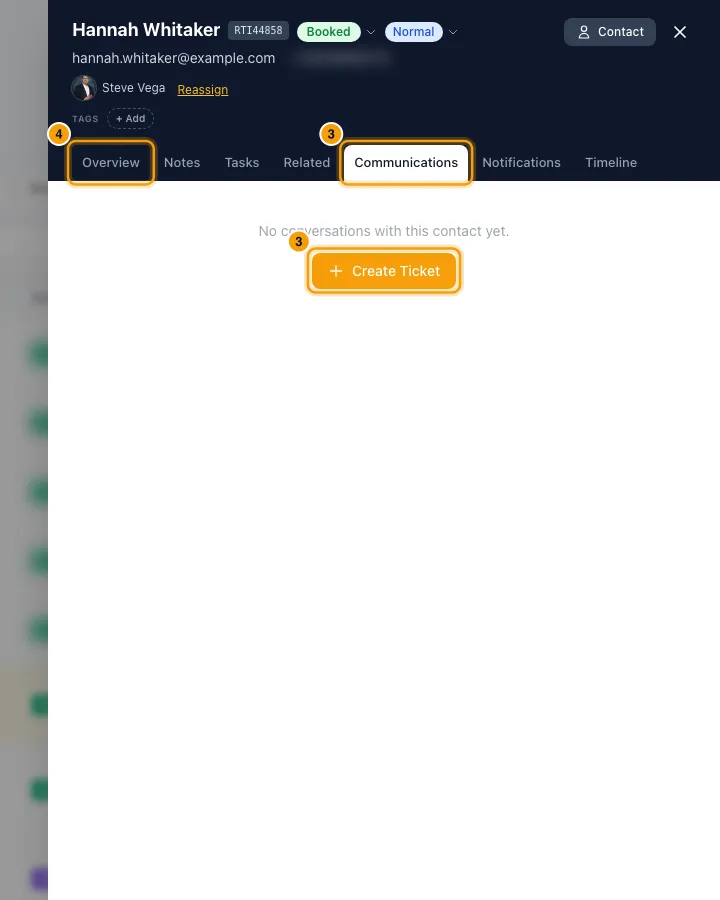
Move it forward: on the Overview tab, click the button for the next step:
- New: Contacted.
- Contacted: Create Quote, Lost or Junk.
- Quoted: Mark as Booked or Lost.
- Lost or Junk: Re-open.
You can also click the stage badge next to the guest's name and pick any stage.
Mark lost: click Lost. In Mark as Lost, choose a Lost Reason, write Notes (both required), then click Confirm Lost.
Mark junk: click Junk. Choose a Junk Reason, write Notes (both required), then click Confirm Junk.
Good to know
- The drawer header shows the inquiry's reference (for example RTI46243) next to the guest's name.
- If you change the stage of an inquiry nobody is assigned to, it is assigned to you.
- Every stage change runs your notification rules for stage changes and updates the list for everyone who has it open. That includes Lost and Junk, and the moves the app makes for you: saving a quote (to Quoted), a booking from its quote (to Booked), replying in the Inbox (to Contacted), and revoking or declining a quote with Also mark the linked inquiry as Lost ticked.
- Every move into Lost also runs your Inquiry lost notification rules, once. That covers Lost in the app, Rentibly AI's a revoked or declined quote, Mark as Lost or No response in the Close Ticket window, a request to book you decline, that expires or that the guest withdraws or never completes, and an inquiry the idle-conversation clean-up closes. Moving an inquiry that is already Lost does not run them again, and Junk does not run them.
- Assigning an inquiry sends the new assignee the Inquiry assigned to me alert. Picking the person who already has it sends nothing.
- Replying to the guest in the Inbox moves their New booking inquiries to Contacted. By default it also assigns those that nobody owns to you. See "Choose who owns a booking inquiry".
- Create Quote opens the quote wizard on the Quotes page with this inquiry filled in. Saving a quote linked to an inquiry moves the inquiry to Quoted and assigns it to whoever created the quote, even if someone else had it. See "Create a quote and turn it into a booking".
- Picking Quoted from the stage badge needs a linked quote. If there is none, Link or create a quote opens: click Link → on one of the guest's quotes, or + Create new quote.
- Mark as Booked:
- If a booking is already linked to the inquiry, the inquiry just moves to Booked.
- If the inquiry has an accepted quote, a booking is created from it.
- Otherwise Mark this inquiry as booked opens. Click Accept & book on a pending quote, or Link → on one of the guest's existing bookings.
- The reason and notes you give for Lost or Junk are also saved as a note on the Notes tab.
- The Lost Reason list is yours to edit: Settings → Data Management → Reference Lists → Lost Reasons.
- Kanban (next to List, computer only) shows the open stages as columns: Unassigned, New, Contacted and Quoted. An inquiry with no assignee always sits in Unassigned.
- Needs a stage: an inquiry whose stage is not in your pipeline (for example a stage that was removed) shows a Needs a stage badge in the list. While there are any, a Needs a stage button appears after the stage buttons and lists only them, and Kanban shows a Needs a stage column for the assigned ones. Hover the badge to see the stage it is in. Open the inquiry and pick a stage to move it. Nothing is changed until you do.
- The ⋮ menu on the Overview tab has Reclassify as Owner Inquiry. It clears the check-in, check-out, guests, budget and rental type. Booked inquiries can't be reclassified.
- The bin button deletes the inquiry to the Recycle Bin. It is greyed out when the inquiry has a booking or a quote, came from a connected channel, or is linked to a ticket. Hover it to see why.
- A request to book from Airbnb or Booking.com shows an approval card at the top of the inquiry. See "Accept or decline a request to book".
- Stage changes, assigning and deleting need Edit on Inquiries. Mark as Booked needs Edit on Bookings.
Rentibly AI can help
- It can find an inquiry and create one.
- It can assign it, log that you contacted the guest, mark it lost with a reason and edit its details or stage. You confirm each change. It only moves an inquiry to a stage its own pipeline has; it names the valid stages if you ask for another.
- A stage change it makes is saved the same way as one you make in the app, so your notification rules for stage changes run for it too. This includes logging contact on a New inquiry, which moves it to Contacted.
- When it assigns an inquiry, the new assignee gets the same Inquiry assigned to me alert as when you assign it. Assigning the person who already has it sends nothing.
- It can change the stage, priority or assignee of many inquiries at once, but never mark them lost in bulk, and never move an owner inquiry to Signed.
- Tags it adds must be on your tag list for inquiries (Settings → Data Management → Reference Lists → Tags). It tells you which ones it could not add.
- It can send a reply you approve on a WhatsApp or channel conversation.
- It can't mark an inquiry as booked; do that in the app.
Still stuck?
Open Support from your profile menu in Rentibly, or email hello@rentibly.com — we answer fast.