Create tasks and use task checklists
Updated 13 October 2026
Tasks are to-dos for your team. A task can be linked to a record, such as a booking. Saved task checklists let you add the same steps to a task without retyping them.
Steps
To save a reusable checklist, open Settings from your profile menu in the sidebar and go to Operations & Tasks → Task Checklists.
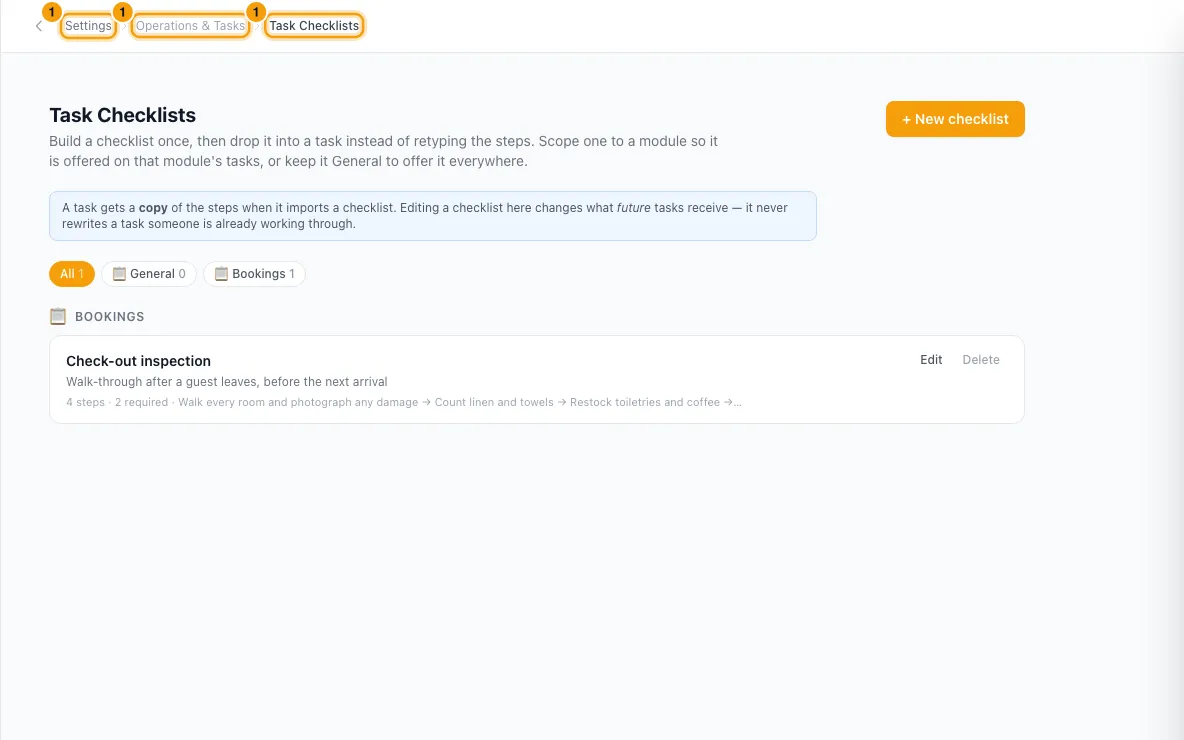
Click + New checklist. Enter a Checklist name and, if you like, a Description.
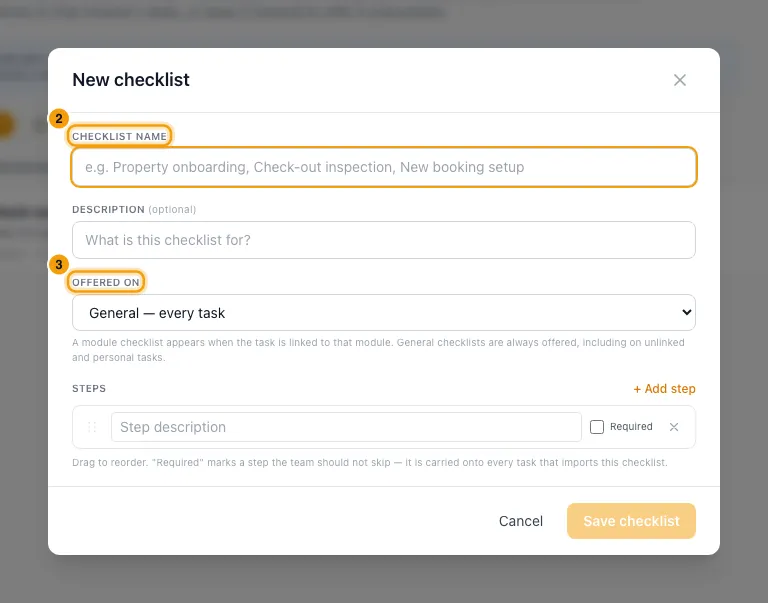
Under Offered on, choose General — every task, or Tasks linked to one module (for example Bookings).
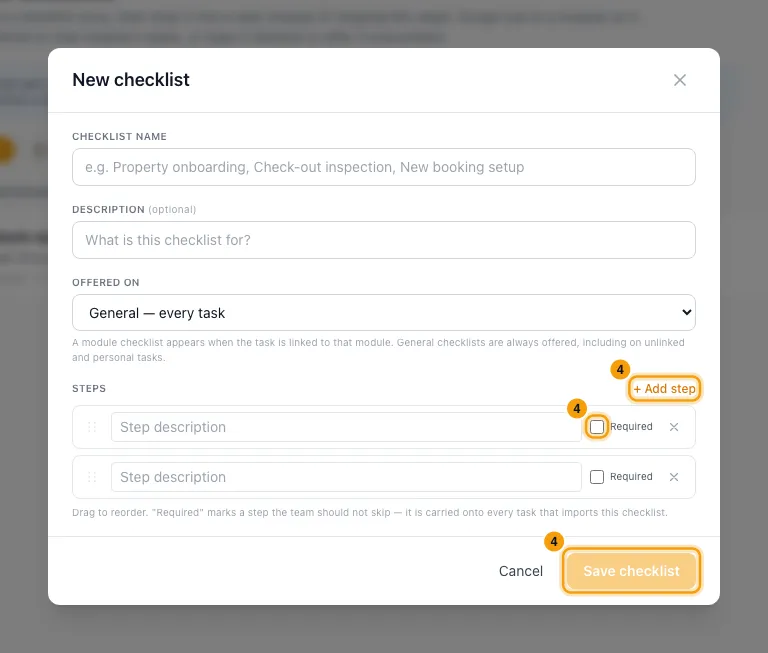
Type each step. Click + Add step for more, tick Required on steps that must not be skipped, and drag to reorder. Click Save checklist.
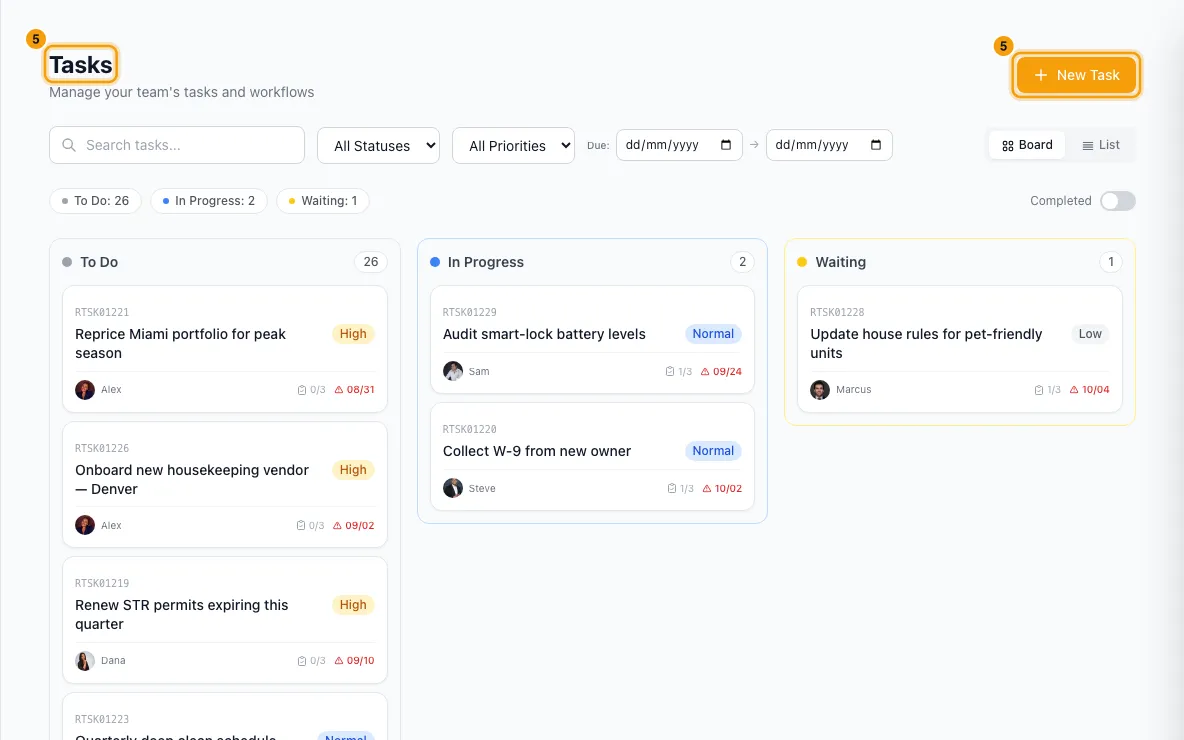
To create a task, go to Tasks in the sidebar and click New Task.
Enter a Title (required). Fill in Description, Priority, Assigned To, Tags and Due Date as needed.
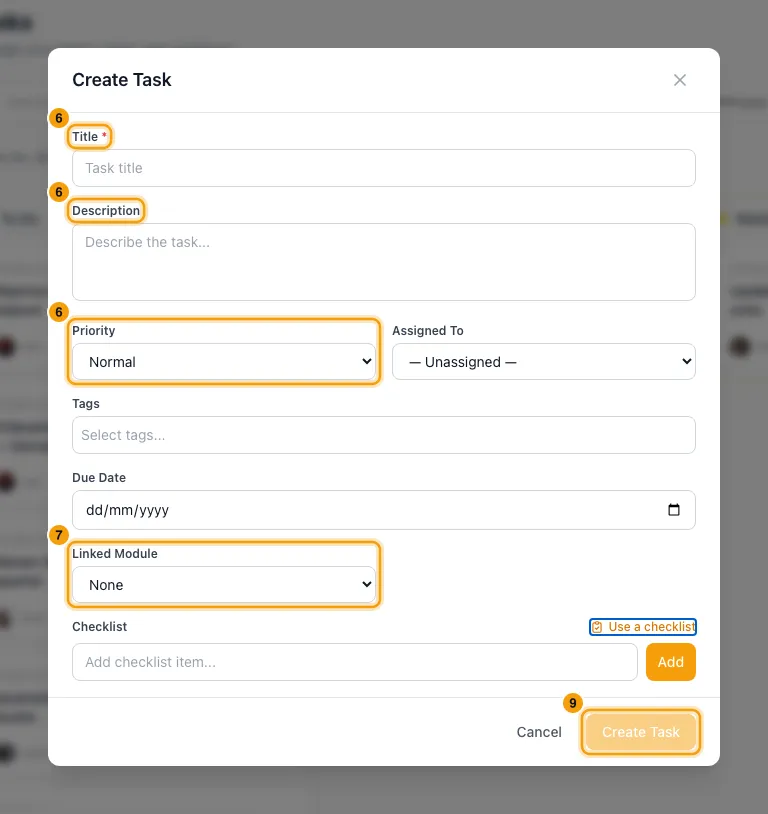
To link the task, pick a Linked Module and then a Linked Record. Choose Personal for a task that is just yours. Only you and the person you assign it to can see it.
Under Checklist, click Use a checklist and pick a saved checklist. You can also type a step in Add checklist item... and click Add.
Click Create Task.
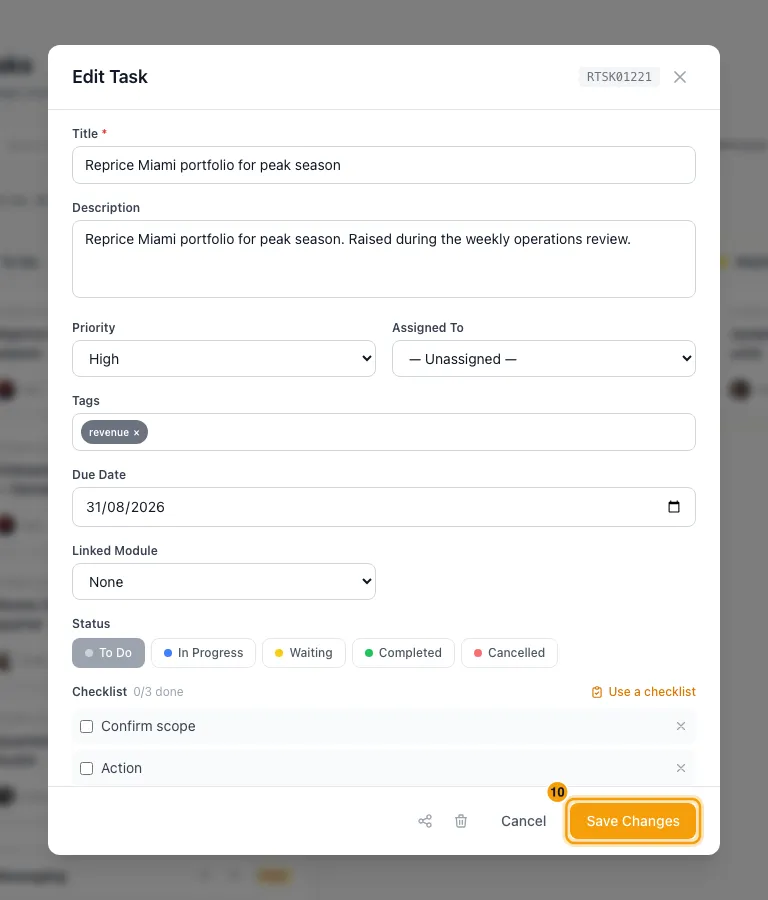
As the work gets done, click the task, tick the finished steps and click Save Changes.
Good to know
- A task gets its own copy of the steps. Editing or deleting a saved checklist only changes what future tasks get.
- Use a checklist adds the steps after any you already have. A step with the same wording as one already on the task is not added twice.
- Use a checklist offers the General checklists plus those for the task's linked module. Each one is labelled General or with the module's name.
- Steps marked Required show a Required label on the task. Unlike operations, a task can still be completed with them unticked.
- Two saved checklists can't have the same name. A checklist needs a name and at least one step.
- Personal tasks are private to their creator and assignee. Nobody else sees them, admins included. The API for other apps doesn't include them either.
- To change a task's status, reassign it or find it later, see "Manage tasks on the Tasks page".
- Automations can create tasks with a saved checklist too. See "Automate work with Automations".
- Creating, changing and deleting tasks needs the Tasks permission at Edit. Saving, editing or deleting task checklists needs the Settings permission set to Access.
Rentibly AI can help
- It can create a task with a checklist, and update or complete one.
- It can save or edit task checklists.
Still stuck?
Open Support from your profile menu in Rentibly, or email hello@rentibly.com — we answer fast.