Manage tasks on the Tasks page
Updated 13 October 2026
The Tasks page shows your team's open to-dos as a board or a list. From here you find tasks, move them along, comment on them and look back at finished ones.
Steps
Go to Tasks in the sidebar.
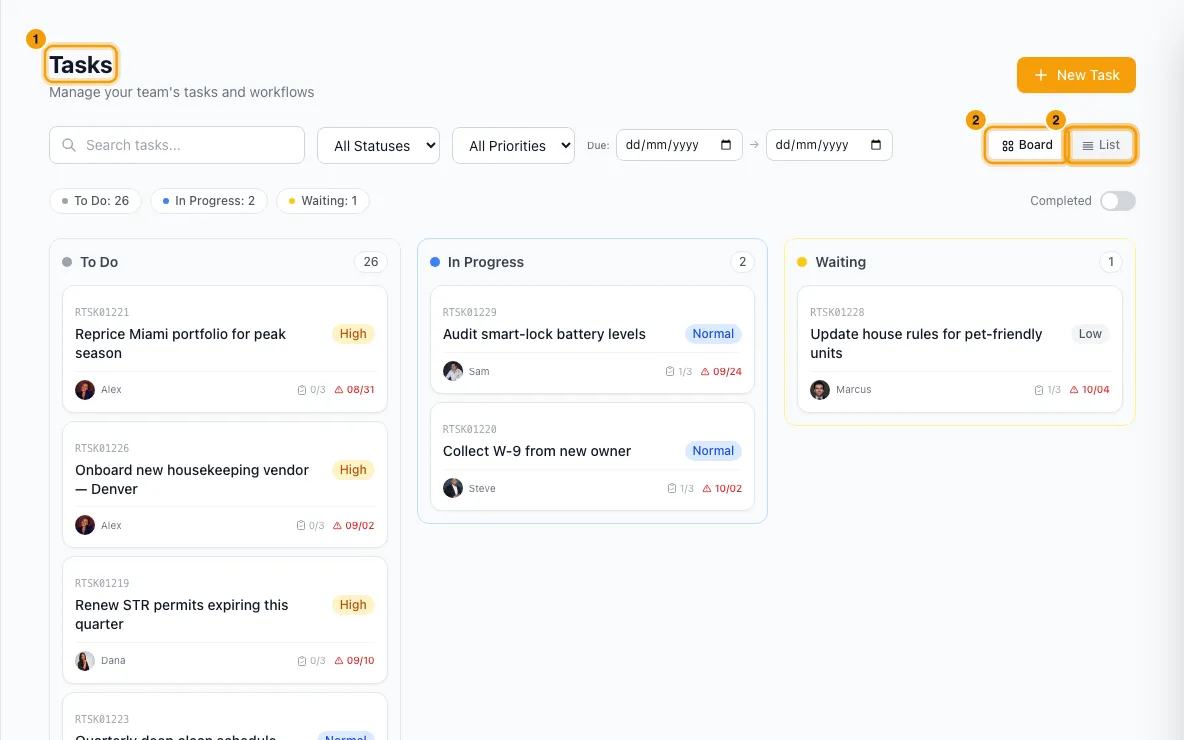
Choose Board or List on the right of the filter bar.
Narrow the tasks with Search tasks..., All Statuses, All Priorities and the Due: dates. Click ✕ to clear the dates.
Click a count above the board, such as To Do: 4, to show only that status. Click it again to show all.
In List, group the tasks with All, By Status, By Due Date or By Module.
Click a task (or View in the list) to open Edit Task.
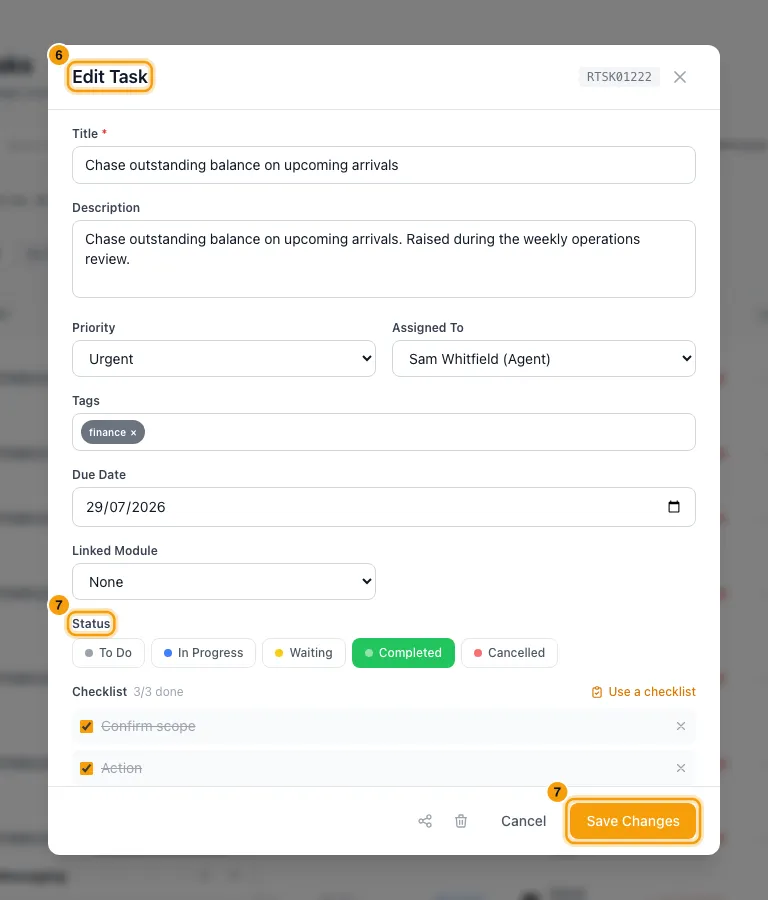
Pick a Status (To Do, In Progress, Waiting, Completed or Cancelled), tick finished checklist steps, then click Save Changes.
To talk about the task, type under Comments. Type @ to mention a teammate.
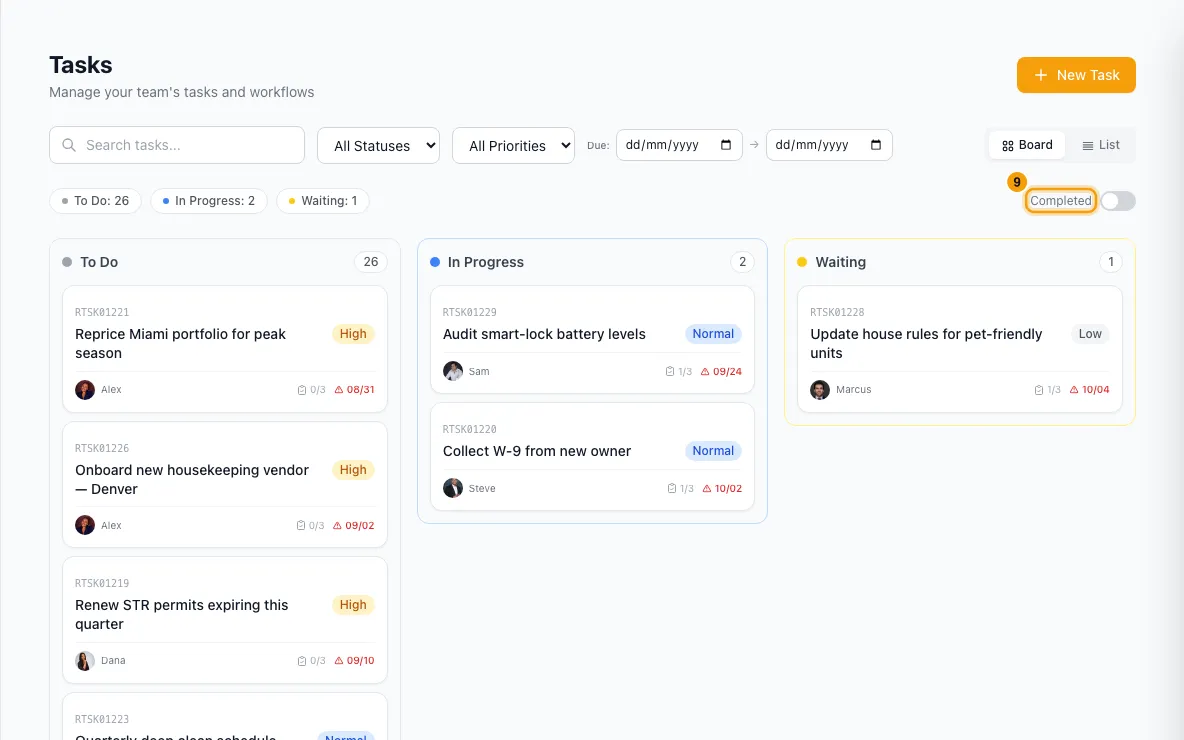
To see finished tasks, turn on the Completed switch. Turn it off to go back.
Good to know
- Board has three columns: To Do, In Progress and Waiting. Cancelled tasks have no column; pick Cancelled under All Statuses to find them.
- By Due Date groups tasks as Overdue, Today, Tomorrow, This Week, Later and No due date. Overdue dates show in red with a ⚠.
- Search matches the title, the assignee's name and the task's ref.
- Linked To: click the purple badge to jump to the linked record, such as a booking or property.
- Completed shows finished tasks newest first, with the date each was completed. Finished tasks are only found with this switch: with it off, All Statuses offers To Do, In Progress, Waiting and Cancelled; with it on, only Completed.
- The page loads up to 500 tasks. If there are more, a notice says so; use the filters to find the rest.
- Personal tasks (🔒 Personal) are private. Only the person who created one and the person it is assigned to can see it, anywhere in Rentibly: the board, the task count, search, the dashboard, Rentibly AI and links shared in Connect. Admins can't see other people's personal tasks either. To anyone else it doesn't exist, so they can't open, change, comment on or delete it.
- Personal tasks are left out of team-wide figures: dashboard task metrics, the task reports and analytics, and the daily summary.
- Who can change a task:
- Its creator and admins can change anything (except someone else's personal task, which admins can't see).
- The assignee can change only the status and the checklist.
- Everyone else can't change it.
- Deleting: only the creator or an admin can delete a task (a personal task only by its creator). Open it and click the bin icon. The task goes to the Recycle Bin for 30 days.
- Copy link (the share icon in Edit Task) copies a link that opens the task directly, completed tasks included. Closing the task clears the link from the address bar.
- Who is told:
- Assigning a task, or giving it to someone new, notifies the new assignee through your notification rules. Unassigning sends nothing.
- Mentioning someone in a comment notifies them (not yourself). Their alert opens the task with your comment highlighted.
- Alerts about a personal task (assigned, overdue, or any rule you set up) only go to its creator and assignee, even when the rule names a role or team.
- You can delete your own comments; admins can delete anyone's.
- The page updates live when a teammate adds or changes a task.
- Permissions: you need Tasks set to View to see the page, and Edit to create, change or delete tasks.
- To create a task or use a saved checklist, see Create tasks and use task checklists.
Rentibly AI can help
- It can list tasks, for example "my overdue tasks". It only sees your own personal tasks, never other people's.
- It can update, complete, reassign or reschedule a task.
Still stuck?
Open Support from your profile menu in Rentibly, or email hello@rentibly.com — we answer fast.