Add an owner to a property
Updated 13 October 2026
Link an owner contact to a property so its bookings and expenses go on that owner's statements. Do this when you take on a property or when its ownership changes. The person must already be an Owner contact (see Add an owner contact).
Steps
Go to Properties and open the property.
Open the Configurations tab, then Owners, and click + Add Owner.
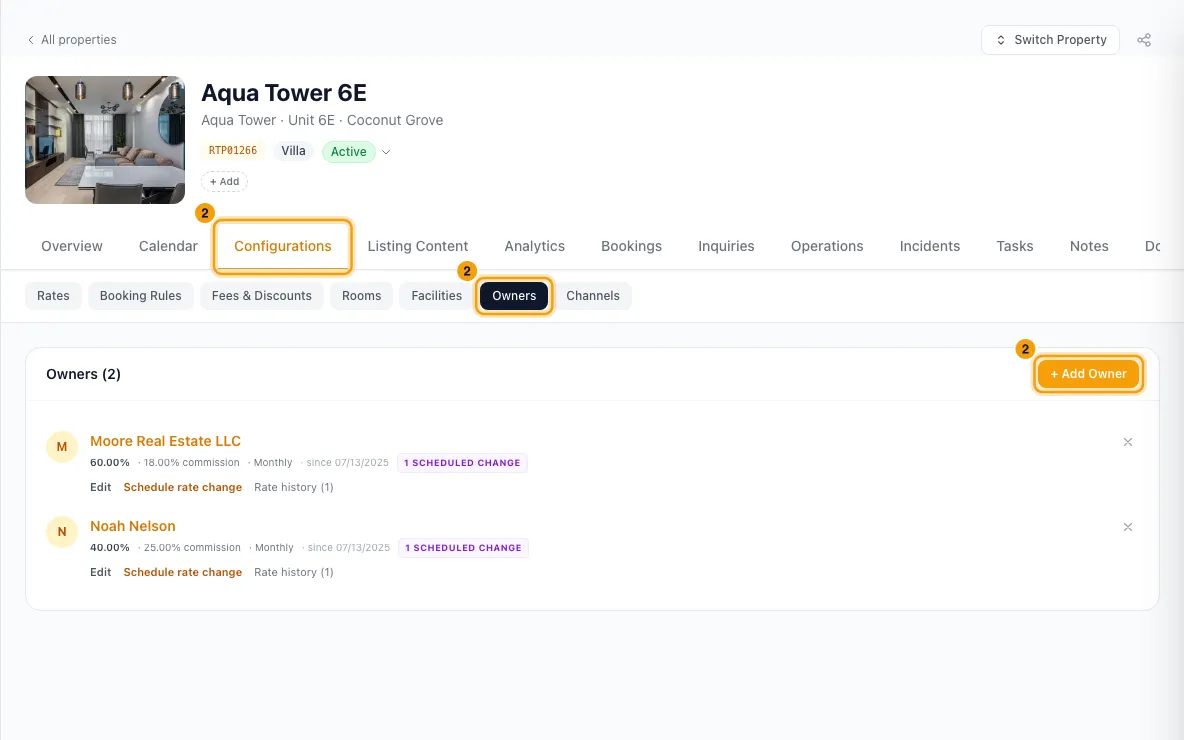
Type at least two letters of the owner's name in Search owners... and pick them from the list.
Set Ownership % (100 for a sole owner).
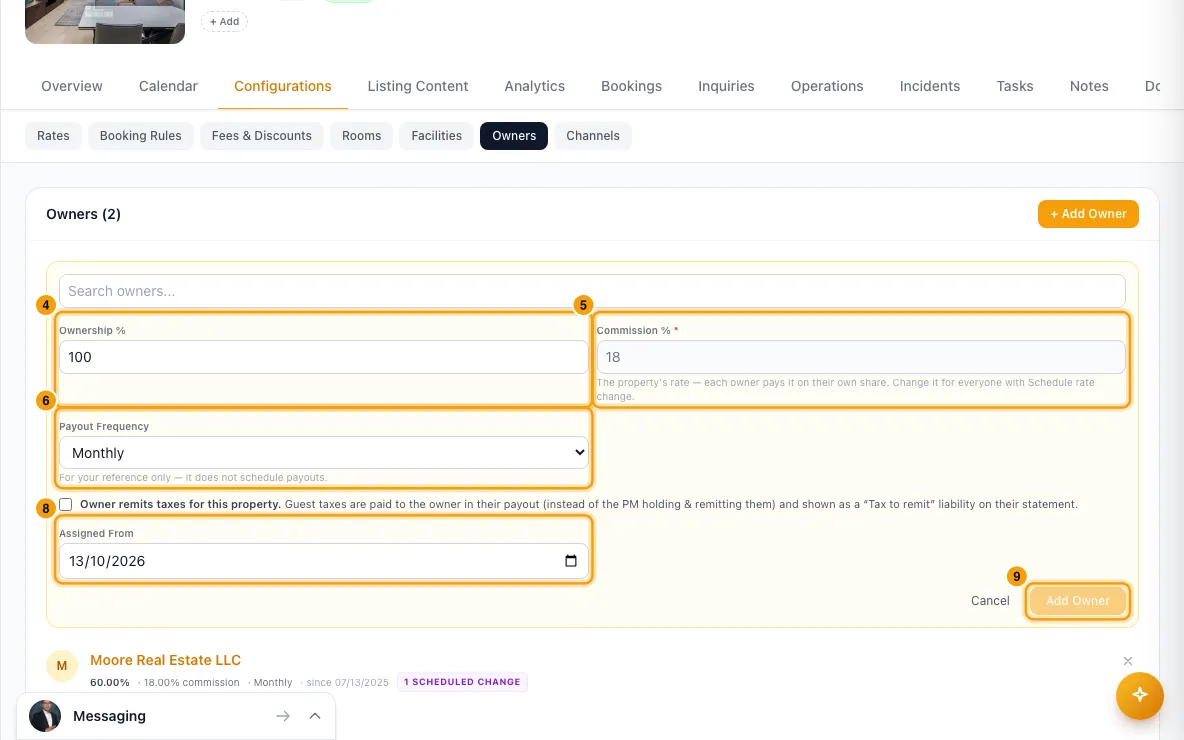
Enter Commission %. It is required; type 0 for no commission. On a property that already has an owner, it is filled in for you and can't be changed here.
Choose Payout Frequency: Monthly, Bi-weekly, Quarterly, Per booking or On request.
Tick Owner remits taxes for this property only if the owner pays guest taxes to the authorities themselves.
Set Assigned From (today by default).
Click Add Owner.
Good to know
- Only active Owner contacts can be linked. The search lists active Owner contacts only, never leads, guests or inactive owners. If nobody matches, it says No active Owner contact matches and links to Contacts → Owners: add them there with + Add Owner (or, for an inactive owner, open them and click Mark as Active), then come back. Rentibly refuses to link anyone who is not an Owner contact, or an inactive owner, and linking never changes a contact's type.
- Bringing back an owner whose link ended is refused too while they are inactive.
- Bookings follow the dates. The owner takes the bookings checking in from Assigned From. Those bookings get this owner's commission now, unless they are already on a finalized statement.
- Contacts updates straight away. On the Owners tab, the owner's properties count and owner status change at once.
- Ownership should total 100%. If the current owners' shares don't, the tab shows Total ownership: …% (should be 100%).
- On a co-owned property, the commission % belongs to the property. Each owner pays it on their own share. A new co-owner is added at the property's rate.
- Co-owners must have matching owner settings for transaction fees, fees on security deposits and commission calculation basis. If they differ, Rentibly refuses to add the co-owner and names the setting. Match them on the owner's Financial Settings tab first.
- To change commission or ownership %, click Schedule rate change on the owner's row.
- Set Effective from (today or later; the first of next month by default), New commission % and, if needed, New ownership %. Click Schedule change.
- Bookings checking in on or after that date use the new rate, including ones already made, unless a booking has its own commission override. Earlier bookings keep the old rate.
- On a co-owned property, Rentibly asks Change the rate for all owners? and schedules it for every owner, each keeping their own share.
- Commission can't be edited in place. Rate history on the row lists past, current and future rates.
- Edit on an owner's row changes Owner remits taxes for this property, Payout and Notes. Changing the taxes setting updates the property's current bookings. Approved statements don't change.
- Owner remits taxes: guest taxes are paid to the owner in their payout and shown as a "Tax to remit" liability on their statement, instead of you holding and paying them.
- Removing an owner: the × on their row marks them inactive with today as the end date. They move to Previous Owners straight away.
- An owner who starts later (an Assigned From after today) is listed under Upcoming Owners with their start date until that day, then joins the current owners.
- Payout Frequency is for your reference only. It does not schedule payouts or change statements. It uses the same choices as Payout frequency in Owner Defaults.
- Adding, editing, removing an owner and Schedule rate change need Edit on Owners. Without it, the tab is read-only: you see who owns the property, but not their commission or payout terms, unless you have View on Owners.
Rentibly AI can help
- Rentibly AI can show a property's owners (getProperty), find an owner (searchContacts) and create a new owner contact (createContact), which you confirm.
- It can't add an owner to a property, change their share or commission, or remove them. Do that on the property's Owners tab.
Still stuck?
Open Support from your profile menu in Rentibly, or email hello@rentibly.com — we answer fast.