Choose what an owner sees in the owner portal
Updated 13 October 2026
Each owner's portal can show more or less: which pages, which booking details, how much money detail, and whether they can book their own stays or chat with you. You choose this per owner in their Portal Access window.
Steps
Go to Settings → Owners → Owner Portal. Under Owners, find the owner and click Configure. You can also open the owner from Contacts → Owners and click Configure in Settings ↗ on their Owner Portal Access card.
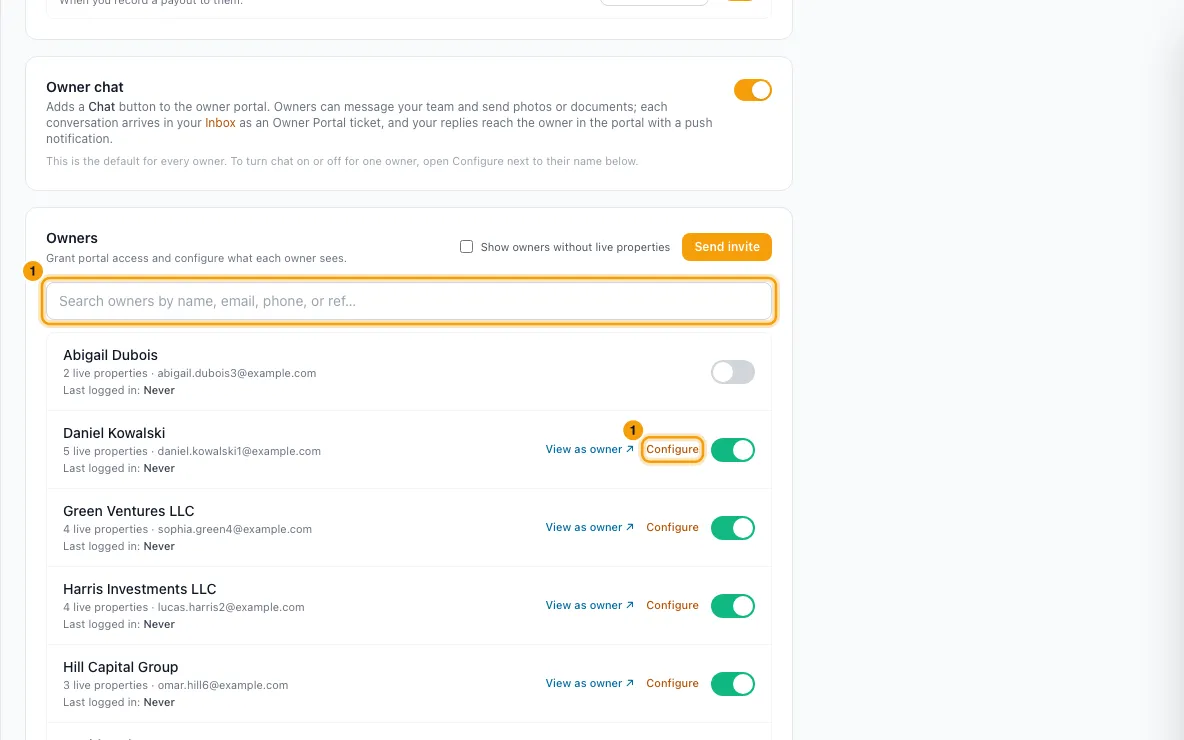
In the Portal Access window, go through the tabs:
- Properties: Show the Properties page, and untick any property to hide it. New properties appear automatically; archived or inactive ones can't be shown. Under Property detail: Rates, Photo gallery, Reviews, Documents, Channel links.
- Bookings: Show the Bookings page. Under Field visibility: Guest name, Guest contact info, Source / listing site, Custom fields, Door / access codes, Tags, Booking documents, View notes, Add notes. Under Which bookings appear: Cancelled zero-revenue bookings and Owner stays.
- Financials: how much money a single booking shows. Choose None, Owner revenue summary (net to owner only), Owner revenue detailed (income, commission, expenses, net) or Detailed financials (all of that plus what the guest paid, their balance and payment schedule). Also Show payout bank details.
- Owner Stays: Let this owner book their own stays. This gives them + Book a stay on their Bookings and Calendar pages. See "Let owners book their own stays in the owner portal".
- Charts: Show the Dashboard, Show the Calendar page, and the charts under Charts & insights.
- Expenses: Show the Expenses page and Show the Operations page, then which categories and operations they see.
- Statements: Show the Statements page, Show the Payouts page, Show the Documents page.
- Chat: Use default, On or Off for Chat with the team.
- Notifications: the push alerts this owner gets in the Owner Portal app. At the top: Subscribed on N devices (with each device's name), or Not subscribed on any device. Then one row per alert, with For everyone, For this owner, Owner's choice and Result. To stop one alert for this owner only, set For this owner to Off. Use default follows the setting for every owner.
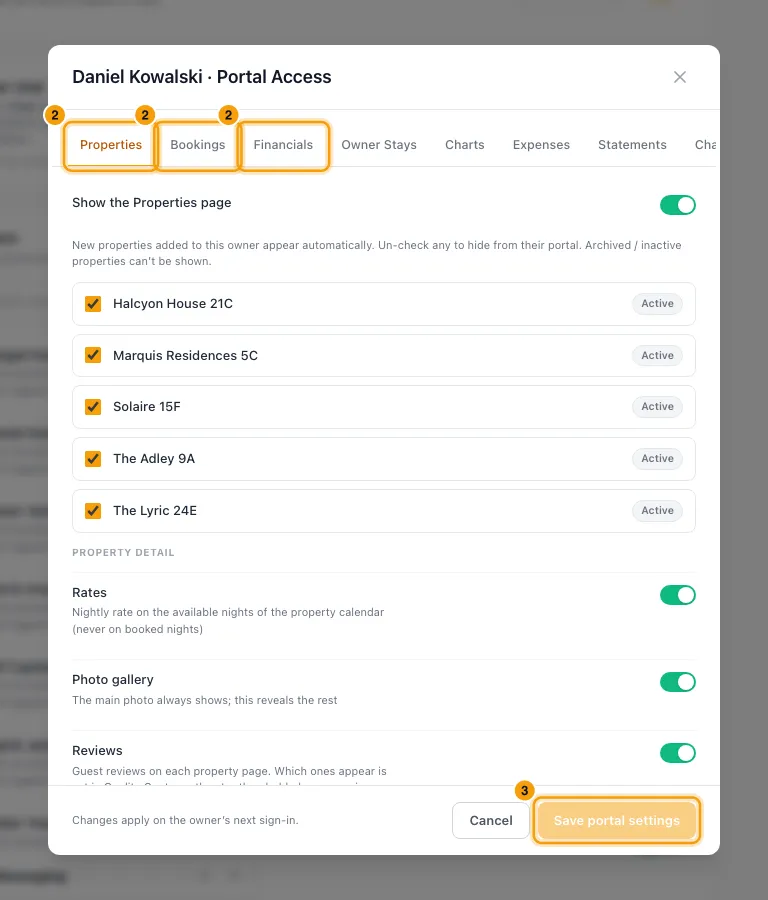
Click Save portal settings.
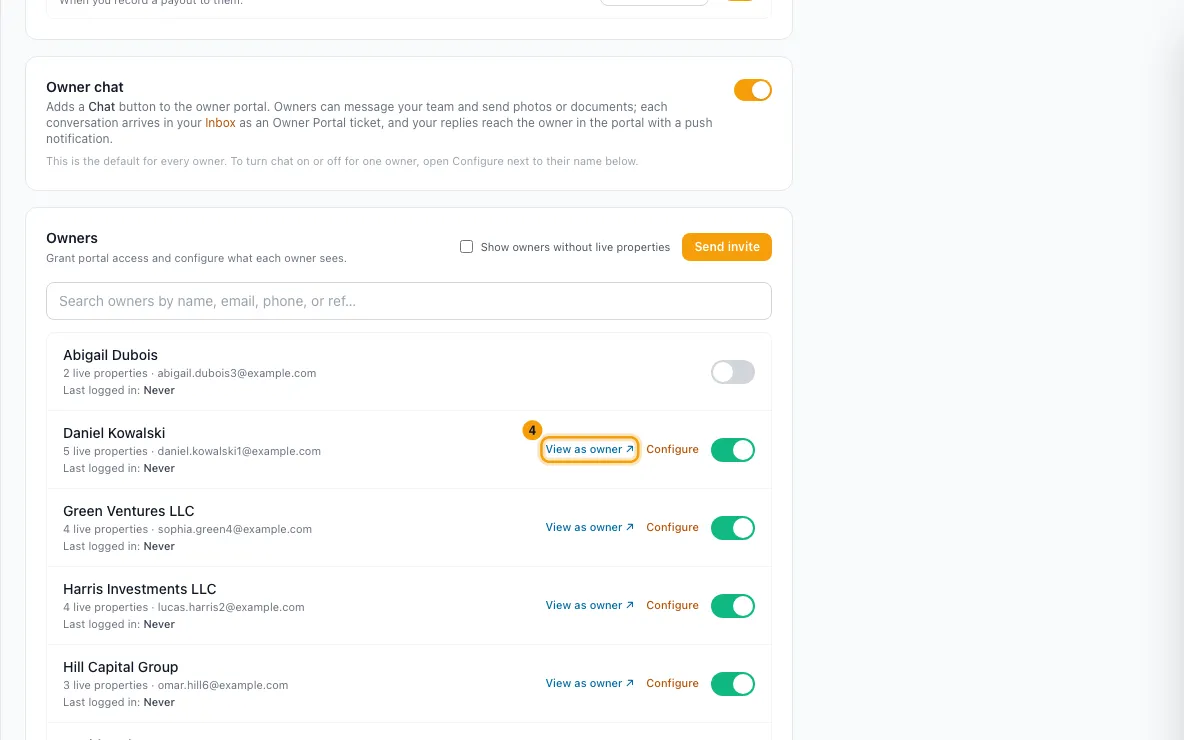
Click View as owner ↗ on their Owner Portal Access card to check the result.
Good to know
- These settings are per owner. Today the only setting with an "every owner" switch is Owner chat, on Settings → Owners → Owner Portal. To change anything else for all owners, such as showing cancelled zero-revenue bookings, open each owner's Portal Access window and change it there.
- Saving an owner's window stores every setting on it for that owner. Chat is the one exception: Use default keeps following the Owner chat switch, including later changes to it.
- Defaults for an owner nobody has configured yet:
- On: every page except Expenses, Operations and Documents; guest name, source, tags, booking documents and viewing notes; property rates, photo gallery and documents; all dashboard charts; Owner revenue detailed; payout bank details; booking their own stays.
- Off: guest contact info, custom fields, door codes, adding notes, reviews, channel links, cancelled zero-revenue bookings, owner stays in their lists, and chat.
- Cancelled zero-revenue bookings: off hides cancelled and no-show bookings that earned this owner nothing. A cancelled booking that did earn them something (a retained fee on their owner ledger) always shows.
- Owner stays (Bookings tab) only affects their Bookings page and each property's booking table. An owner always sees the owner stays booked under their own name, whatever this switch says. Whether zero-value bookings appear on statements is set by the owner's Statement view, chosen on the Owner Overview tab of their contact.
- View notes shows only notes your team marked as owner-visible. With Add notes on, the owner's notes appear on the booking marked "From owner".
- The Financials choice only affects a single booking's detail page. The dashboard, calendar, charts and reports follow only their own switches.
- Expenses and operations: Use the category settings follows each category's Show on owner portal switch (off by default), including categories added later. Untick it to pick a list just for this owner. An operation with no category is never shown.
- The Expenses page lists only expenses their statements bill. An expense excluded from owner statements, one held until a date that hasn't arrived yet, and one dated before the owner's Rentibly Start Date are left out.
- Notifications tab:
- For everyone is the alert's switch under Owner notifications on Settings → Owners → Owner Portal. You change it there, not here.
- Off can only turn an alert off for this owner. It can't send an alert that is off for everyone.
- With Off, this owner gets no push for that alert and no entry in their portal's bell. The alert's switch also disappears from their own Profile.
- Owner's choice shows Muted by owner when the owner switched the alert off in their Profile. You can't change their choice.
- Result shows what happens next time: Sent, Not sent (and why), or No device when the owner hasn't turned on notifications on any device.
- Messages from the team has a row only while chat is on for this owner.
- Only push alerts in the Owner Portal app are affected. Emails and WhatsApp messages to the owner follow your notification rules as before.
- A statement released while its alert is Off for the owner shows the push as not sent, with the reason, in the statement's Owner notified list.
- Changes apply the next time the owner signs in. Chat changes reach them within a minute, and Notifications changes apply to the next alert.
- Hiding something also stops the portal's server from sending that data, not just the page.
- You need the Set up the owner portal permission to change these.
Rentibly AI can help
- Rentibly AI can't read or change owner portal settings yet. It can explain what each one does.
Still stuck?
Open Support from your profile menu in Rentibly, or email hello@rentibly.com — we answer fast.