Create, approve and send an owner statement
Updated 13 October 2026
A statement shows what an owner's properties earned and what was taken off for a period. You generate a draft, approve it to lock the numbers, then release it so the owner can see it.
Steps
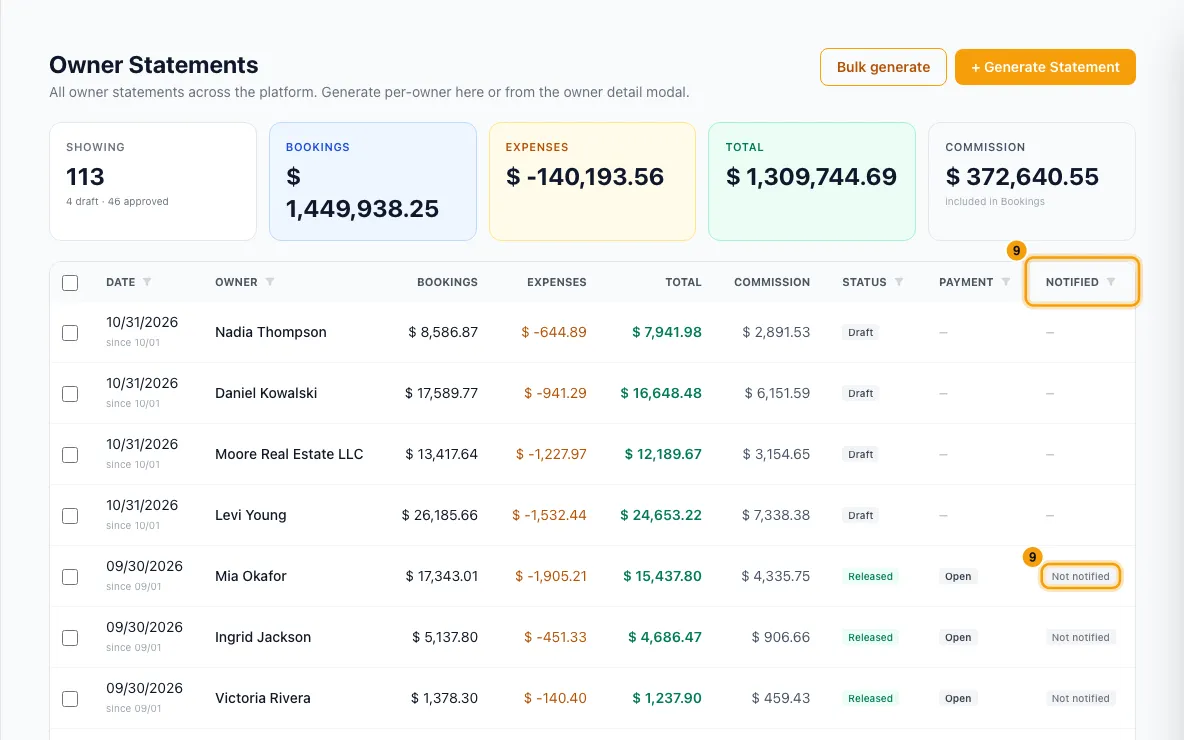
Go to Finance → Owner Statements.
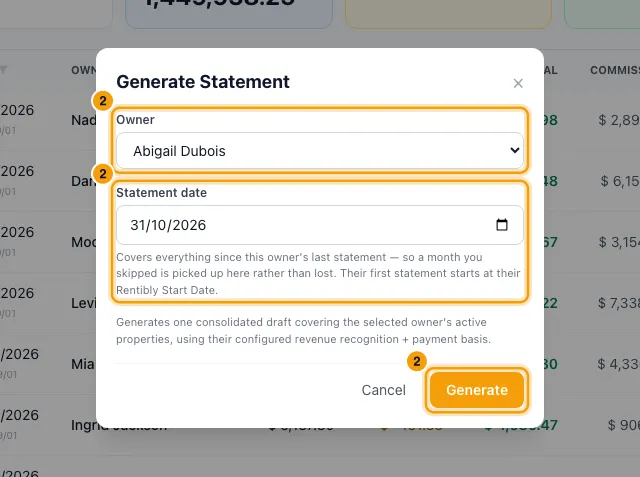
Click + Generate Statement. Pick the Owner and the Statement date (the last day the statement covers), then click Generate. To do many owners at once, click Bulk generate instead (see Good to know).
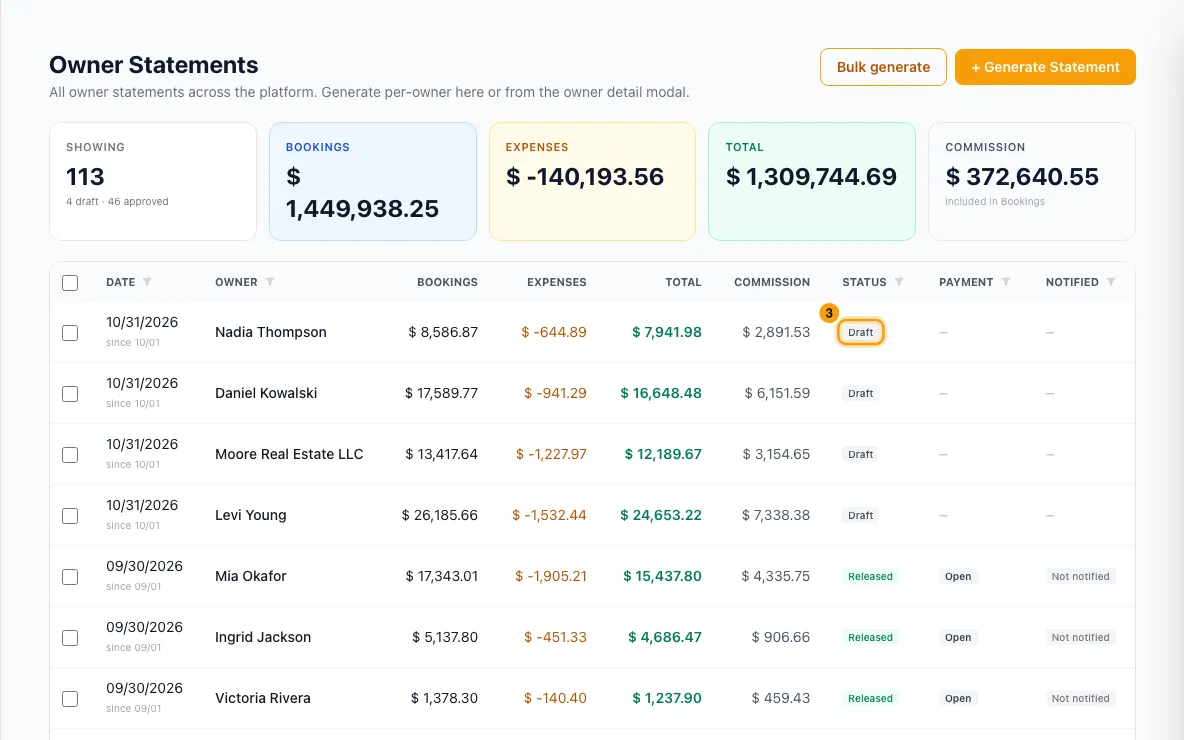
Click the Draft row to open it and check the figures.
Optional: type a Note to the owner and click Save note.
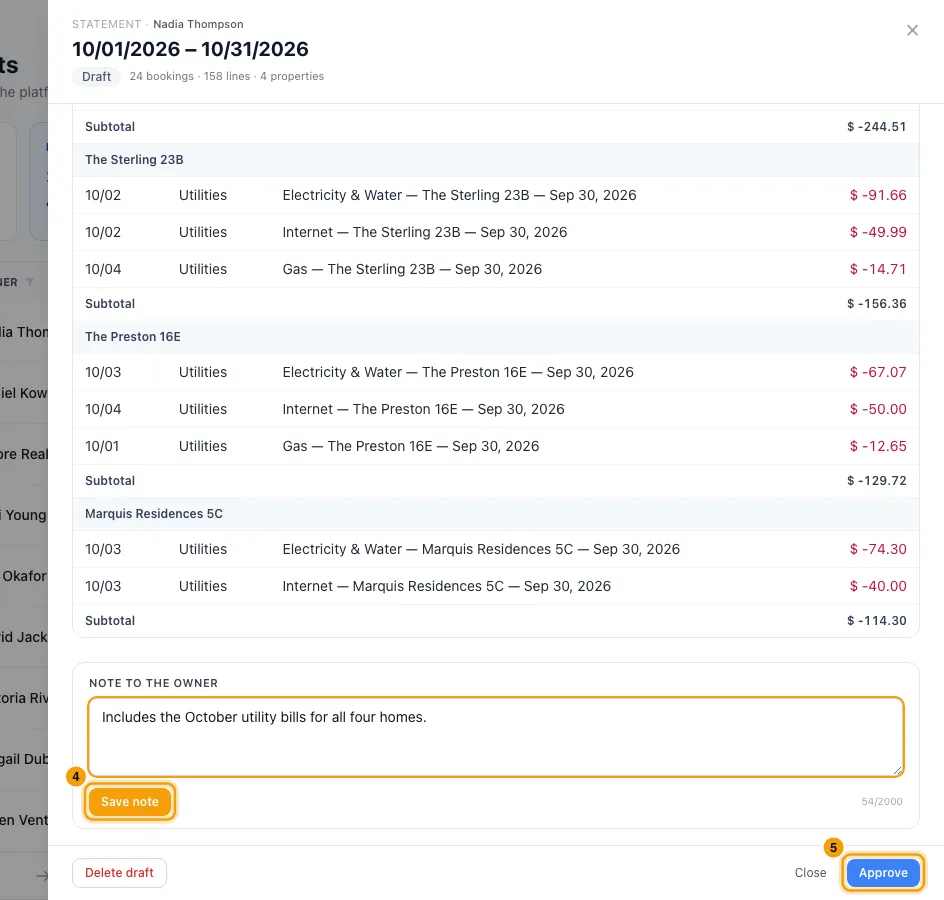
Click Approve. In the list it now shows as Finalized. To approve several, tick their rows and click Approve in the bar that appears.
Click Release › on the row, or Release to owner in the open statement. To release several, tick them and click Release.
In the window that opens, leave Send the automatic notification ticked if you want your notification rules to tell the owner. Untick it to release quietly. Click Release + notify (or Release when nothing is set to notify).
To message owners about statements that are already released, tick them and click Notify. Tick Email and/or WhatsApp, pick a template, and click Send.
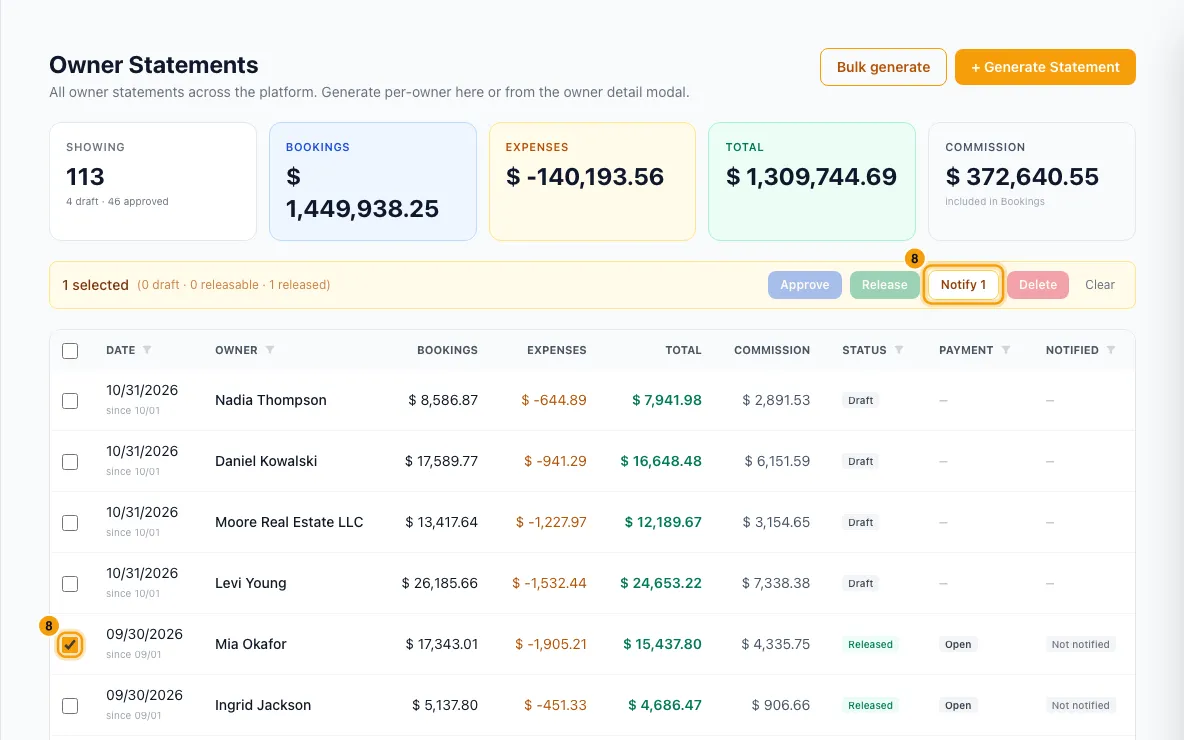
To check who was told, look at the Notified column. It shows each channel that went out, for example Push ✓ Email ✓, or Not notified. To list only some, open the Notified column filter and pick Notified, Failed or Not notified. To see the details for one statement, open it: Owner notified lists each send, whether it was the automatic alert or Notify, when it went, and why one failed or was not sent.
Good to know
- You only pick the end date. The statement starts the day after the owner's previous statement (drafts count). An owner's first statement starts on their Rentibly Start Date. So a month you skipped is included in the next statement, not lost.
- The owner needs a Statement View: your default view, or one chosen in the Statement view box on their Owner Overview tab (that box only shows when their owner portal access is on). Without one, Generate is blocked and you see Set up a statement view first. See "Set up how owner statements look".
- One statement per owner per date. If the owner already has a statement with that statement date, Generate is refused and the message names it (its number and period). Open that one instead, or delete it first if it is a draft you want to make again. This includes imported statements: importing one for a date that already has a statement is refused the same way.
- One statement covers all of the owner's properties. You can't make a statement for just one property. An owner with one property still gets statements as usual. Older statements made for one property still show that property's name in the Property column on the owner's Statements tab.
- Only active properties are included. An owner with no active property can't get a statement. Properties still onboarding are left out on purpose.
- Only active owners are listed. The Owner list in + Generate Statement and the owners in Bulk generate show only owners with at least one active property, so you can't pick someone who would get nothing. The Owner filter above the statements list still shows every owner, so you can find past statements of an owner who has left.
- Bulk generate: pick one Statement date (it starts at the last day of last month). Every active owner is listed and ticked; untick anyone to skip. Each owner gets one draft, starting from their own last statement. Owners who already have a statement for that date are skipped, never duplicated. You see how many were Generated, Skipped and Failed. One run handles up to 500 owners.
- Automatic drafts: under Settings → Owners → Owner Defaults, turn on Generate draft statements automatically. Each month a draft dated the last day of the previous month is made for every owner with an active property. Wait until this day of the month (1–28) only sets how long to wait first. You still approve and release yourself.
- Statuses: Draft → Finalized (approved) → Released. The list, the open statement and the owner's Statements tab all show the same status. The open statement also shows the owner's name at the top. The owner sees a statement only once it is released, in their portal and as a PDF.
- Approving locks the numbers. If a booking changes later, the difference shows up as a prior-period adjustment on a future statement. The old statement shows a Prior-period correction applied banner.
- Approving also locks the layout. The statement keeps the Statement View it was approved with, even if you edit that view or give the owner another one later. Drafts follow the current view.
- A draft that still includes a deleted expense can't be approved. Its numbers were worked out before the expense was deleted, so approving it would charge the owner for it. Approve shows the message instead. Delete the draft and generate it again. In a bulk approve such drafts stay drafts and you're told how many.
- Over-release warning: a draft can show Pays out … more than earned to date. Nothing is deducted automatically, so check it before approving.
- Deleting: only drafts can be deleted, with Delete draft in the open statement or Delete in the bulk bar. This also removes their lines and balance entries.
- The note is shown on the owner's portal statement and on the PDF. It can be up to 2,000 characters. Once the statement is released, the note can't be changed.
- Notifications:
- The release window only offers the automatic notification when you have a rule on Owner statement released (Settings → Notifications), or the owner portal push for statements is on.
- Releasing from the owner's Statements tab (on their contact) has no release window. It always lets those rules fire.
- Notify only works on released statements, and it does not run your standing rules again. Email templates must be active and in the "statement" category. WhatsApp templates must be approved by Meta.
- Resend in a released statement only records the time. It does not send anything, so use Notify instead.
- Notified counts a channel when it reached the owner (✓). Email and WhatsApp show … while they are being delivered and ✕ if delivery failed. A push alert is not sent (–) when the owner hasn't turned on notifications in the Owner Portal app, has muted statement alerts, or you set Statement released to Off for them (their Portal Access window → Notifications). Not notified means nothing reached the owner. Statements released before 12 October 2026 show Not notified, because sends weren't recorded per statement until then.
- Generating a single statement also triggers any rule on Owner statement generated. Bulk generate and automatic drafts don't.
- Deferred stays: a stay whose payment arrives after the statement date pays nothing on that statement. For example, an Airbnb check-in on the 30th that is paid out on the 1st. Its money comes on the next statement. To leave such stays off the statement, turn off Zero-value bookings in the statement view. This also hides owner stays and comps. What the owner is paid never changes.
- Other places to work: you can also do this from the owner's contact on the Statements tab, with Generate Statement, Approve and Release. There you only pick the Statement date.
- Paying the owner is a separate step. See "Record an owner payout".
- Permissions: to see statements you need View on Owners. Finance → Owner Statements is in the Finance menu, which needs Finance at View. The Statements tab on an owner also needs Create and send owner statements or Edit owner bank details and payout settings. To generate, approve, release, resend, notify, write the note to the owner or delete draft statements, you need Edit on Owners or the extra permission Create and send owner statements. Without either, the statements list and drawer are read-only: those buttons don't show. Imported statements still need Edit on Owners (see "Import past owner statements from your previous system").
Rentibly AI can help
- It can list statements, break one down, or project a payout before any statement exists.
- It can't generate, approve, release or send statements.
Still stuck?
Open Support from your profile menu in Rentibly, or email hello@rentibly.com — we answer fast.