Add an owner contact (and keep owner leads as leads)
Updated 12 October 2026
Someone is an owner only when you add them as one. Leads, including owner leads, stay under Leads until you do. Add the owner first, then link them to their property.
Steps
Go to Contacts → Owners.
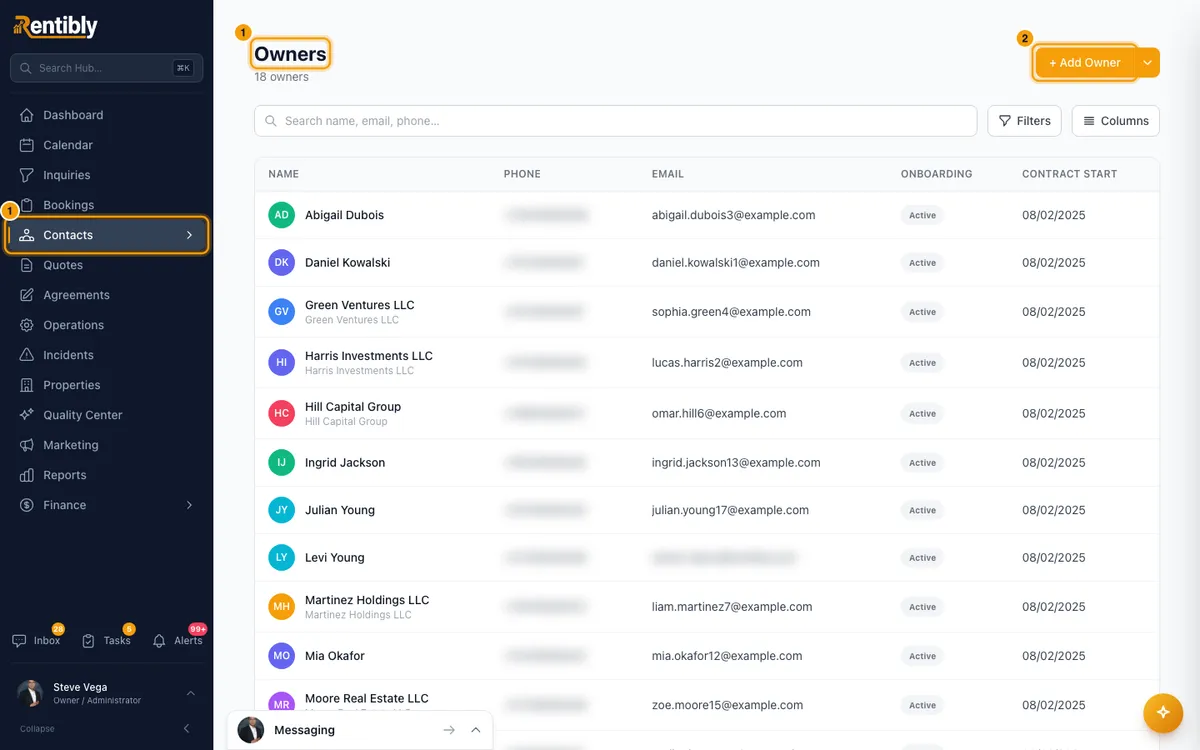
Click + Add Owner.
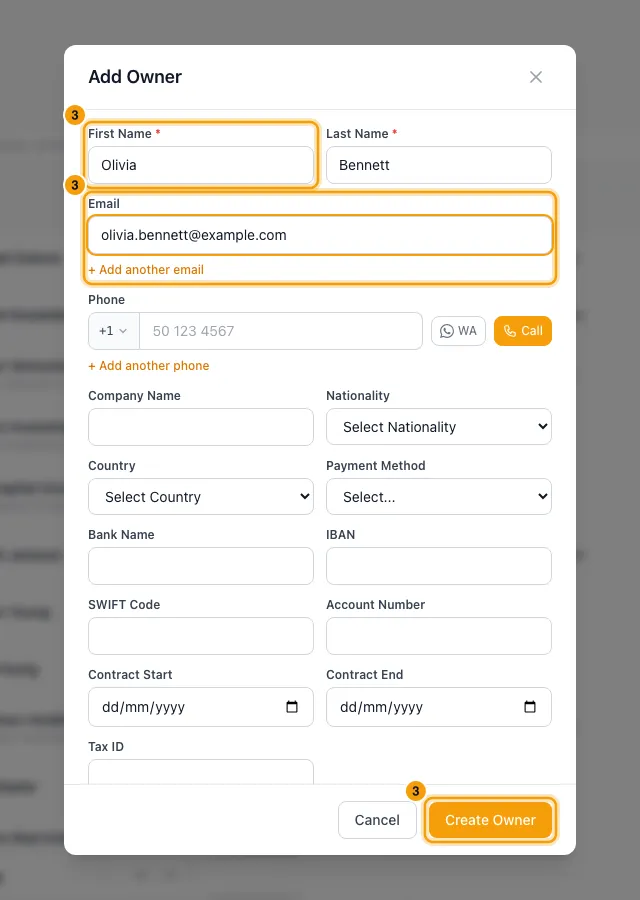
Fill in their name, phone and email, then click Create Owner.
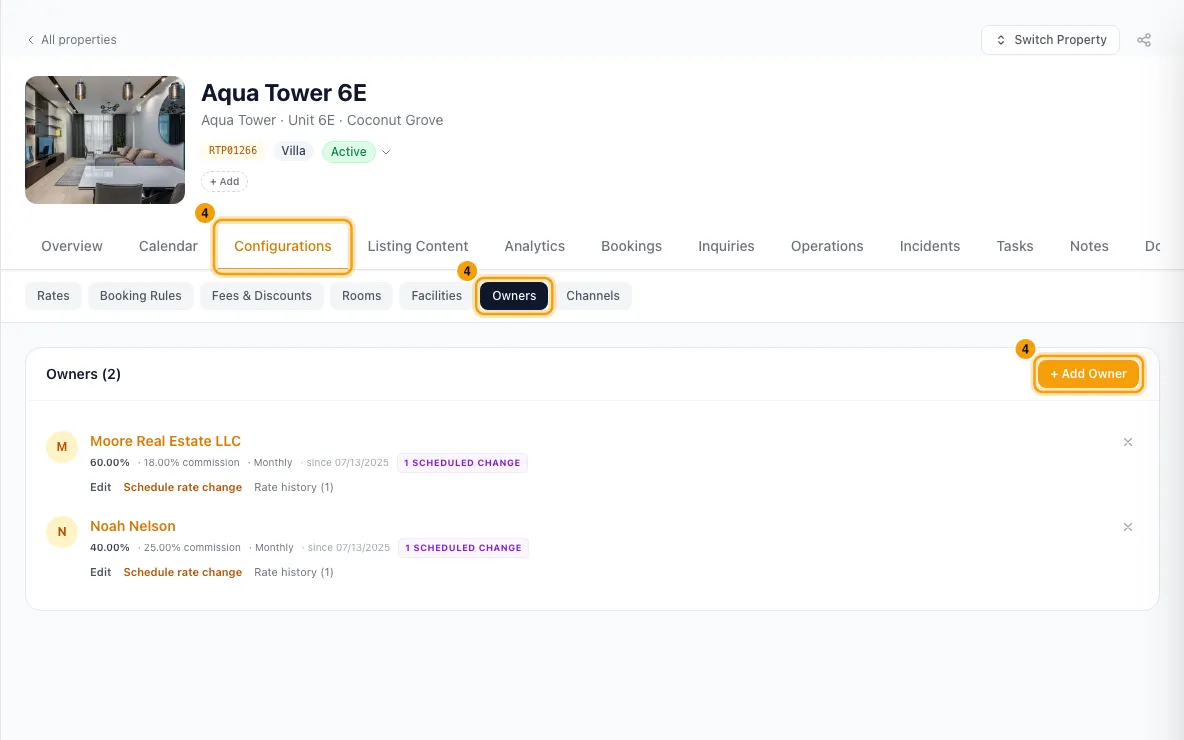
Link them to their property: open the property, go to Configurations → Owners → + Add Owner, and pick them (see Add an owner to a property).
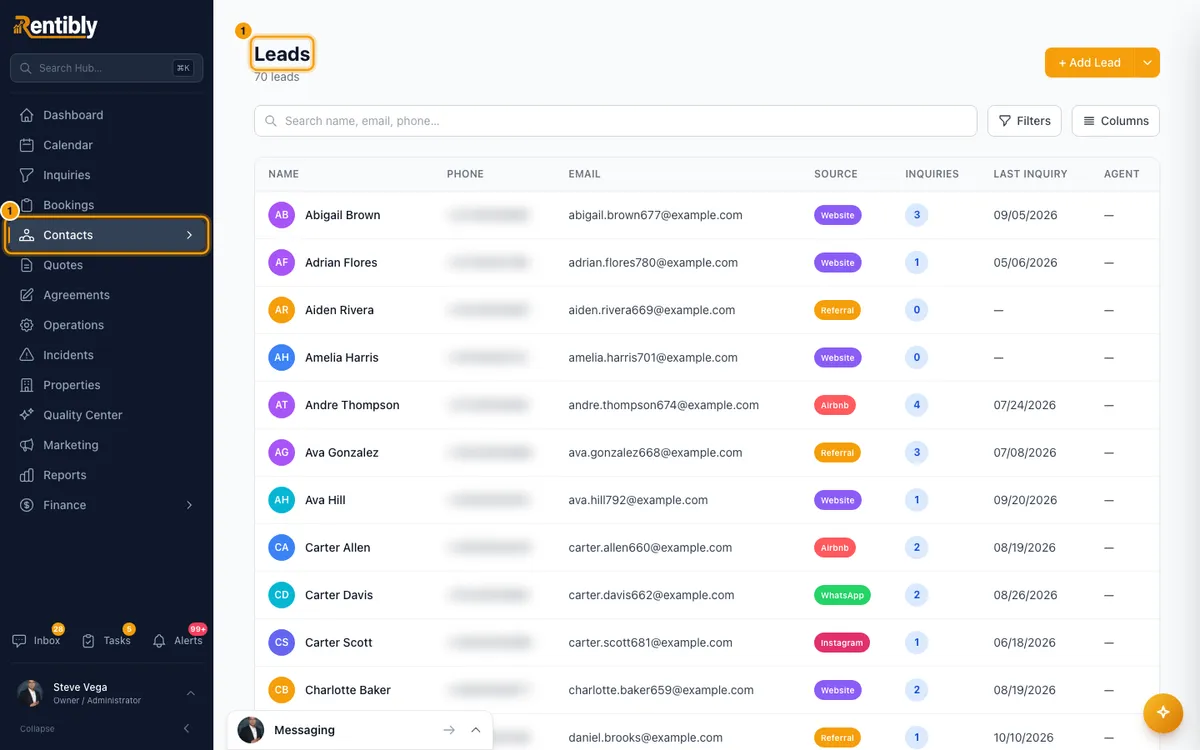
To mark a lead as an owner prospect without making them an owner:
Open the lead from Contacts → Leads.
Next to the lead badge, click Mark as Owner Lead.
To mark an owner inactive (for example, when they leave):
Archive each of their properties first (see Archive a property or schedule its exit).
Open the owner from Contacts → Owners and stay on Overview.
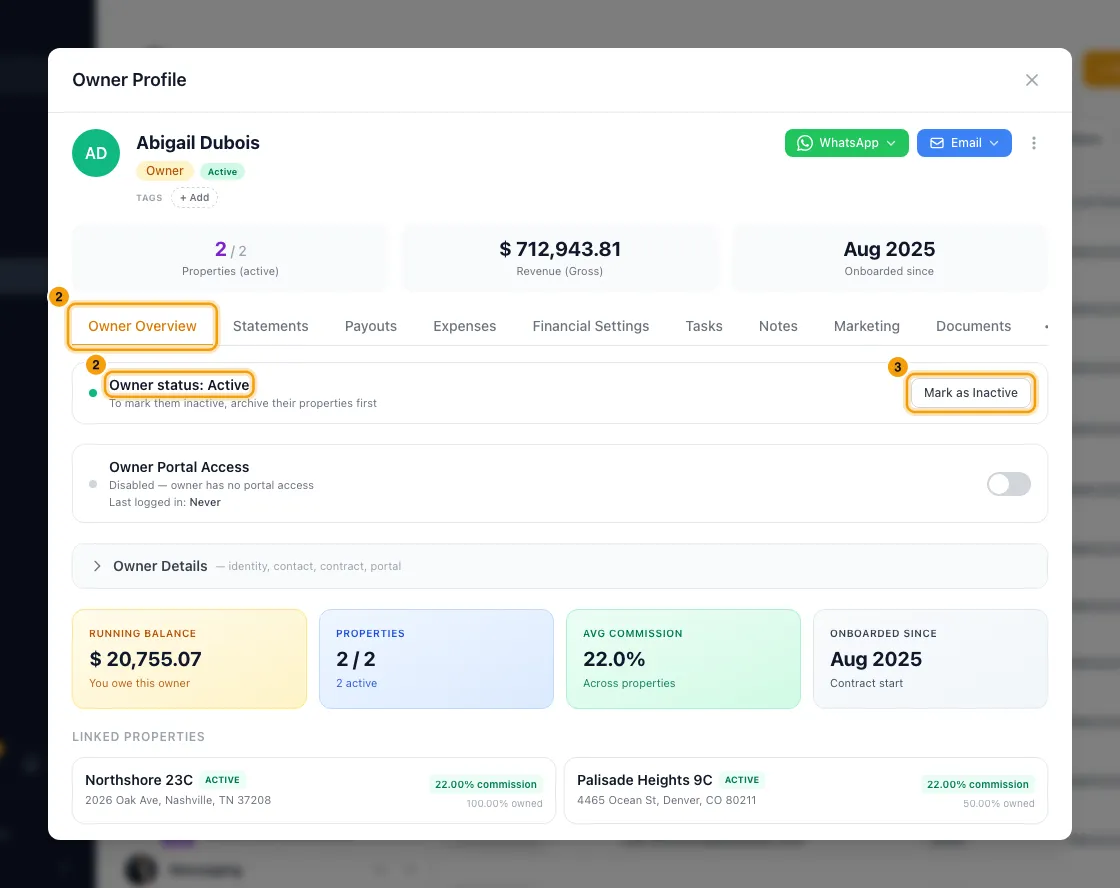
Next to Owner status: Active, click Mark as Inactive, then confirm.
To undo, click Mark as Active.
Good to know
- Someone becomes an owner only when you choose Owner for them:
- + Add Owner in Contacts (or ticking Owner when you add a contact);
- Create Owner contact in an owner inquiry's Signed dialog (see Handle an owner inquiry);
- Save as Owner when you create a signer while requesting a signature;
- Rentibly AI's createContact with the owner type, which you confirm;
- the API, when it sets the owner type.
Nothing else does: not a lead button, not a booking, not linking a property.
- Adding someone who already exists. If the phone or email matches an existing contact, no duplicate is made. That contact is made an Owner, and you see … already existed — added them as an Owner.
- Owners are Active or Inactive, and you decide. Every owner is Active until you mark them Inactive, including a new owner with no property yet.
- Mark as Inactive is refused while they still have a property that isn't archived — Active or Onboarding. The message names those properties: archive them, then try again.
- An inactive owner is left out of the property's owner search, can't be linked to a property, can't sign in to the Owner Portal, and a property of theirs can't be brought back from Archived until you mark them Active. Their statements, payouts and balance stay as they are.
- Leads are guest leads or owner leads. The Lead Type column shows Booking Inquiry, Owner Inquiry or Direct. An owner lead shows Owner Inquiry, and Owner Inquiry Lead on their contact.
- Mark as Owner Lead shows only on an open lead that has no type yet and isn't already an owner lead. It keeps them a lead; it does not add them to Owners.
- Only Owner contacts can be linked to a property. The property's owner search lists Owner contacts only, and Rentibly refuses anyone else.
- An owner stay doesn't make an owner a guest. Owner stays are not bookings.
- Adding or marking contacts needs Create or Edit on Contacts. Mark as Inactive and Mark as Active need Edit on Owners.
Rentibly AI can help
- It can find owners and leads and create a contact, including an owner, which you confirm. It saves the contact the same way + Add Owner does: it needs a first and a last name, and it refuses, before you confirm, a phone, WhatsApp number or email that another contact already has, or a tag that isn't in Reference Lists → Tags.
- It can't mark a lead as an Owner Lead, or mark an owner inactive or active. Use the buttons above.
Still stuck?
Open Support from your profile menu in Rentibly, or email hello@rentibly.com — we answer fast.