Turn paid utility bills into owner charges
Updated 13 October 2026
When you pay a utility bill for a property, log it as a Utility Bills operation billed to the owner. Completing the operation creates the owner expense automatically.
Steps
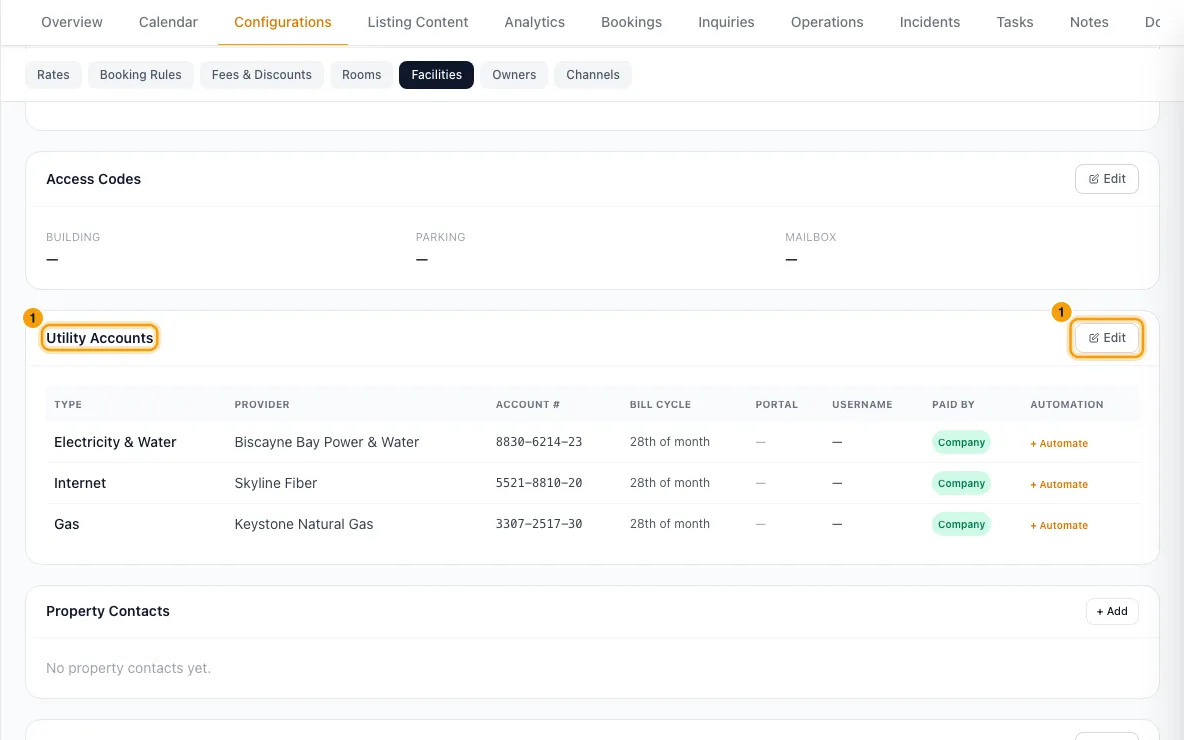
Make sure the account is on the property. Go to Properties, open the property, then Configurations → Facilities. On the Utility Accounts card, click Edit. Use + Add Row if needed, fill in Utility Type, Provider and Account Number, set Paid By to Company, and click Save.
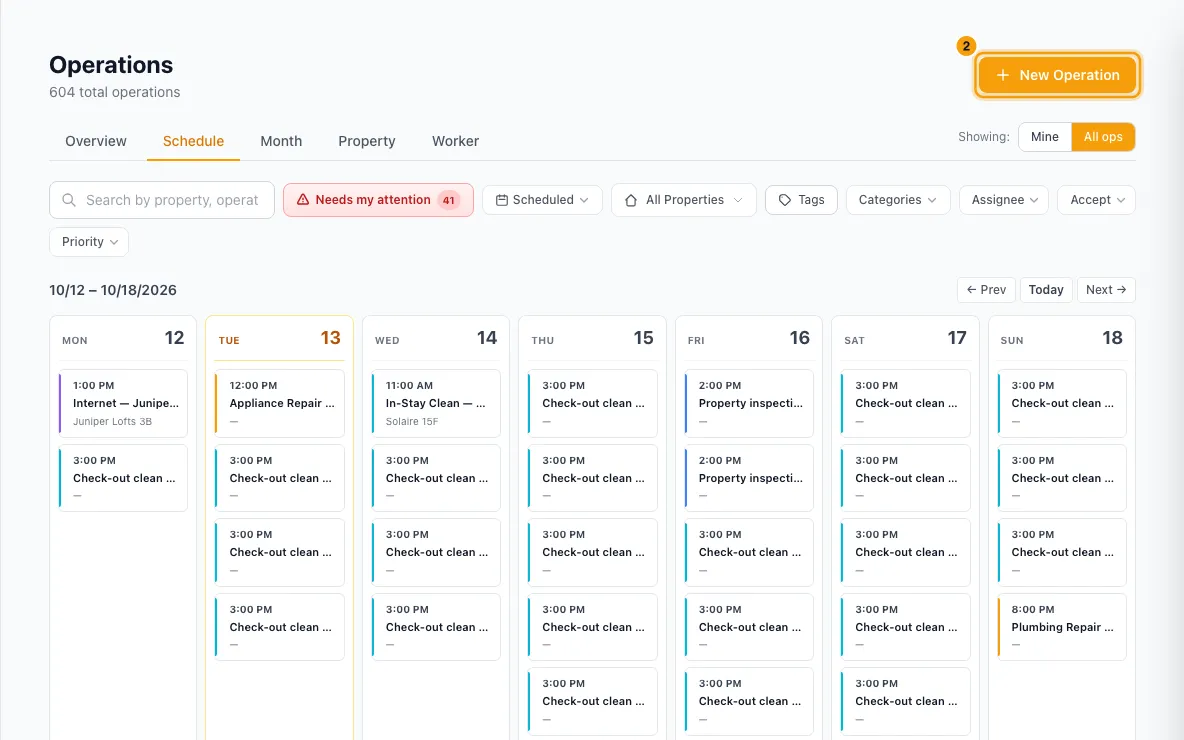
Go to Operations and click New Operation.
Pick Utility Bills as the Category, then choose the Property.
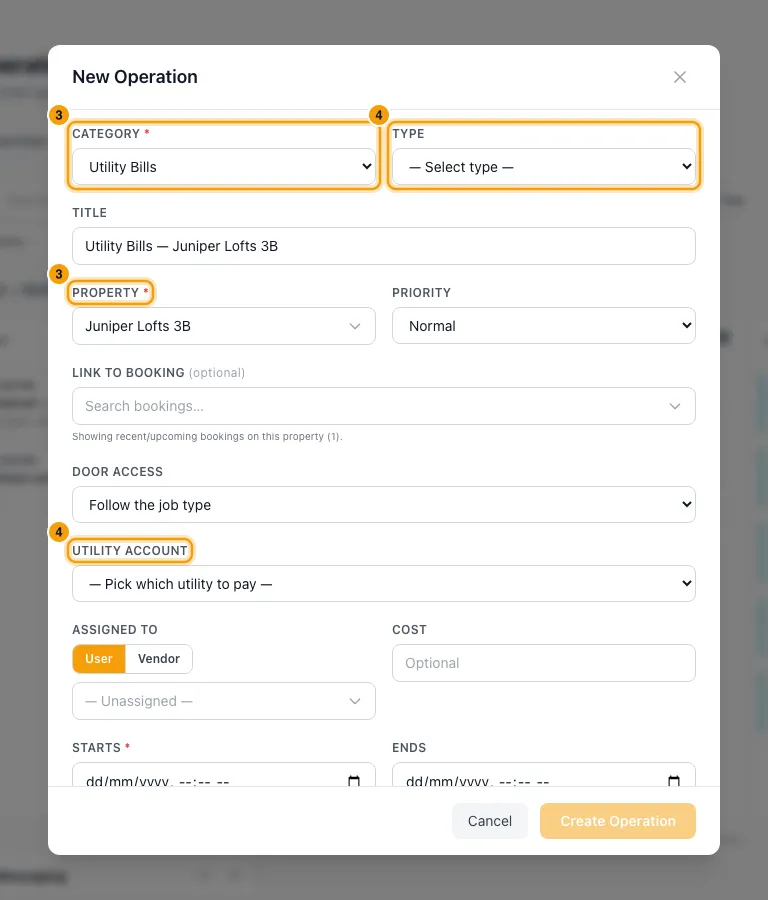
In Utility account, pick the account you paid. Rentibly fills in the matching Type.
Set Starts. Enter the bill amount as Cost.
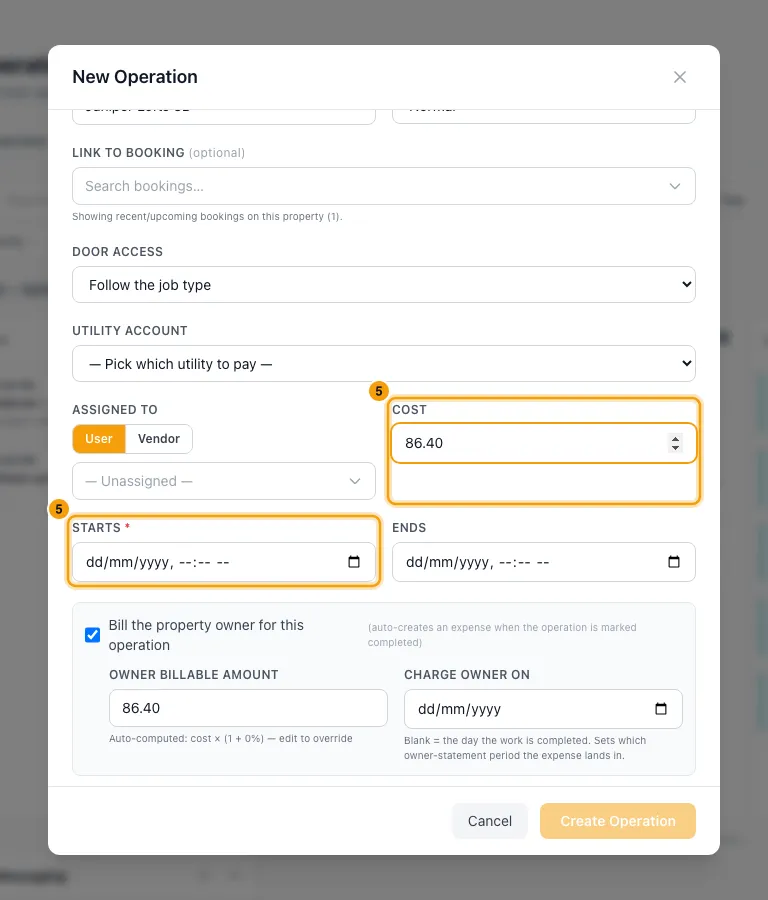
Keep Bill the property owner for this operation ticked and check the Owner billable amount. You can also set Charge owner on now, or leave it blank.
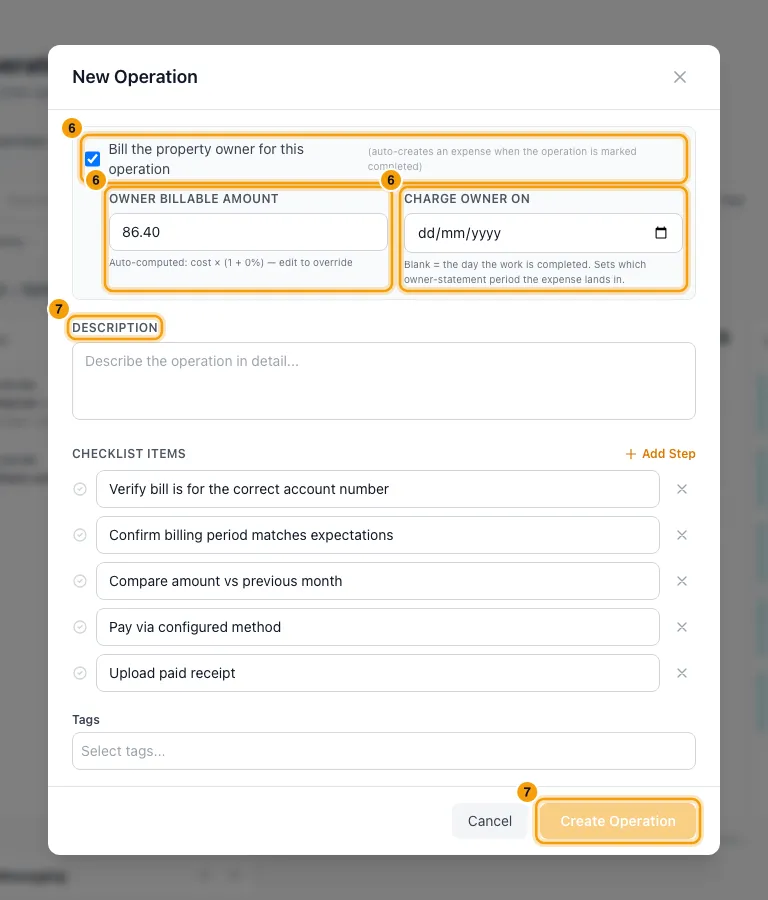
Fill in the Description and click Create Operation.
Open the operation. On the Attachments tab, click + Upload in Invoices & receipts and add the bill. If the owner should see it, click its Internal badge so it switches to Owner.
On the Checklist tab, tick the required items.
Click Start Operation and confirm, then click Mark Completed.
In Mark operation complete, set Work completed on. Leave Charge the owner on the same date on, or turn it off and pick a Charge owner on date. Click Mark complete.
Good to know
- The expense is created only when the operation is completed. The Financial tab then shows Posted to owner statement with View expense →.
- The amount charged is the Owner billable amount. If that is blank, it is the Cost. Nothing is posted when the amount is zero or blank, or the operation has no property.
- Owner billable amount fills in as cost plus the category's markup. The built-in Utility Bills category starts with no markup, so it equals the cost. Typing your own amount stops it following the cost.
- The charge is split among the property's owners by ownership %, one expense per owner.
- Charge owner on decides which statement period the expense lands in. Blank means the day the work was done. For an operation not linked to a booking, a date inside an already-approved period rolls forward to the next open statement.
- Change it at any time from the job's Financial tab — click the date under Billable to owner. It works before the bill is completed too, so you can set the statement period up front.
- The Utility account list shows only accounts with Paid By set to Company. If there are none, the form tells you to add one under Facilities.
- Rentibly adds the category's checklist when you create the operation. The built-in Utility Bill Payment Checklist has required items, and you can't complete the operation until they are ticked. A category can also require a file in a section, such as Invoices & receipts, before completion.
- Editing the cost, owner amount, dates or property later updates the posted expense. If that expense is on an approved owner statement, the edit is refused. Unticking Bill the property owner for this operation removes the posted expense.
- Reopening a completed operation does not reverse its owner expense. Review billing yourself.
- On Finance → Expenses, the expense shows with Operation as its source. Clicking it opens the operation, which is where you change it.
- Only bills switched to Owner show on the owner's statement and on the expense in their portal.
- To complete several bills at once, tick them in the list and click Mark complete. Each is dated today, unless it already has a Charge owner on date. Any with open required checklist items fail and stay open.
- Creating operations needs Create on Operations, and completing them needs Edit. Changing a file's Internal / Owner badge needs Edit on Files & documents.
Rentibly AI can help
- Attach a batch of paid bills and it creates one operation per bill, with the bill attached. It matches each bill to a property by account number, and asks whether to create them as pending or completed.
- It can complete operations and make the bills visible to owners.
Still stuck?
Open Support from your profile menu in Rentibly, or email hello@rentibly.com — we answer fast.