Set up how owner statements look (Statement Views)
Updated 13 October 2026
A Statement View decides how an owner's statement looks: which columns show, how much detail, and what goes on the PDF. It never changes the money. You can have several views and give different owners different ones.
Steps
Go to Settings → Owners → Statement Views.
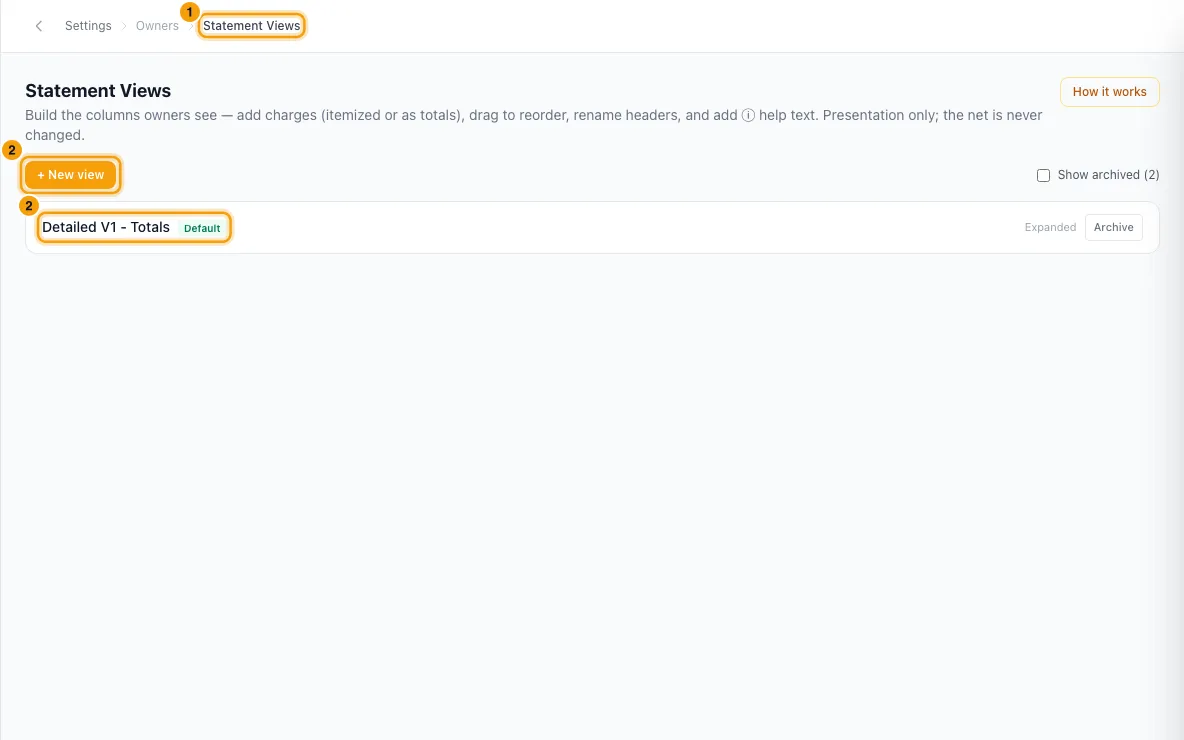
Click + New view, or click an existing view to change it.
Type a name in View name. Tick Default if every owner without their own view should get this one. Saving it unticks the old default. For a new view you can pick a starting point in Start from preset: (Expanded or Net summary).
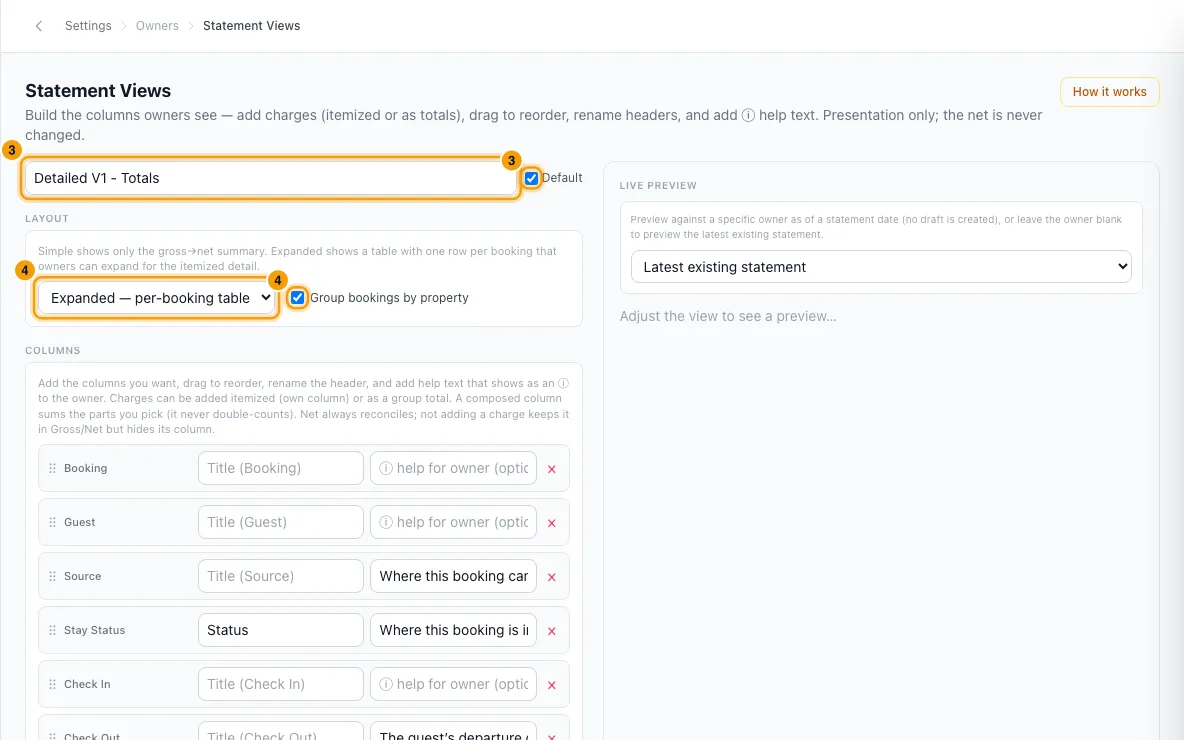
Under Layout, choose Simple — totals only or Expanded — per-booking table. For Expanded, choose whether to Group bookings by property.
Under Columns (Expanded only), click + Add column. Search or filter by Meta, Summary, Commission breakdown, Group totals, Specific charges or Remittance, click Add on each column you want, then Done.
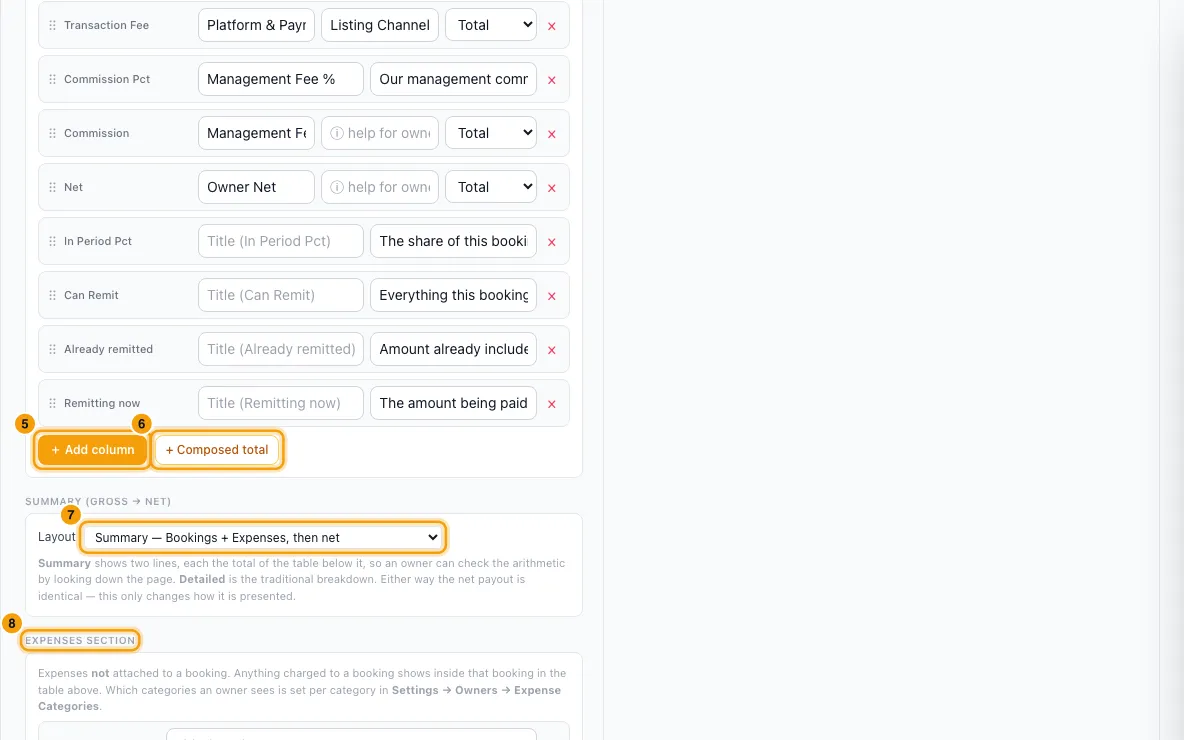
For each column you can:
- drag the ⠿ handle to reorder it;
- type a new Title;
- add ⓘ help for owner (optional), which the owner sees as a tooltip;
- choose Pro-rata or Total where offered;
- click × to remove it.
Click + Composed total to make one column that adds up the parts you pick.
Under Summary (gross → net), choose Detailed or Summary for the gross-to-net block.
Under Expenses section, add or reorder the columns for expenses not tied to a booking. Choose how to Group by (Property, Category or No grouping). You can also tick Also list booking expenses here (for reference — not added to the total).
Under Show, tick or untick Nights proration, Informational (zero-amount) lines, Gross → net walk-down and Zero-value bookings.
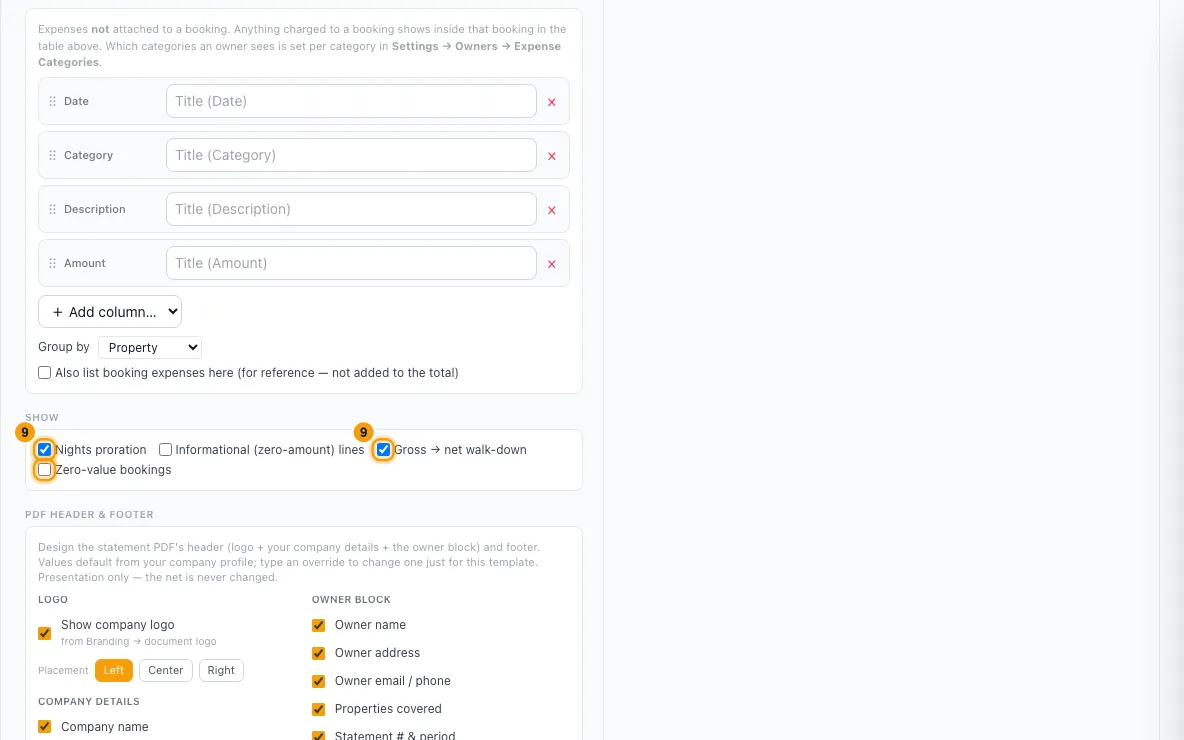
Under PDF header & footer, choose:
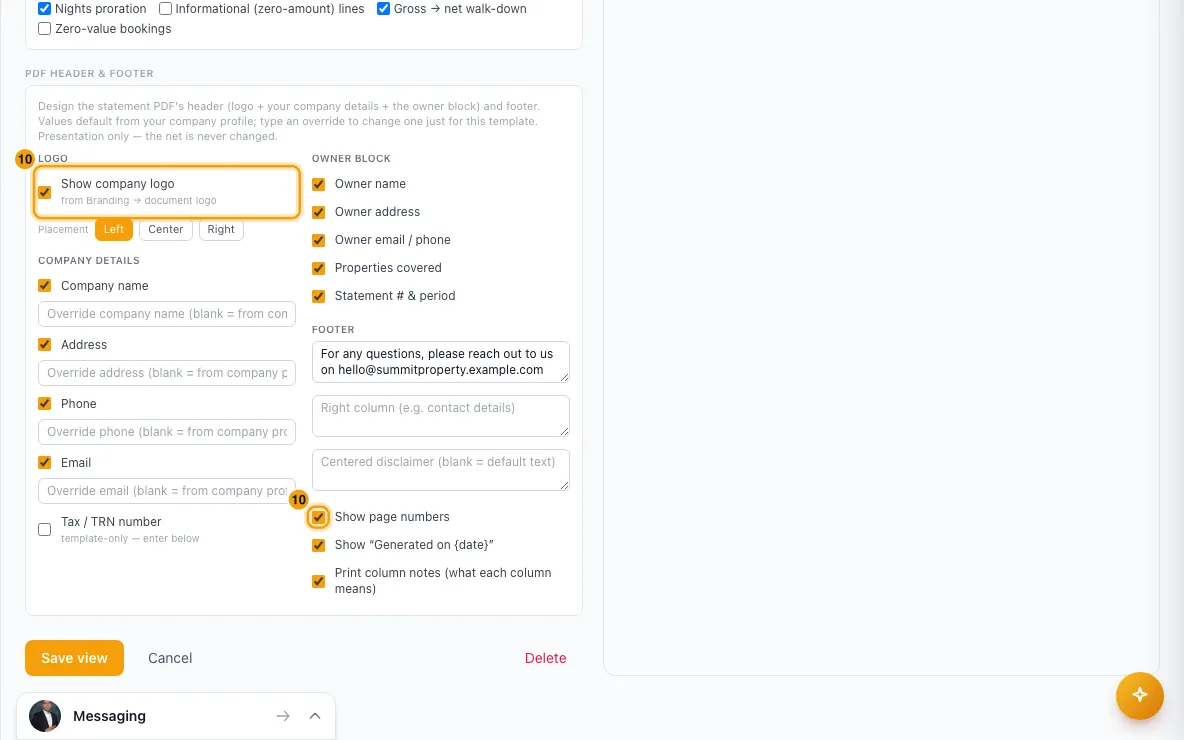
- the logo (Show company logo and its placement);
- which Company details and Owner block items to print;
- an optional Tax / TRN number;
- the footer texts, Show page numbers, Show “Generated on {date}” and Print column notes (what each column means).
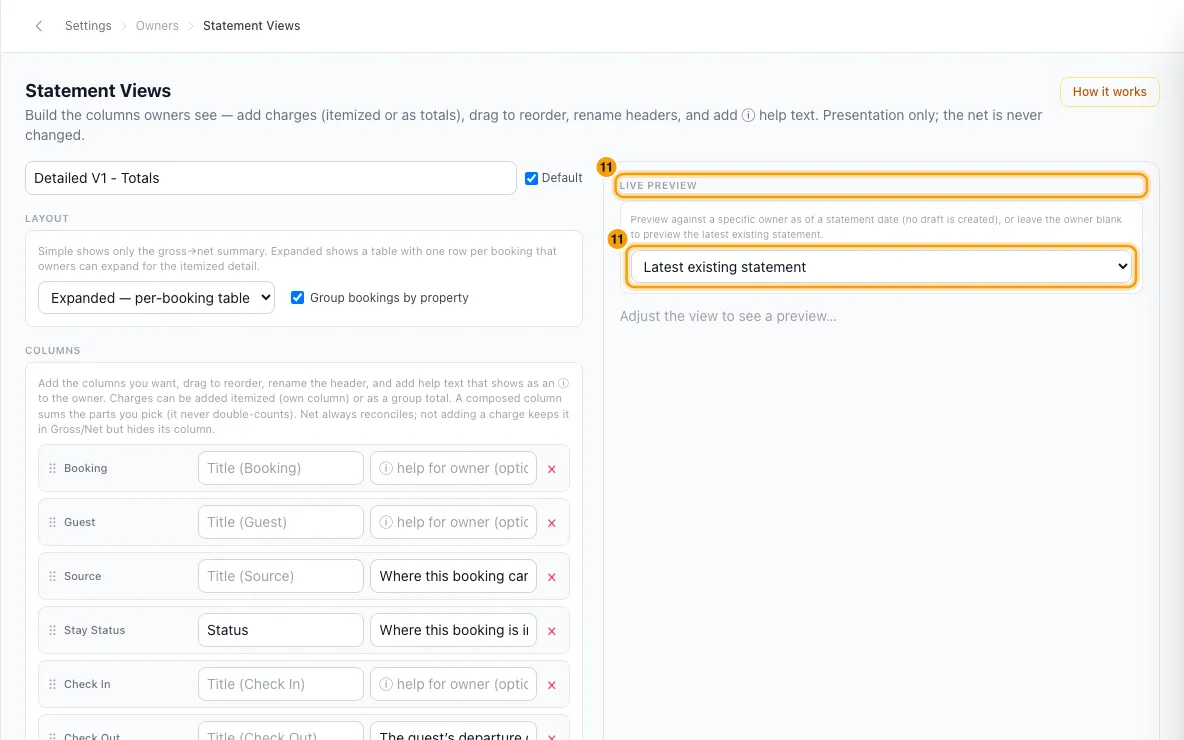
Check the Live preview on the right. Leave it on Latest existing statement, or pick an owner and an As of date to preview their next statement. No draft is created. The owner list shows only active owners (owners with at least one active property), since only they can get a statement.
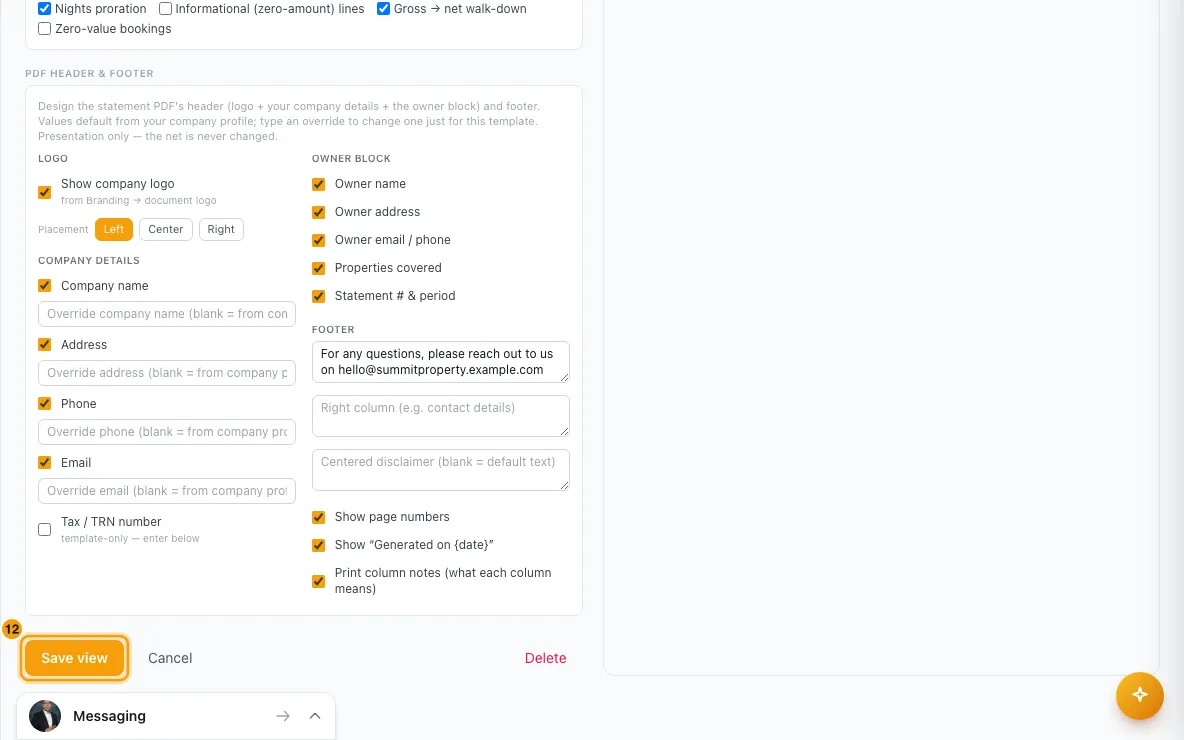
Click Save view.
To give one owner a different view, open their contact. On the Owner Overview tab, choose it in Statement view. Default means they follow your default view. Archived views are not offered.
Good to know
- The money never changes. A view only changes what is shown. Hiding a column or a fee keeps its amount inside the totals and the net payout.
- An approved statement keeps the view it was approved with. Approving (one at a time or in bulk) saves the layout with the statement, and so does importing a past statement. Editing a view, changing the default or picking another view for an owner then changes their drafts and future statements, never an approved one. This covers the owner's portal, the PDF and your own statement window.
- Statements approved before 11 October 2026 were given the layout they showed on that day, so they also stay as they are.
- Every statement needs a view: the owner's own, or your default. Without either, generating a statement is blocked.
- Your first view is ticked as Default automatically. If your account has no views at all, Rentibly adds three ready-made ones the first time statement views are loaded for an owner or for generating: Simple (totals only), Detailed (per booking) (the default) and Itemized (charges broken out).
- Only one view is the default. Saving a view with Default ticked unticks it on the old default. You can't make an archived view the default: Restore it first.
- Zero-value bookings off hides bookings that pay the owner nothing on that statement: owner stays, comps, and stays whose payment hadn't arrived by the statement date. Such a stay shows on the statement where its money lands.
- Which expense categories an owner sees is set per category in Settings → Owners → Expense Categories, not here.
- The PDF header takes your company name, address, phone, email and logo from your company profile and branding. Type in an override box to change one value for this view only.
- The Statement view box on the Owner Overview tab only shows when the owner has owner portal access turned on. An archived view can't be chosen for an owner; if it is chosen some other way, the owner gets your default view instead.
- Archive hides a view from the list. Restore brings it back, and Show archived lists them. You can't archive the default view, or a view assigned to owners: move them first. Delete (inside a view) asks you to confirm, and can't be undone. You can't delete the default view (make another view the default first) or a view assigned to owners (move them first).
- How it works at the top of the page opens a longer guide.
- Permissions:
- This page is in Settings, so you need Settings access.
- Archive and Restore, and choosing a view for an owner, also need Edit on Owners.
- The live preview also needs View on Owners.
Rentibly AI can help
- Rentibly AI can't create or change statement views yet. It can explain what each setting does.
Still stuck?
Open Support from your profile menu in Rentibly, or email hello@rentibly.com — we answer fast.