Respond to a payment dispute
Updated 13 October 2026
When a guest asks their bank to reverse a card payment, Stripe opens a dispute (a chargeback). You can send Stripe your evidence from the booking, before the deadline.
Steps
When Stripe opens a dispute, your team gets a Chargeback opened alert, and a high-priority task "Stripe dispute opened — …" appears in Tasks, linked to the booking of the disputed payment.
Go to Bookings, open the booking and go to the Payments tab.
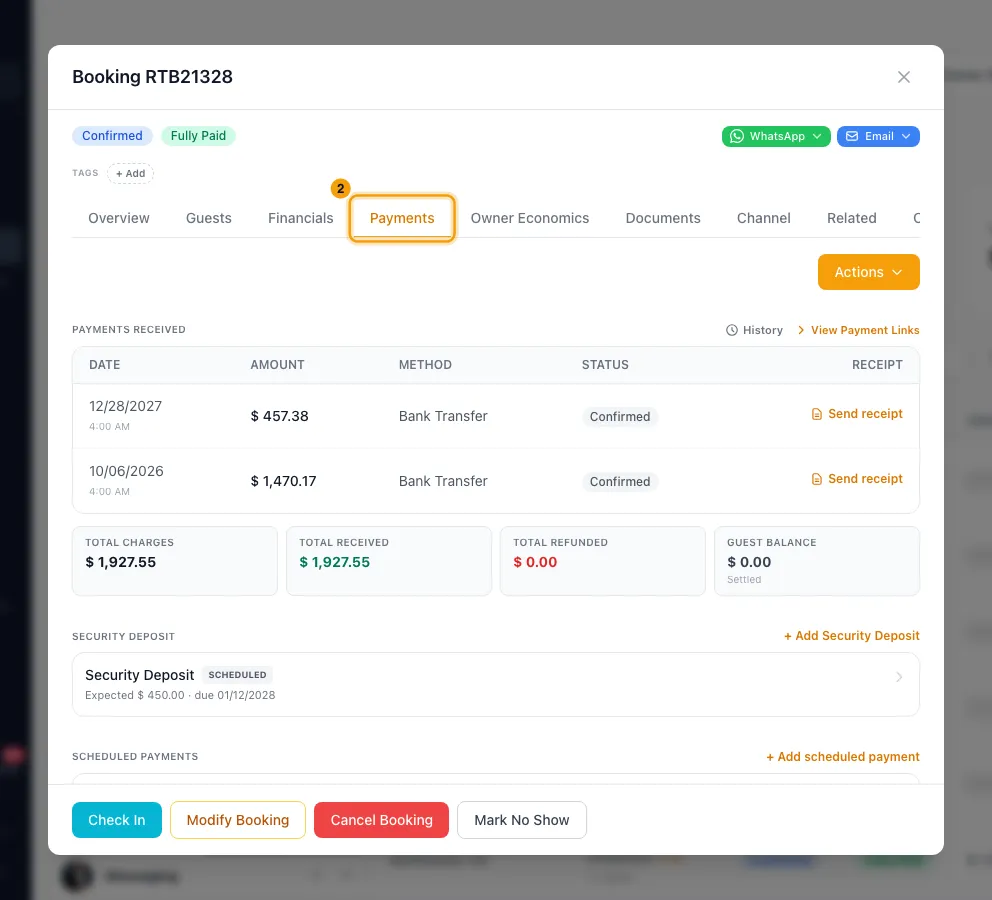
Scroll to Disputes and click the dispute.
In the Dispute evidence window, check the Amount, Reason, Status and Deadline.
Check or fill in Guest name, Guest email, Service date and Product / service description. The first three start from the booking.
Paste messages with the guest into Customer communication (e.g. emails with the guest).
Explain how the guest was told your terms in Cancellation policy disclosure and Refund policy disclosure, and add anything else in Other notes.
Under Supporting files (optional), add a Receipt / invoice, Service documentation, Customer signature (for example the signed rental agreement) or Other file.
Click Save draft to keep it with Stripe without sending, or Submit to Stripe, then confirm with Submit to Stripe.
Good to know
- The Disputes section only shows on a booking that has a dispute. It covers card payments taken through your Stripe account.
- Each dispute row shows how many days you have left ("respond in 3d"), or "deadline passed".
- Submit to Stripe is final: you can't change the evidence afterwards. Stripe then decides.
- Save draft sends the evidence to Stripe without submitting it. When you open the window again, the text you saved is filled in. Files you attached are not shown again, but they are kept: a later save only adds or changes what you send then, so you don't need to attach them again.
- After a draft the dispute row says "evidence draft saved". It says "evidence submitted" once you submit, or once Stripe is reviewing or has decided the dispute.
- Files can be up to 5 MB each, one per slot. Stripe accepts PDFs and common image types.
- The status updates by itself as Stripe reports it. When a dispute is won, lost or refunded, the window says "This dispute has been closed. No further action needed."
- If Stripe takes the disputed money out of your balance, another high-priority task appears, linked to the booking: "Stripe pulled dispute funds". A Stripe early-fraud warning also creates a task, sometimes before any dispute.
- The disputed payment's notes are marked "DISPUTED" with the reason.
- While a dispute is open, the booking's security deposit isn't released automatically.
- Flag this guest marks the guest's contact as Caution, with the dispute in the reason. Confirm with Flag as Caution.
- A signed rental agreement, your messages and payment receipts make the strongest evidence. See Have the guest sign the rental agreement.
- You need the Bookings permission at Edit to save or submit evidence. View is enough to see disputes.
Rentibly AI can help
- Rentibly AI can't read or answer disputes yet.
Still stuck?
Open Support from your profile menu in Rentibly, or email hello@rentibly.com — we answer fast.