Record a guest payment received offline
Updated 13 October 2026
When a guest pays you outside Rentibly (cash, bank transfer, cheque, or a card taken somewhere else), record it on the booking. The booking's balance and payment status update straight away.
Steps
Go to Bookings and open the booking.
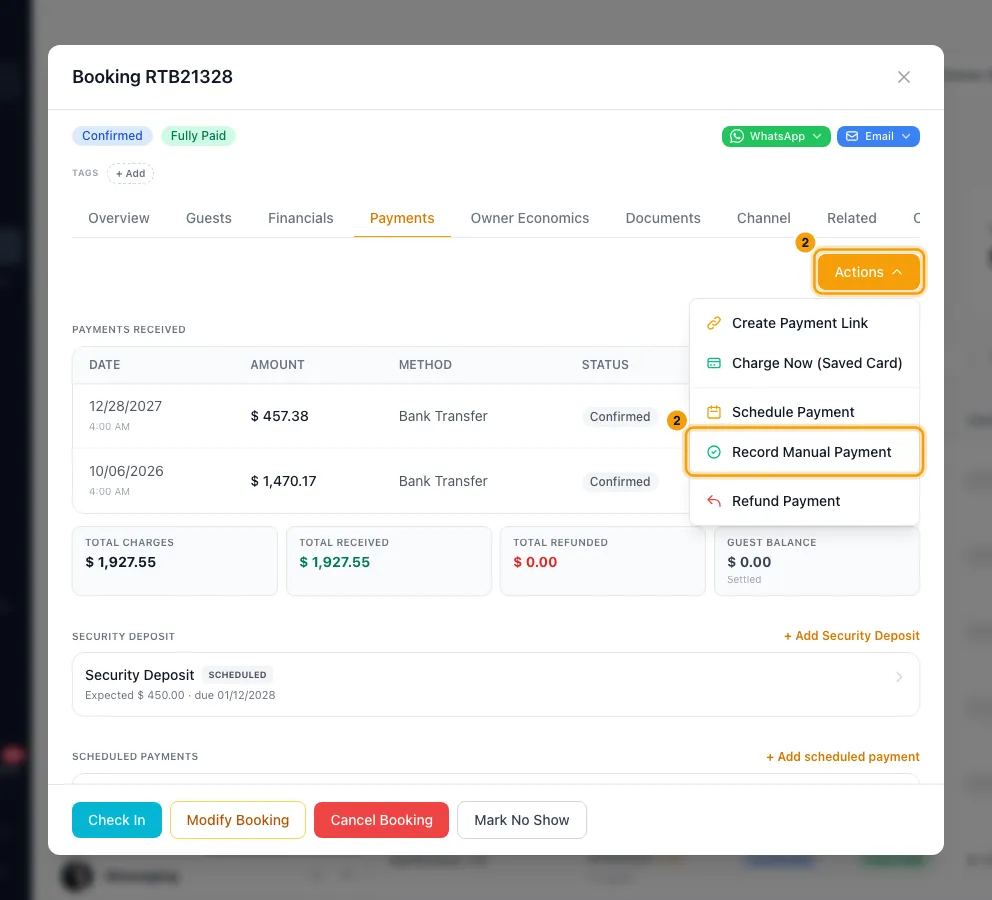
Open the Payments tab and click Actions → Record Manual Payment.
If the booking has open scheduled installments, pick the one this payment is for. If it isn't for one, choose Not related — record at booking level.
Enter the Amount.
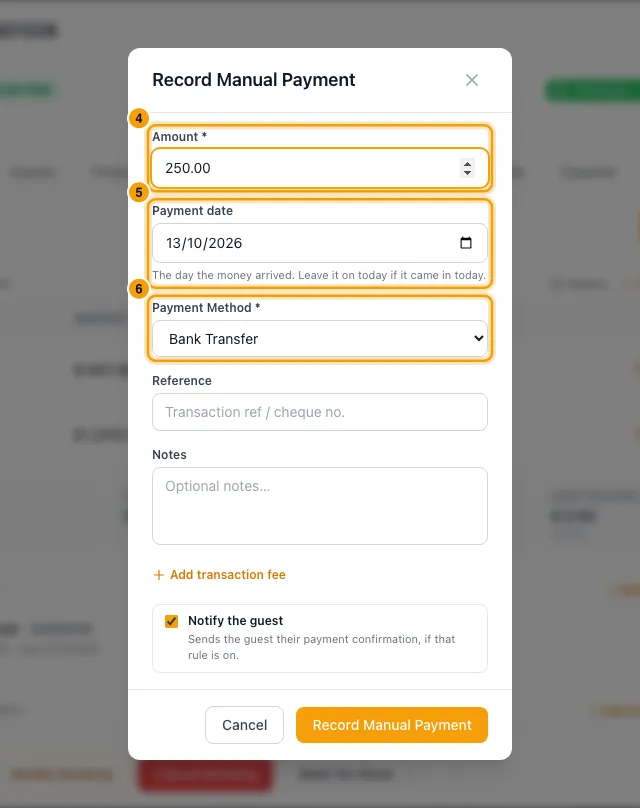
Set the Payment date to the day the money arrived. It starts on today.
Choose the Payment Method: Bank Transfer, Card Payment, Cash, Cheque, Other or Channel Payout.
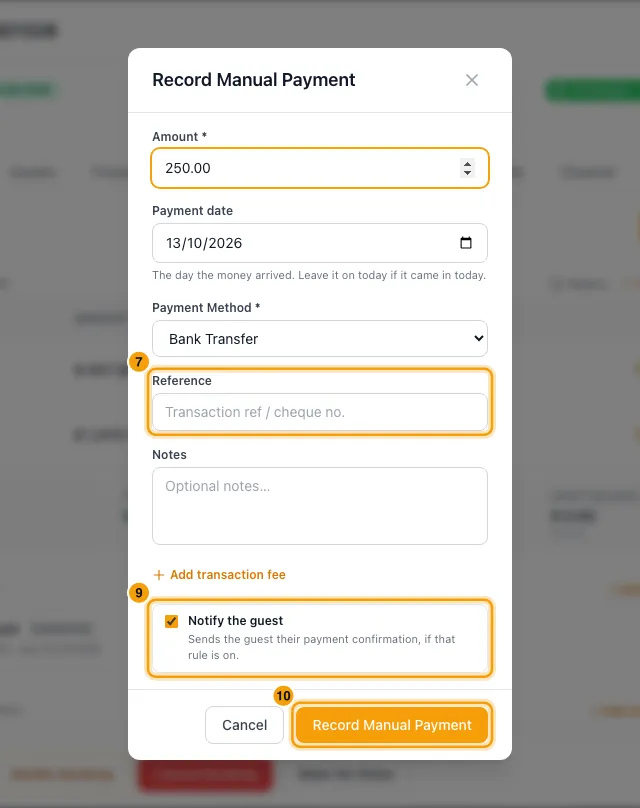
If you like, add a Reference (a transfer reference or cheque number) and Notes.
If a fee was taken from this payment (for example a bank or card fee), click Add transaction fee. Fill in the Label and Amount. Untick Bill this fee to the owner (deducts from their payout) if you pay the fee yourself.
Leave Notify the guest ticked to send the guest their receipt, or untick it to skip the guest email for this payment.
Click Record Manual Payment.
Good to know
- Payment date can't be in the future. Left on today, the payment gets the time you save it. An earlier day is saved at midday on that day.
- To change the date later, or to fix the amount, method, reference or notes, click the payment under Payments received, then Edit. Fill in Reason for edit: the old values are kept in the audit history.
- If the amount is different from the installment you picked, it counts as a part payment toward it. You can record more payments against the same installment later.
- The payment appears under Payments received on the booking and in Finance → Guest Payments. Click Send receipt on its row to email the guest a receipt.
- Notify the guest only sends the email if the Guest — payment receipt notification rule is on. Unticking it skips only the guest's email; your team is still notified.
- You can record a payment at any booking status, including cancelled and no-show (for example, a cancellation fee the guest paid).
- Channel Payout is for a booking from a channel that isn't connected to Rentibly, once the money has arrived. Enter what the guest paid the channel. Then click Add transaction fee, choose the category Channel Fee, and enter the channel's commission. For connected channels, Rentibly records the channel payout for you; you tick it off in Finance → Channel Payouts. If Owner Defaults is set to Record on the booking, it is already marked Received there, with nothing to tick off.
- For owners on the Cash (Payments Collected) payment basis, the payment raises how much of this booking can go on their owner statement.
- If the stay's month is already on an approved owner statement, what the payment changes for the owner (including a transaction fee billed to them) appears on their next statement as a correction line under the booking.
- Only payments recorded by hand can be edited or deleted. A card payment taken through Stripe can only be refunded. A payment with a transaction fee can't be deleted until you remove the fee in the Transaction fees section of the Payments tab.
- Security deposits have their own Security Deposit section on the Payments tab. This form records against the booking's main balance.
- You need the Bookings permission at Edit.
Rentibly AI can help
- Rentibly AI can't record a payment for you.
- It can list installments that are past due, so you know which guests to chase.
Still stuck?
Open Support from your profile menu in Rentibly, or email hello@rentibly.com — we answer fast.