See all guest payments and installments owed
Updated 13 October 2026
Guest Payments lists every payment and refund across all your bookings in one place. Its Scheduled view shows the installments guests still owe.
Steps
In the sidebar, open Finance → Guest Payments. It opens on Payments.
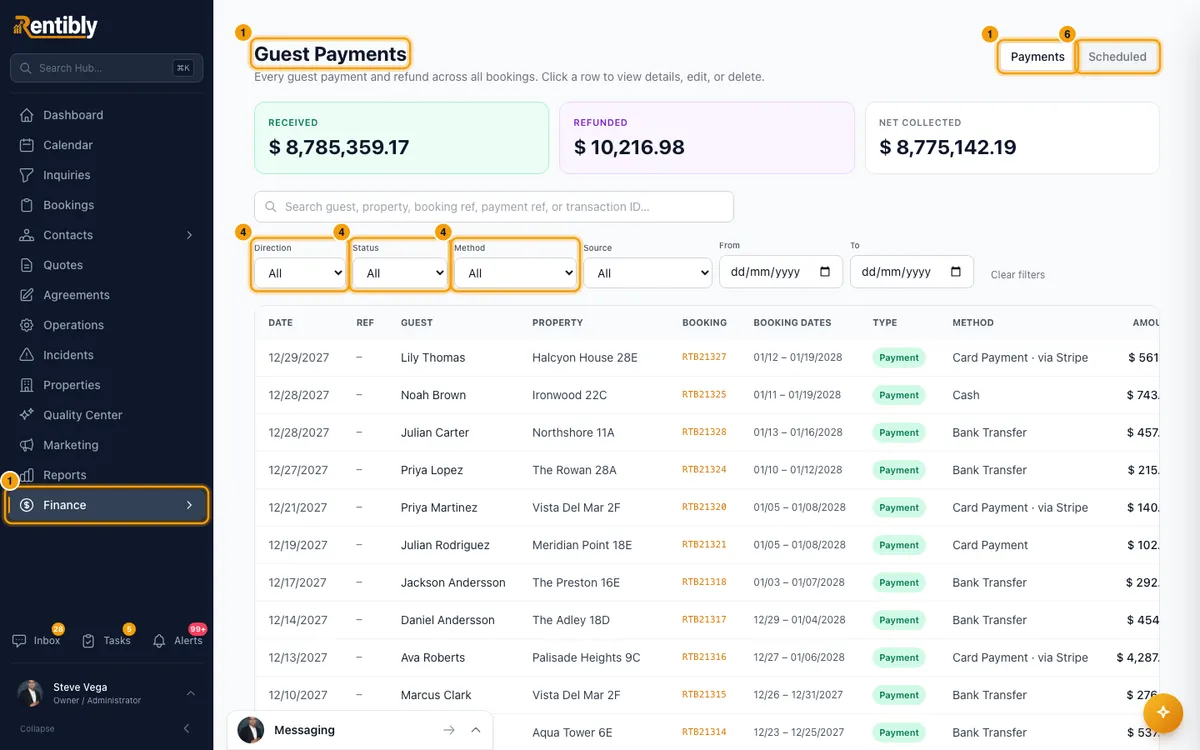
Read the totals at the top: Received, Refunded and Net collected. They follow your search and filters.
To find a payment, search by guest, property, booking ref, payment ref or transaction ID.
To narrow the list, use Direction (Payments or Refunds), Status, Method, Source (Gateway (Stripe) or Manual), From and To. Click Clear filters to start again.
Click a row to open its Payment details. Click the booking ref in a row to open the booking instead.
To see what guests still owe, click Scheduled at the top right.
Read Outstanding, Overdue and Installments at the top. Overdue rows are red.
To narrow the installments, use Status (it starts on Active (still owed)), Due from and Due to.
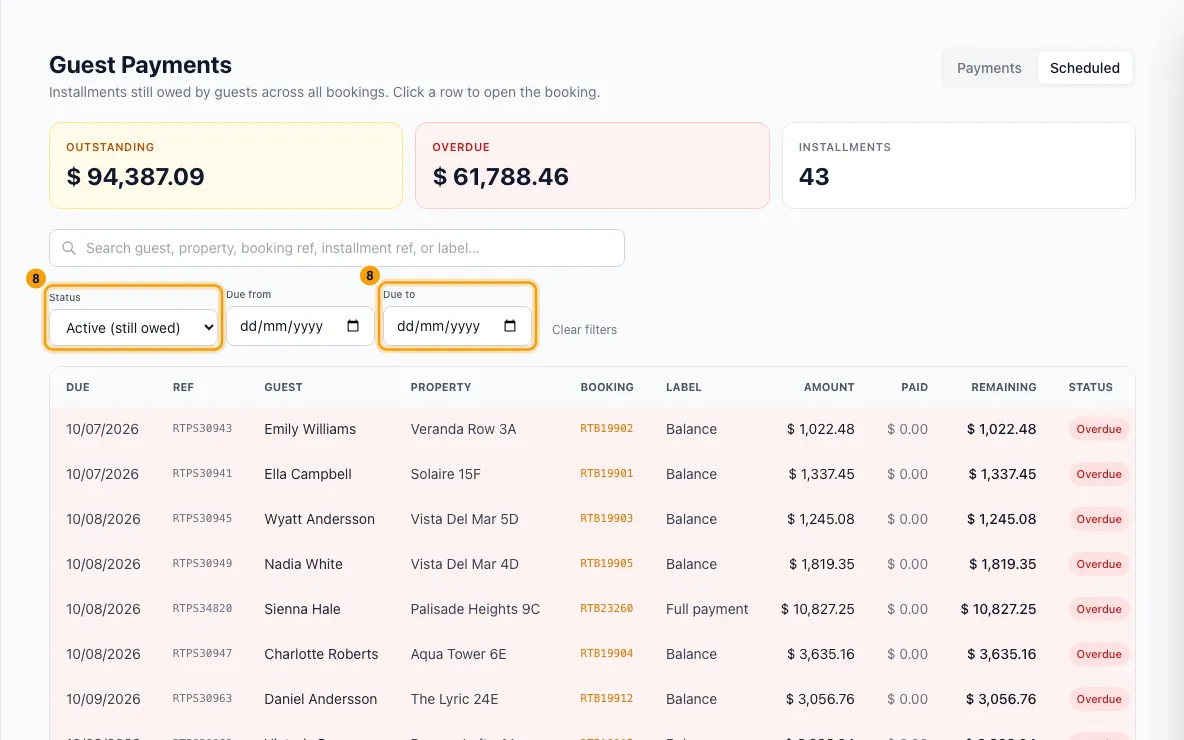
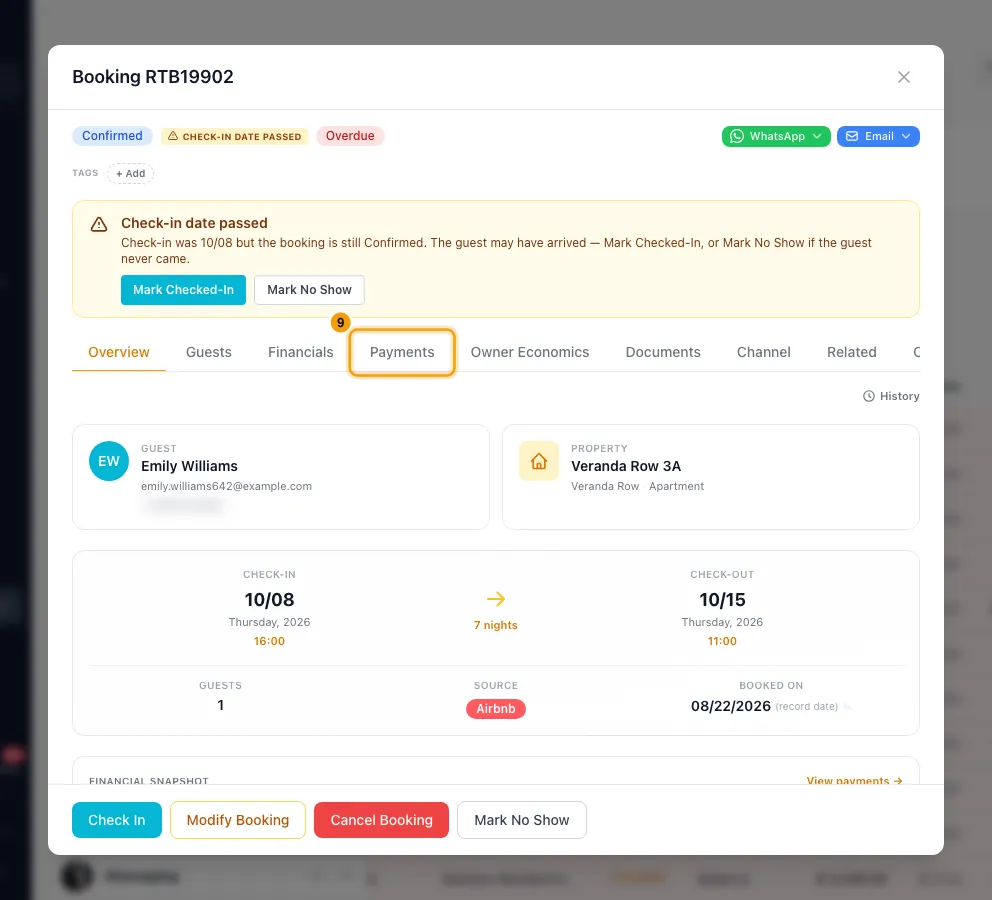
Click an installment to open its booking on the Payments tab.
Good to know
- Refunds show as negative amounts with a Refund badge. A Deposit badge marks a security deposit payment. Source says Stripe for payments taken through a payment processor, and Manual for everything recorded by hand.
- Money a channel took back, recorded in Finance → Channel Payouts, also shows here as a refund.
- Received counts confirmed payments. Refunded counts refunds. Net collected is Received minus Refunded. A channel payout that hasn't arrived yet is not in Received.
- The Status filter offers Pending, Confirmed, Refunded and Failed. Pending channel payouts show under Pending and All. To work through those, use Finance → Channel Payouts.
- From and To filter on the payment date. Due from and Due to filter on the installment's due date.
- An installment counts as overdue as soon as its due date passes, even before its status changes to Overdue.
- The Scheduled status filter can also show Paid, Waived (cancelled) or All installments.
- In Payment details you can Edit or Delete a payment recorded by hand. A payment taken through Stripe can't be edited or deleted. Refund this payment takes you to the booking's Payments tab to refund it there.
- An edit asks for a Reason for edit, and the old values go to the audit history. A deletion is recorded in the activity log.
- A pending channel payout also shows Confirm received and + Record a payment received in Payment details. + Record a payment received also needs Finance at Edit.
- New payments are recorded on the booking, not on this page: open the booking, go to Payments and use Actions.
- Money paid out to owners isn't here. That is in Finance → Owner Payouts.
- The list shows 50 rows a page. Use Previous and Next.
- You need the Finance permission at View to open this page. To edit, delete or refund a payment, you also need Bookings at Edit.
Rentibly AI can help
- Rentibly AI can list installments that are past due, payments that failed, and security deposits waiting for a refund decision.
- It can't record, edit or refund a payment.
Still stuck?
Open Support from your profile menu in Rentibly, or email hello@rentibly.com — we answer fast.