Refund a guest payment
Updated 13 October 2026
Refund all or part of what a guest paid. A card payment taken through Stripe goes back to the guest's card. Any other payment is recorded as a refund in Rentibly, and you send the money yourself.
Steps
Go to Bookings and open the booking.
Open the Payments tab and click Actions → Refund Payment. Or click a payment under Payments received, then Refund this payment.
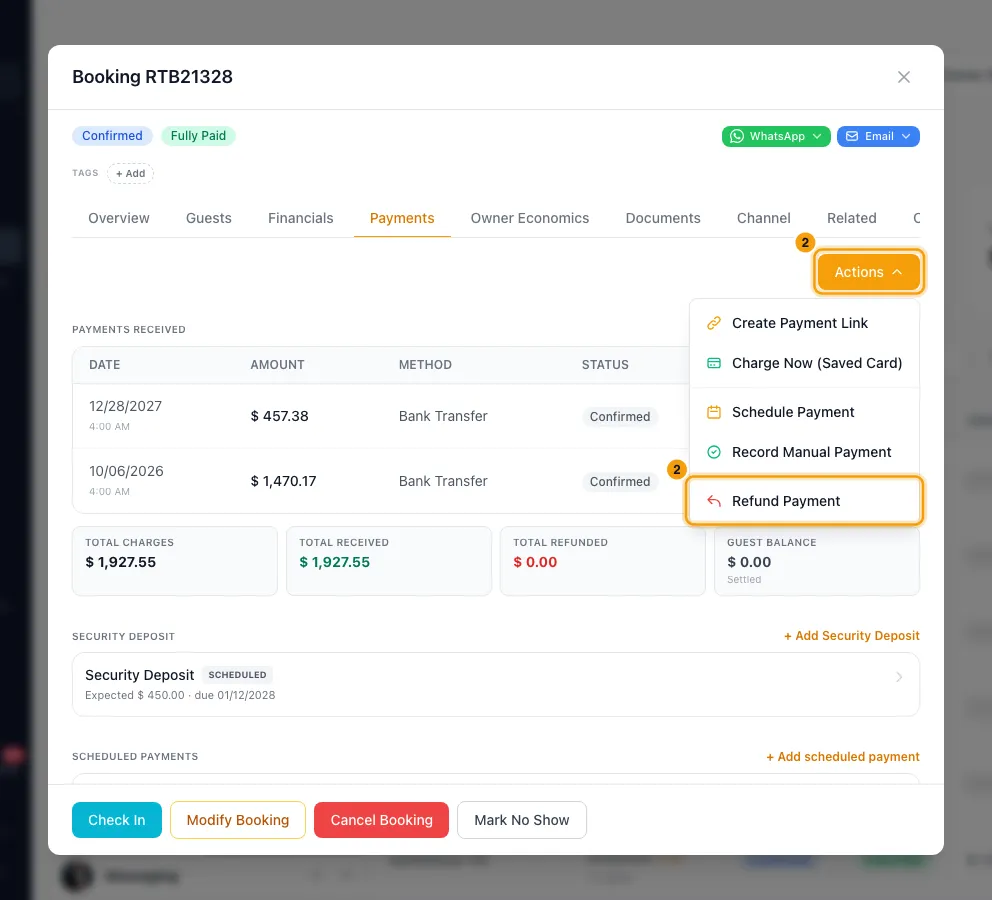
In the Refund payment window, choose By payment or Custom amount.
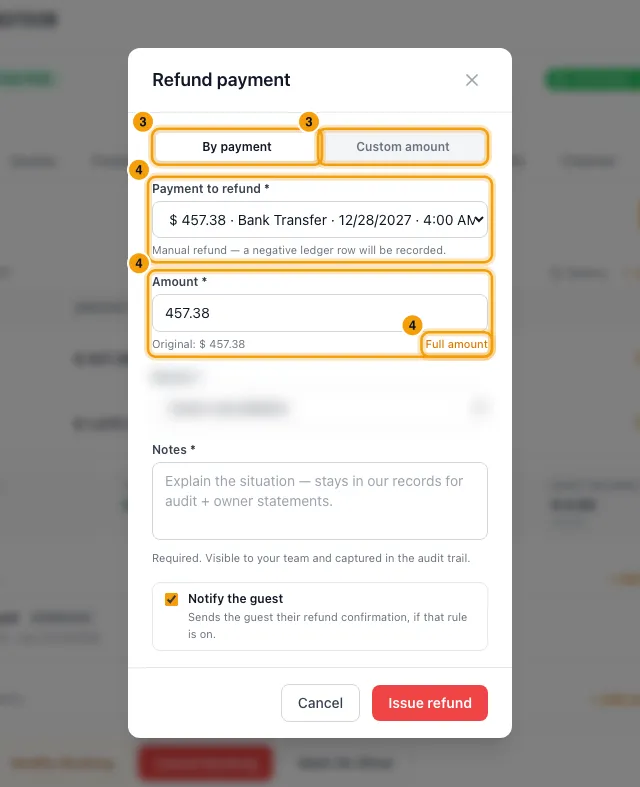
For By payment: pick the Payment to refund, then enter the Amount or click Full amount.
For Custom amount: under How should this be refunded?, choose Auto to send it back through the processor each payment came in on, or Manual to only record it (then pick the Refund method). Enter the Amount to refund, or click Refund full balance. With Auto, check This refund will be taken from to see which payments it uses.
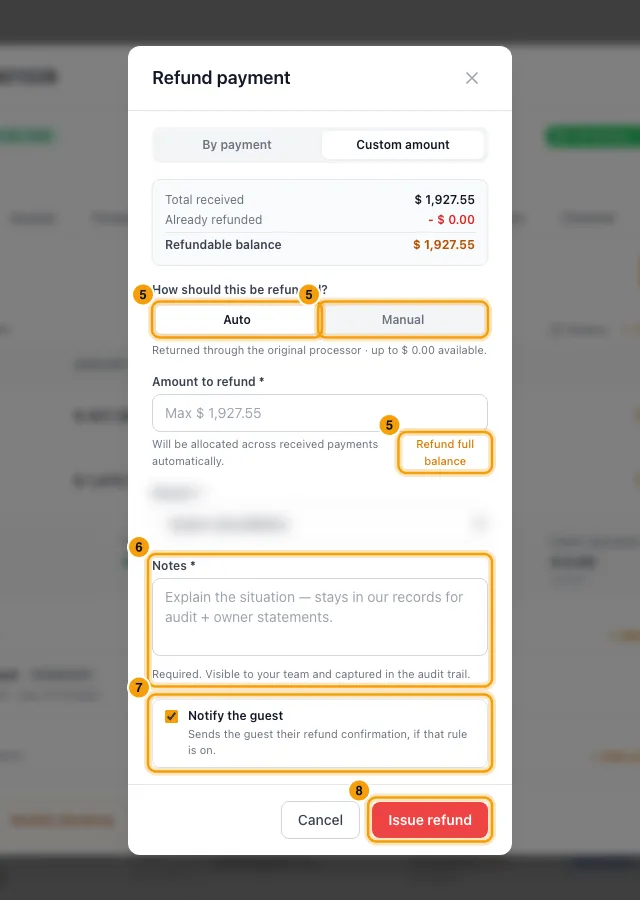
Choose a Reason and write Notes (at least 3 characters).
Leave Notify the guest ticked to email the guest, or untick it.
Click Issue refund.
Good to know
- Only confirmed payments can be refunded. You can't refund more than is still refundable on a payment. Once a payment has been partly refunded, the window shows Already refunded and Still refundable.
- A payment goes back through Stripe only if it was taken through a payment processor connected to Rentibly. Then the window says Stripe will process this refund and return funds to the original card. For anything else (cash, a bank transfer, a channel payout, or a payment imported from another system) it says Manual refund — a negative ledger row will be recorded.
- A Stripe refund appears under Payments received by itself once Stripe settles it, usually within a minute. If the processor the payment came in on is disabled, the refund fails until you enable it again in Settings → Payment Processors.
- A manual refund only records the money. You still need to send it to the guest yourself.
- Custom amount with Auto takes the refund from the booking's payments, newest first, each up to what is still refundable on it. Security deposit payments are left out: return a deposit from the Security Deposit section of the Payments tab. If part of the amount comes from a payment with no processor behind it, that part is recorded, not sent back.
- Reasons you can pick: Guest cancellation, Owner / host cancellation, Booking modification, Overpayment, Duplicate charge, Service / property issue, Goodwill / complimentary, Pricing correction, Fraudulent charge, Other.
- Notify the guest sends the Guest — refund issued email if that rule is on. For a Stripe refund, that email goes out when Stripe confirms the refund. If you unticked Notify the guest, the guest isn't emailed then either; your team's own notification still goes out.
- A refund lowers what the guest has paid on the booking. For owners on the Cash (Payments Collected) payment basis, it also lowers how much of the booking goes on their owner statement. If the owner was already paid for that money on an approved statement, the difference is deducted on their next statement as a correction line under the booking.
- In Finance → Guest Payments, Refund this payment on a payment takes you to the booking's Payments tab to refund it there.
- If you are cancelling the booking, the Cancel Booking window has its own refund choice.
- A manual refund can be corrected later: click it under Payments received, then Edit or Delete. A Stripe refund can't be edited or deleted.
- You need the Bookings permission at Edit.
Rentibly AI can help
- Rentibly AI can't issue a refund for you.
- It can list security deposits that are waiting for a refund decision.
Still stuck?
Open Support from your profile menu in Rentibly, or email hello@rentibly.com — we answer fast.