Log an expense and attach the receipt
Updated 13 October 2026
Record a cost against a property or an owner, and choose who pays it. Owner pays puts it on the owner's statement and lowers what you pay them. PM absorbs keeps it on your own books.
Steps
Go to Finance → Expenses and click + Add Expense (+ Add on a phone).
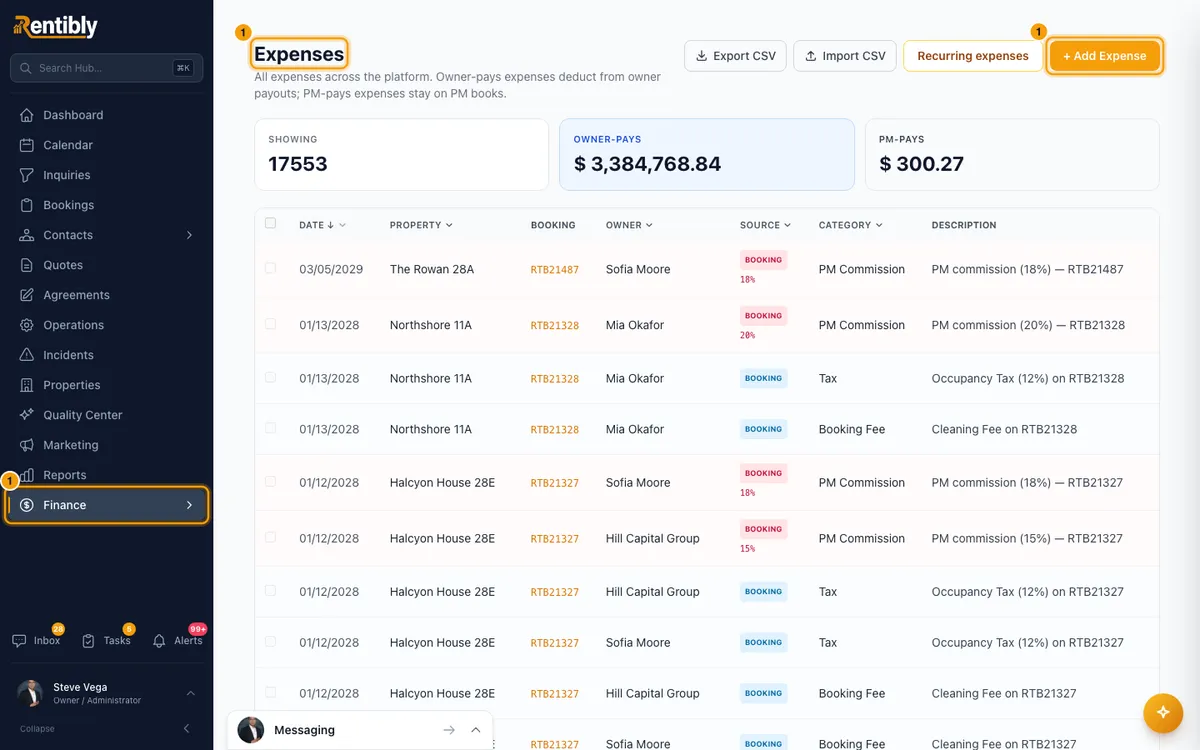
Pick a Property, an Owner, or both. You need at least one.
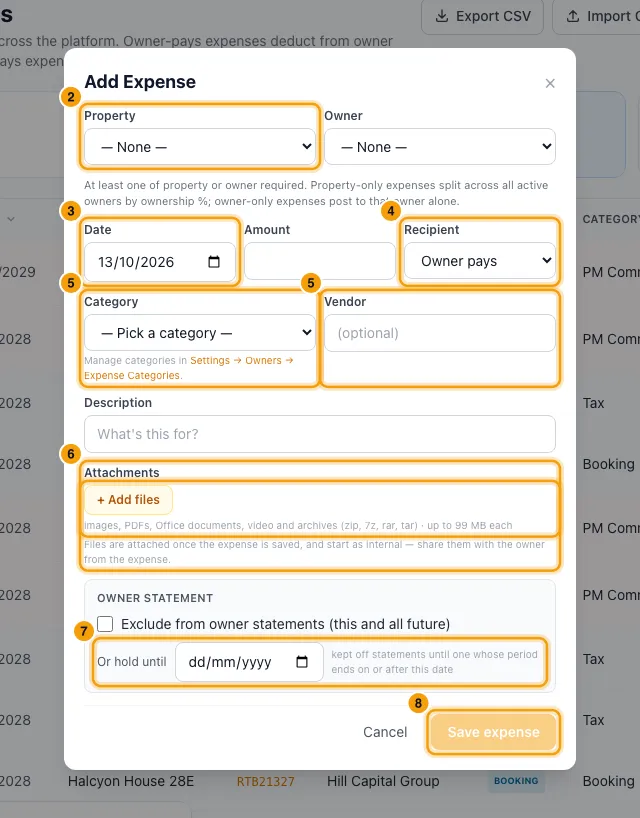
Enter the Date and the Amount.
Set Recipient: Owner pays or PM absorbs. It starts on Owner pays.
Choose a Category. Add a Vendor and a Description if you want.
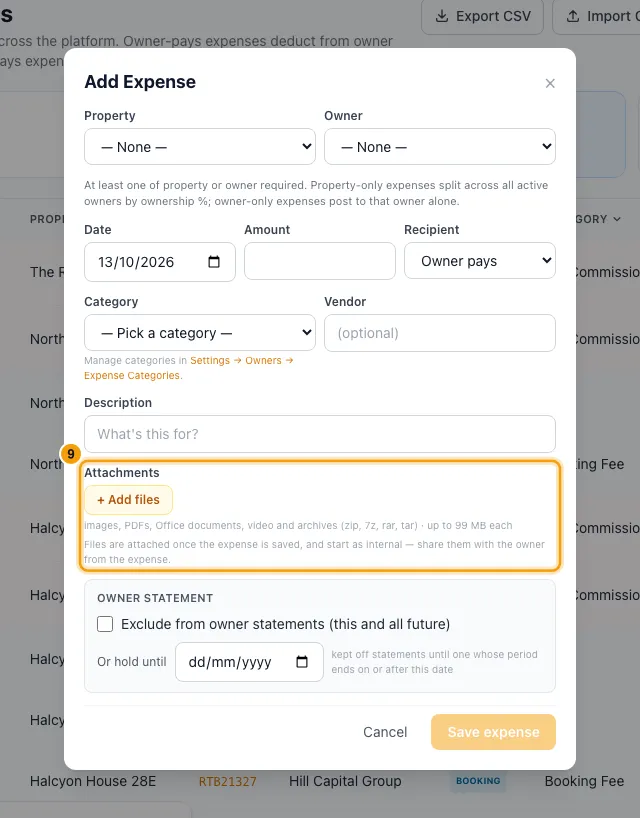
Under Attachments, click + Add files and pick the receipt.
For an Owner pays expense, check the Owner statement box. Leave it as is to bill it normally, tick Exclude from owner statements (this and all future), or set Or hold until to a later date.
Click Save expense. A message confirms the expense and how many files were attached.
To let the owner see the receipt, click the expense in the list. In the Expense window, under Attachments, switch the file from Internal only to Owner-visible. Use + Upload there to add more files later.
Export the list
On Finance → Expenses, set the column filters you want (for example Property, Owner or a date range).
Click Export CSV (on a computer; it isn't shown on a phone).
Good to know
- Who is charged:
- Property and owner picked: the whole amount goes to that owner.
- Only a property: when each owner's statement is built, the expense is split among that property's owners by their ownership %.
- Only an owner: it goes to that owner alone.
- When it reaches the owner: an Owner pays expense appears on the owner's next statement whose period ends on or after its date. If you back-date it into a period that is already approved, it rolls onto the next open statement. Expenses dated before the owner's Rentibly Start Date never appear.
- Exclude from owner statements keeps it off every owner statement.
- Or hold until keeps it off statements until one whose period ends on or after that date.
- PM absorbs expenses never appear on owner statements.
- The owner portal's Expenses follows the same rules: an excluded expense, one held until a date that hasn't arrived yet, and one dated before the Rentibly Start Date don't show there either.
- The owner's balance on Finance → Owner Balances changes only when a statement that includes the expense is approved. Saving the expense, or a draft statement that includes it, doesn't change it.
- The amount can't be zero. A negative amount records a refund or reversal; it shows in green in brackets and lowers what the owner is charged.
- The Property list shows active properties only. The Category list shows your active categories, except Transaction Fee. Manage them under Settings → Owners → Expense Categories.
- Files: images, PDFs, Office documents, video and archives, up to 99 MB each. Every file starts Internal only. Only files switched to Owner-visible show on the owner's statement and on the expense in their owner portal.
- Edit in the Expense window changes Date, Amount, Category, Recipient, Description and Vendor. The property and owner can't be changed: delete it and log it again.
- The Category list in Edit is the same as on Add Expense, plus the expense's own category if it has since been disabled (marked (disabled)). Saving without touching Category leaves it as it was.
- Export CSV downloads every expense that matches your filters, not just the page you see. The columns are Date, Property, Owner, Booking, Source, Category, Fee Ref, Description, Vendor, Amount and Recipient. The button is greyed out while the list loads or when nothing matches.
- You can't edit or delete an expense that is on an approved owner statement. Reopen that statement, or post an adjustment on the next one.
- Deleting an expense that is already on a draft statement does not take it off that draft. The draft can't be approved until you delete it and generate it again; Approve tells you so. The delete message says this too.
- Rows marked Booking, Operation or Recurring in the Source column are created automatically. Clicking one opens where it came from, and you change it there. You also can't delete an expense on a booking that is fully paid out and locked until you unlock it on the booking's Owner Economics tab.
- To delete several, tick them in the list and click Delete. Rows that can't be deleted have greyed-out checkboxes; hover to see why.
- The Owner-pays and PM-pays cards add up every expense matching your filters, not just the page you see.
- If you use Rentibly's API webhooks, saving sends an
expense.createdevent. - You need View on Owners to see expenses and Edit on Owners to add, change or delete them. Adding files needs Files & documents access; switching a file to Owner-visible needs Edit on it.
Rentibly AI can help
- It can log one expense. It asks whether the owner pays or you do, unless you said. It can't attach files this way.
- The category must be one of your active categories (not Transaction Fee). If you name one you don't have, it tells you which ones you do.
- Attach bills or receipts in the chat and it creates one expense per file, with the file attached and owner-visible if you ask. It lists what it read for you to check first.
Still stuck?
Open Support from your profile menu in Rentibly, or email hello@rentibly.com — we answer fast.